Scenario blueprints
In Make, you can save or copy scenarios as Blueprints and share them with other Make users within or outside your organization, or use and reuse them for your needs.
A blueprint is a reusable version of a scenario that includes:
- Scenario modules
- Module settings
- Mapped values
Blueprints help to set up automations quickly, without having to start from scratch. You can:
- Back up your scenarios in case you lose access to or switch to another Make account.
- Export and save a blueprint to reuse a scenario later.
- Share a blueprint with other users, who can then import the file or paste the JSON and run the scenario as-is or adapt it to their specific needs.
- Copy a blueprint and paste it into other scenarios in Make, LLMs, or other relevant platforms.
While blueprints include scenario modules, settings, and mapped values, users still need to create connections for their accounts after importing the blueprint.
Export a blueprint
You can export a blueprint of the scenario as a .json file.
To export a blueprint:
Click Scenarios in the left sidebar. Choose an existing scenario, or click + Create a new scenario, if you need to create the scenario first.
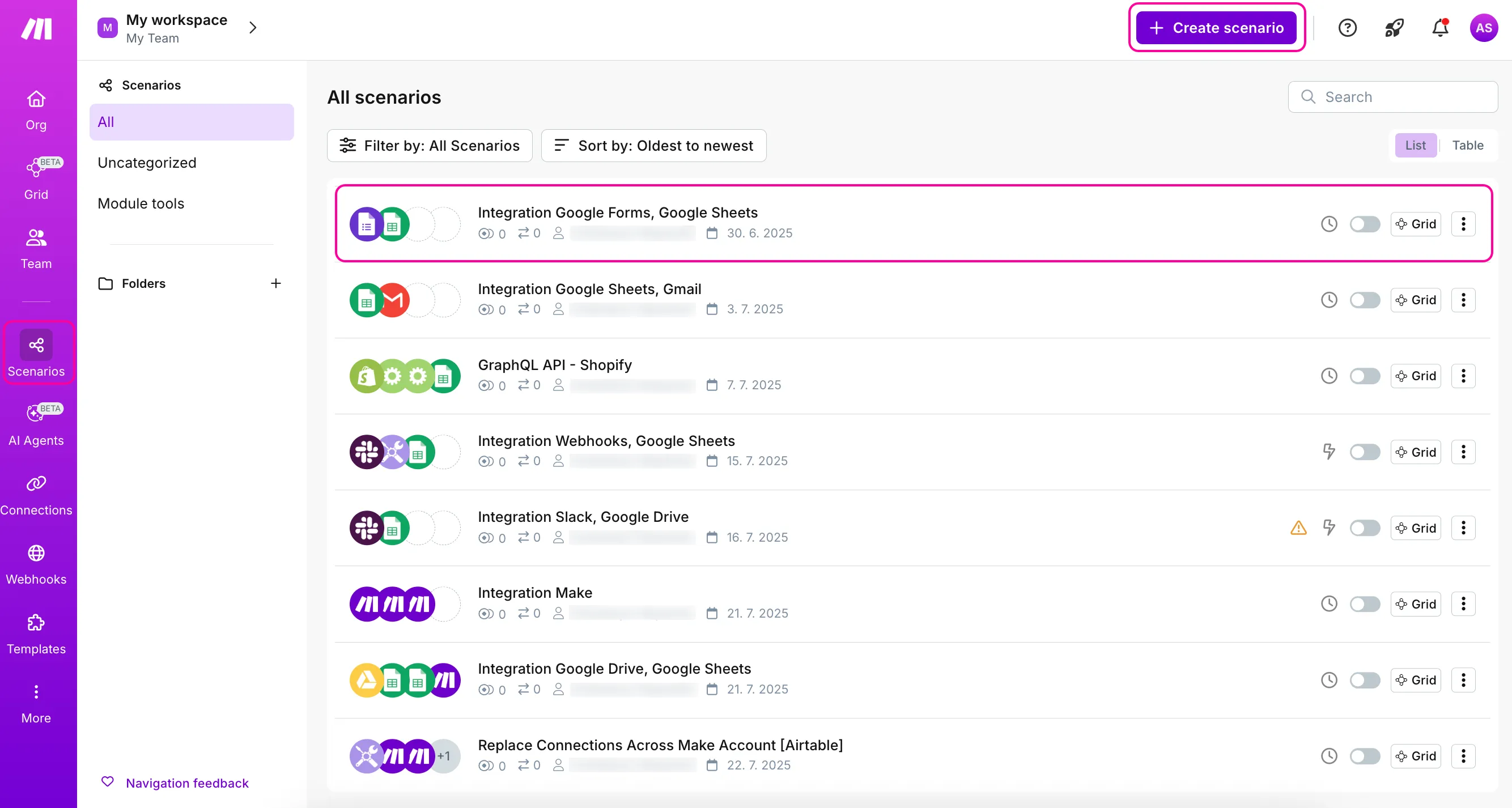
If it's a new scenario, add modules and configure the module settings. If it's an existing scenario, check that all of them are set up correctly.
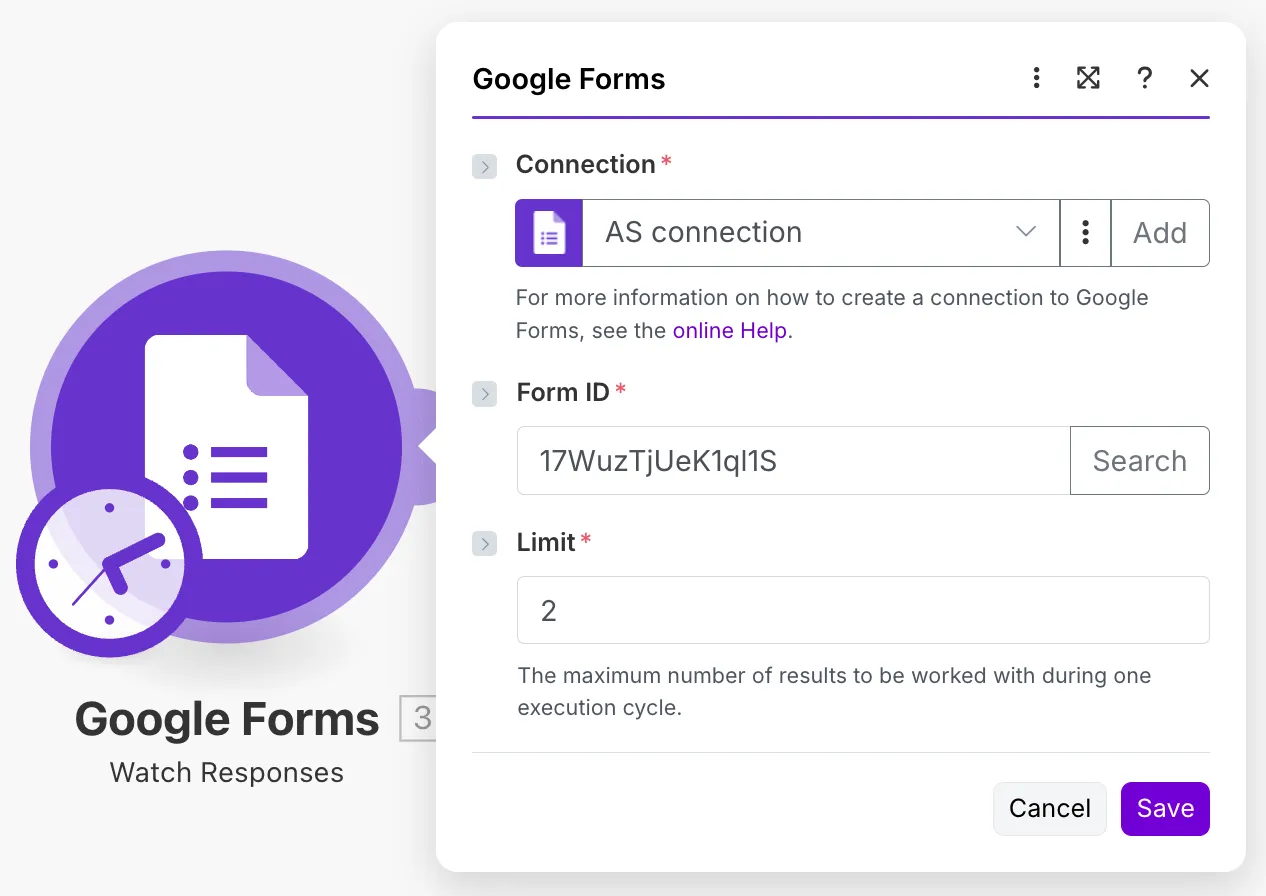
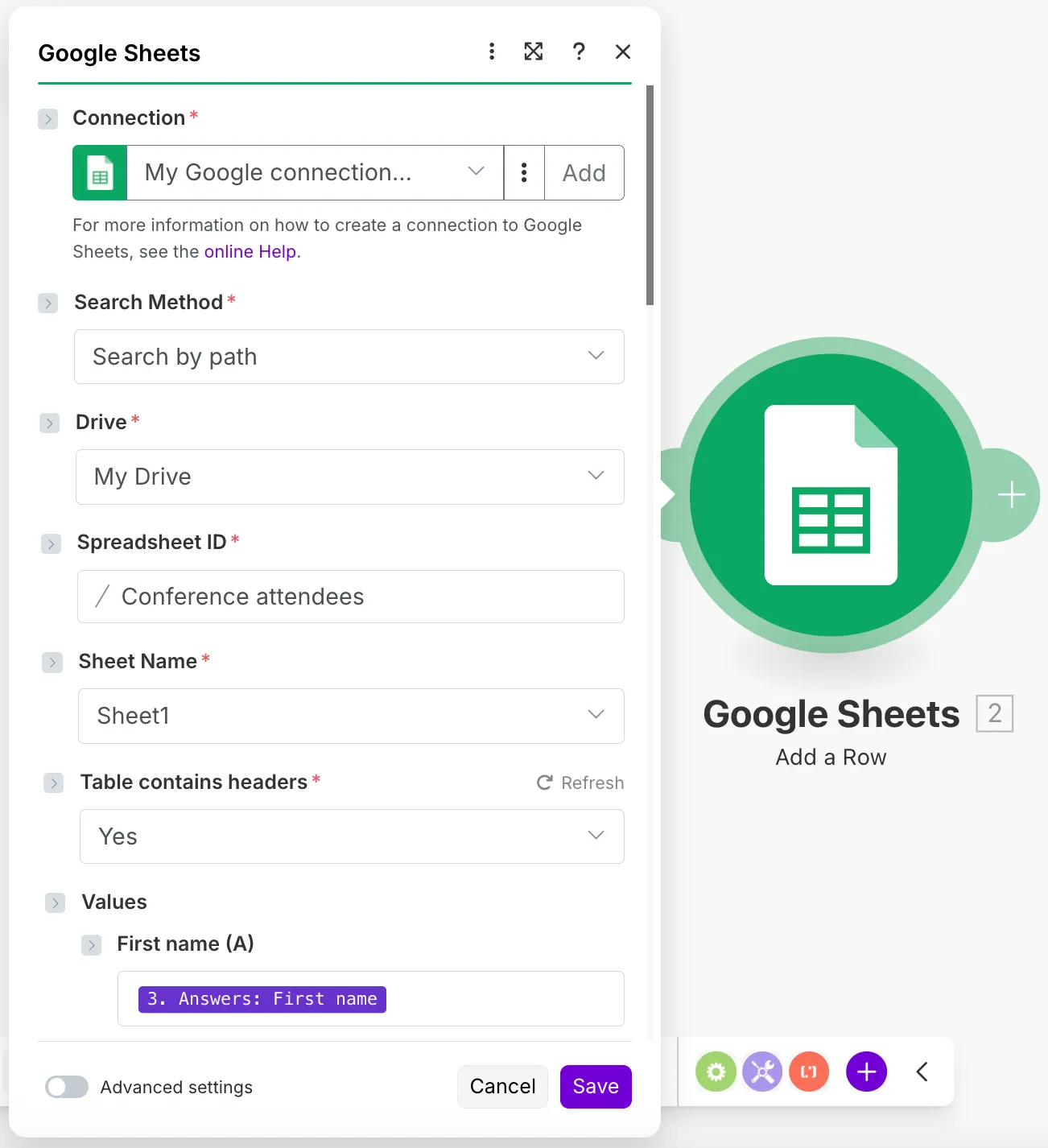
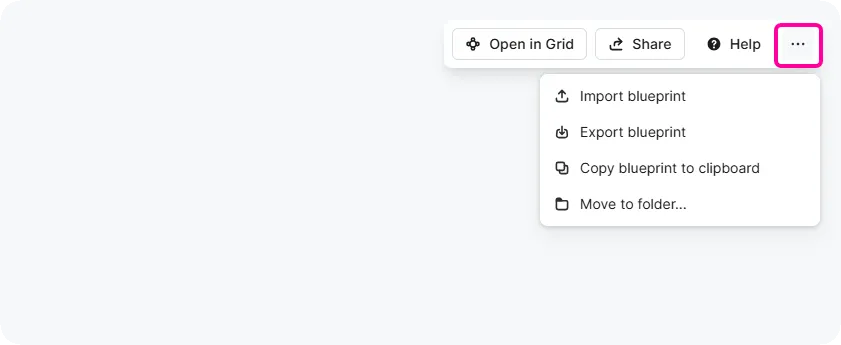
In the upper right corner of the Scenario Builder, click the three dots > Export blueprint.

Once exported, the blueprint downloads to your device as a .json file.

The file is typically named after your scenario. For example:
- If your scenario's name is "New prospect notification", the file will be called New prospect notifcation.blueprint.json.
- If the scenario has a default "New scenario" name, Make names the file after the modules in the scenario, e.g.,Integration Google Forms, Google Sheets.blueprint.json.

You can now share this file with other Make users or keep it for your own future use.
Import a blueprint
We recommend creating a new scenario before importing a blueprint. If you import a blueprint while editing another scenario that hasn't been saved, all the changes in that scenario will be lost.
You can import a blueprint of the scenario saved in .json format.
To import a blueprint:
In the upper-right corner of the Scenario Builder, click the three dots > Import blueprint.
Click Choose File, select the blueprint file in .json format, and click Save.
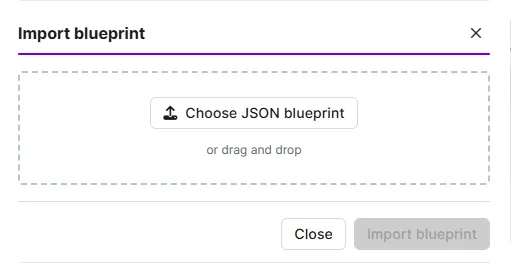
The imported scenario will appear in the Scenario Builder. You can now configure your own account connections, make any necessary edits to the scenario, schedule it, and click the Save icon.
The imported blueprint must be below 2 MB in size. If the blueprint exceeds the scenario size limit, you'll be unable to save the scenario and will see an error message.
Copy a blueprint to a clipboard
You can also copy a scenario blueprint to the clipboard. The blueprint is copied as JSON text, which can be pasted into other scenarios in Make, LLMs, or other compatible tools.
To copy the blueprint to the clipboard, click the three dots > Copy blueprint to clipboard in the upper-right corner of the Scenario Builder.
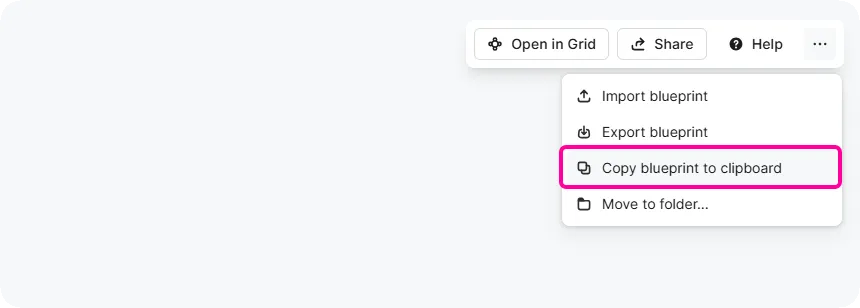
To paste the blueprint into another scenario in Make:
Create a new scenario or open an existing one.
Right-click anywhere on the scenario canvas.
Click Paste.
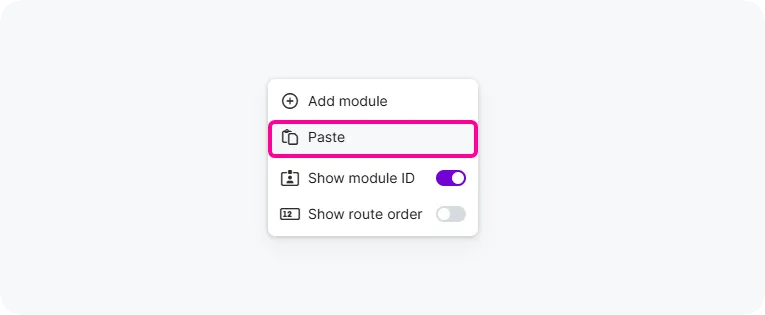
A scenario from the blueprint will appear in the Scenario Builder. You can now configure it, make any necessary edits to the scenario, schedule it, and click the Save icon.
Check out the Make Academy Blueprints course to walk through a use case and see how blueprints work in action.