Introduction to Maia by Make
Maia is available in public beta for all paid plans. On Free plans, she's available for a 30-day trial starting from signup.
Maia is your AI and automation co-worker in the Scenario Builder. She creates scenarios, modifies existing ones, and fixes errors for you using your prompts.
What Maia helps with
Ask Maia to do the following in Make:
- Create scenarios: Describe your goal in the prompt, and Maia builds scenarios and AI agents for you.
- Modify scenarios: Tell Maia to change or expand a scenario, such as updating module settings and adding modules.
- Troubleshoot and debug scenarios: Ask Maia to explain and fix errors as you build. She can see the scenario execution log after you click Run once.
Use Maia
You interact with Maia in a single session. Use the chat to prompt her to create and modify scenarios.
Create or modify scenarios
To create or modify a scenario with Maia:
In Make, click + Create scenario in the top-right corner.
In the chat with Maia on the left side of the Scenario Builder, describe what you want to create or add to an existing scenario.
Before leaving the page, click Save on the Scenario toolbar.
You've created or modified a scenario with Maia.
Revert changes
If you want to revert changes that Maia made, revert to a previous version of a scenario:
Scroll through the chat with Maia and identify a previous version to revert to. For example, "Version 1."
Click Revert to this version.
You've reverted to a previous scenario version.
Clear chat
If you want to start over with Maia in the same scenario, clear the entire chat:
In the chat with Maia, click the three-dot menu in the top-right corner.
Click Clear chat.
You've cleared the chat with Maia.
Continue a previous chat session
If you want to continue your last conversation with Maia, return to the relevant scenario and click Continue where we left off in the chat with Maia. Make stores your chat sessions with Maia for 15 days.
For tips on working with Maia, see Maia by Make best practices.
Memory
Maia automatically creates memories to remember details about how you work, for example, that you use Salesforce and prefer concise explanations. You can add your own memories too.
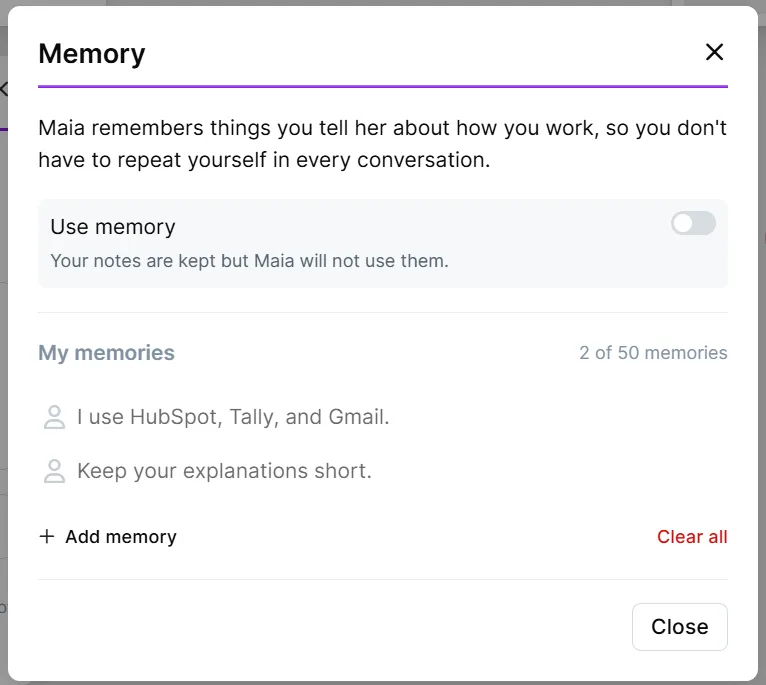
Your memories are private. They're stored in your organization, but teammates can't view them.
What Maia remembers
Maia saves these facts as notes in her memory:
- The apps and accounts you use or avoid using
- How detailed you want her responses to be
- Any non-English language you tell her to use, or use in your first message
She doesn't save these facts:
- Scenario-specific details, such as module IDs and webhook URLs
- Credentials, such as API keys and tokens
- Other people's personal data, such as customer names and other records
When Maia saves a new fact, a clickable Memory updated appears at the bottom of the chat.
Manage memories
To manage your memories, click the three-dot menu at the top of the chat, then click Memory. Alternatively, click Memory updated when it appears in the chat.
In the Memory dialog, you can:
- Add a memory: Click Add memory.
- Edit a memory: Hover over a memory and click the pencil icon.
- Delete a memory: Hover over a memory and click the trash icon.
- Delete all memories: Click Clear all.
- Turn memory on and off: Toggle Use memory on and off.
Limits
Maia stores up to 50 memories of 200 characters each per user, per team. If you belong to multiple teams, you have a separate set of memories in each team.
Once you hit the limit, Maia tells you, then stops saving new facts. Deleting memories creates space.
Credit usage: Each memory adds to the tokens Maia uses per message. Delete memories you no longer need to reduce tokens.
Pricing
The following information is subject to change while Maia is in public beta.
Your chat interactions with Maia, including messages and scenario modifications, consume credits. They draw from the same credit pool that you use for scenarios. Scenario and module runs also use credits.
Availability by plan
If you're on a paid plan, you have unlimited access to Maia and consume credits for usage. As a temporary promotion, your first 70 messages are free for 30 days after your first interaction with Maia. Once you hit the limit or the 30 days end, interactions use credits; you'll see a callout in the chat when that happens.
If you're on a Free plan, you have access to Maia on a 30-day trial basis after signup, with 45 free messages included. Once you hit the limit or the trial ends, upgrade to a paid plan to continue using Maia.
Credit usage for Maia
Each time Maia responds, she uses a different number of credits based on the task complexity and how many tokens her underlying AI model consumes. This cost is the same regardless of your plan.
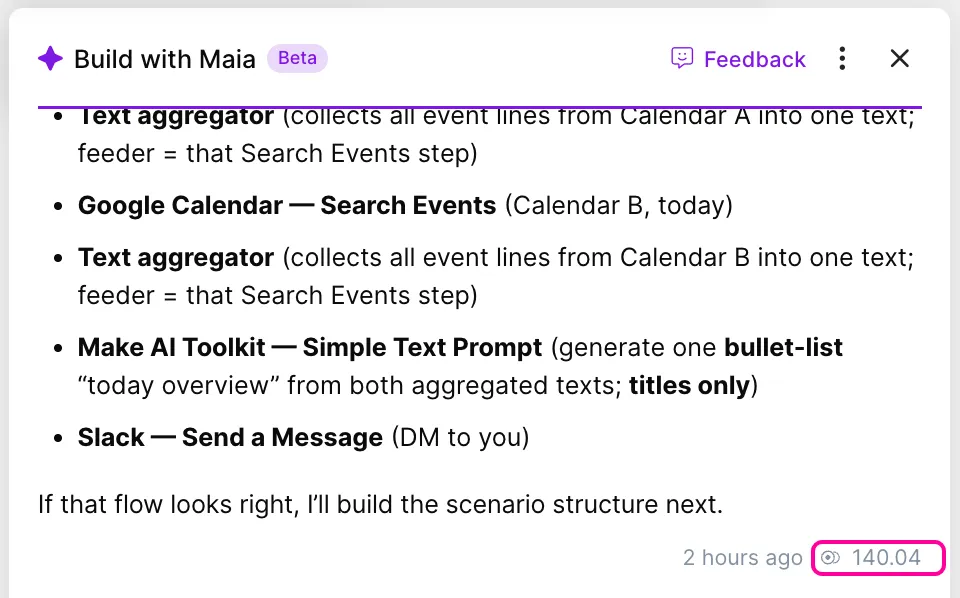
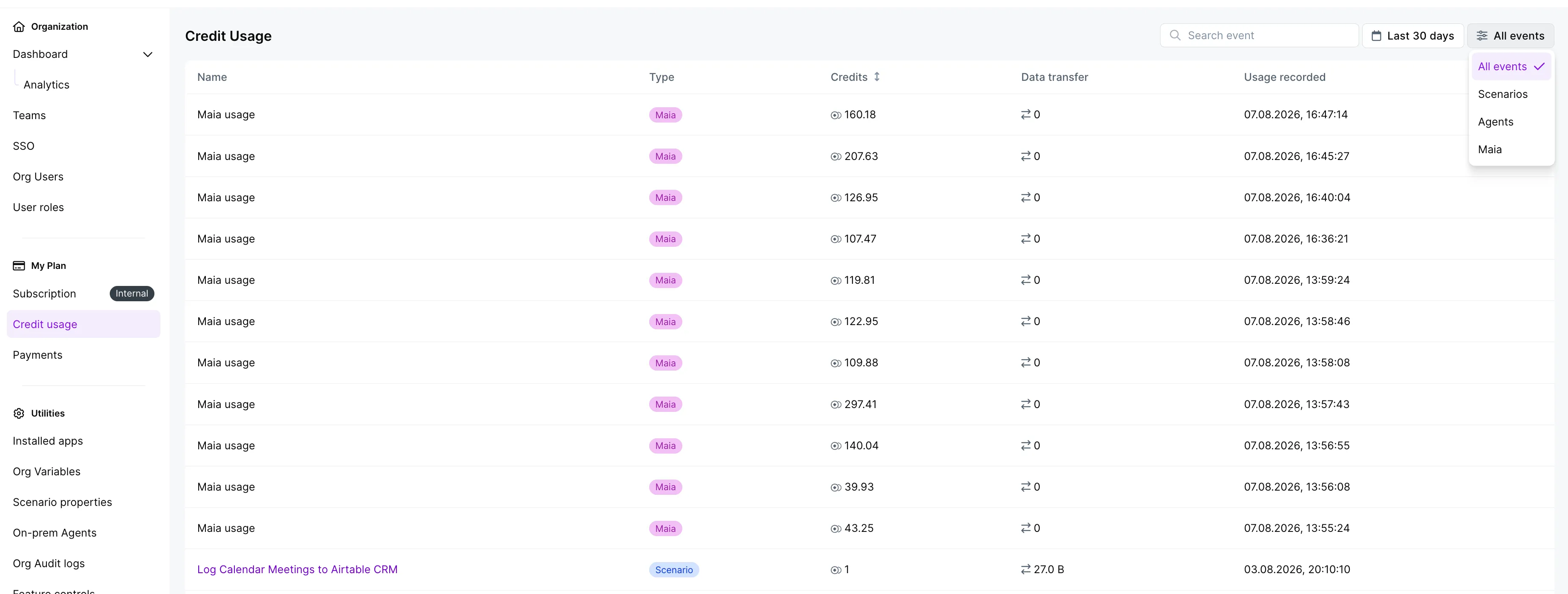
You can see the credits used per message in the chat with Maia or the Credit Usage table:
- In the chat: Credits used appear under Maia's response, next to the credit icon. In the example below, Maia used 140.04 credits to respond to your message.
- In the Credit Usage table: Entries with the Maia label show you how many credits Maia used per message. In the example below, the latest message used 160.18 credits.
To learn more about AI credit usage in Make, see Credit usage for AI features.
Known limitations
Maia doesn’t have the following capabilities yet:
- She can’t view execution logs from past scenario runs, so she’s unable to analyze previous errors. You must explain the error to her yourself so she can fix it.
- She can’t view other scenarios, so she’s unable to:
- Start building from existing scenarios.
- Reference other scenarios’ module configurations.
- Connect to or call scenarios, such as subscenarios or webhooks.
Maia never uses your data to train or fine-tune her underlying model. To learn more about data privacy with Maia, see the Maia by Make system card.