Item data types
When building scenarios, you work with different data types, from simple text and numbers to more complex elements such as collections and arrays. Understanding these types is essential because each field in the module's settings accepts a specific format of information you can enter or map into the field.
Defining the correct data type is important for performing operations with your data. For example, math functions require the number data type, while text operations need the text data type.
Data validation
Make validates the data you provide to ensure that it meets the field's expected format and any additional constraints. If you enter or map an invalid data type, the module will stop processing and return a DataError.
Common validation errors occur when:
- A field expects a number but receives text like “100 units”.
- You try to map a collection such as {“name”: “John”, “age”: “30”, “city”: “London”} into a field that expects simple text.
- A date field receives an improperly formatted string.
Data conversion
Make automatically coerces (i.e., converts) certain data types when possible. This helps your scenario continue running even when data types don't perfectly match (when there are minor type mismatches). For example:
- A Boolean data type mapped into the text field will be converted to "true" or "false" text.
- A number data type mapped into the text field will be converted to text.
Find out more about supported type coercion here.
However, in some cases, this coercion may produce unexpected outputs, which can cause errors later in the scenario. If coercion is not possible at all, Make will also return a validation error. Thus, to avoid such errors and ensure correct scenario execution, use the correct data type from the start.
Data types
You can identify a field's data type by hovering over the name of the field or over the mapped value. Make supports the following data types:
- Text
- Number
- Boolean
- Array
Text
The text data type (also called string) contains letters, numbers, and special characters (@ ? !). It can represent names, emails, addresses, product descriptions, prompts, and other longer texts. Make validates text to make it meet any length requirements.
You can enter text manually or map it:

Number
The number data type contains numerical characters. Numbers can represent quantities, prices, phone numbers, ages, measurements, and calculations. If you don't define your numbers as numbers in some modules, they may be considered a text data type.
Make validates some numerical fields for specific ranges (minimum or maximum allowed values).
You can enter the number data in the corresponding fields manually:

Or map it:

Boolean (Yes/No)
The Boolean data type is used for items with only two possible values: true or false. In Make, it's typically a yes-or-no option:

You can also map the Boolean data type:

Date and time
A date data type is used for dates or date+time. When you click a date field, a pop-up calendar appears in the module settings. The format of the date and time depends on the time zone specified in your Profile settings (Web section > Time zone options).
You can enter the date manually, set it from the calendar, or map it:

How date values are displayed in Make
In output bundles, date and time values are displayed based on the locale and the time zone specified in your Profile settings (Web section > Time zone options).
You can also view a date item's value in ISO 8601 format by hovering over the item. This is the format used when passing the date values through the API to other services.
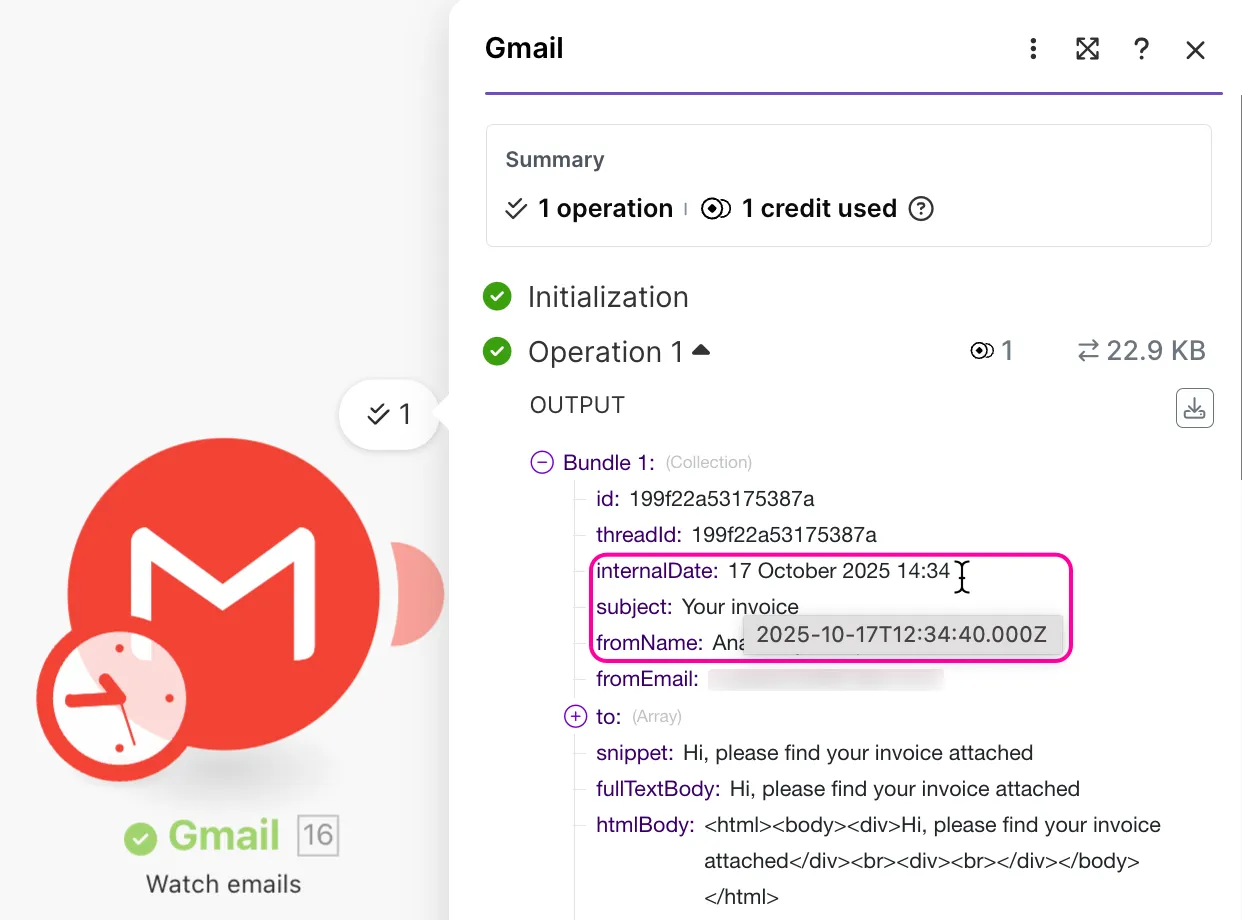
If the ISO value does not show up, the item is not a date but probably text.
Buffer (binary data)
File content is usually sent as a Buffer type (image content, video file, etc.). In some cases, there is text data included in this type (e.g., a text file). Make is able to automatically convert text data in binary code to text (and vice versa).
For example, when you want to include a file as an attachment to your email, the Data field will expect a buffer data type. You can map it from other modules:

For more information on files, see the Working with filesWorking with files article.
Collection
A collection is an item consisting of several subitems, represented as key-value pairs (e.g., "Product": "Dress", "Quantity": "5"). For example, you can set these key-value pairs while creating a JSON string in the Create JSON module:

This will create a collection:

Array
An array is a list of items. These items can be simple values like numbers, booleans, and strings (text), or dates, or collections. For example, you can add a JSON string:

And then map the array into the Array field of the Iterator module:

You will see this array of collections in the input:

For more information about arrays, see: