Keys and certificates
Some apps in Make require you to use private or public keys or certificates for secure authentication and data protection. You have to add them in the Scenario Builder in the module settings of the app that requires a key or a certificate.
Keys and keychains
Keys are used by the Encryptor app in its AES Encrypt (advanced), AES Decrypt (advanced), Create digital signature, Decrypt a PGP message, and Encrypt a PGP message modules.
The SSH app also allows using private keys to create the connection.
Although a different type of key, the HTTP app also saves the credentials you provide for making an HTTP request as a keychain for the API key and Basic Auth authentication types.
Add a key
You should add the keys in the module settings when an app's module requires a public or private key.
Let's take the Encryptor > AES Encrypt (advanced) module as an example. To add a key there, you will:
Create a new scenario or open an existing one.
Add the Encryptor > AES Encrypt (advanced) module.
In the Key field, click Create a keychain.
In the Add new keychain window, enter your key and other details and click Create.

Once you create it and save the module settings, the key is saved in the Keys section. There, you can manage all the created keys.
Edit or delete a key
To edit a key:
In the left sidebar, click Credentials, and switch to Keys.
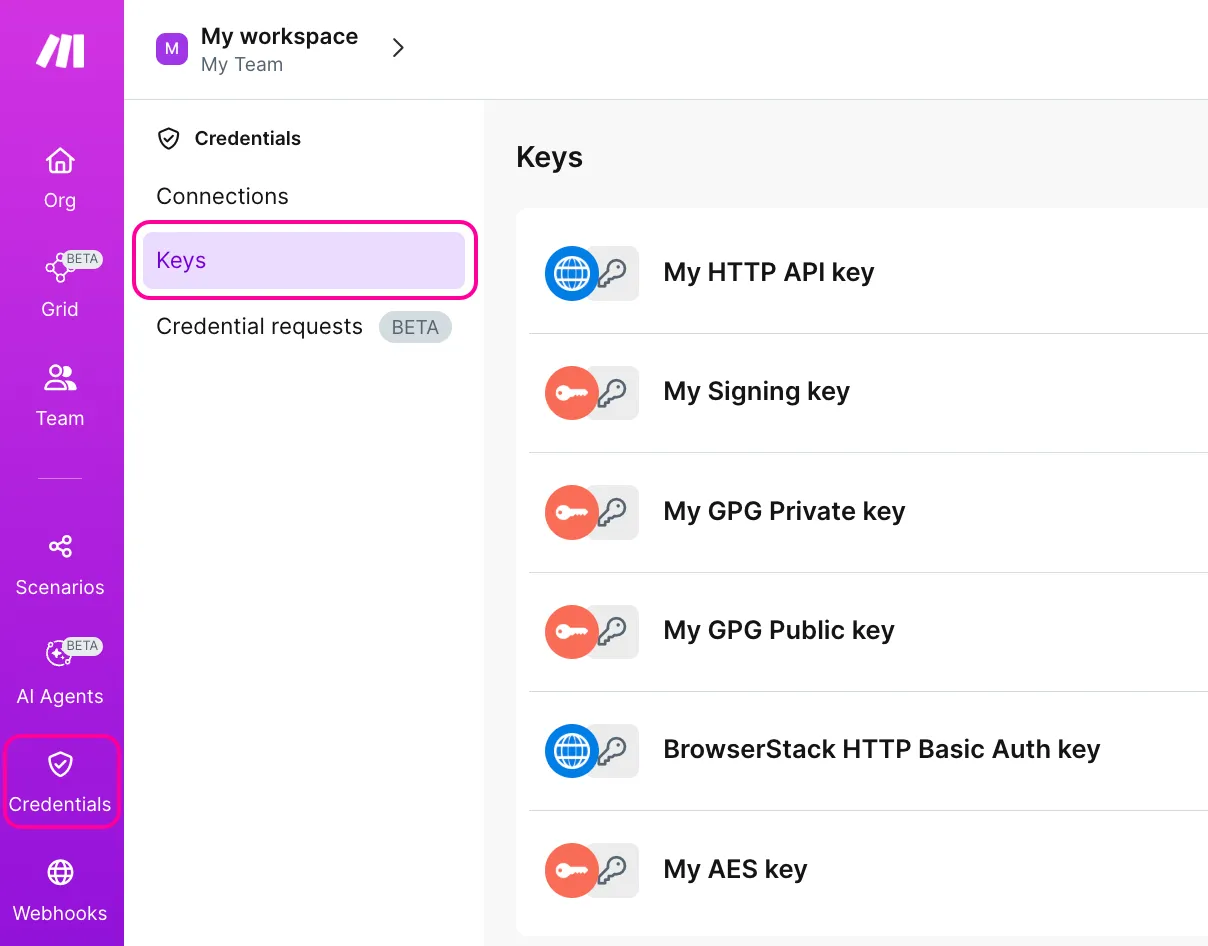
Click the three dots > Edit next to the required key or keychain.
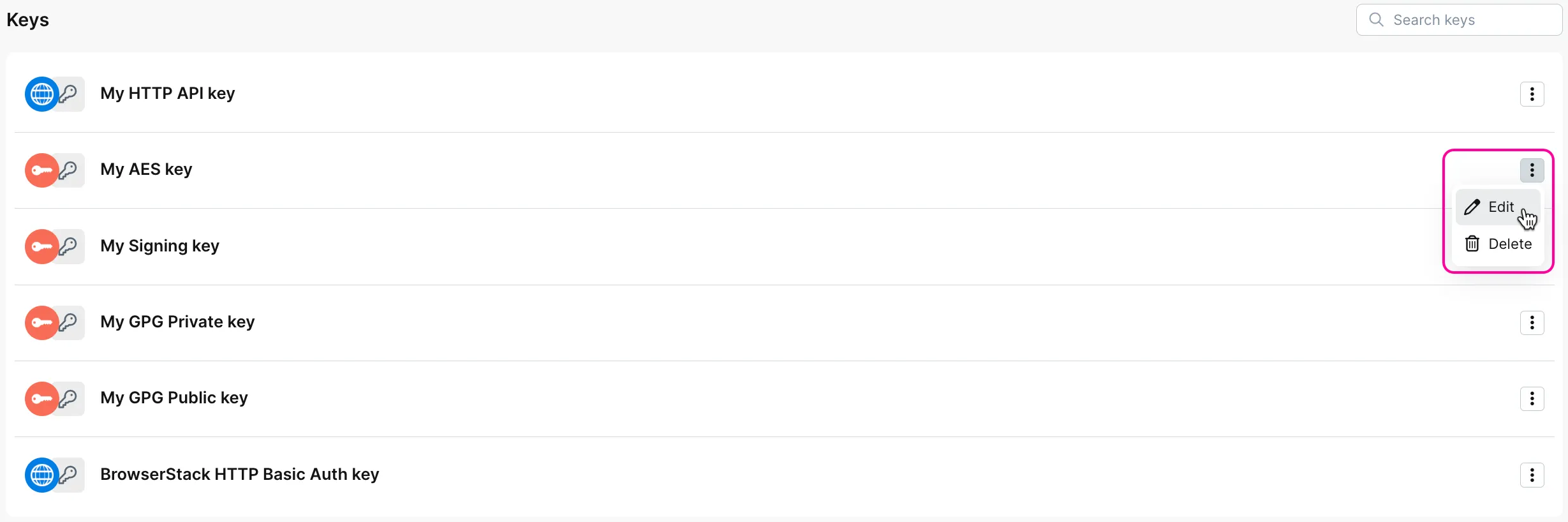
You will see a form where you can edit the key and its details. Once you make the edits, click Save.

Make applies the saved changes immediately. After confirming, the key is updated in all the modules where it's used.
To delete a key:
In the left sidebar, click Credentials, and switch to Keys.
Click the three dots > Delete next to the required key or keychain.
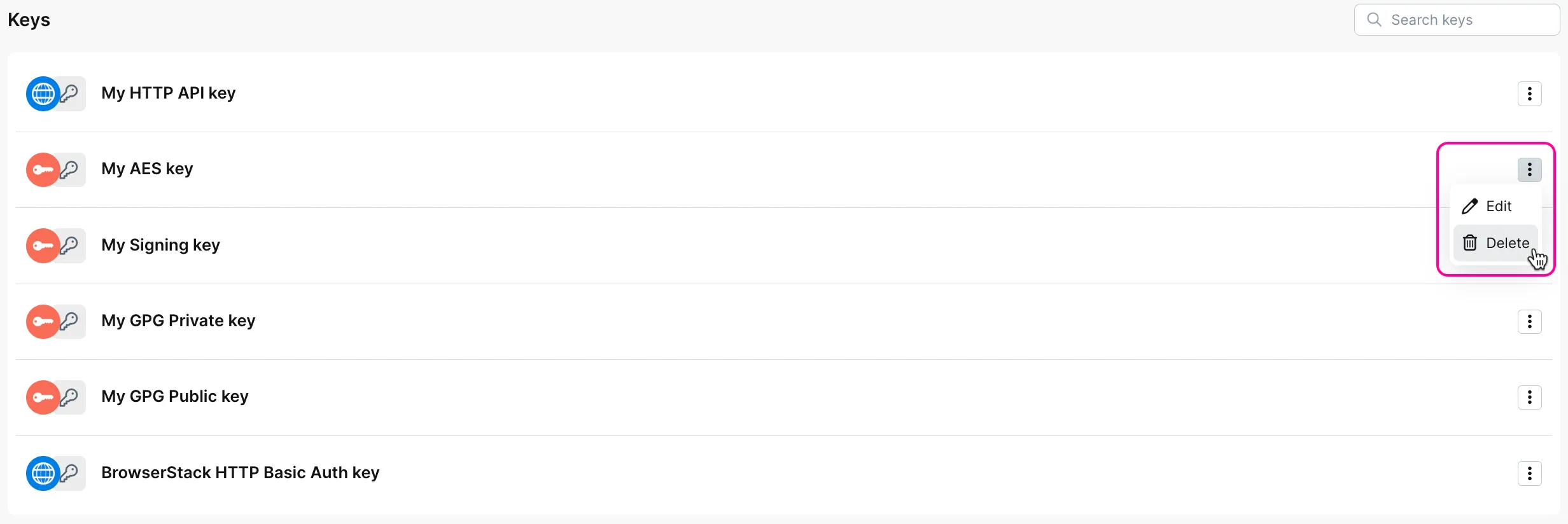
In a pop-up window, click Delete to confirm.
If the key is used in scenario(s), a warning will appear showing the scenario name(s). Click OK to confirm the deletion.
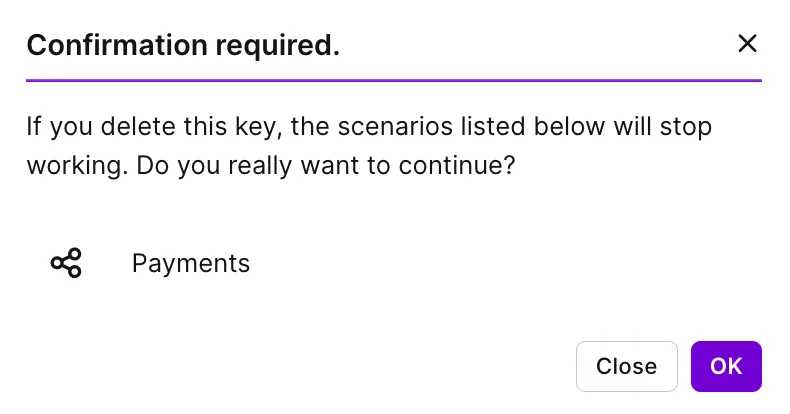
After confirming, the key is deleted from all the modules where it's used.
Certificates
You may use certificates in the SSH app and for configuring SSO in Make.
Add a certificate
Let's take the SSH > Execute a command module as an example. To add a certificate there, you will:
Create a new scenario or open an existing one.
Add the SSH > Execute a command module.
For a certificate:
- In the Connection field, click Create a connection.
- In the Auth type field of the next window, select Username and key.
- In the Private key field, click Extract.
- In the Extract field, choose Certificate.
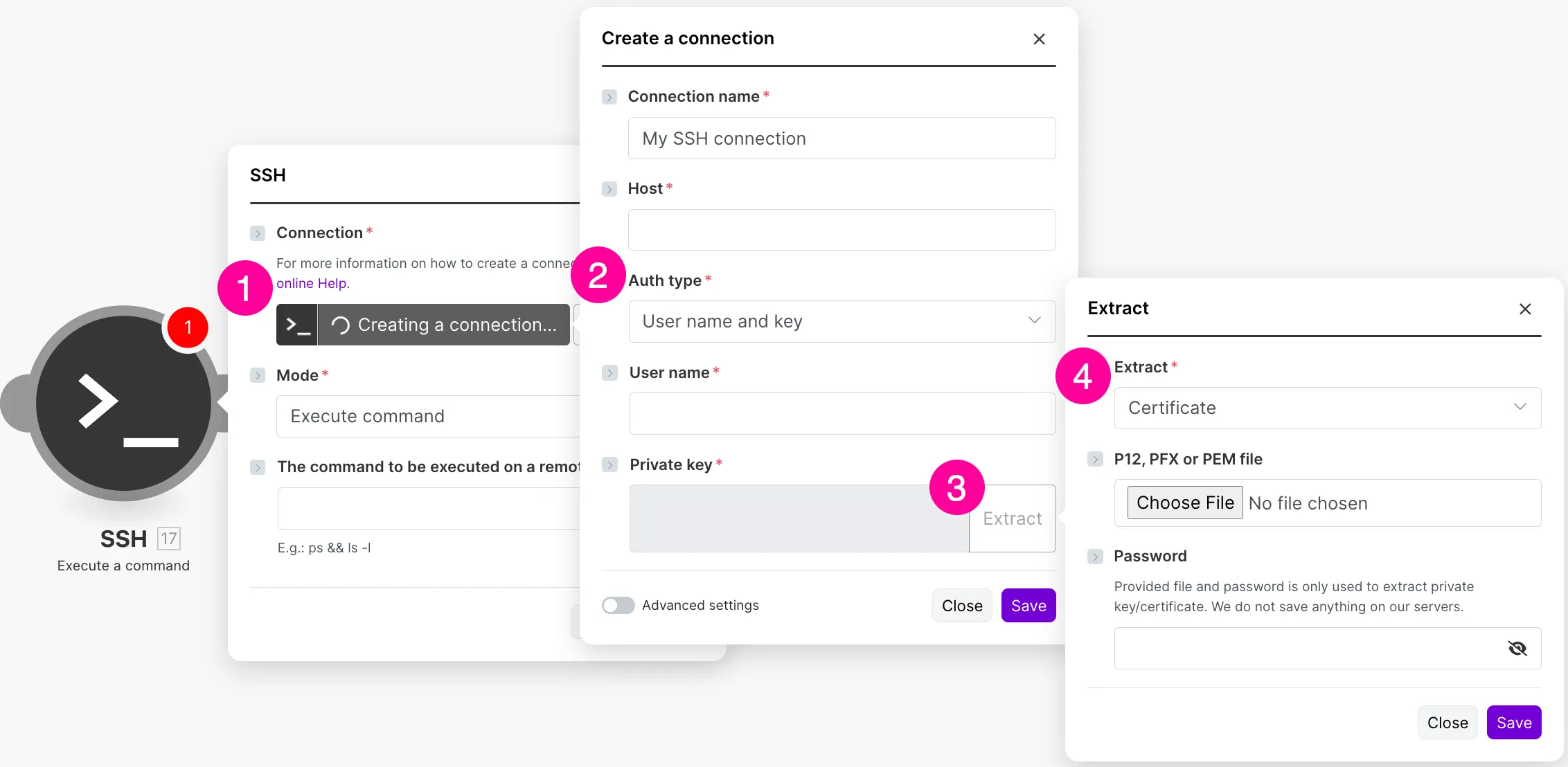
Upload the certificate, add the Password, and click Save.
Then configure all the module fields.
Ways of inserting keys and certificates
There are two ways of inserting a key or certificate:
- Direct insert
- Extract from the file (P12, PFX or PEM)
Direct insert
With a direct insert, you just copy the key and paste it into the required field. For example, for RSA PRIVATE KEY in the SSH > Execute a command module:

OPENSSH PRIVATE KEY is not supported. This has to be converted using the following command in Terminal: ssh-keygen -p -m PEM -f <pathToTheKey>. For Windows, you can use the PuTTy key generator.
Extract from the file (P12, PFX or PEM)
To extract a Private Key or a Certificate, you need to use the key extraction function. This will also allow you to extract the key from encrypted files.
The supported file formats are P12, PFX, and PEM.
Let's take the SSH > Execute a command module as an example. To extract a Private Key or a Certificate, you will:
Create a new scenario or open an existing one.
Add the SSH > Execute a command module.
In the Connection field, click Create a connection.
In the Auth type field of the next window, select Username and key.
In the Private key field, click Extract.
In the Extract field, choose Private key.
Click the Choose File button.

Browse and Open the required file. For example, when you create a Linux Based EC2 instance on AWS, you receive the login credentials in the PEM file:
The file contains the private key that is used to connect to the instance.
This is a private key you will extract from a PEM file.
Once you extract the file, enter the password in the respective field, if needed.
Click Save.
The private key will be exported from your file and will be used to connect to the required service.