Make AI Agent (New) app
Make AI Agent (New) is available on all plans using Make's AI Provider, with the option to use custom AI provider connections on paid plans. While the app is in open beta, product functionality and pricing may change.
Make AI Agent (New) is an app for creating agents, adding their tools and knowledge, and testing them using a chat interface. This article is a reference for the app's modules, module settings, and outputs.
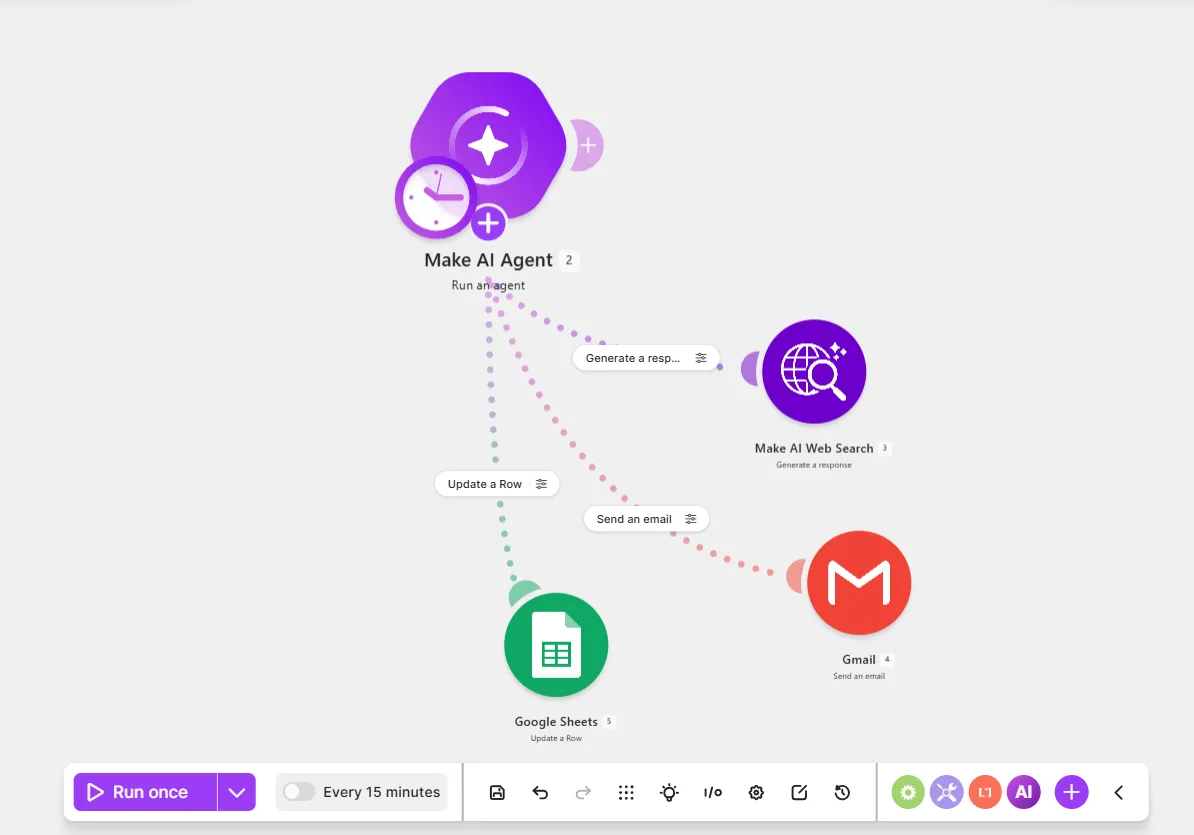
Module settings
Use this section as a reference for Make AI Agent (New) app modules and their settings.
Run an agent
Use the Run an agent app to create agents, add tools and knowledge, and chat for testing purposes.
Below is a reference for key fields in module settings:
Field | Description |
|---|---|
Knowledge | Upload files so your agent has the additional context to tailor its responses to your goals. Knowledge files are typically static, for example, company guidelines, glossaries, and style guides. See Knowledge for knowledge file limitations. |
Add tool | Give your agent tools to perform its tasks (modules, scenarios, and MCP tools). |
Add MCP | Give your agent access to tools from third-party MCP servers. Each MCP server added appears on the canvas as an MCP Client > MCP Tools module. |
Chat | Interact with your agent to evaluate its performance before going live. Send sample tasks and adjust the agent settings based on the results. |
Connection | Select the AI provider that connects your agent to a large language model (LLM). The AI provider available depends on your plan: • Make's AI Provider is available on all plans. • All other AI providers are available on paid plans. |
Model | Select an LLM from your AI provider. Models vary in processing speed, reasoning abilities, token cost, and effectiveness for specific tasks. |
Reasoning effort | Select the reasoning effort level of the model. Higher reasoning improves quality, but uses more AI tokens. |
Maximum output length | Select the percentage of the maximum output length. Lower values use fewer AI tokens, but may cut responses. |
Prompt caching | If your agent uses a supported Anthropic Claude model, select the prompt caching duration. When prompt caching is enabled, the agent reuses stable prompt content, such as instructions and tool definitions, to reduce credit usage and response time. Prompt caching is enabled by default for supported OpenAI models. |
Enable fallback connection | Select a fallback AI provider connection to use if your primary connection fails. |
Instructions | Describe what the agent does, including its role and workflow steps. The agent follows instructions across all tasks. |
Input | Add a specific task or incoming data for the agent to work on. Map data from previous modules, such as chat messages, emails, customer names, and other values. |
Input files | Upload a file for your agent to process with its task. File limitations include: • Make's AI Provider, OpenAI, Anthropic Claude, or Gemini only • A model that accepts files • JPG, PNG, GIF, and PDF for the input files you give the agent • PDF, DOCX, TXT, and CSV for the output files you ask the agent to generate |
Input files > File name | Name your file. |
Input files > Data | Map the file from a previous download file module, such as Google Docs > Download a file. |
Conversation ID | Specify a custom ID so your agent keeps user interactions in the same communication thread and remembers them. Examples include: • A mapped userId to remember conversations with a specific user, in the case of multiple users • A mapped timestamp of the first message or email to remember the entire thread and reply • A unique combination of characters to remember your requests If you leave this field blank, your agent generates a unique ID for each scenario run and has no memory of previous communication. |
Steps per agent call | Enter the maximum number of times the agent calls the model per request. |
Maximum conversation history | Define the maximum number of replies the agent remembers in a conversation. |
Step timeout | Enter the maximum number of seconds an agent runs in each step before it fails. The maximum timeout is 600 seconds (10 minutes). If you leave this field blank, the timeout defaults to 300 seconds (5 minutes). |
Enable compaction | Select whether to compact the conversation when it exceeds the context window. |
Response format | Specify the response format that the agent returns. |
Response format > Text | Returns a response in text format. |
Response format > Data structure | Returns a response in a custom format, either as output items (Add item) or as a content type, such as JSON (Generate). |
Output
The Output tab of the module output shows the agent's response and execution metadata. To open it, click the output bubble of a module, go to the Output tab, and expand fields in the input and output bundles.
Below is a reference for key fields in the output:
Field | Description |
|---|---|
Response | The agent's answer to the user request. Map the response to other modules to use it elsewhere. |
Metadata | The agent's execution steps and token usage summary. |
Metadata > Execution steps | The agent's decision-making process in chronological order. Each step describes factors such as the role behind the step, the tool used, and the tokens consumed. |
Metadata > Token usage summary | The tokens used in a single run, including Prompt tokens (input), Completion tokens (output), and Total tokens. |
Reasoning
The Reasoning tab of the module output shows how the agent processes data and responds to requests step by step. To open it, click the output bubble of a module and go to the Reasoning tab.
The tab includes:
- The instructions and inputs the agent used to generate a response.
- The agent's processing speed in seconds.
- How much of the context window was used.
- What the agent was thinking, in cases when a reasoning model is used and the task requires deeper reasoning.
- Whether a primary AI provider connection failed and a fallback connection was used.
Context usage
Context usage in the Reasoning tab shows how much of your model's context window was used in a scenario run.
The context window is the maximum amount of data a model can process in a single run. Your AI provider sets this limit, and it varies by model. Context usage is measured in tokens.
To check context usage, hover over the Context usage icon next to Agent response. For example, 575/400.0k tokens (0.1%) means 575 tokens of the 400,000 available tokens were used (0.1%).
You get an error message when the context window is exceeded. To resolve it:
- Upload a smaller file.
- Upload the file as a knowledge file.
- Reduce the number of tools or use different ones.
- Define a maximum number of replies to use as context in Maximum conversation history in the agent's Advanced settings.