Make AI Agent (New) best practices
Agents need a well-designed setup and instructions to perform as expected. In this guide, discover tips for building AI agents in Make, such as tool naming, prompting, and data access.
Tools are your agent's hands and actions. They give your agent the capabilities to perform its tasks by connecting to third-party services, such as apps and MCP servers.
Tool names and descriptions
Your agent chooses the right tool for a task based on its name and description. When adding a tool, clearly describe what the tool does and when to call it. For example:
- Tool name: "Add customer email to spreadsheet."
- Tool description: "Adds a new customer email address to the Customer Contacts spreadsheet. Do not add if email address is invalid or already exists."
Additionally, in the agent's Instructions or Inputs, specify correct tool names and when to call the tools.
Tool inputs and outputs
Define tool inputs and outputs to help the agent understand the data to pass into tools and the data that they return to the agent.
When your tool is a scenario, you define inputs and outputs automatically when you build the scenario.
These are examples of input and output items:
- Input items: Customer email address, first name, last name, email body, and row ID from a spreadsheet
- Output items: Email timestamp and success status
In Instructions, add tool input and output examples so the agent has a reference for the data you expect to receive.
Sample input and output examples
Example input:
{
"subject": "Meeting Reschedule Request",
"email_address": "[email protected]",
"content": "Hi, I need to reschedule our 2pm meeting today. Something urgent came up. Can we do tomorrow at the same time?",
"sender_name": "Sarah Johnson"
}
Example output:
{
"response": "Subject: Re: Meeting Reschedule Request\n\nHi Sarah,\n\nNo problem at all - I understand things come up! Tomorrow at 2pm works perfectly for me.\n\nI'll send you a new calendar invite shortly. Looking forward to connecting then.\n\nBest,\n[Your name]"
}
Tool output validation
If you want to approve a tool's output before the agent continues to the next step, add a tool that sends the output to you to review.
In the agent's instructions. explain this extra step. For example, instruct the agent to send the email from a Gmail > Draft an email module to you on Slack using a Slack > Send a message module. Reply to the Slack message to confirm the draft or request further changes.
Instructions are like a briefing document for your agent. A vague or incomplete briefing creates more opportunities for unpredictable results.
Items to include
To help your agent perform as expected, include these items in your instructions:
- All steps that the agent takes to complete its tasks
- Tools that the agent calls at each step, including their names and what they do
- Knowledge files to reference at each step and what they contain
- Guardrails that define expected and undesirable behavior
- Examples of inputs and outputs, including their expected formatting
- Examples of exceptional situations and how to respond
Formatting
Organize your agent's instructions with headers, bullet points, or numbered lists so that your agent can easily understand them. Optionally, to make them even clearer, use an LLM to rewrite your instructions in Markdown.
Example
The following is a simple example of agent instructions to use as a template:
LEAD QUALIFICATION AGENT
You autonomously process inbound leads, research companies, and draft personalized email responses.
INPUTS
- sender_email: Lead's email address
- sender_name: Lead's name
- email_subject: Email subject line
- email_body: Email content
- thread_id: Gmail thread ID
AVAILABLE TOOLS
- research_lead_information: Research companies
- get_freebusy_information: Check calendar availability
- create_email_draft: Create Gmail draft (HTML format required)
WORKFLOW
1. EXTRACT COMPANY INFO
- Get domain from sender_email
- Identify company name and sender details
2. RESEARCH THE COMPANY
Call research_lead_information to gather:
- Industry and company size
- Products/services offered
- Recent news or funding
- Potential pain points
3. QUALIFY THE LEAD
Assign a score based on:
- HIGH: Target industry + clear budget + specific inquiry
- MEDIUM: Relevant industry but unclear fit
- LOW: Outside target, generic inquiry, or spam-like
4. DECIDE ON THE MEETING
Propose meeting if:
- HIGH qualification score
- Clear business opportunity
- Specific request or need
- Near-term timeline
Skip meeting if:
- LOW score or generic inquiry
- Information-only request
- No commercial intent
5. GET MEETING AVAILABILITY (IF MEETING WARRANTED)
- Call get_freebusy_information
- Find 2-3 slots in next 3-5 business days
- Prefer 10 AM - 5 PM Berlin time
6. DRAFT PERSONALIZED RESPONSE
Include:
- Personalized greeting
- Reference their specific inquiry
- Show company knowledge
- Provide relevant value
- Clear next step or meeting proposal
7. CREATE DRAFT
Call create_email_draft with HTML-formatted body:
GUARDRAILS
- Execute fully autonomously
- ALWAYS research before deciding
- ALWAYS call create_email_draft for every lead
- Use HTML format for email body
- Personalize every response
Knowledge is information that your agent references to tailor its responses to your goals. It typically consists of files with information that rarely changes, such as your internal guidelines and processes.
What to use as knowledge
Knowledge files contain information that the agent uses across all tasks, for example:
- Company guidelines
- Internal knowledge bases, such as Confluence pages
- Support tickets
- Community posts
- Slack conversations
- Style guides
- Brand guidelines
Upload files that reflect what you want the agent to reproduce in the results.
What not to use as knowledge
Avoid uploading the following information as knowledge:
- Vague information that the agent can interpret in different ways
- Sensitive data, such as customer information and billing details
- Information that changes frequently, such as client directories
- Unrepresentative or poor-quality examples
Consider the garbage in, garbage out (GIGO) principle: lower-quality inputs lead to similarly flawed outputs.
A model refers to a large language model (LLM). When you configure your agent, you have many LLMs to choose from, each with varying costs depending on factors like processing speed and reasoning abilities.
Start with a large, advanced LLM, such as Make AI Provider's Large model. Test the agent multiple times to see how well the model works for you. Once you know what good performance looks like, scale down gradually to other LLM types.
When deciding on an LLM for an agent, keep these factors in mind:
- Cost: The cost of input and output tokens used to process data sent to the LLM (inputs) and to generate responses (outputs).
- Speed: Faster models are ideal for chat-based or real-time tasks due to their quick reactivity, while slower models are best for complex tasks that require advanced reasoning.
- Tasks: Smaller models can handle simple categorizing or routing, while more advanced models are required for complex decision-making or multi-step reasoning.
Ultimately, the right LLM depends on your goals. Some LLMs excel in specific areas, such as writing and coding, while others are skilled generalists. Refer to your AI provider documentation to check how it classifies its models in these terms.
You can define how your agent formats its outputs, depending on the task.
Response format
You can define how your agent formats responses in the Response format field of the Run an agent module.
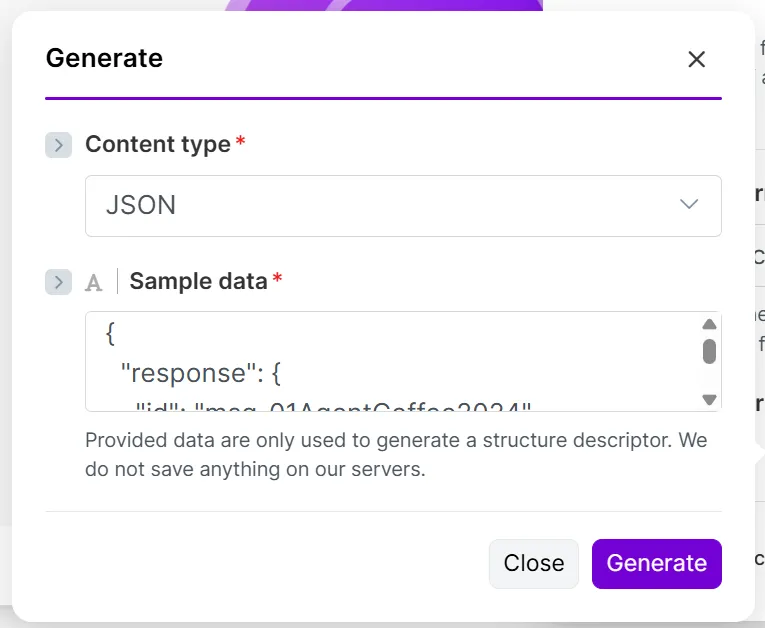
Select Text to return a text-based response, or Data structure to define a custom format. In Data structure, define individual data items (Add item). Alternatively, specify a content type (Generate), such as JSON or XML, for example:
Files
You can instruct the agent to output uploaded files or text in a specific format. In the Run an agent module, in Instructions or Input, ask the agent to convert text or an uploaded file to a PDF, DOCX, TXT, or CSV format.
Agents rarely perform as you expect them to when you first run them, so you'll need to test them multiple times. After running the scenarios, resolve issues by improving the instructions, checking the agent outputs, and changing your tool names and descriptions.
AI-improved instructions
Most errors or unexpected results come from unclear or misleading instructions. Improve prompts using LLMs like ChatGPT and Claude instead of editing them manually.
Request an update to the prompt based on this information:
- Your current instructions
- The execution steps in the agent's output
- What the agent was thinking at each step from the Reasoning tab of the agent's output (if available)
Add your new prompt to Instructions and run the agent again. If needed, repeat this process until the agent works as expected.
Output debugging
After your agent runs, review its outputs to understand why and how it made its decisions.
View the agent's reasoning for step-by-step logic
In the Reasoning tab, check what the agent did at each step, including inputs and tools used. You can also view its thinking when you're using a reasoning model, and the agent decides that a complex task requires deeper reasoning.
View outputs for results and execution details
In the Output tab, expand output bundles to check the agent's response in Response. In Metadata, expand the Execution steps to view all steps in the agent run, including the role, tools, and data involved.
Once you understand how the agent made its decisions in its output, you can improve its instructions or tools.
Tool debugging
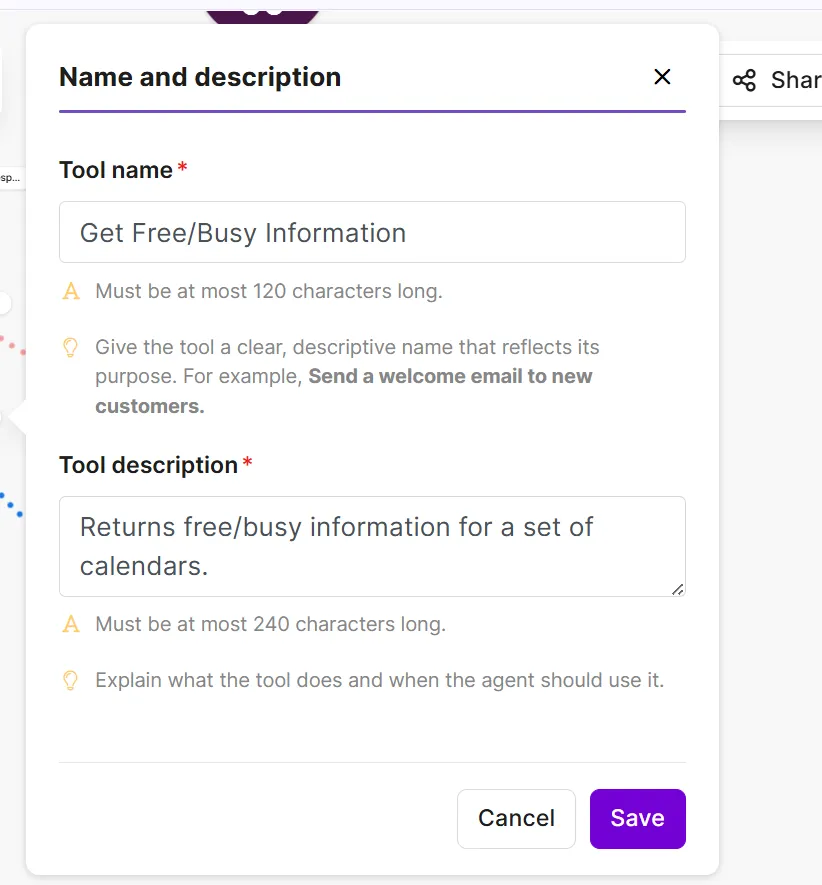
If tools return errors, or the agent doesn't call them when expected, change your tool names and descriptions.
To do this, click the handle next to the tool and edit the Tool name and Tool description fields. Once done, edit the agent prompt (in Instructions or Inputs) where the tool is mentioned to match the tool name.

The large language models (LLMs) behind your agent are evolving systems that are vulnerable to risks, such as Personally Identifiable Information (PII) disclosure in outputs and prompt hacking. Assume that anyone could access the information you share with your agent, including its tool data and knowledge.
Limit access to information
Agents only use the personal data that you provide through prompts, tools, knowledge, and files. To reduce data security risk, only give your agent the data that it needs to do its job. Avoid exposing it to sensitive or non-essential information.
For example, allow your agent to export the free/busy slots of your calendar rather than the entire calendar.
You can map data into the agent's tools instead of directly exposing it to the agent for additional security.
Set clear guardrails
To control how your agent handles your data, set clear expectations for desired and undesirable behavior in Instructions, such as:
- Limiting engagement with off-topic queries
- Avoiding sharing sensitive information in outputs
- Flagging harmful or unsafe inputs
- Prioritizing internal knowledge bases as references
- Prompting a human to validate outputs
However, agents could still behave unpredictably and ignore or misinterpret your explicit guardrails. Choose your data with this assumption in mind.
Agents use tokens to process inputs and return outputs. Reduce token usage by limiting the amount of data they handle.
Limit data scope
Reduce the information an agent processes by restricting its inputs and outputs.
To limit the data handled in requests:
- Filter inputs, such as narrowing a database search to a specific date or field, mapping a specific value instead of an entire file, or adding a filter in the route before the agent.
- Filter tool outputs by selecting only the fields you need returned to the agent.
- Upload reference files as knowledge so that the agent only retrieves relevant information.
Limit conversations in memory
When the agent uses the same conversation ID, the conversation history grows larger with each exchange and requires more tokens to process. Leave the Conversation ID field blank to reduce the conversation history passed to the agent and lower token usage.
Use the right tools
Use sub-agents as tools when the task requires its own reasoning and tools, and non-agent tools (a module, scenario, or MCP tool) in all other cases. Sub-agents use extra credits to add their own reasoning.