Make Managed Services (MMS) user guide
Make Managed Services (MMS) is a product offering that enables easy, scalable management of child organizations. You can manage child organizations in the Make platform or with the Make API.
In this user guide for organizations enrolled in MMS, you will learn how to create and manage child organizations, allocate credits across child organizations, and manage roles.
- Suggested reading: Make Managed Services (MMS)
Create child organizations
To link a client's organization to your distributor organization in Make, you will create a child organization.
To create a child organization:
In the left sidebar, navigate to Org management for your selected organization.
Click Child organizations.
In the dialog box, enter the following information about the child organization:
- Organization name
- Region
- Country
- Owner name
- Owner email
The child organization owner can be from the distributor organization or child organization. Only the owner can open the child organization from MMS. Enter the email address of the person who can have this access. Learn more in manage child organizations.
In Credits for child organization, enter the number of credits the child can use. Credits must be in increments of 10,000.

Click Create.
You have now created a child organization.
You can also create a child organization using the API.
Manage credits
After creating a child organization, you can update its allocated number of credits anytime.
Allocated credits must be in increments of 10,000 (10,000, 20,000, 30,000, and so on).
Your distributor organization deducts credits allocated to child organizations from its total available credits. For example, if your organization has 500,000 total credits, after allocating 10,000 to a child organization, it will have 490,000 remaining credits.
To update allocated credits:
Identify the child organization to update.
Click on the drop-down arrow next to Open.
Click Update credits.

Enter the new amount.
Click Save.
You have now allocated the child organization's credits.
You can also update the child organization credit allocation using the API.
Overview of child organization consumption
For every child organization, you can see the number of consumed credits vs allocated credits and the data transfer.
To view the consumption of child organizations:
In the left sidebar, navigate to Org management for your selected organization.
Click Child organizations.
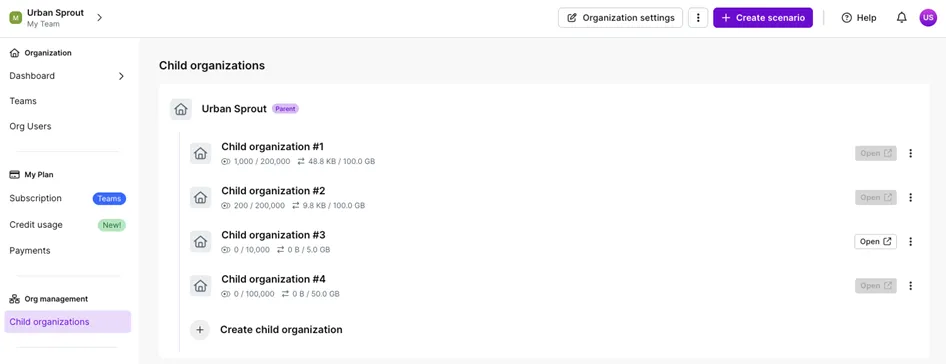
You will see all the child organizations for your selected main organization.
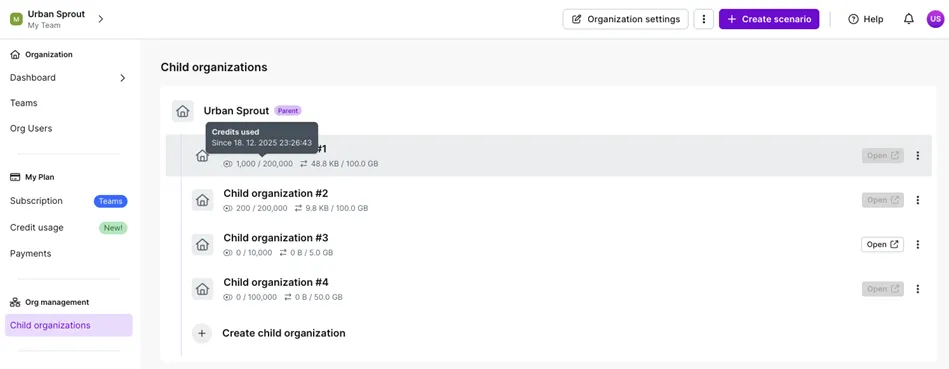
Hover your mouse over the credit usage of a child organization to see more information.
Hover your mouse over the data transfer of a child organization to see more information.
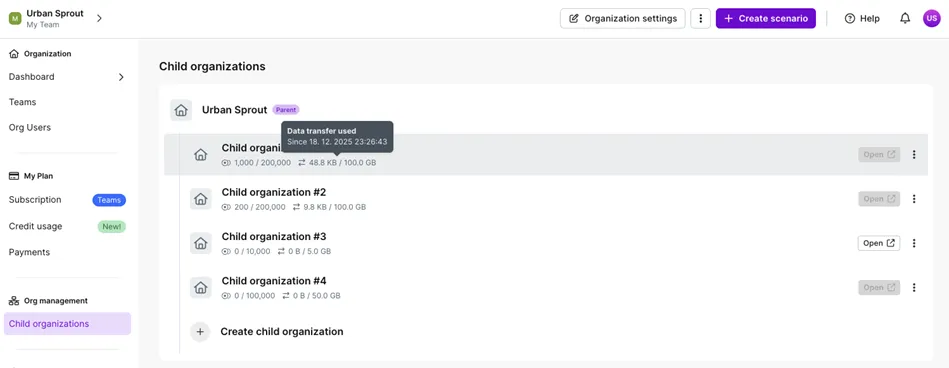
You can view the consumption for all child organizations for the selected organization.
Manage access to child organizations
When you create a child organization, the email address designates the organization's owner. Only owners can access child organizations through MMS. If you enter your own email, you can open the organization from MMS. If you enter the email of a member of the child organization, you are unable to open it.
To access a child organization's account through MMS as a non-owner, you will need an invitation from the child organization to join their organization.
To invite you, a child organization will:
Click Organization.
Click Org Users.
Click Invite a new user.
In the dialog box, fill in your details, including your role in their organization.
Click Save.
You will receive an invitation email with an Accept invitation button. Invitations expire in 7 days. When you accept the invitation, Make adds you to the organization.
Access with Single Sign-On (SSO)
If a child organization has enabled Single Sign-On (SSO), they need to create a user account for you via their SSO provider to access their organization.
SSO process and requirements are identical to the standard at Make. Review Single Sign-on for details.
Manage child organizations
Depending on the situation, you can transfer ownership to a member of the child organization or unlink the organization.
Transfer ownership
Organization owners can manage and access the organization's scenarios, data, and teams. If you were the owner when creating a child organization, you can transfer ownership to a member of the child organization upon request.
To transfer ownership:
In the left sidebar, click Organization.
Next to Organization settings, click the three dots to expand the menu.
Click Transfer ownership.
Select the organization member you want to be the owner of the organization.
Click Save.
Once the member accepts the invitation, ownership will be transferred. A purple pop-up confirms that ownership has been transferred.
Unlink organizations
When you discontinue a partnership with a client, you can permanently unlink its child organization from your distributor organization.
When you unlink a child organization:
- You lose the ability to see and manage the unlinked organization.
- The unlinked organization's used and unused operations return to the distributor organization's total operations.
- The unlinked organization can continue to use Make but needs to buy operations independently.
To unlink a child organization:
Navigate to Org management in the left sidebar.
Click Child Organizations.

Identify the child organization to unlink.
Click the drop-down arrow next to Open.
Click Update credits.

Update the Credits for child organization to 0.
Click Save.
Before continuing, allow 1 hour for all ongoing scenarios to finish processing.
Click the drop-down arrow next to Open.
Click Unlink.
In Enter the name to confirm, enter the name of the child organization.
Click Unlink organization.
The child organization is now unlinked.
Limitations
To sum up, the following are the limitations of Make Managed Services:
- Distributor organizations can only access child organizations as owners or when invited/via SSO.
- Only owners and admins of distributor organizations can unlink child organizations.
- Only owners and admins of distributor organizations can allocate operations.