Organize scenarios with subfolders and labels
Keeping a large scenario library organized just got easier. You can now nest folders inside your scenario folders, and tag scenarios with one or more labels. Subfolders and labels work together, so you can combine a folder hierarchy with cross-cutting labels to organize scenarios by client, project, status, or any other dimension that matters to your team.
What's new
Subfolders
Subfolders let you create folders inside your scenario folders, so you can organize scenarios by more than one level, for example by client and then by project. This helps you keep a large scenario library structured without renaming scenarios to mimic a hierarchy.
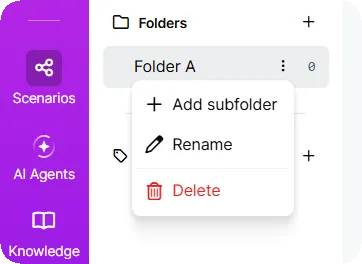
- In the left sidebar, click Scenarios.
- Click the three dots next to a folder, and select Add subfolder to nest a new folder under it.
You can rename folders and subfolders at any time, and move scenarios between them by dragging a scenario onto its destination, or by selecting Move to folder from the scenario's three-dot menu.
Labels
Labels let you add one or more tags to a scenario to organize it along more than one dimension at the same time, for example client and status. Unlike folders, a scenario can have multiple labels, so labels work alongside your folder structure instead of replacing it.
- In the left sidebar, click the plus sign next to Labels to create a label with a name, description, and color.
- Click the three dots next to a scenario and select Add/remove labels to apply it.
Anyone with edit scenarios permission for the team can create, edit, delete, and assign labels. You can also filter and sort scenarios by label from the Labels view under Scenarios.
Know more
To learn more about subfolders, see Subfolders.
To learn more about labels, see Labels.