Restore and recover scenario
When working on scenarios, changes don't always go as planned. You may need to undo edits, restore previous versions, or troubleshoot after updates. Make allows you to restore a manually saved scenario and retrieve unsaved changes. You can use:
- Version history for restoring previously manually saved versions
- Scenario recovery for retrieving unsaved changes in case of unexpected session interruptions
These features will help you safely build, edit, and maintain your scenarios.
Version history
Version history lets you access and restore previously saved scenario versions for up to 60 days. It helps you revert unwanted changes, troubleshoot errors, and safely experiment with new configurations.
When to use Version history
Saving scenario versions manually can help you in many cases:
- Building or expanding a scenario
When creating or modifying a scenario, you may experiment with different routing logic, modules, filters, or mappings. Saving a baseline version before experimenting lets you safely test changes and easily revert if something doesn't work.
- Fixing a broken automation after changes
Updates to modules, filters, or mappings can sometimes cause a scenario to stop working or produce incorrect results. This is particularly important if the automation supports critical business processes. Restoring a previous version from when the scenario was working correctly helps you quickly fix the problem and investigate later what caused the issue.
- Rolling back unwanted changes
There’s no undo button for scenarios in Make. By saving your scenario regularly, you can restore a previous state in case you accidentally delete a module, filter, or tool, or change module settings or mappings.
- Working in a team
When multiple team members work on the same scenario, changes can be saved by different users. Version history allows you to track who made updates and restore previous versions if needed.
Restore scenario from Version history
To restore a manually saved scenario from the Version history:
Open your scenario.
Click the Version history icon in the Scenario toolbar.

In the Versions field, select a previous version you want to restore.
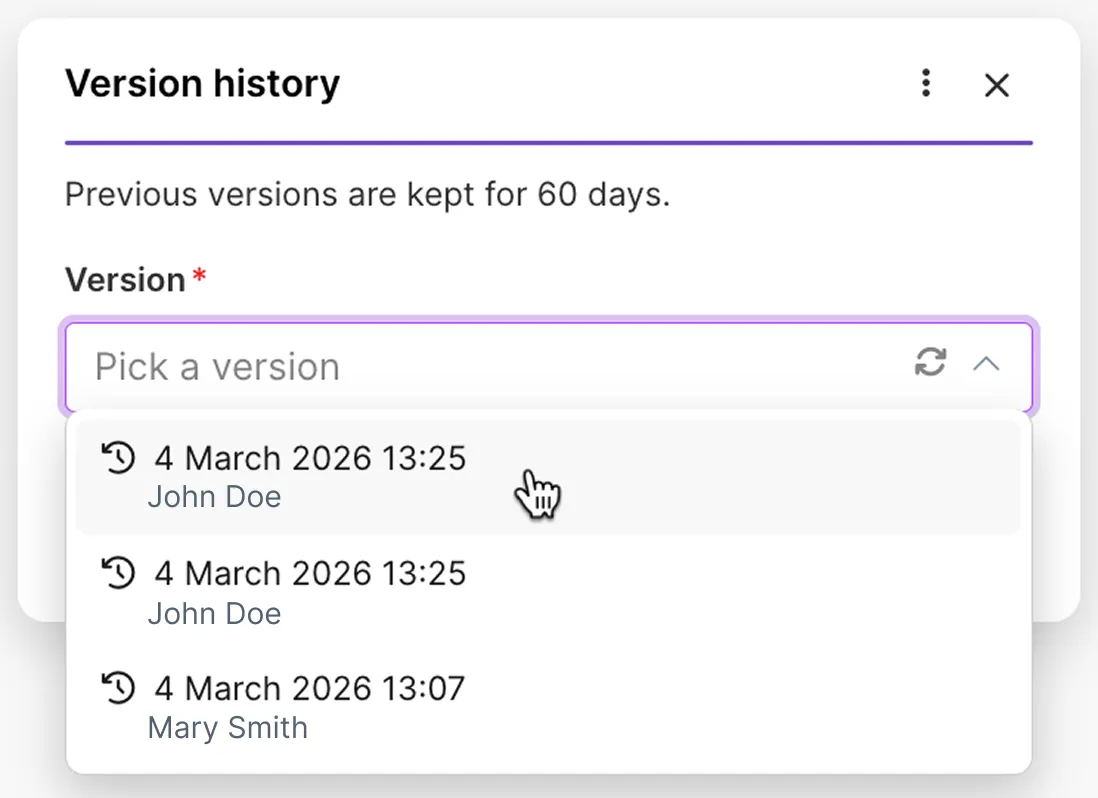
Click Restore version.
Click the Save icon to save the scenario with the restored version.

The restored version of the scenario is not automatically saved. If you wish to save the restored version of the scenario, you have to do so manually, as described in step 5.
Scenario recovery
Scenario recovery allows you to retrieve unsaved changes to a scenario from a blueprint that is automatically saved in the background while you work in Scenario Builder.
When to use Scenario recovery
Scenario recovery helps you retrieve the changes you haven't saved manually in case of unexpected user session interruptions, such as a browser crash, an internet disconnect, a power outage, or when you accidentally closed the tab.
When you reopen a scenario, Make compares the latest automatically saved blueprint and the latest manually saved version. If they differ, you will be prompted to recover the most recent changes.
Scenario recovery is not an autosave feature. It only helps retrieve unsaved changes after a session interruption. After recovering the changes, you still need to manually save the scenario.
Retrieve unsaved changes from blueprint
To retrieve unsaved changes from an automatically saved blueprint:
Open the scenario.
If it's a new scenario that has never been saved, click +Create scenario.
If unsaved changes are detected, a dialog window will appear displaying:
- A list of changes
- A scenario preview
- The date of the latest blueprint version
Click Recover.
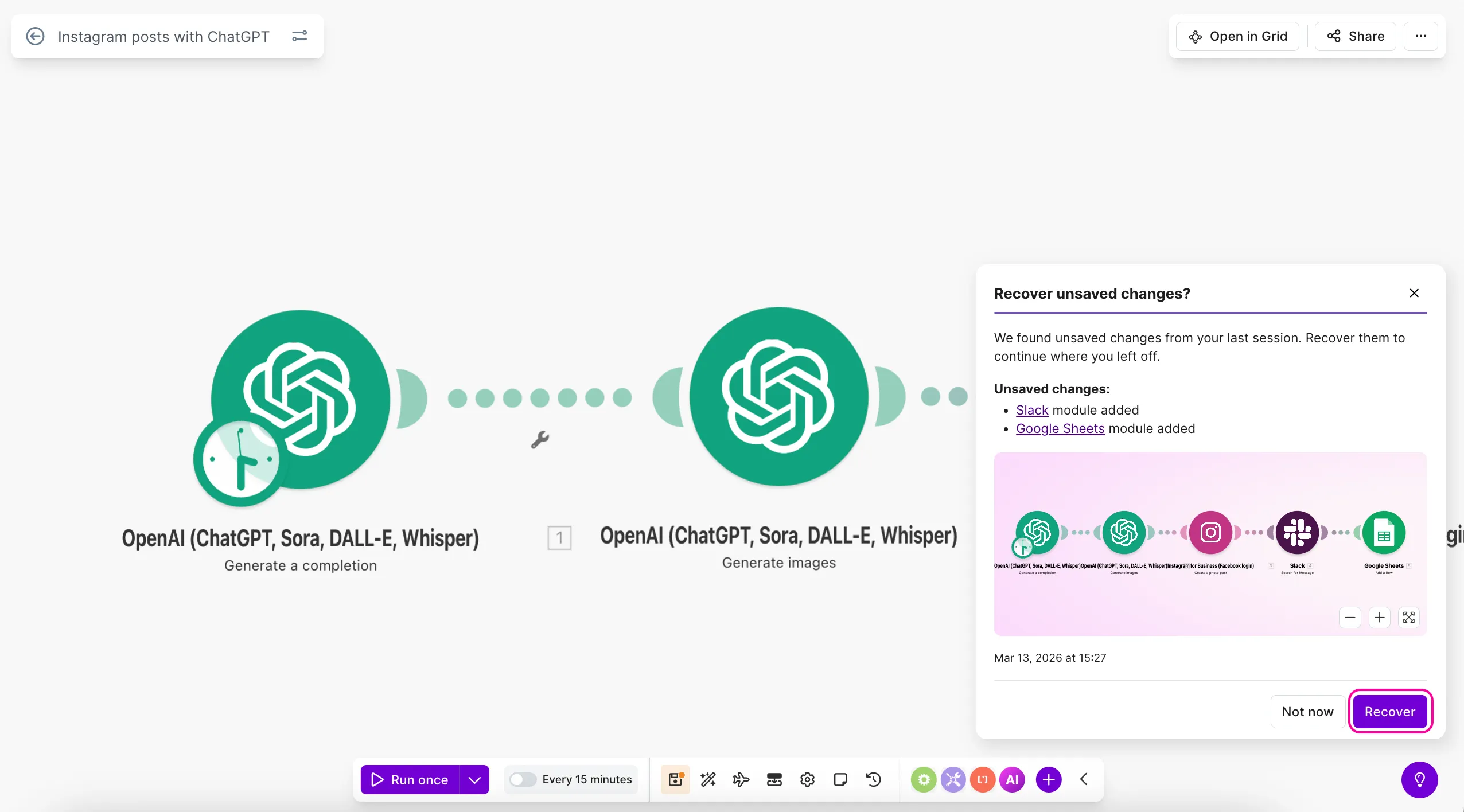
A confirmation message will appear in the bottom-right corner.
Click Save in the Scenario toolbar to keep the recovered changes.
Your recovered scenario will be saved. You can access it in the Version history.
Restore a recovered scenario from Version history
If you close the scenario recovery dialog or click Not now:
- The recovered blueprint remains temporarily available in the Version history.
- It will be permanently deleted once you manually save a new scenario version.
If you continue editing without saving the recovered scenario and another interruption occurs, a new blueprint will overwrite the previous one.
To avoid losing your changes, recover and save the scenario as soon as you reopen it.
To restore a recovered version from the Version history:
Click the Version history icon in the Scenario toolbar.
In the Versions field, select the latest version marked as Recovered.
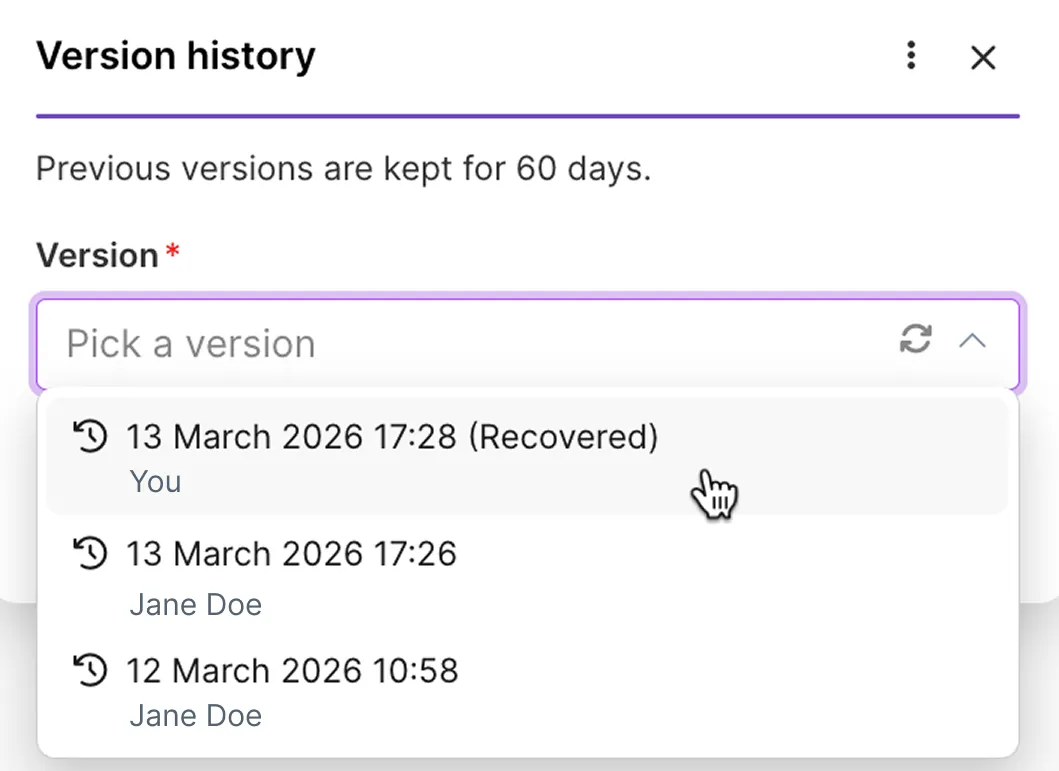
Click Restore version.
Click the Save icon to save the scenario from the recovered version.
Your recovered scenario will be saved. You can access it in the Version history.
Always save the scenario after restoring a recovered version. Otherwise, you can lose all the recovered changes.