Scenario run replay
Scenario run replay is available on all plans.
Scenario run replay is a capability that runs a current version of a scenario using trigger data from a previous scenario run. This means you can test scenarios, resolve errors, and retroactively send data to third-party systems without needing to obtain new data.
You can replay scenario runs in multiple places in Make, depending on your goals:
- Scenario BuilderScenario Builder: Test and debug new and existing scenarios
- Scenario historyScenario history and Run detailsRun details: Backfill data and recover from errors in existing scenarios
Why replay scenario runs
Many data events, such as payments, CRM deals, or e-commerce orders, are difficult to trigger on demand. Using trigger data from replayed scenario runs instead enables efficiency in each of the following use cases.
Test and debug
As you progressively build and test scenarios, the same data is processed multiple times. Instead of obtaining new data at each step, you can use trigger data from previous runs to ensure that new modules, routes, or fields are successful.
Run with existing dataRun with existing data in the Scenario Builder is ideal for testing, as it enables you to replay runs while building.
Recover from errors
You can replay scenario runs to resolve logical errors, such as faulty filters, incorrect data mapping, or missing modules.
For example, if you have 100 errored runs due to a logical mistake, you can use Run with existing dataRun with existing data to fix the error in the Scenario Builder, then Replay runReplay scenario run to replay the 99 errored runs from the Scenario history or Run details.
Backfill data
You can use replay to retroactively populate data in databases and third-party systems when errors in scenarios result in corrupt or incomplete data, or when you forget to add data to a system after building a scenario.
Replay runReplay scenario run from the Scenario history or Run details is ideal for backfilling data, as this action doesn't require you to be in the Scenario Builder.
How it works
When you replay a scenario run, a current version of a scenario runs using the trigger data of a previous run. That data passes through all modules, even those that ran successfully.
The following data is stored for scenario run replays:
- Trigger output data
- Scenario inputsScenario inputs
- The most up-to-date variablevariable value (values from previous runs are not preserved if updated during or since these runs)
Like standard scenario runs, replayed runs appear in the Scenario history and consume credits.
If you see the note Run cannot be replayed, this is likely because the following run types aren't stored:
- Check run: A run scheduled by a polling triggerpolling trigger that did not return new data.
- Single module run: A run of a single non-triggertrigger module.
Where to find it
You can replay scenario runs from the Scenario Builder, Scenario history, and Run details.
Scenario Builder
To find Run with existing data:
In the left sidebar, click Scenarios.
Select a scenario from your scenarios list.
On the toolbar, click the down arrow next to the Run once button.

Select the scenario run to replay from the dropdown menu.

Click the Run once button.
Scenario history
To find Replay run in the Scenario history:
On the left sidebar, click Scenarios.
Select a scenario from the list.
In the scenario diagram, click History.
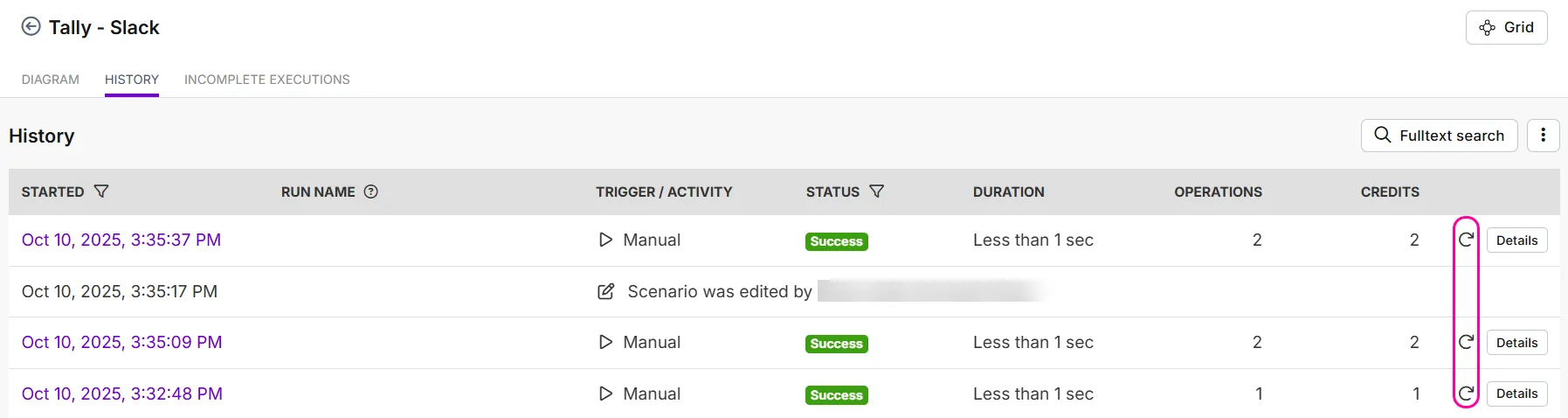
To replay a scenario run, click the replay icon next to the Details button.
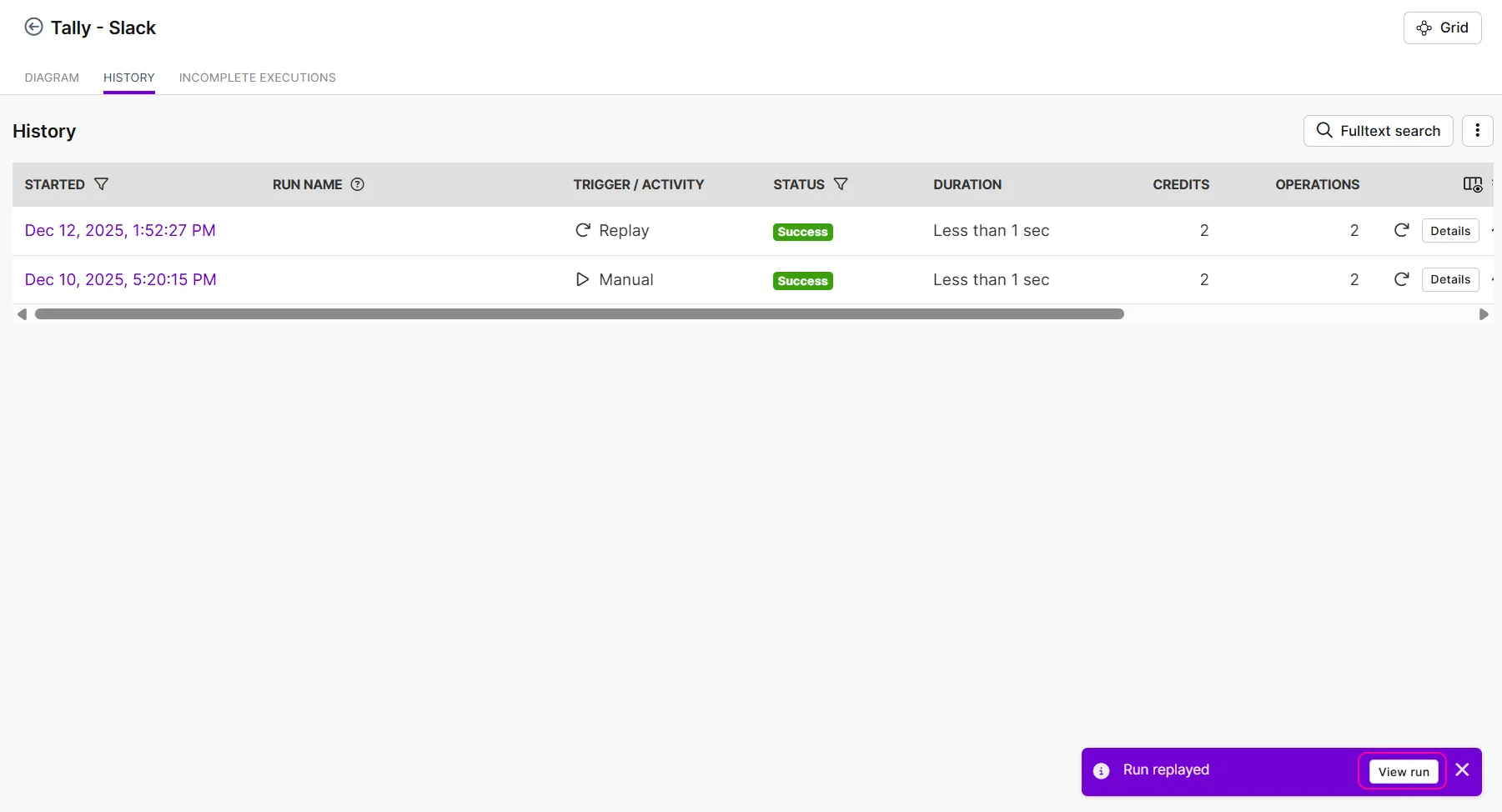
Optionally, click View run to view the replayed run in more detail in a new tab.
Run details
To find Replay run in Run details:
On the left sidebar, click Scenarios.
Select a scenario from the list.
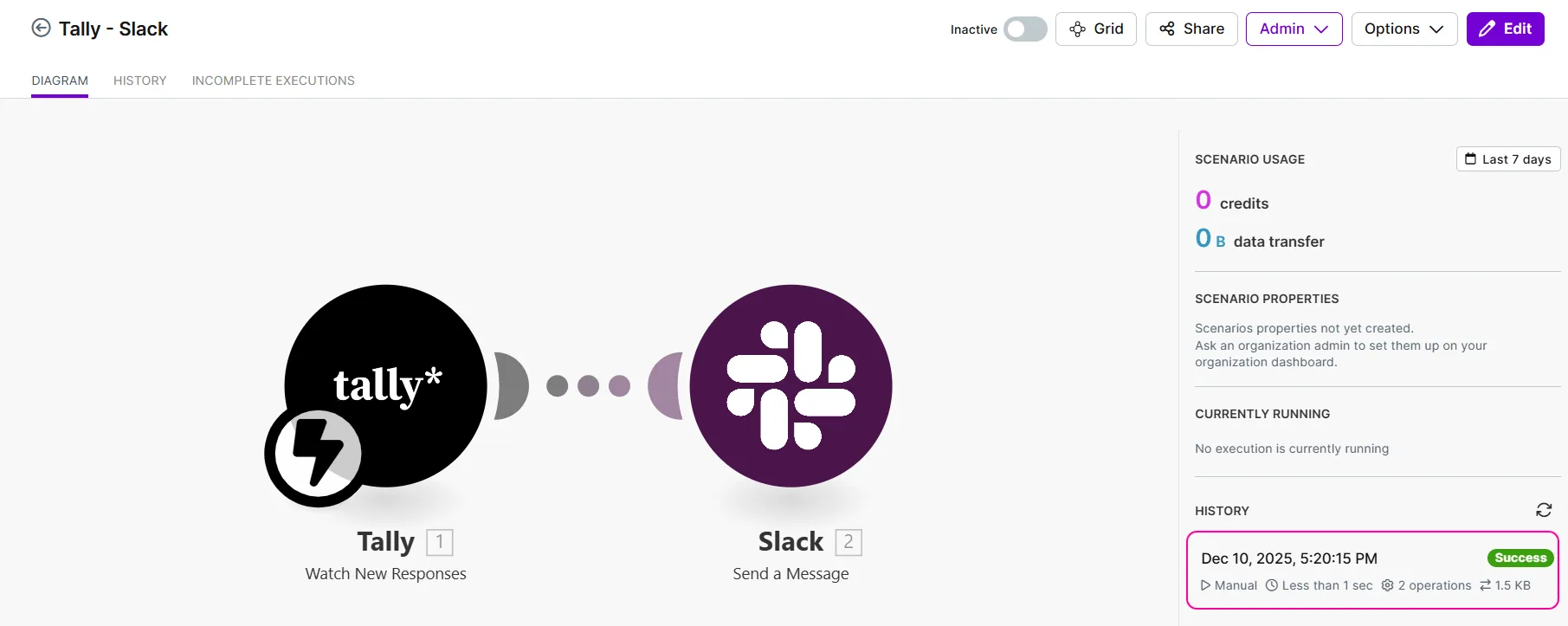
In the scenario diagram, click a run in History.
Click the Replay run button to replay the run.
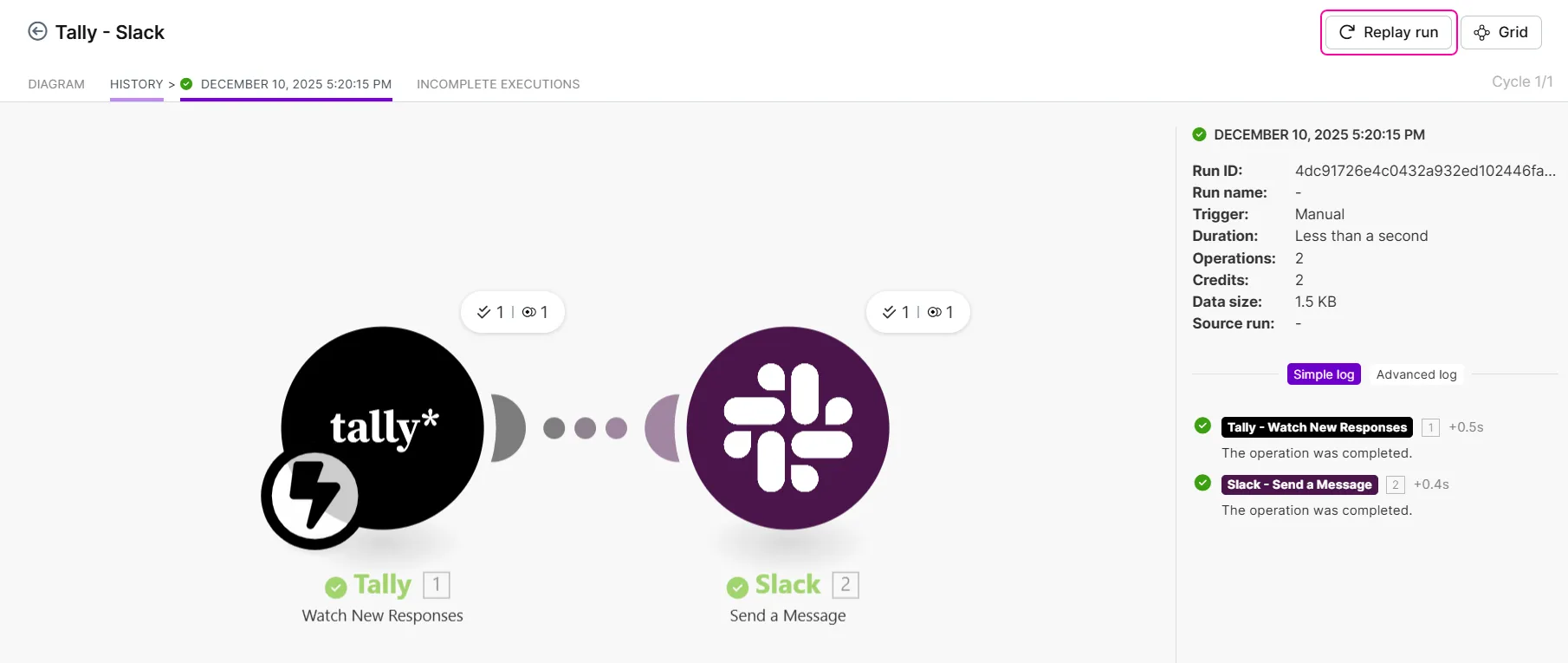
Alternatively, click History, then the date or the Details button.
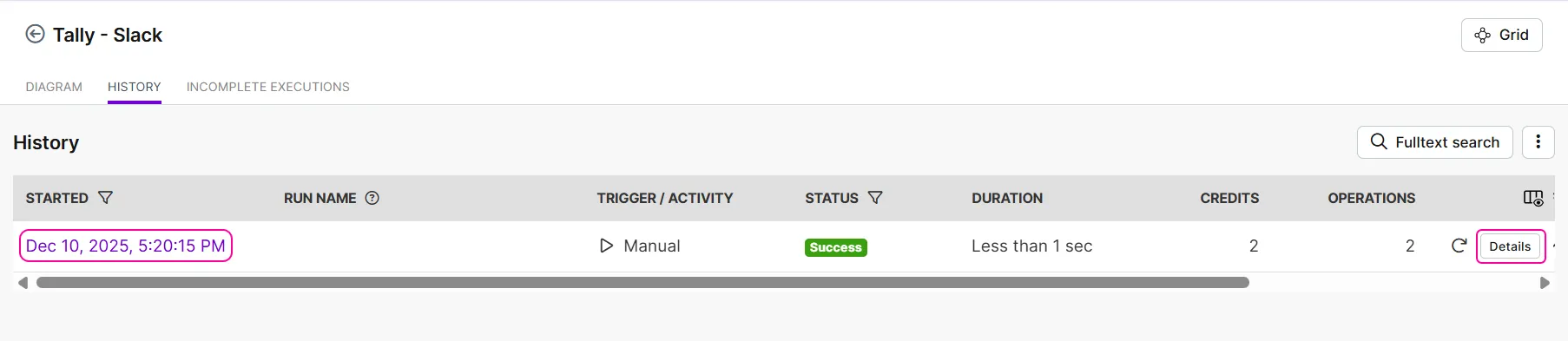
Click the Replay run button to replay the run.
Examples
In this example, you have a scenario that sends Tally responses to a Slack channel. The example is for illustrative purposes only, and does not require you to build a scenario.
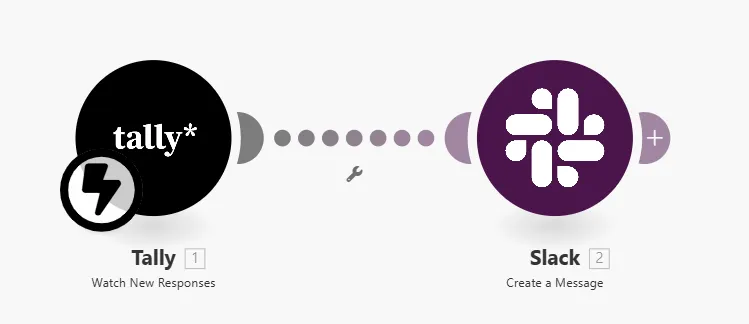
Run with existing data
Your scenario watches responses in a Tally form and sends them to a private Slack channel. As you build, you update the Slack channel configured in the Slack > Create a Message module:
In the Scenario Builder, you open the Slack > Create a Message module settings, add the new Slack channel, and save.
To test this change, you click the downward arrow next to the Run once button on the toolbar.
In Scenario run, you select a previous run to use for trigger data.

You click the Run once button.
The change does not return errors, so you save the scenario for future use.
Replay run
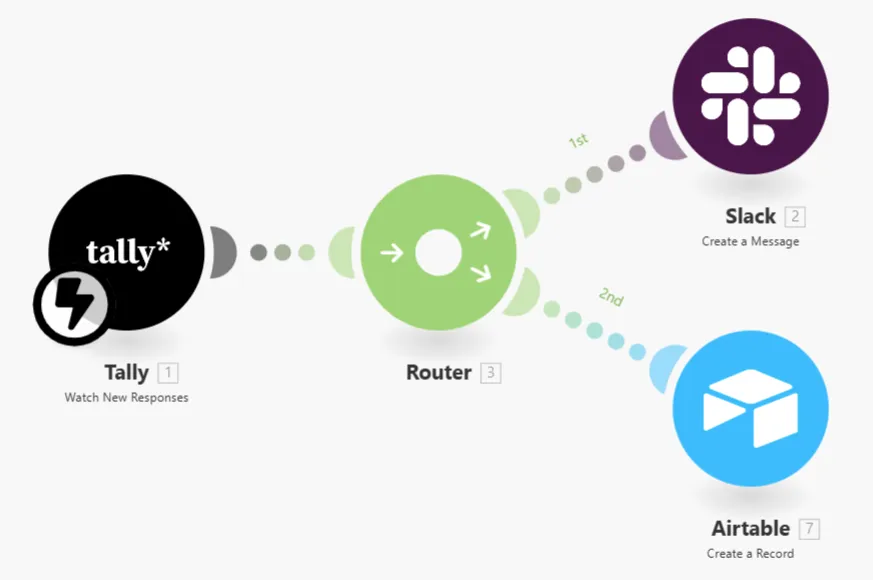
After a week of running your Tally form scenario, you realize you should have also sent the responses to Airtable. You decide to replay the past week's run to backfill its data in Airtable:
You update the scenario with an Airtable module and click Save.
Alternatively, you can temporarily disable the route to Slack to avoid sending the same responses again.
To backfill the past week's data into Airtable, you replay last week's scenario run in History.
Alternatively, replay it from the Run details after clicking the date or Details.
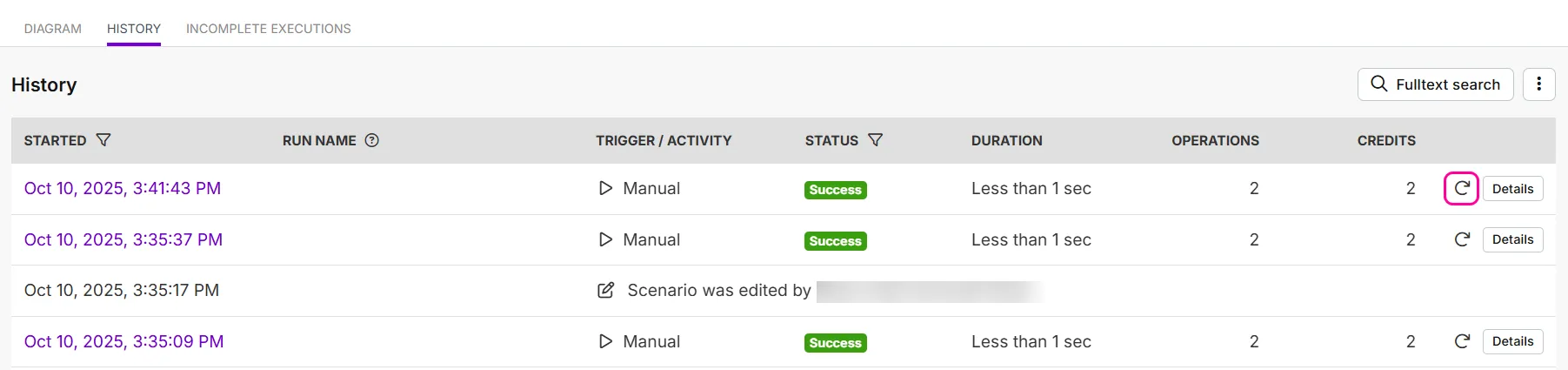
This action injects the previous run's trigger data into the trigger module of the updated scenario.
The replayed run appears at the top of your scenario history. The run resulted in 1 extra credit due to the added Airtable module, totalling 3 credits.
Your Airtable database now includes data from the past week.
Scenario run replay includes the following constraints:
- Bulk replay is currently not possible.
- A scenario run is replayable as long as it's available in the scenario history, which varies by plan. See log storage for details.