Step 3. Set up another module
Now you'll set up a module on the new route to send notifications to the Sales Manager's mobile device.
Click the + icon on the empty module at the end of the new route. Search for Android or Apple iOS in the search field, depending on the system where you installed the mobile app. In this example, we use Apple.
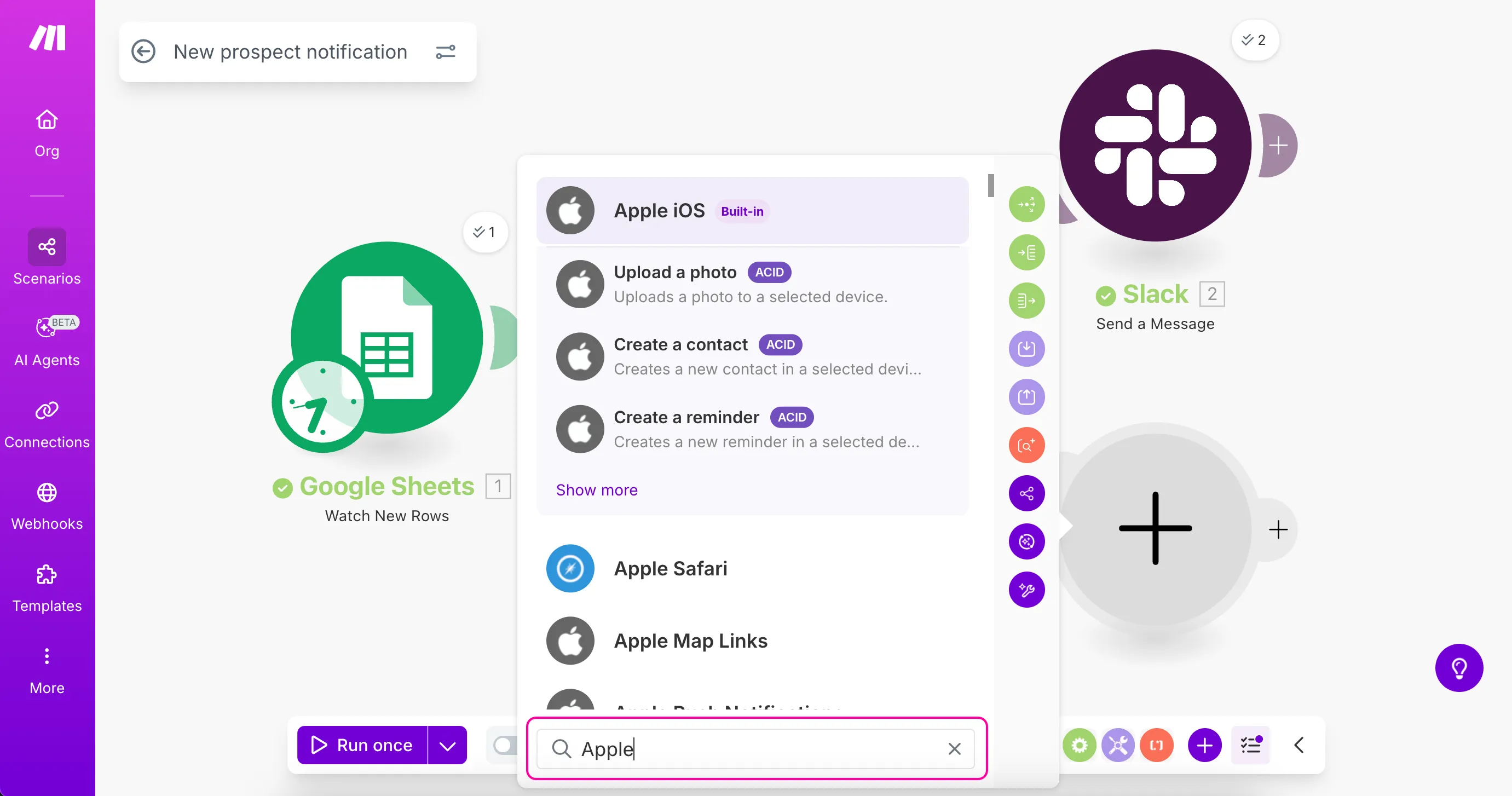
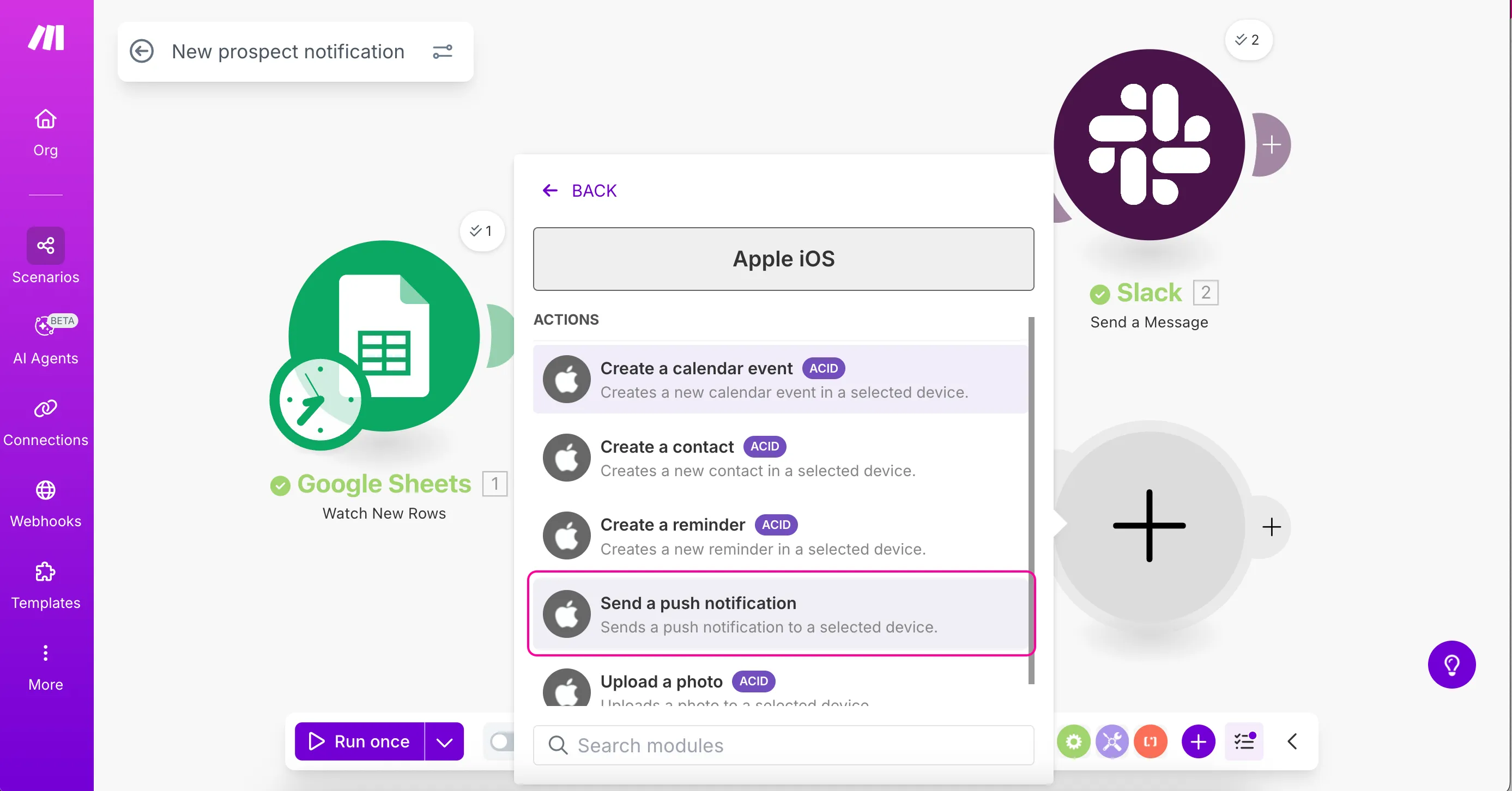
Select the app and then choose Send a push notification from the available modules.
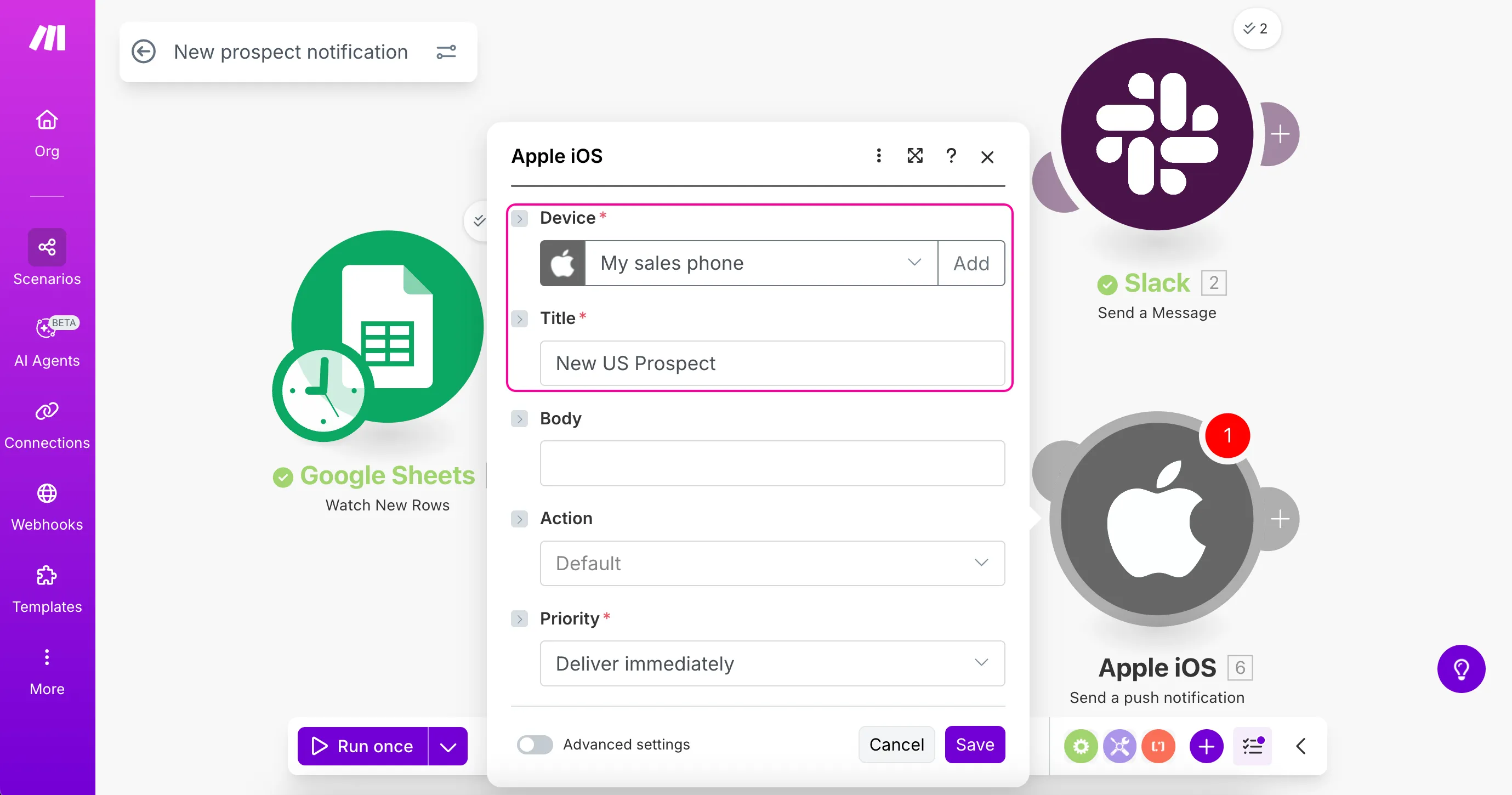
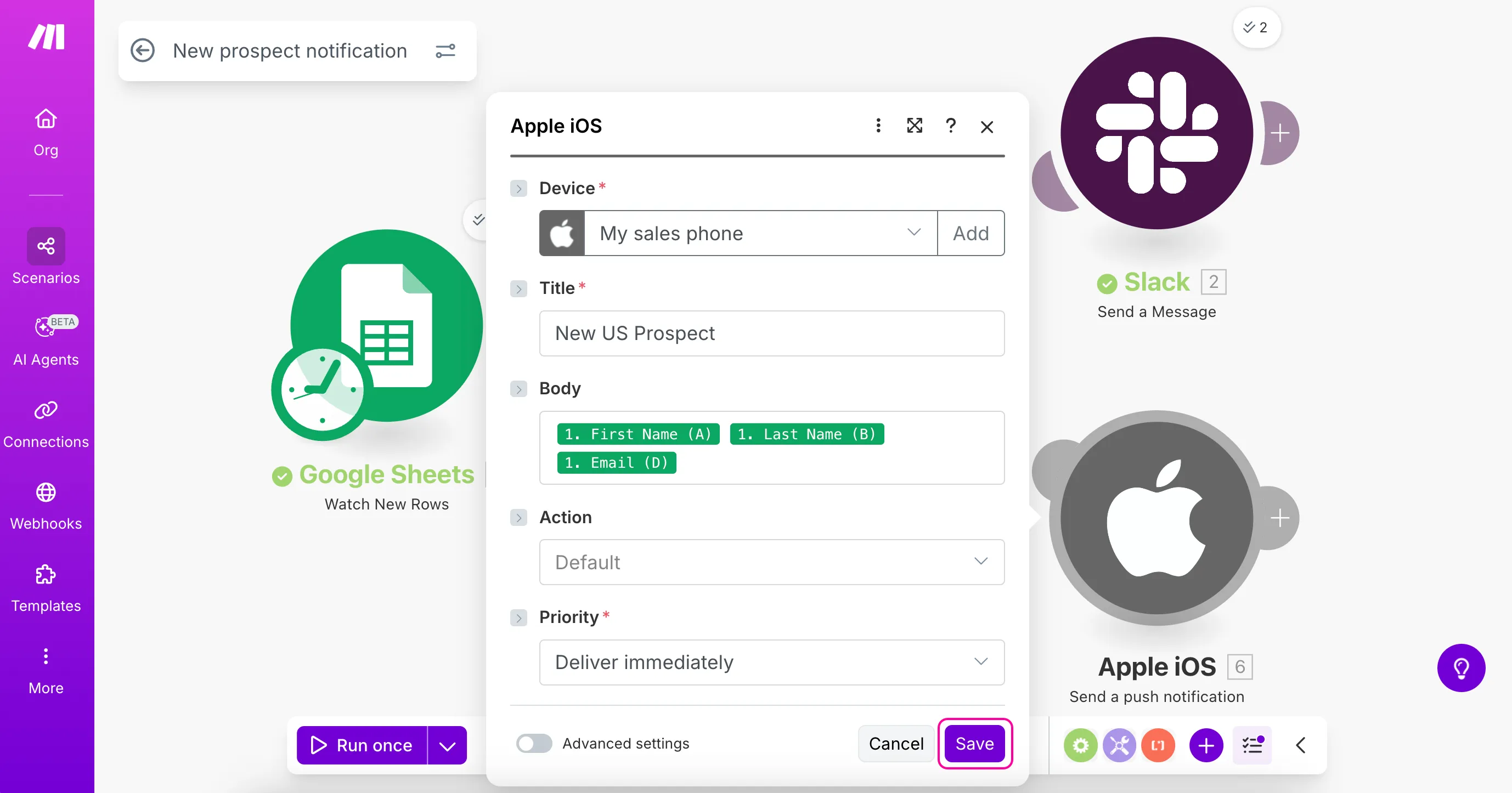
The module settings window will appear, where you'll set up your notification.
In the Device field, select your mobile device from the dropdown list.
In the Title field, enter "New US Prospect" or any other title you prefer.
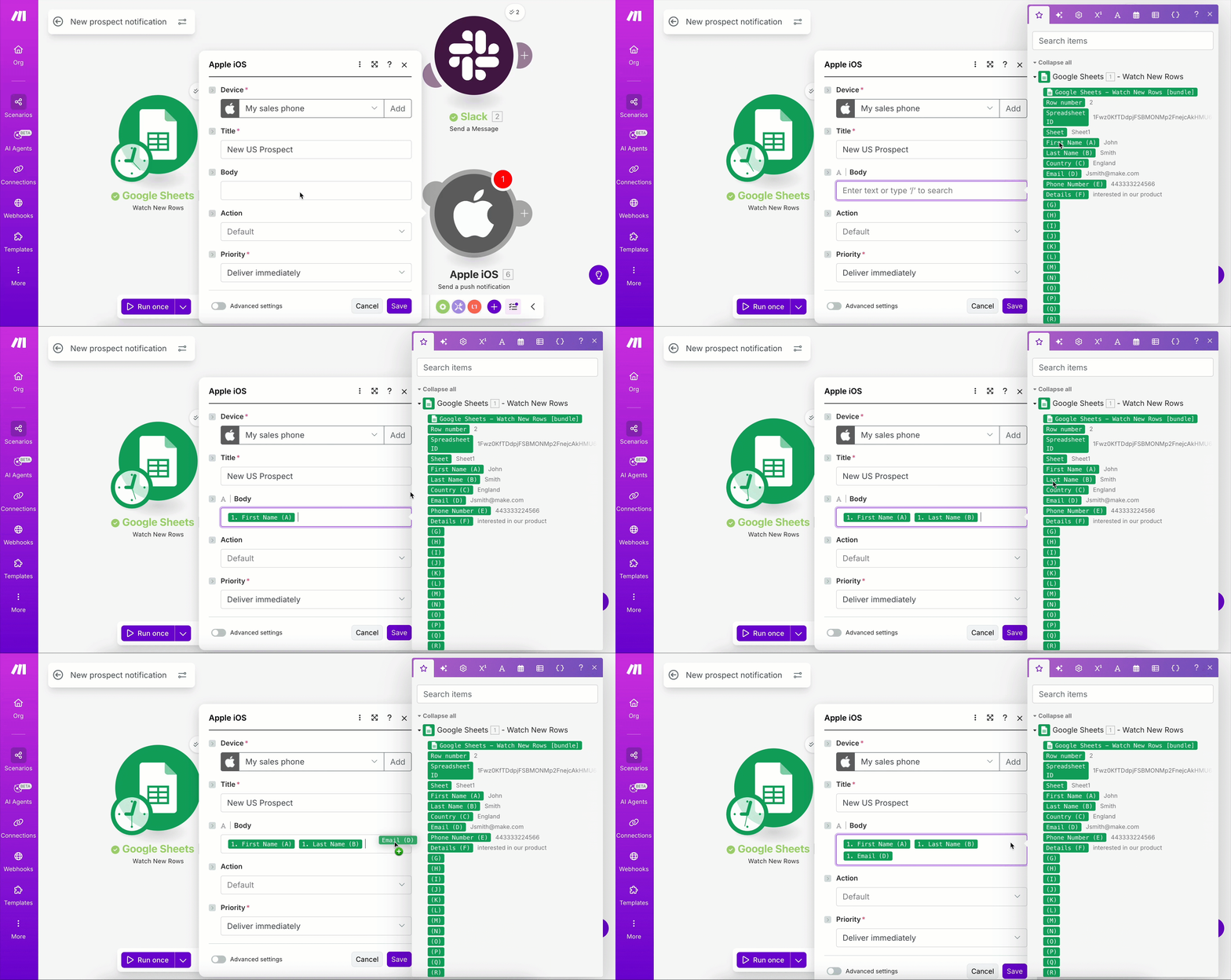
In the Body field, drag and drop the values (First Name, Last Name, and Email) from the Google Sheets module, or simply click on the values to place them into the field.
Enter spaces between mapped values to separate each value in the output.
Keep the default values for other fields.
Click Save to save the module settings.
Remember to click the Save icon in the Scenario Builder toolbar to save your entire scenario.
At this point, your scenario would send mobile notifications for all prospects, not just those from the USA. Next, you'll add a filter to this route to make the notifications country-specific.