Make AI Module Builder
What is Make AI Module Builder
Make AI Module Builder is an AI-powered automation builder in Make that allows you to create automations using simple, natural language instructions. It saves you time from filling out technical forms or configuring multiple modules to complete a task. It bridges the gap between ideas and automation and turns them into executable scenarios.
For example, you can use MakeAI Module Builder to send an automated response to all your unread emails.
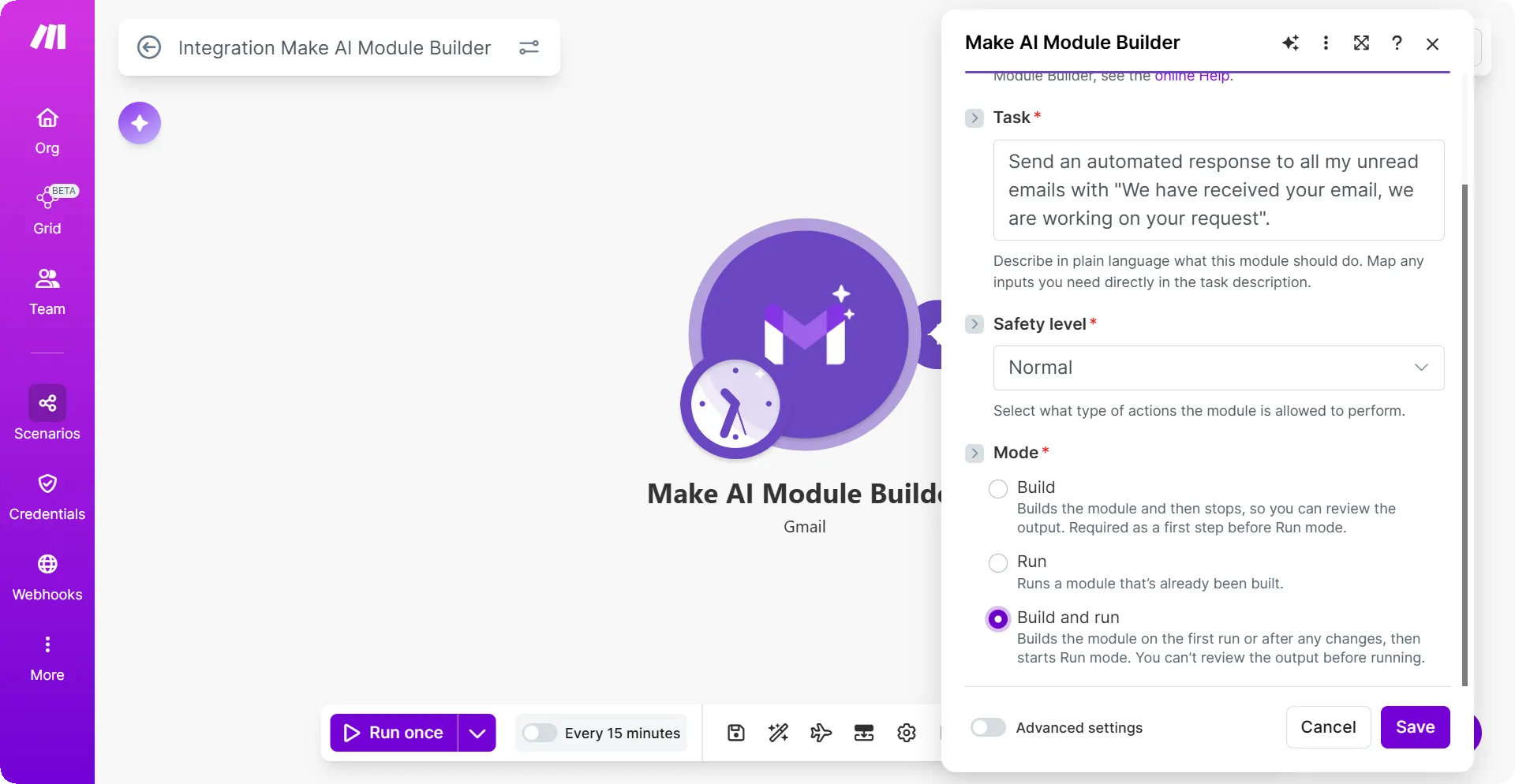
Use Build & Run mode only when you are certain of your instructions, as some of these actions cannot be undone. As a best practice, we recommend using Build mode first to review the steps, then switching to Run mode once verified.
Key benefits
See the following reasons why you should use Make AI Module Builder:
- Lowered entry barrier for non-technical users who may find traditional module set up challenging.
- Maximizes speed and efficiency for experienced users by eliminating time consuming activities.
- Replaces complex, multi-field forms with a prompt. You can instruct Make AI Module Builder to do a task with simple instructions and Make will generate the logic for that task within a module.
- Provides intuitive API access to endpoints that are not available in Make without the need to know their exact functionality.
- Removes the need to choose from multiple separate modules in a single app.
How is Make AI Module Builder different from the Make an API call module
A single Make AI Module Builder module can execute a sequence of API calls. You only need to provide the intent and Make AI Module Builder will take care of the "how" by generating the necessary code and logic internally.
The code generated by Make AI Module Builder is static and will not auto-update if third party APIs change (e.g. Airtable adds/removes fields). You must manually update your prompt to trigger a code regeneration.
Make AI Module Builder modules
Instruct your Make AI Module Builder - Airtable module to create or update records, manage tables and fields, build filtered views, or sync data across bases - and it writes and runs the code for you.
Field | Description |
|---|---|
Connection | Select an account to connect to an existing account or create a new connection. |
Task | This field lets you instruct what the module should do in a simple text format. You can map any inputs you need directly in the task description. |
Safety level | Protected – This option allows the module to use the read action only. It can only retrieve data, not write, replace or delete it. In this mode, feasibility and code review checks are done in the background to flag potentially problematic behaviors. Normal – This option allows the module to use all actions - read, write, update, and delete. In this mode, feasibility and code review checks are done in the background to flag potentially problematic behaviors. Unrestricted – This option allows the module to use all actions – read, write, update, and delete. It still runs feasibility and code review checks but won't block execution. You are allowed to perform actions even if they are risky and can't be undone |
Mode | Build – Build mode generates the module logic and produces a list of Steps outlining the actions the module will take, without executing any of them. This allows you to review and verify the intended behavior before committing to execution. Once satisfied with the outlined steps, you can switch to Run Mode to execute the module. This mode is intended as a temporary safety measure. Run – Run mode executes the steps outlined by Build Mode. It is only available when Build Mode has been run at least once and the instructions field has not been modified since. If changes to the module are required, you must switch back to Build Mode, adjust their instructions, and review the updated steps before returning to Run mode to resume execution. Build & Run – Build & Run mode combines both the Build and Run steps into a single execution. It automatically runs the module immediately after the logic is generated. As this mode skips the review step, you will not have the opportunity to inspect the outlined steps before actions are performed. This mode carries a higher degree of risk and should be used with caution. |
Always Regenerate Code | When it is toggled to No, the Make AI Module Builder module generates the code once and reruns it multiple times. Use this option if your prompt is static and the logic does not change frequently. The code only changes if the user manually edits the Text field. This ensures determinism. Every time the scenario runs, the exact same code executes. This is safer, faster, and saves on credits. When this is toggled to Yes, the module ignores the cached code and writes a fresh script every single time the module is triggered. Use this option when you're handling shifting instructions or when your instructions and the logic is subject to change often. It picks up the latest instructions and generates code every time the module is run. |
Field | Description |
|---|---|
Connection | Select an account to connect to an existing account or create a new connection. |
Task | This field lets you instruct what the module should do in a simple text format. You can map any inputs you need directly in the task description. |
Safety level | Protected – This option allows the module to use the read action only. It can only retrieve data, not write, replace or delete it. In this mode, feasibility and code review checks are done in the background to flag potentially problematic behaviors. Normal – This option allows the module to use all actions - read, write, update, and delete. In this mode, feasibility and code review checks are done in the background to flag potentially problematic behaviors. Unrestricted – This option allows the module to use all actions – read, write, update, and delete. It still runs feasibility and code review checks but won't block execution. You are allowed to perform actions even if they are risky and can't be undone |
Mode | Build – Build mode generates the module logic and produces a list of Steps outlining the actions the module will take, without executing any of them. This allows you to review and verify the intended behavior before committing to execution. Once satisfied with the outlined steps, you can switch to Run Mode to execute the module. This mode is intended as a temporary safety measure. Run – Run mode executes the steps outlined by Build Mode. It is only available when Build Mode has been run at least once and the instructions field has not been modified since. If changes to the module are required, you must switch back to Build Mode, adjust their instructions, and review the updated steps before returning to Run mode to resume execution. Build & Run – Build & Run mode combines both the Build and Run steps into a single execution. It automatically runs the module immediately after the logic is generated. As this mode skips the review step, you will not have the opportunity to inspect the outlined steps before actions are performed. This mode carries a higher degree of risk and should be used with caution. |
Always Regenerate Code | When it is toggled to No, the Make AI Module Builder module generates the code once and reruns it multiple times. Use this option if your prompt is static and the logic does not change frequently. The code only changes if the user manually edits the Text field. This ensures determinism. Every time the scenario runs, the exact same code executes. This is safer, faster, and saves on credits. When this is toggled to Yes, the module ignores the cached code and writes a fresh script every single time the module is triggered. Use this option when you're handling shifting instructions or when your instructions and the logic is subject to change often. It picks up the latest instructions and generates code every time the module is run. |
Instruct Make AI Module Builder - Gmail module to do tasks such as triage unread emails, draft responses, organize emails, or clean up email clutter.
Field | Description |
|---|---|
Connection | Select an account to connect to an existing account or create a new connection. |
Task | This field lets you instruct what the module should do in a simple text format. You can map any inputs you need directly in the task description. |
Safety level | Protected – This option allows the module to use the read action only. It can only retrieve data, not write, replace or delete it. In this mode, feasibility and code review checks are done in the background to flag potentially problematic behaviors. Normal – This option allows the module to use all actions - read, write, update, and delete. In this mode, feasibility and code review checks are done in the background to flag potentially problematic behaviors. Unrestricted – This option allows the module to use all actions – read, write, update, and delete. It still runs feasibility and code review checks but won't block execution. You are allowed to perform actions even if they are risky and can't be undone |
Mode | Build – Build mode generates the module logic and produces a list of Steps outlining the actions the module will take, without executing any of them. This allows you to review and verify the intended behavior before committing to execution. Once satisfied with the outlined steps, you can switch to Run Mode to execute the module. This mode is intended as a temporary safety measure. Run – Run mode executes the steps outlined by Build Mode. It is only available when Build Mode has been run at least once and the instructions field has not been modified since. If changes to the module are required, you must switch back to Build Mode, adjust their instructions, and review the updated steps before returning to Run mode to resume execution. Build & Run – Build & Run mode combines both the Build and Run steps into a single execution. It automatically runs the module immediately after the logic is generated. As this mode skips the review step, you will not have the opportunity to inspect the outlined steps before actions are performed. This mode carries a higher degree of risk and should be used with caution. |
Always Regenerate Code | When it is toggled to No, the Make AI Module Builder module generates the code once and reruns it multiple times. Use this option if your prompt is static and the logic does not change frequently. The code only changes if the user manually edits the Text field. This ensures determinism. Every time the scenario runs, the exact same code executes. This is safer, faster, and saves on credits. When this is toggled to Yes, the module ignores the cached code and writes a fresh script every single time the module is triggered. Use this option when you're handling shifting instructions or when your instructions and the logic is subject to change often. It picks up the latest instructions and generates code every time the module is run. |
Instruct Make AI Module Builder - Google Calendar module to do tasks such as find available slots for meetings, find conflicts, reschedule events, sync calendars events, etc.
Field | Description |
|---|---|
Connection | Select an account to connect to an existing account or create a new connection. |
Task | This field lets you instruct what the module should do in a simple text format. You can map any inputs you need directly in the task description. |
Safety level | Protected – This option allows the module to use the read action only. It can only retrieve data, not write, replace or delete it. In this mode, feasibility and code review checks are done in the background to flag potentially problematic behaviors. Normal – This option allows the module to use all actions - read, write, update, and delete. In this mode, feasibility and code review checks are done in the background to flag potentially problematic behaviors. Unrestricted – This option allows the module to use all actions – read, write, update, and delete. It still runs feasibility and code review checks but won't block execution. You are allowed to perform actions even if they are risky and can't be undone |
Mode | Build – Build mode generates the module logic and produces a list of Steps outlining the actions the module will take, without executing any of them. This allows you to review and verify the intended behavior before committing to execution. Once satisfied with the outlined steps, you can switch to Run Mode to execute the module. This mode is intended as a temporary safety measure. Run – Run mode executes the steps outlined by Build Mode. It is only available when Build Mode has been run at least once and the instructions field has not been modified since. If changes to the module are required, you must switch back to Build Mode, adjust their instructions, and review the updated steps before returning to Run mode to resume execution. Build & Run – Build & Run mode combines both the Build and Run steps into a single execution. It automatically runs the module immediately after the logic is generated. As this mode skips the review step, you will not have the opportunity to inspect the outlined steps before actions are performed. This mode carries a higher degree of risk and should be used with caution. |
Always Regenerate Code | When it is toggled to No, the Make AI Module Builder module generates the code once and reruns it multiple times. Use this option if your prompt is static and the logic does not change frequently. The code only changes if the user manually edits the Text field. This ensures determinism. Every time the scenario runs, the exact same code executes. This is safer, faster, and saves on credits. When this is toggled to Yes, the module ignores the cached code and writes a fresh script every single time the module is triggered. Use this option when you're handling shifting instructions or when your instructions and the logic is subject to change often. It picks up the latest instructions and generates code every time the module is run. |
Instruct Make AI Module Builder - Google Docs module to do tasks such as reformat text, merge content, generate summaries, insert tables, etc.
Field | Description |
|---|---|
Connection | Select an account to connect to an existing account or create a new connection. |
Task | This field lets you instruct what the module should do in a simple text format. You can map any inputs you need directly in the task description. |
Safety level | Protected – This option allows the module to use the read action only. It can only retrieve data, not write, replace or delete it. In this mode, feasibility and code review checks are done in the background to flag potentially problematic behaviors. Normal – This option allows the module to use all actions - read, write, update, and delete. In this mode, feasibility and code review checks are done in the background to flag potentially problematic behaviors. Unrestricted – This option allows the module to use all actions – read, write, update, and delete. It still runs feasibility and code review checks but won't block execution. You are allowed to perform actions even if they are risky and can't be undone |
Mode | Build – Build mode generates the module logic and produces a list of Steps outlining the actions the module will take, without executing any of them. This allows you to review and verify the intended behavior before committing to execution. Once satisfied with the outlined steps, you can switch to Run Mode to execute the module. This mode is intended as a temporary safety measure. Run – Run mode executes the steps outlined by Build Mode. It is only available when Build Mode has been run at least once and the instructions field has not been modified since. If changes to the module are required, you must switch back to Build Mode, adjust their instructions, and review the updated steps before returning to Run mode to resume execution. Build & Run – Build & Run mode combines both the Build and Run steps into a single execution. It automatically runs the module immediately after the logic is generated. As this mode skips the review step, you will not have the opportunity to inspect the outlined steps before actions are performed. This mode carries a higher degree of risk and should be used with caution. |
Always Regenerate Code | When it is toggled to No, the Make AI Module Builder module generates the code once and reruns it multiple times. Use this option if your prompt is static and the logic does not change frequently. The code only changes if the user manually edits the Text field. This ensures determinism. Every time the scenario runs, the exact same code executes. This is safer, faster, and saves on credits. When this is toggled to Yes, the module ignores the cached code and writes a fresh script every single time the module is triggered. Use this option when you're handling shifting instructions or when your instructions and the logic is subject to change often. It picks up the latest instructions and generates code every time the module is run. |
Instruct Make AI Module Builder - Google Drive to upload, move, copy, organize folders, manage permissions, or search across your drive.
Field | Description |
|---|---|
Connection | Select an account to connect to an existing account or create a new connection. |
Task | This field lets you instruct what the module should do in a simple text format. You can map any inputs you need directly in the task description. |
Safety level | Protected – This option allows the module to use the read action only. It can only retrieve data, not write, replace or delete it. In this mode, feasibility and code review checks are done in the background to flag potentially problematic behaviors. Normal – This option allows the module to use all actions - read, write, update, and delete. In this mode, feasibility and code review checks are done in the background to flag potentially problematic behaviors. Unrestricted – This option allows the module to use all actions – read, write, update, and delete. It still runs feasibility and code review checks but won't block execution. You are allowed to perform actions even if they are risky and can't be undone |
Mode | Build – Build mode generates the module logic and produces a list of Steps outlining the actions the module will take, without executing any of them. This allows you to review and verify the intended behavior before committing to execution. Once satisfied with the outlined steps, you can switch to Run Mode to execute the module. This mode is intended as a temporary safety measure. Run – Run mode executes the steps outlined by Build Mode. It is only available when Build Mode has been run at least once and the instructions field has not been modified since. If changes to the module are required, you must switch back to Build Mode, adjust their instructions, and review the updated steps before returning to Run mode to resume execution. Build & Run – Build & Run mode combines both the Build and Run steps into a single execution. It automatically runs the module immediately after the logic is generated. As this mode skips the review step, you will not have the opportunity to inspect the outlined steps before actions are performed. This mode carries a higher degree of risk and should be used with caution. |
Always Regenerate Code | When it is toggled to No, the Make AI Module Builder module generates the code once and reruns it multiple times. Use this option if your prompt is static and the logic does not change frequently. The code only changes if the user manually edits the Text field. This ensures determinism. Every time the scenario runs, the exact same code executes. This is safer, faster, and saves on credits. When this is toggled to Yes, the module ignores the cached code and writes a fresh script every single time the module is triggered. Use this option when you're handling shifting instructions or when your instructions and the logic is subject to change often. It picks up the latest instructions and generates code every time the module is run. |
Instruct Make AI Module Builder - Google Forms module to create quizzes, update questions, collect and analyze responses, or even build survey forms.
Field | Description |
|---|---|
Connection | Select an account to connect to an existing account or create a new connection. |
Task | This field lets you instruct what the module should do in a simple text format. You can map any inputs you need directly in the task description. |
Safety level | Protected – This option allows the module to use the read action only. It can only retrieve data, not write, replace or delete it. In this mode, feasibility and code review checks are done in the background to flag potentially problematic behaviors. Normal – This option allows the module to use all actions - read, write, update, and delete. In this mode, feasibility and code review checks are done in the background to flag potentially problematic behaviors. Unrestricted – This option allows the module to use all actions – read, write, update, and delete. It still runs feasibility and code review checks but won't block execution. You are allowed to perform actions even if they are risky and can't be undone |
Mode | Build – Build mode generates the module logic and produces a list of Steps outlining the actions the module will take, without executing any of them. This allows you to review and verify the intended behavior before committing to execution. Once satisfied with the outlined steps, you can switch to Run Mode to execute the module. This mode is intended as a temporary safety measure. Run – Run mode executes the steps outlined by Build Mode. It is only available when Build Mode has been run at least once and the instructions field has not been modified since. If changes to the module are required, you must switch back to Build Mode, adjust their instructions, and review the updated steps before returning to Run mode to resume execution. Build & Run – Build & Run mode combines both the Build and Run steps into a single execution. It automatically runs the module immediately after the logic is generated. As this mode skips the review step, you will not have the opportunity to inspect the outlined steps before actions are performed. This mode carries a higher degree of risk and should be used with caution. |
Always Regenerate Code | When it is toggled to No, the Make AI Module Builder module generates the code once and reruns it multiple times. Use this option if your prompt is static and the logic does not change frequently. The code only changes if the user manually edits the Text field. This ensures determinism. Every time the scenario runs, the exact same code executes. This is safer, faster, and saves on credits. When this is toggled to Yes, the module ignores the cached code and writes a fresh script every single time the module is triggered. Use this option when you're handling shifting instructions or when your instructions and the logic is subject to change often. It picks up the latest instructions and generates code every time the module is run. |
Instruct Make AI Module Builder - Google Sheets module to do tasks such as reformat cells, merge sheets, build pivot summaries, or sync data.
Field | Description |
|---|---|
Connection | Select an account to connect to an existing account or create a new connection. |
Task | This field lets you instruct what the module should do in a simple text format. You can map any inputs you need directly in the task description. |
Safety level | Protected – This option allows the module to use the read action only. It can only retrieve data, not write, replace or delete it. In this mode, feasibility and code review checks are done in the background to flag potentially problematic behaviors. Normal – This option allows the module to use all actions - read, write, update, and delete. In this mode, feasibility and code review checks are done in the background to flag potentially problematic behaviors. Unrestricted – This option allows the module to use all actions – read, write, update, and delete. It still runs feasibility and code review checks but won't block execution. You are allowed to perform actions even if they are risky and can't be undone |
Mode | Build – Build mode generates the module logic and produces a list of Steps outlining the actions the module will take, without executing any of them. This allows you to review and verify the intended behavior before committing to execution. Once satisfied with the outlined steps, you can switch to Run Mode to execute the module. This mode is intended as a temporary safety measure. Run – Run mode executes the steps outlined by Build Mode. It is only available when Build Mode has been run at least once and the instructions field has not been modified since. If changes to the module are required, you must switch back to Build Mode, adjust their instructions, and review the updated steps before returning to Run mode to resume execution. Build & Run – Build & Run mode combines both the Build and Run steps into a single execution. It automatically runs the module immediately after the logic is generated. As this mode skips the review step, you will not have the opportunity to inspect the outlined steps before actions are performed. This mode carries a higher degree of risk and should be used with caution. |
Always Regenerate Code | When it is toggled to No, the Make AI Module Builder module generates the code once and reruns it multiple times. Use this option if your prompt is static and the logic does not change frequently. The code only changes if the user manually edits the Text field. This ensures determinism. Every time the scenario runs, the exact same code executes. This is safer, faster, and saves on credits. When this is toggled to Yes, the module ignores the cached code and writes a fresh script every single time the module is triggered. Use this option when you're handling shifting instructions or when your instructions and the logic is subject to change often. It picks up the latest instructions and generates code every time the module is run. |
Instruct your Make AI Module Builder - HTTP module to fetch data, submit forms, paginate through endpoints, chain multiple requests, or transform responses.
Field | Description |
|---|---|
Connection | Select an account to connect to an existing account or create a new connection. |
Task | This field lets you instruct what the module should do in a simple text format. You can map any inputs you need directly in the task description. |
Safety level | Protected – This option allows the module to use the read action only. It can only retrieve data, not write, replace or delete it. In this mode, feasibility and code review checks are done in the background to flag potentially problematic behaviors. Normal – This option allows the module to use all actions - read, write, update, and delete. In this mode, feasibility and code review checks are done in the background to flag potentially problematic behaviors. Unrestricted – This option allows the module to use all actions – read, write, update, and delete. It still runs feasibility and code review checks but won't block execution. You are allowed to perform actions even if they are risky and can't be undone |
Mode | Build – Build mode generates the module logic and produces a list of Steps outlining the actions the module will take, without executing any of them. This allows you to review and verify the intended behavior before committing to execution. Once satisfied with the outlined steps, you can switch to Run Mode to execute the module. This mode is intended as a temporary safety measure. Run – Run mode executes the steps outlined by Build Mode. It is only available when Build Mode has been run at least once and the instructions field has not been modified since. If changes to the module are required, you must switch back to Build Mode, adjust their instructions, and review the updated steps before returning to Run mode to resume execution. Build & Run – Build & Run mode combines both the Build and Run steps into a single execution. It automatically runs the module immediately after the logic is generated. As this mode skips the review step, you will not have the opportunity to inspect the outlined steps before actions are performed. This mode carries a higher degree of risk and should be used with caution. |
Always Regenerate Code | When it is toggled to No, the Make AI Module Builder module generates the code once and reruns it multiple times. Use this option if your prompt is static and the logic does not change frequently. The code only changes if the user manually edits the Text field. This ensures determinism. Every time the scenario runs, the exact same code executes. This is safer, faster, and saves on credits. When this is toggled to Yes, the module ignores the cached code and writes a fresh script every single time the module is triggered. Use this option when you're handling shifting instructions or when your instructions and the logic is subject to change often. It picks up the latest instructions and generates code every time the module is run. |
Instruct Make AI Module Builder - Instagram for Business to publish photos, reels, carousels, manage comments, track engagement insights, or browse hashtag content.
Field | Description |
|---|---|
Connection | Select an account to connect to an existing account or create a new connection. |
Task | This field lets you instruct what the module should do in a simple text format. You can map any inputs you need directly in the task description. |
Safety level | Protected – This option allows the module to use the read action only. It can only retrieve data, not write, replace or delete it. In this mode, feasibility and code review checks are done in the background to flag potentially problematic behaviors. Normal – This option allows the module to use all actions - read, write, update, and delete. In this mode, feasibility and code review checks are done in the background to flag potentially problematic behaviors. Unrestricted – This option allows the module to use all actions – read, write, update, and delete. It still runs feasibility and code review checks but won't block execution. You are allowed to perform actions even if they are risky and can't be undone |
Mode | Build – Build mode generates the module logic and produces a list of Steps outlining the actions the module will take, without executing any of them. This allows you to review and verify the intended behavior before committing to execution. Once satisfied with the outlined steps, you can switch to Run Mode to execute the module. This mode is intended as a temporary safety measure. Run – Run mode executes the steps outlined by Build Mode. It is only available when Build Mode has been run at least once and the instructions field has not been modified since. If changes to the module are required, you must switch back to Build Mode, adjust their instructions, and review the updated steps before returning to Run mode to resume execution. Build & Run – Build & Run mode combines both the Build and Run steps into a single execution. It automatically runs the module immediately after the logic is generated. As this mode skips the review step, you will not have the opportunity to inspect the outlined steps before actions are performed. This mode carries a higher degree of risk and should be used with caution. |
Always Regenerate Code | When it is toggled to No, the Make AI Module Builder module generates the code once and reruns it multiple times. Use this option if your prompt is static and the logic does not change frequently. The code only changes if the user manually edits the Text field. This ensures determinism. Every time the scenario runs, the exact same code executes. This is safer, faster, and saves on credits. When this is toggled to Yes, the module ignores the cached code and writes a fresh script every single time the module is triggered. Use this option when you're handling shifting instructions or when your instructions and the logic is subject to change often. It picks up the latest instructions and generates code every time the module is run. |
Instruct Make AI Module Builder - Jira module to create or update issues, manage sprints, transition status, bulk-edit fields, or generate reports.
Field | Description |
|---|---|
Connection | Select an account to connect to an existing account or create a new connection. |
Task | This field lets you instruct what the module should do in a simple text format. You can map any inputs you need directly in the task description. |
Safety level | Protected – This option allows the module to use the read action only. It can only retrieve data, not write, replace or delete it. In this mode, feasibility and code review checks are done in the background to flag potentially problematic behaviors. Normal – This option allows the module to use all actions - read, write, update, and delete. In this mode, feasibility and code review checks are done in the background to flag potentially problematic behaviors. Unrestricted – This option allows the module to use all actions – read, write, update, and delete. It still runs feasibility and code review checks but won't block execution. You are allowed to perform actions even if they are risky and can't be undone |
Mode | Build – Build mode generates the module logic and produces a list of Steps outlining the actions the module will take, without executing any of them. This allows you to review and verify the intended behavior before committing to execution. Once satisfied with the outlined steps, you can switch to Run Mode to execute the module. This mode is intended as a temporary safety measure. Run – Run mode executes the steps outlined by Build Mode. It is only available when Build Mode has been run at least once and the instructions field has not been modified since. If changes to the module are required, you must switch back to Build Mode, adjust their instructions, and review the updated steps before returning to Run mode to resume execution. Build & Run – Build & Run mode combines both the Build and Run steps into a single execution. It automatically runs the module immediately after the logic is generated. As this mode skips the review step, you will not have the opportunity to inspect the outlined steps before actions are performed. This mode carries a higher degree of risk and should be used with caution. |
Always Regenerate Code | When it is toggled to No, the Make AI Module Builder module generates the code once and reruns it multiple times. Use this option if your prompt is static and the logic does not change frequently. The code only changes if the user manually edits the Text field. This ensures determinism. Every time the scenario runs, the exact same code executes. This is safer, faster, and saves on credits. When this is toggled to Yes, the module ignores the cached code and writes a fresh script every single time the module is triggered. Use this option when you're handling shifting instructions or when your instructions and the logic is subject to change often. It picks up the latest instructions and generates code every time the module is run. |
Instruct Make AI Module Builder - Pinterest module to create and organize pins, manage boards and sections, curate content, or retrieve account insights.
Field | Description |
|---|---|
Connection | Select an account to connect to an existing account or create a new connection. |
Task | This field lets you instruct what the module should do in a simple text format. You can map any inputs you need directly in the task description. |
Safety level | Protected – This option allows the module to use the read action only. It can only retrieve data, not write, replace or delete it. In this mode, feasibility and code review checks are done in the background to flag potentially problematic behaviors. Normal – This option allows the module to use all actions - read, write, update, and delete. In this mode, feasibility and code review checks are done in the background to flag potentially problematic behaviors. Unrestricted – This option allows the module to use all actions – read, write, update, and delete. It still runs feasibility and code review checks but won't block execution. You are allowed to perform actions even if they are risky and can't be undone |
Mode | Build – Build mode generates the module logic and produces a list of Steps outlining the actions the module will take, without executing any of them. This allows you to review and verify the intended behavior before committing to execution. Once satisfied with the outlined steps, you can switch to Run Mode to execute the module. This mode is intended as a temporary safety measure. Run – Run mode executes the steps outlined by Build Mode. It is only available when Build Mode has been run at least once and the instructions field has not been modified since. If changes to the module are required, you must switch back to Build Mode, adjust their instructions, and review the updated steps before returning to Run mode to resume execution. Build & Run – Build & Run mode combines both the Build and Run steps into a single execution. It automatically runs the module immediately after the logic is generated. As this mode skips the review step, you will not have the opportunity to inspect the outlined steps before actions are performed. This mode carries a higher degree of risk and should be used with caution. |
Always Regenerate Code | When it is toggled to No, the Make AI Module Builder module generates the code once and reruns it multiple times. Use this option if your prompt is static and the logic does not change frequently. The code only changes if the user manually edits the Text field. This ensures determinism. Every time the scenario runs, the exact same code executes. This is safer, faster, and saves on credits. When this is toggled to Yes, the module ignores the cached code and writes a fresh script every single time the module is triggered. Use this option when you're handling shifting instructions or when your instructions and the logic is subject to change often. It picks up the latest instructions and generates code every time the module is run. |
Instruct the Make AI Module Builder - Telegram Bot module to send messages, manage groups, forward content, build inline keyboards, or post to channels.
Field | Description |
|---|---|
Connection | Select an account to connect to an existing account or create a new connection. |
Task | This field lets you instruct what the module should do in a simple text format. You can map any inputs you need directly in the task description. |
Safety level | Protected – This option allows the module to use the read action only. It can only retrieve data, not write, replace or delete it. In this mode, feasibility and code review checks are done in the background to flag potentially problematic behaviors. Normal – This option allows the module to use all actions - read, write, update, and delete. In this mode, feasibility and code review checks are done in the background to flag potentially problematic behaviors. Unrestricted – This option allows the module to use all actions – read, write, update, and delete. It still runs feasibility and code review checks but won't block execution. You are allowed to perform actions even if they are risky and can't be undone |
Mode | Build – Build mode generates the module logic and produces a list of Steps outlining the actions the module will take, without executing any of them. This allows you to review and verify the intended behavior before committing to execution. Once satisfied with the outlined steps, you can switch to Run Mode to execute the module. This mode is intended as a temporary safety measure. Run – Run mode executes the steps outlined by Build Mode. It is only available when Build Mode has been run at least once and the instructions field has not been modified since. If changes to the module are required, you must switch back to Build Mode, adjust their instructions, and review the updated steps before returning to Run mode to resume execution. Build & Run – Build & Run mode combines both the Build and Run steps into a single execution. It automatically runs the module immediately after the logic is generated. As this mode skips the review step, you will not have the opportunity to inspect the outlined steps before actions are performed. This mode carries a higher degree of risk and should be used with caution. |
Always Regenerate Code | When it is toggled to No, the Make AI Module Builder module generates the code once and reruns it multiple times. Use this option if your prompt is static and the logic does not change frequently. The code only changes if the user manually edits the Text field. This ensures determinism. Every time the scenario runs, the exact same code executes. This is safer, faster, and saves on credits. When this is toggled to Yes, the module ignores the cached code and writes a fresh script every single time the module is triggered. Use this option when you're handling shifting instructions or when your instructions and the logic is subject to change often. It picks up the latest instructions and generates code every time the module is run. |
Use Make AI Module Builder in a scenario
Requirements
You must have a Make account and an active account with the corresponding module (Google, Airtable, Atlassian etc.,) to access this feature.
Create the connection in Make
To create the connection:
Log in to your Make account, add a Make AI Module Builder module to your scenario, and click Create a connection.
Optional: In the Connection name field, enter a name for the connection.
Follow the on-screen instructions to complete the connection.
Click Save.
If prompted, authenticate your account and confirm access.
Make AI Module Builder use cases
Find available slots in your calendar and schedule a meeting for 30 minutes
In this below example, you will use the Make AI Module Builder - Gmail module to organize your inbox by creating a folder and moving relevant emails to it.
Step 1: Add a Make AI Module Builder - Gmail module to your scenario builder
Log in to your Make platform.
In the Search apps or modules field, type Make AI Module Builder.
From the search results, click Make AI Module Builder > Gmail.
Click Create a connection.
Optional: In the Connection name field, enter a name for the connection.
Follow the on-screen instructions to complete the connection.
Optional: Switch on Advanced settings and enter your client credentials. For more information on how to obtain your credentials, refer to the Connect to Google services using a custom OAuth client page.
Click Save.
If prompted, authenticate your account and confirm access.
Step 2: Set up the Google Calendar - Make AI Module Builder module
In the Task field, enter a prompt as shown below:
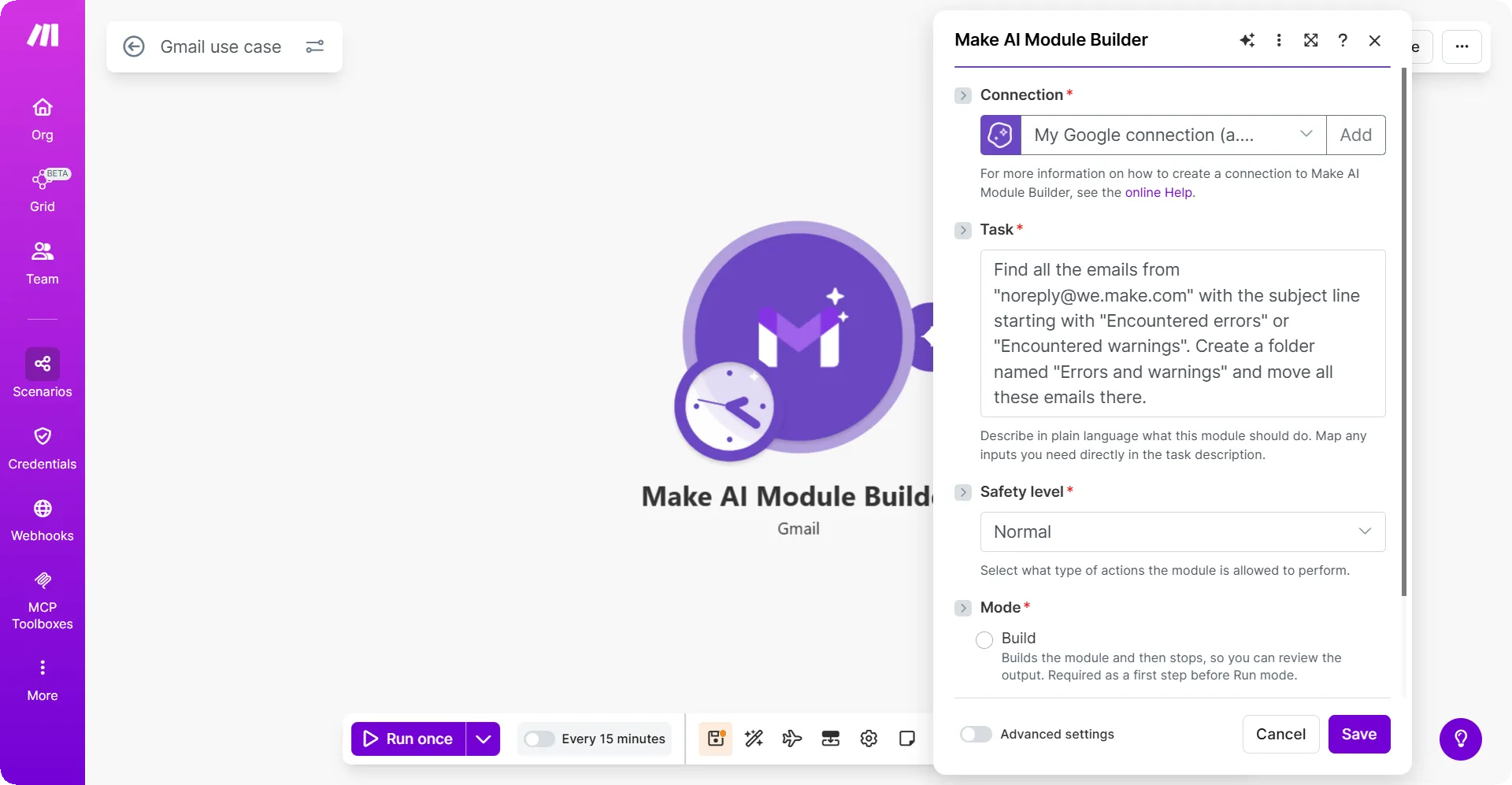
From the Safety level drop down, select Normal.
Select the Mode as Build and run.
Use Build & Run mode only when you are certain of your instructions, as some of these actions cannot be undone. As a best practice, we recommend using Build mode first to review the steps, then switching to Run mode once verified.
Click Save.
Run this module
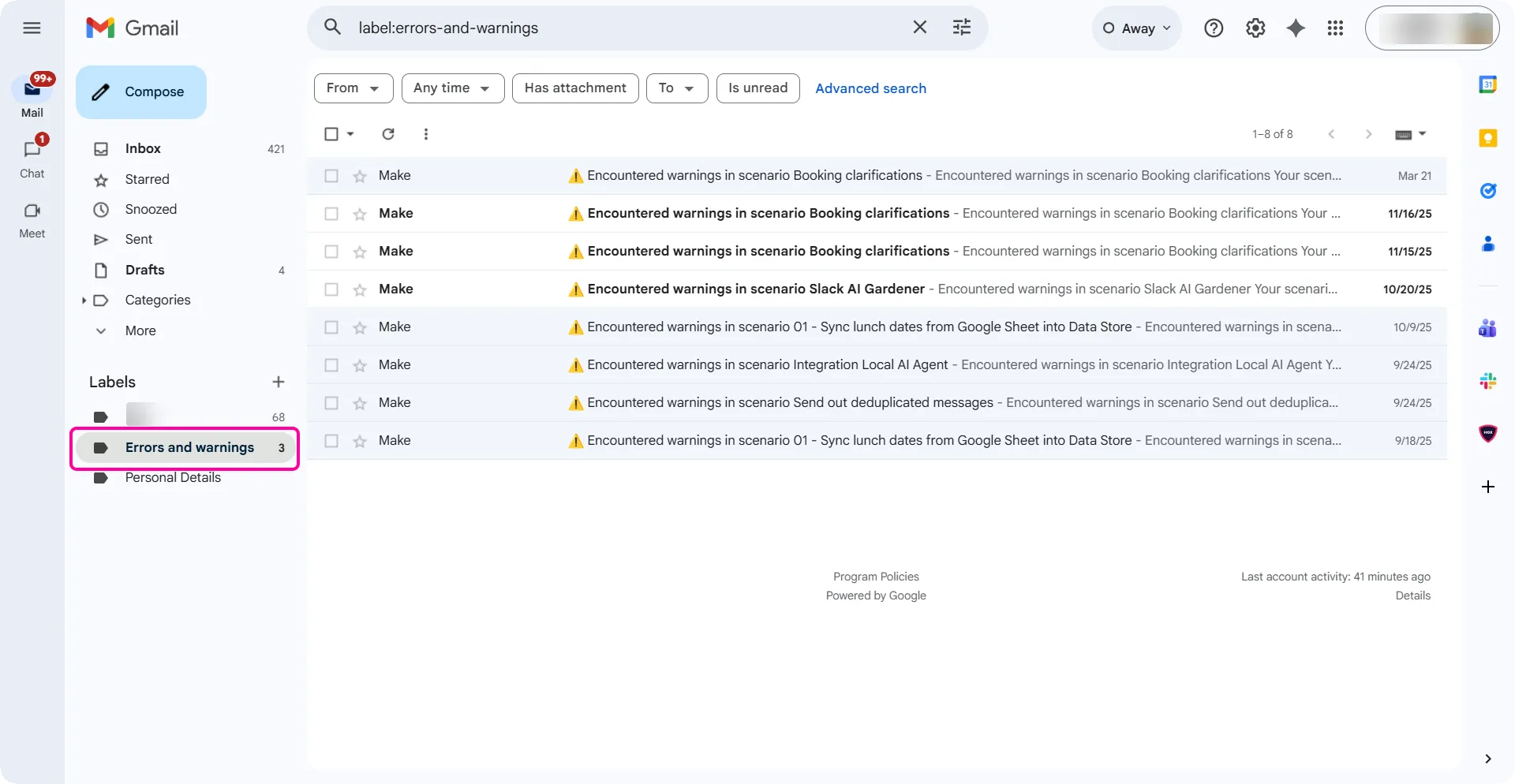
When you run this module, you should see a folder with all the emails meeting your task criteria.
In this below example, you will use the Make AI Module Builder - Google Calendar module to output a detailed array of your scheduled meetings for the day.
Step 1: Add a Make AI Module Builder - Google Calendar module to your scenario builder
Log in to your Make platform.
In the Search apps or modules field, type Make AI Module Builder.
From the search results, click Make AI Module Builder > Google Calendar.
Click Create a connection.
Optional: In the Connection name field, enter a name for the connection.
Follow the on-screen instructions to complete the connection.
Optional: Switch on Advanced settings and enter your client credentials. For more information on how to obtain your credentials, refer to the Connect to Google services using a custom OAuth client page.
Click Save.
If prompted, authenticate your account and confirm access.
Step 2: Set up a the Google Calendar - Make AI Module Builder module
In the Task field, enter the following prompt:
From the Safety level drop down, select Protected.
Select the Mode as Build and run.
Use Build & Run mode only when you are certain of your instructions, as some of these actions cannot be undone. As a best practice, we recommend using Build mode first to review the steps, then switching to Run mode once verified.
Click Save.
Run this module
When you run this module, you should see an output bundle with an array of your meetings and their details.
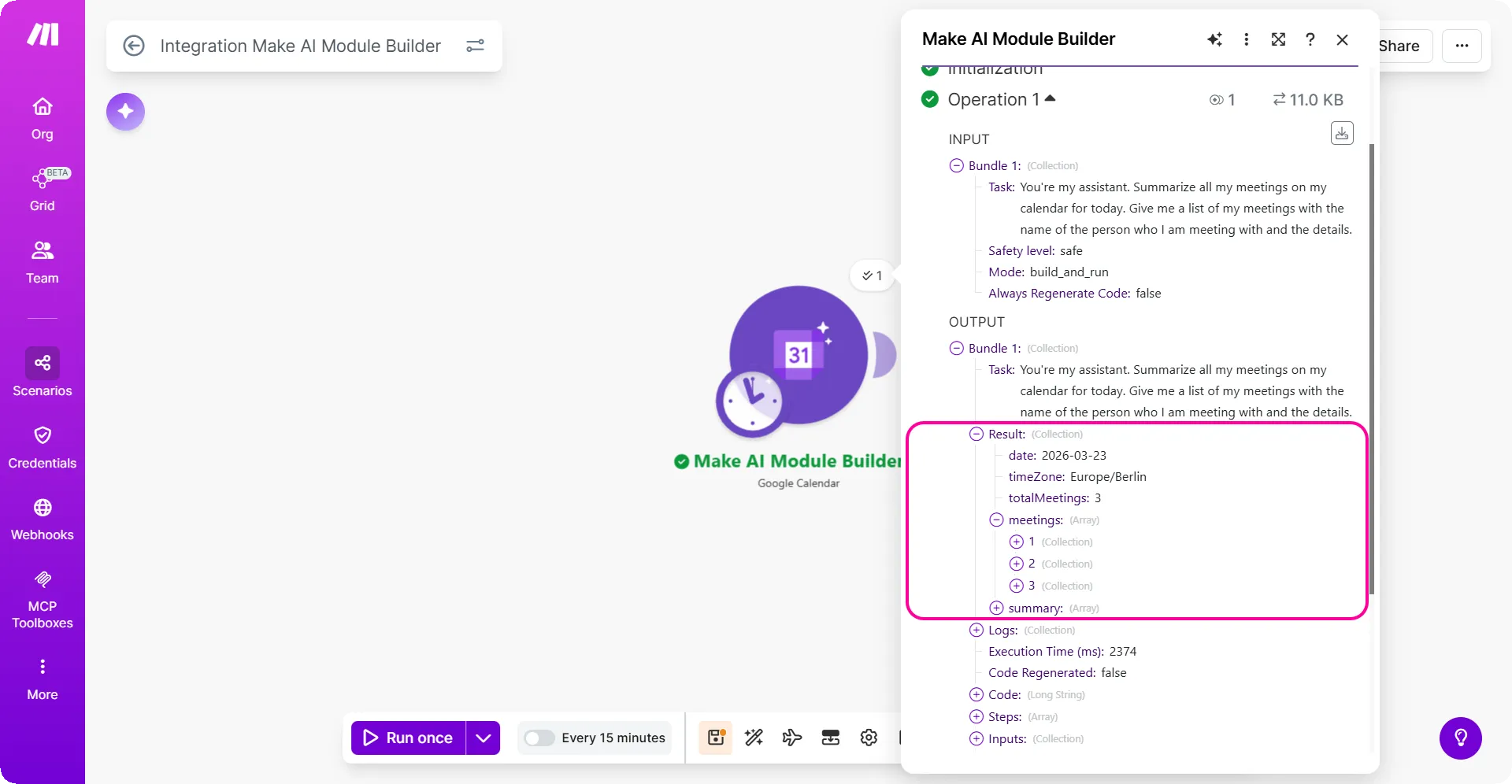
You can then map this data further to other modules such as Slack or Gmail to notify you.
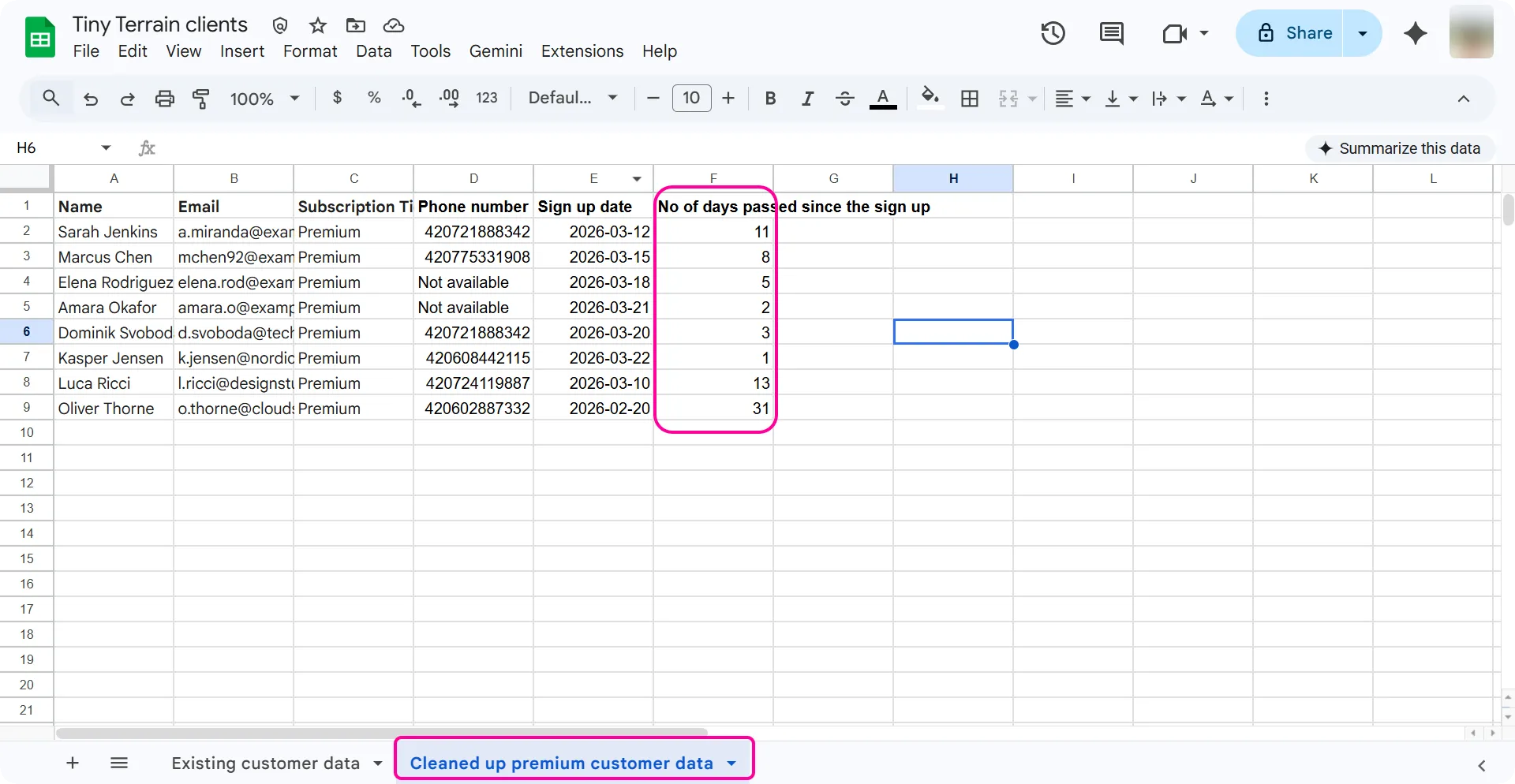
Tiny Terrain is a store that specializes in terrariums. In this use case, Make AI Module Builder automates the extraction, cleaning, and reporting of Premium client data from the Tiny Terrain spreadsheet.
The goal is to:
- Output an array with Premium members with their email IDs.
- Substitute "Not available" in empty phone number fields and delete all entries without an email ID.
- Calculate their loyalty tenure by counting the number of days since they signed up.
Step 1: Prepare your data
Log in to your Google Sheets account.
Create a spreadsheet called Tiny Terrain clients.
Copy paste the below data into your Google Sheets.
Name | Subscription Tier | Phone number | Sign up date | |
|---|---|---|---|---|
Sarah Jenkins | Premium | 420721888342 | 2026-03-12 | |
Marcus Chen | Premium | 420775331908 | 2026-03-15 | |
Elena Rodriguez | Premium | | 2026-03-18 | |
Julian Vane | | Premium | 420739556223 | 2026-03-20 |
Amara Okafor | Premium | | 2026-03-21 | |
David Miller | Regular | | 2026-03-22 | |
Sophie Dubois | Regular | | 2026-03-23 | |
Kevin Park | Regular | | 2026-03-10 | |
Liam O’Connor | Free | | 2026-03-12 | |
Chloe Zhao | Free | | 2026-03-15 | |
Hannah Schmidt | Free | | 2026-03-18 | |
Dominik Svoboda | Premium | 420721888342 | 2026-03-20 | |
Beatriz Moreno | Regular | 420775331908 | 2026-03-10 | |
Kasper Jensen | Premium | 420608442115 | 2026-03-22 | |
Hanna Wagner | | Regular | 420739556223 | 2026-03-23 |
Luca Ricci | Premium | 420724119887 | 2026-03-10 | |
Maya Sterling | | Regular | 420773665441 | 2026-03-10 |
Oliver Thorne | Premium | 420602887332 | 2026-02-20 | |
Clara Oswald | Regular | 420733444999 | 2026-01-20 |
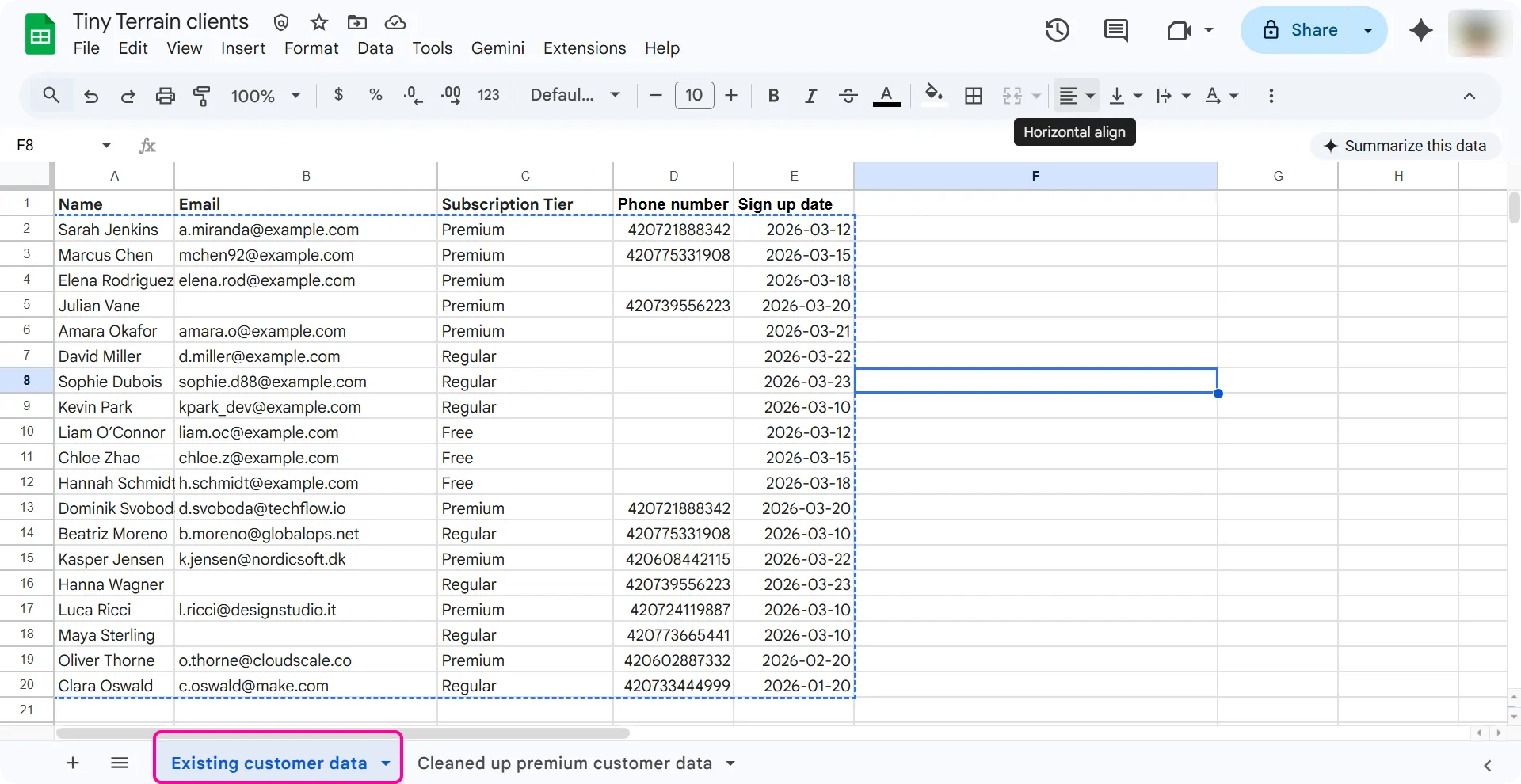
You will use this data as the input for your Make AI Module Builder module.
Step 2: Add a Make AI Module Builder module in your scenario builder
Log in to your Make platform.
In the Search apps or modules field, type Make AI Module Builder.
From the search results, click Make AI Module Builder > Google Sheets.
Click Create a connection.
Optional: In the Connection name field, enter a name for the connection.
Follow the on-screen instructions to complete the connection.
Optional: Switch on Advanced settings and enter your client credentials. For more information on how to obtain your credentials, refer to the Connect to Google services using a custom OAuth client page.
Click Save.
If prompted, authenticate your account and confirm access.
You have now successfully created a connection between Make and your Google account.
Step 3: Set up the Make AI Module Builder module
In the Task field, enter the following prompt:
In the Safety Mode, select Normal.
Select the Mode as Build.
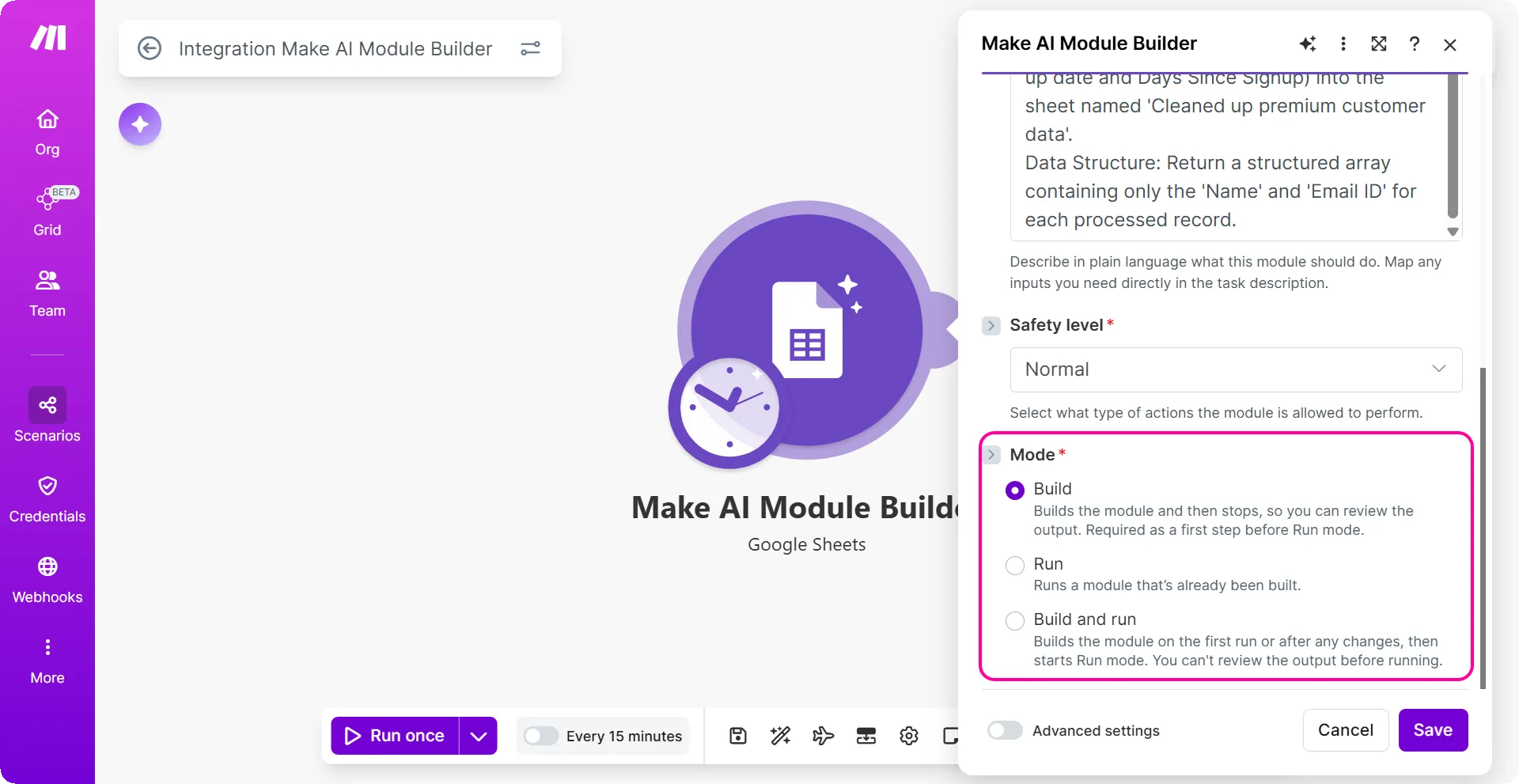
Click Save.
Click Run once.
Verify the steps in the output bundle. They should match the desired output.
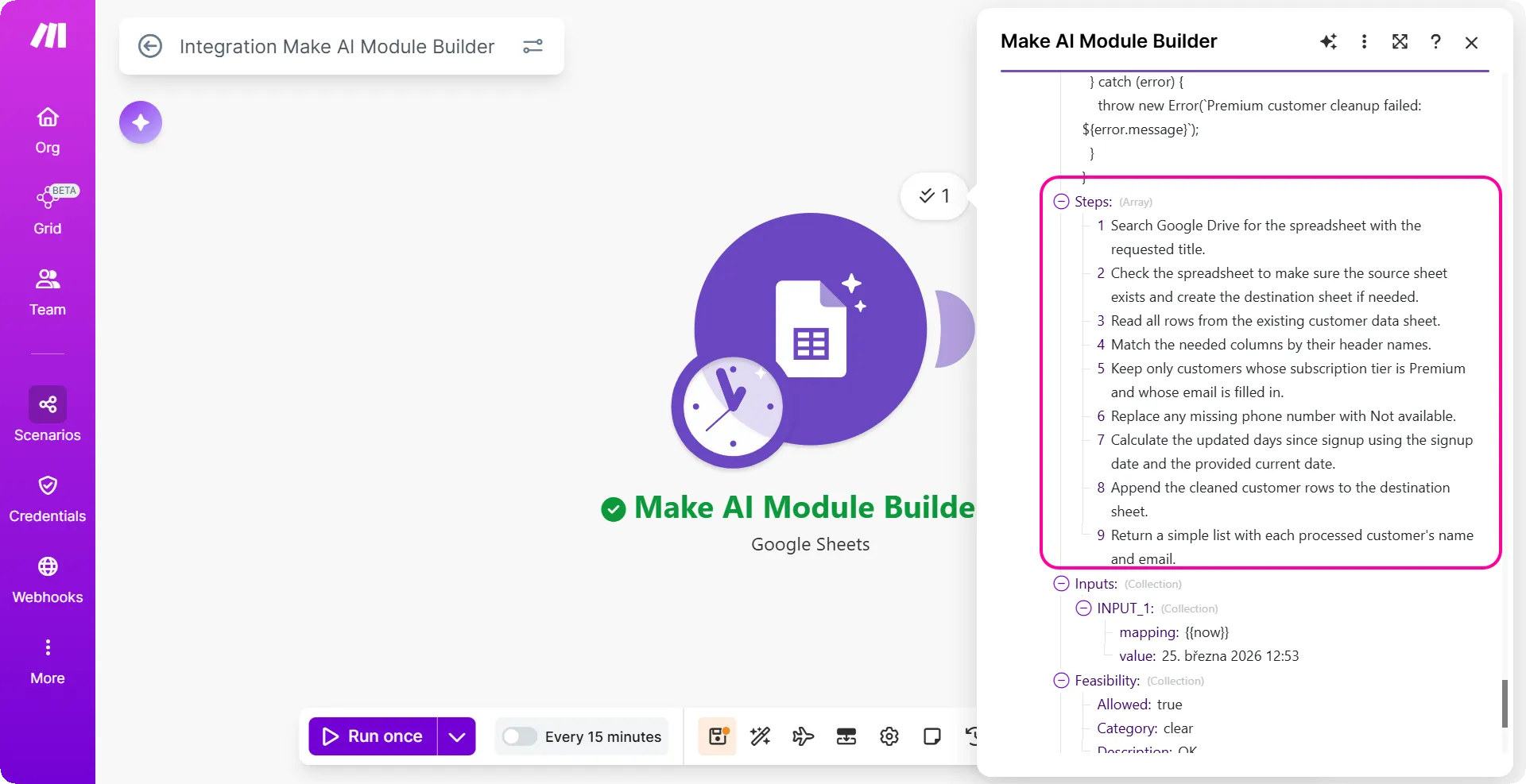
Update the Mode to Run and Save.
Step 4: Verify your output
- The run should output an array with the name and email address of all premium customers.
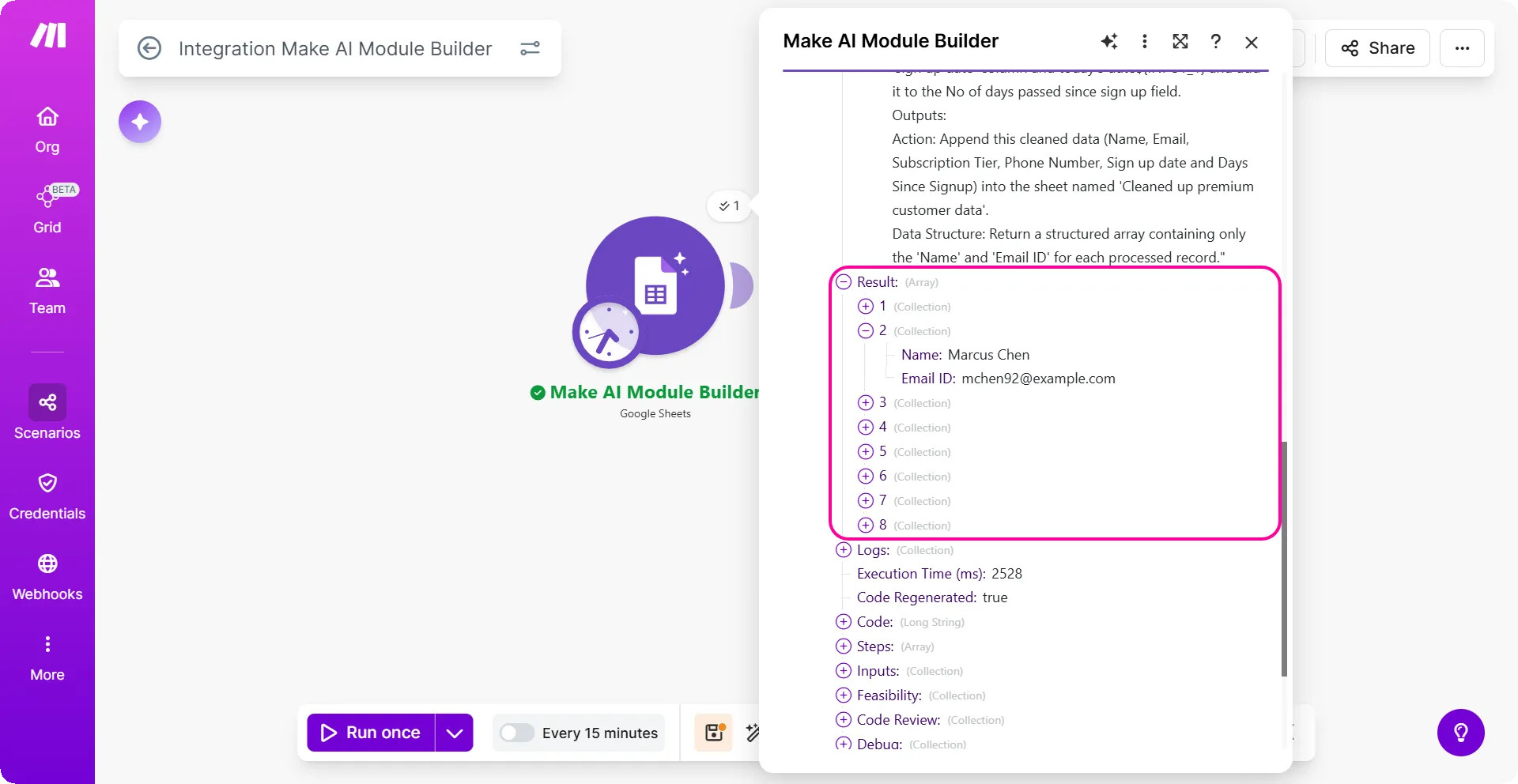
- The Google Sheets should have the cleaned up data that includes:
- Premium customers with email addresses only.
- Premium customers with missing phone numbers as "Not available".
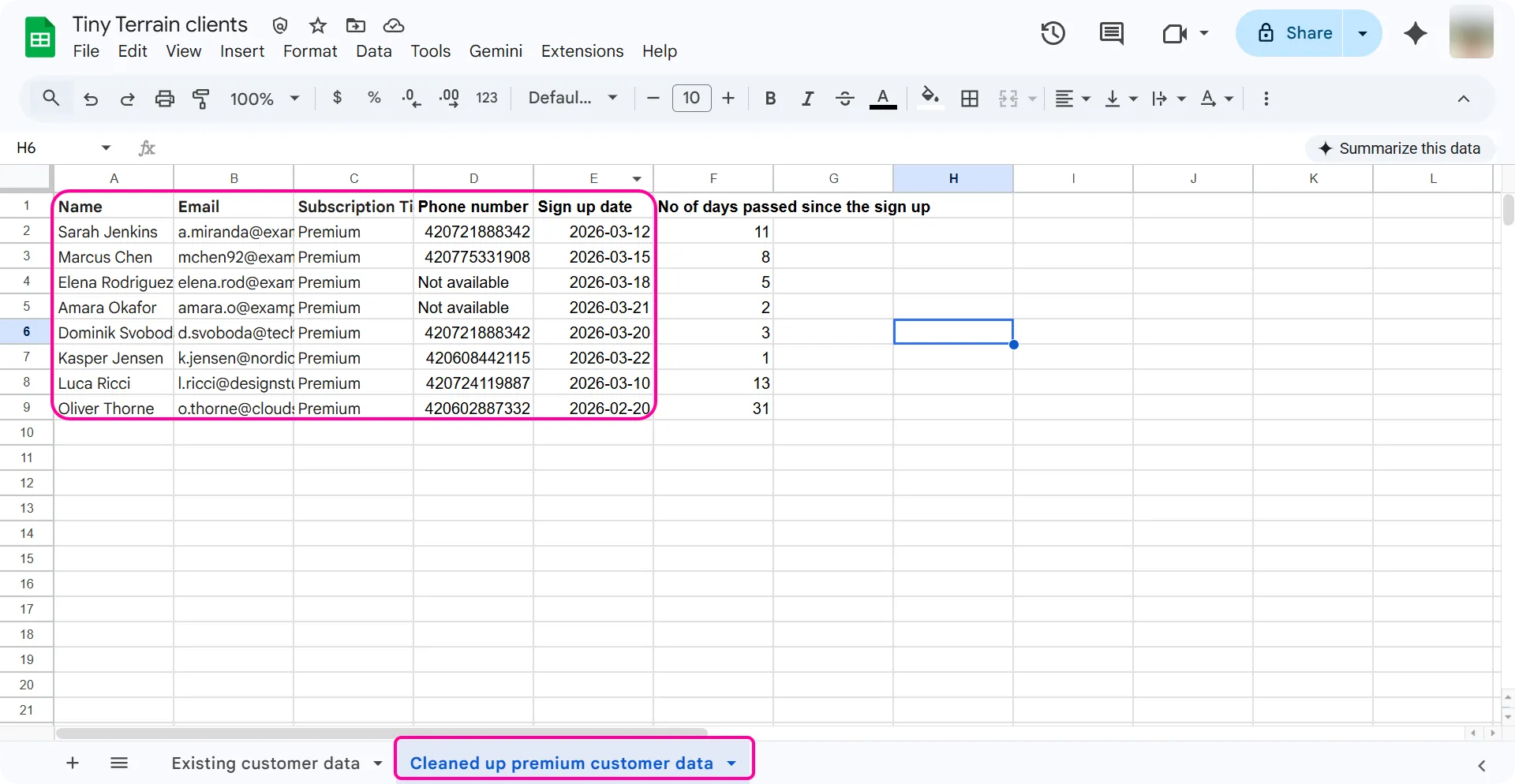
- The Google Sheets should have the number of days that have passed since the sign up.