Credential requests
The Credential requests feature is available to official Make Partners and Enterprise customers.
Only users with the required permissions and with this feature enabled can create credential requests.
See below:
- How to enable the featureHow to enable the feature
- Who can request credentialsWho can request credentials
Credential requests are a secure, scalable, and user-friendly way to collect connection credentials from third parties.
When building automations in Make (e.g., for teammates, other teams, clients, or external partners), builders (requesters) can specify which connections and credentials are required for a scenario and generate a secure request link.
Recipients can use this link to provide the requested connection credentials:
- If they are not part of the requester's Make organization or team, they are invited to join it with a Guest role before they provide the credentials.
- If they are already part of the requester's Make organization, they can provide the credentials directly.
In both cases, recipients can:
- See who requested their credentials and how they will be used.
- Retain the ongoing control to revoke, reauthorize, or edit credentials at any time.
Login credentials and other authentication data are never exposed through credential requests.
The person authorizing the request enters credentials directly in Make to create the connection. This connection can be used to build scenarios, but no one on the requester's side can view, access, or retrieve the user's authentication details (e.g., passwords, API keys, OAuth credentials).
How to enable Credentials requests feature
To enable the feature, each user must submit this form.
The Customer Care team then verifies the eligibility (Partner or Enterprise account user with a corporate email) and grant acceess to the feature upon approval.
The feature is enabled for a user, not the organization. Once a user has access to the Credentials request feature, they can use it in any Make organization they are part of, provided that organization is on the Enterprise plan or a Make Partner on any paid plan.
All owners of these organizations will receive an email notification that this member has been granted permission to use the feature in their organization. The same applies to any new organizations the user joins in the future.
All Team Members can check which users have the feature enabled by navigating to Team > Team members tab in the left sidebar.
Who can request credentials
Credential requests are created and sent from the team you're currently working in within your Make organization. Who you can send a request to depends on your team and organization role:
- Team Members can request credentials from any user within their team.
- Team Admins can request credentials from any user within their organization.
- Organization Admins and Owners can request credentials from any user within their organization and from external people.
Once the recipient authorizes a request, everyone in the team can use the shared credentials to create connections in the scenarios.
Audit logs show when and by whom a credential request was created, deleted, or authorized:
- Organization Admins can see this information for the entire organization.
- Team Admins can see this information for their teams.
Create credential request
To create and send credential requests, you must have this feature enabled.
To create a credential request:
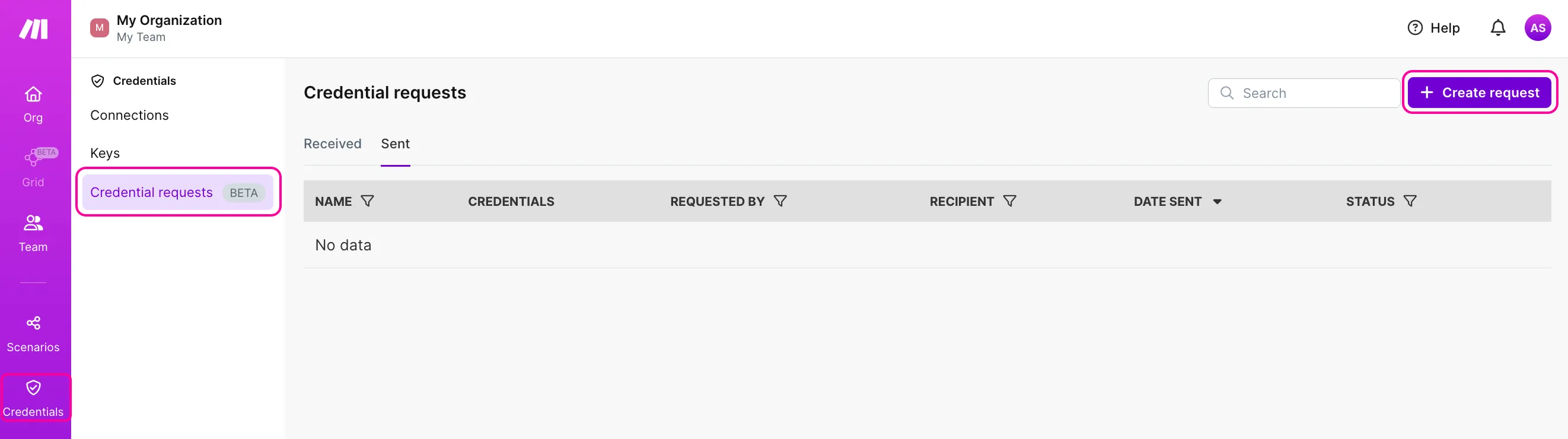
In the left sidebar, click Credentials and switch to the Credential requests tab.
Click the +Create request button.
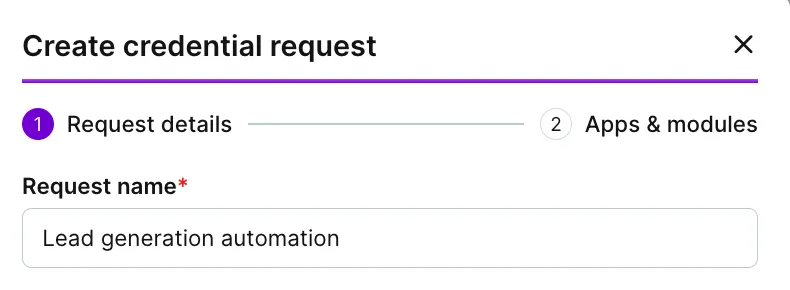
In the Request name field, enter a descriptive name that will help identify the request (e.g., the project or automation name).
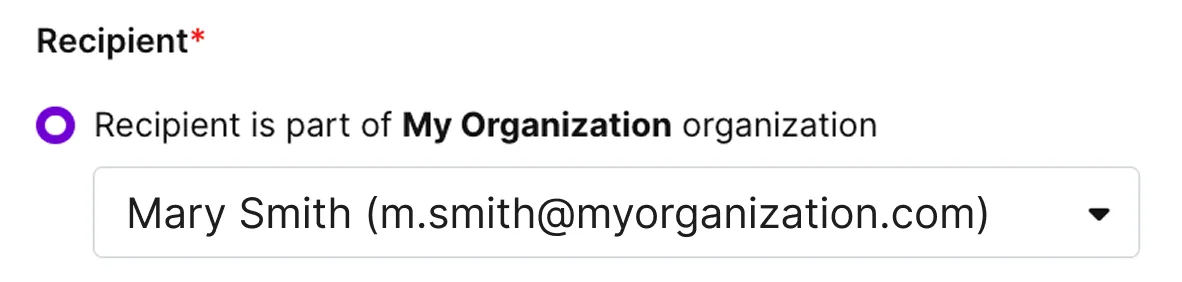
In the Recipient section, select Recipient is part of [Name of your organization] organization, if you want to request credentials from someone within your Make organization.
In this case, you will select a user from the drop-down list.
If you want to request credentials from someone who is not part of your Make organization, select Recipient is not part of [Name of your organization] organization.
This option is only available to those with permission to add users to the organization. You need to have either an Admin or an Owner organization role.
In this case:
- Enter the recipient's Name and Email address.
- Optionally, add a Description (max. 256 characters) to explain the purpose of the request.
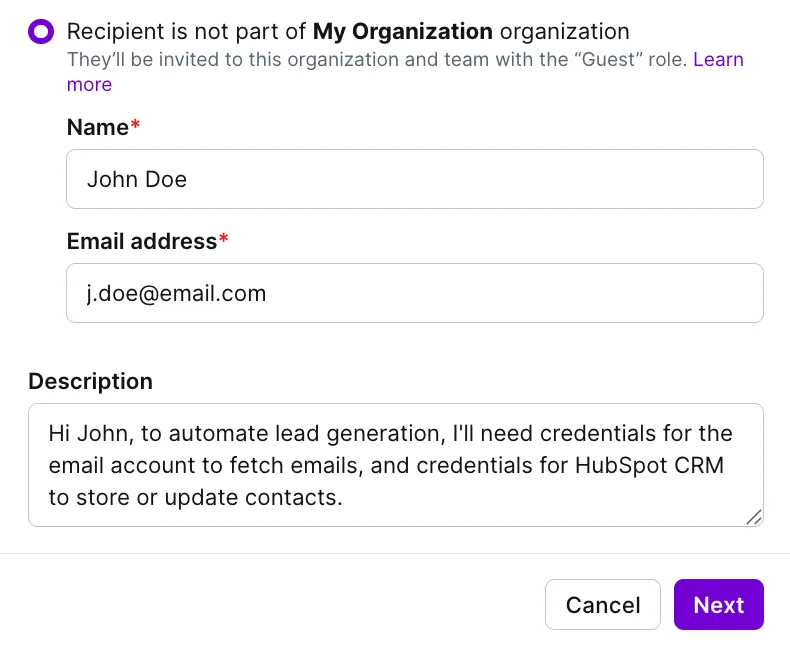
Once finished, click Next.
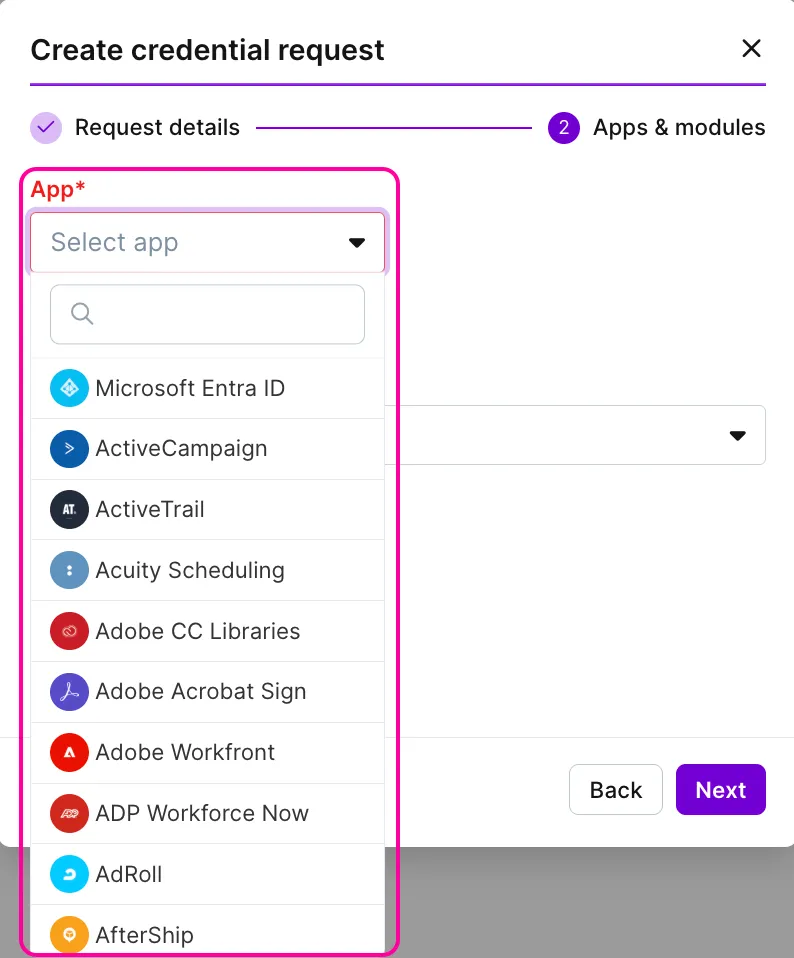
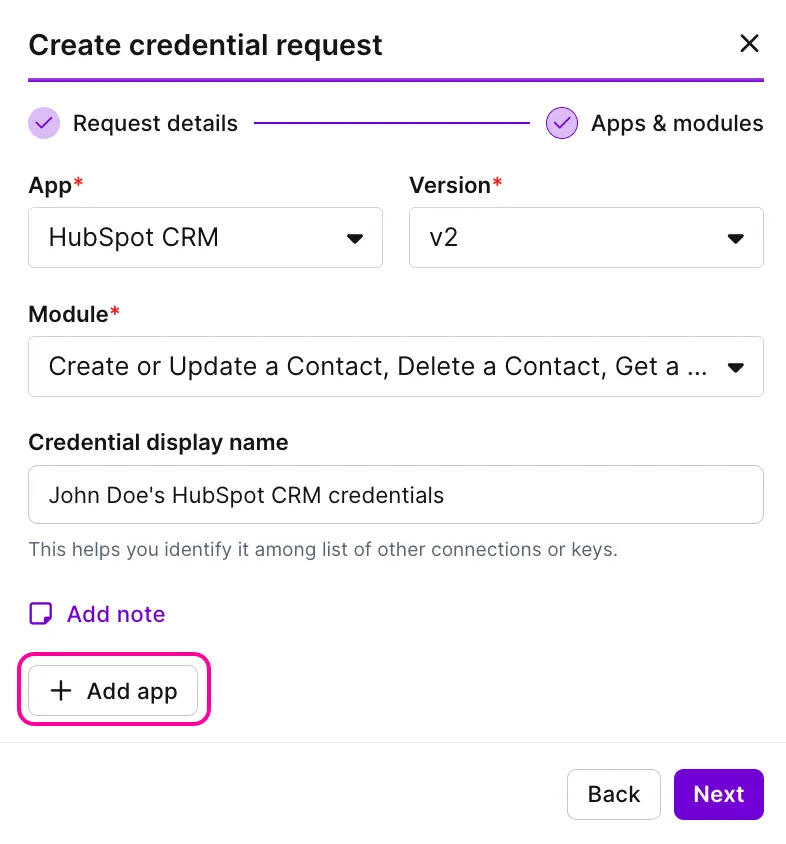
In the App field, select the app for which you want to request credentials.
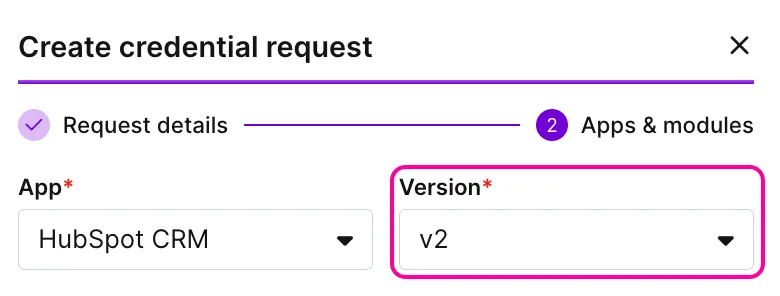
If the app has multiple versions, select the required one in the Version field.
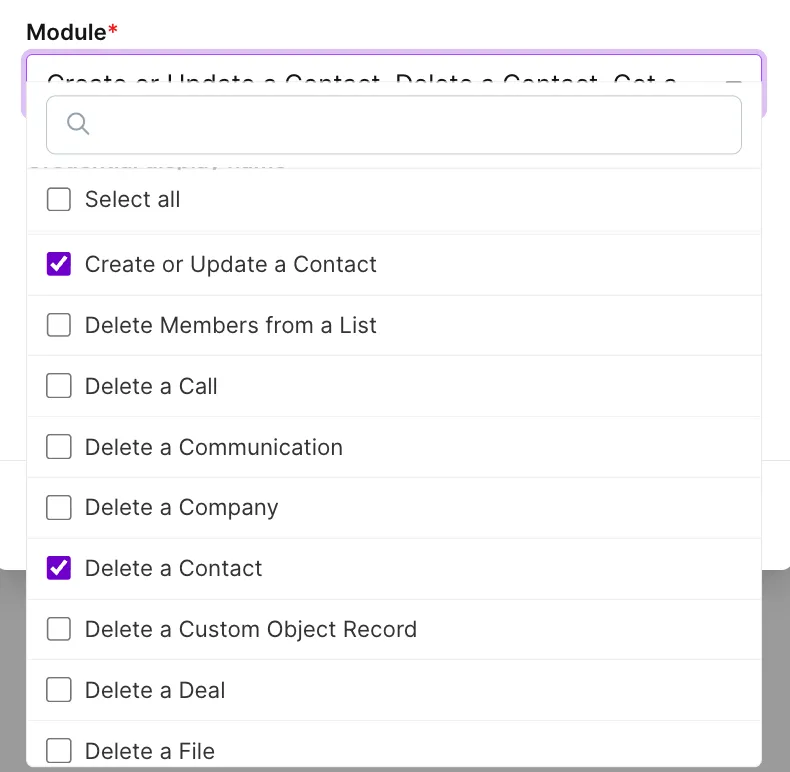
In the Module field, select the modules for which you want to request credentials.
To include all the modules, click Select all.
Optionally, add a note (max. 256 characters) explaining why you need the credentials and how you'll use them, or specify other details.
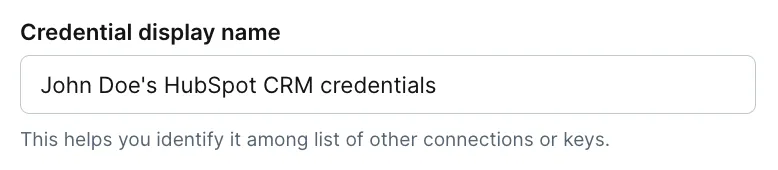
Configure a name to distinguish these credentials afterward in the list of available connections for the app, or leave the default.
To add more apps to the request, click the +Add app button and repeat the steps explained above.
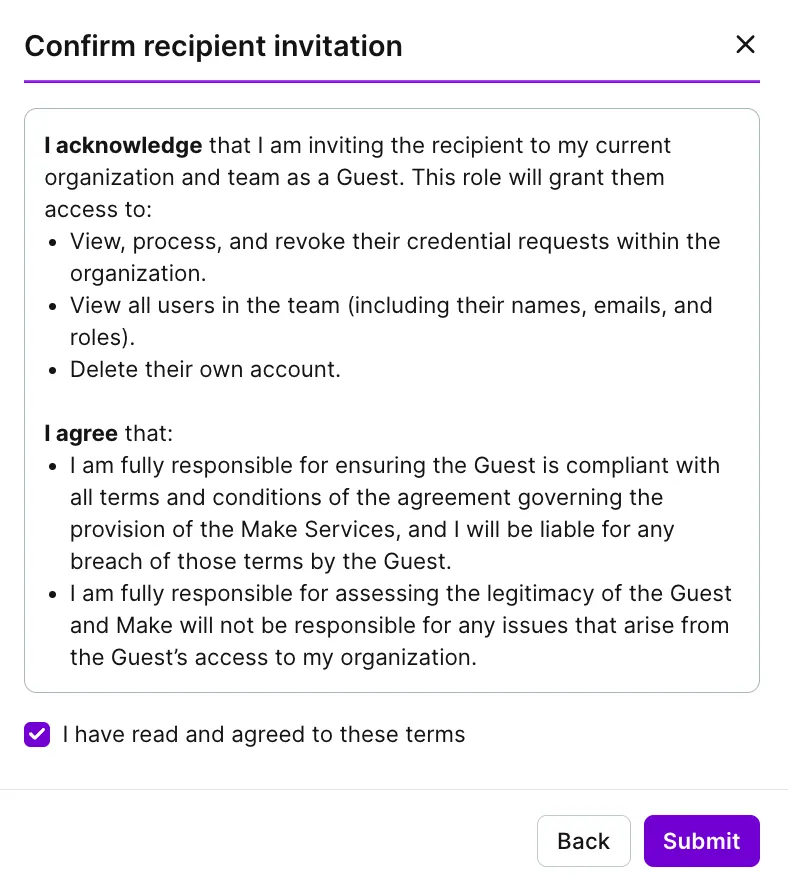
Review the terms and conditions, then check the box to confirm your agreement.
Click Submit.
You'll see a confirmation that the request has been successfully sent.
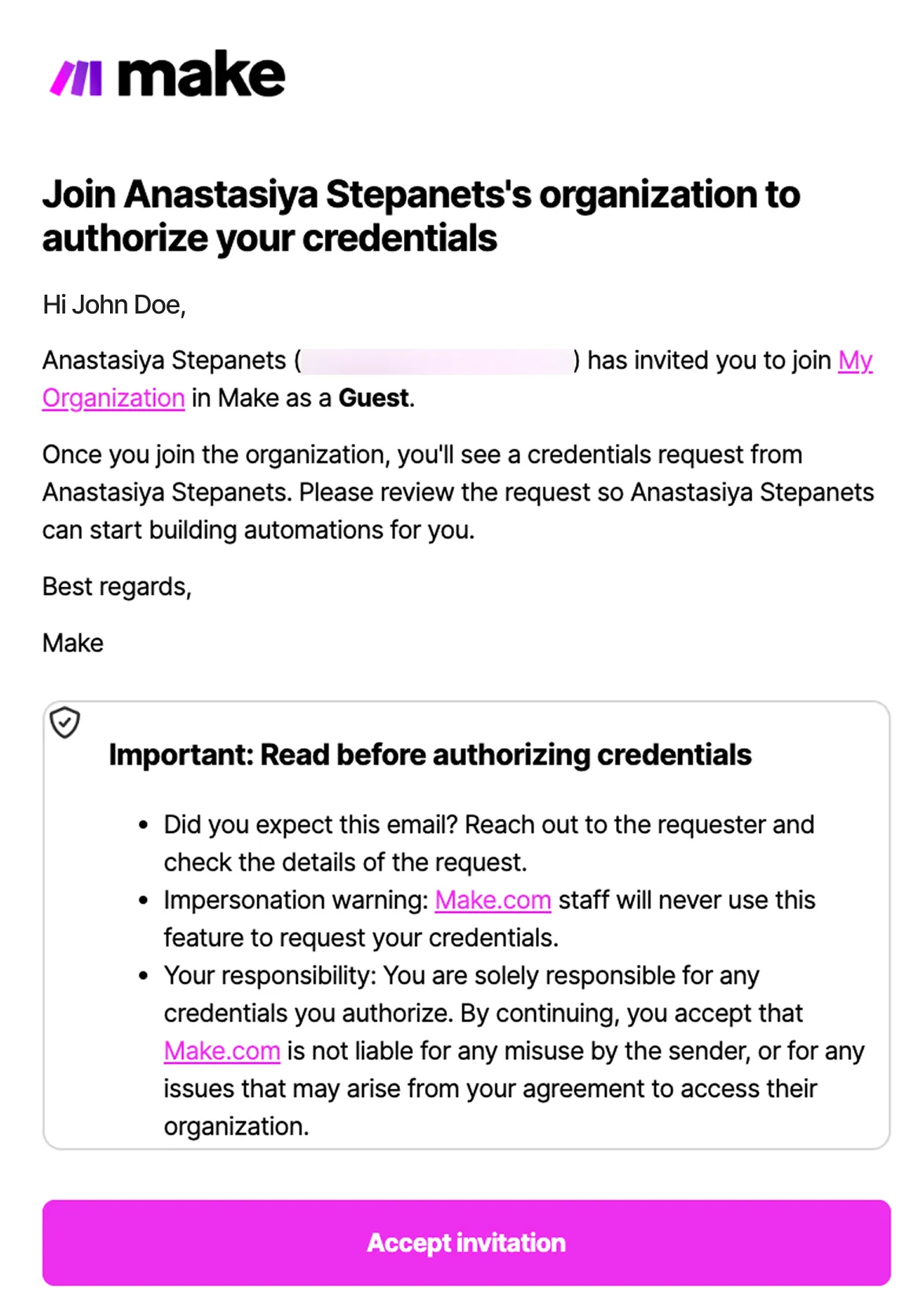
- A recipient who is not a part of your Make organization will be invited to join your organization and team with a Guest role.
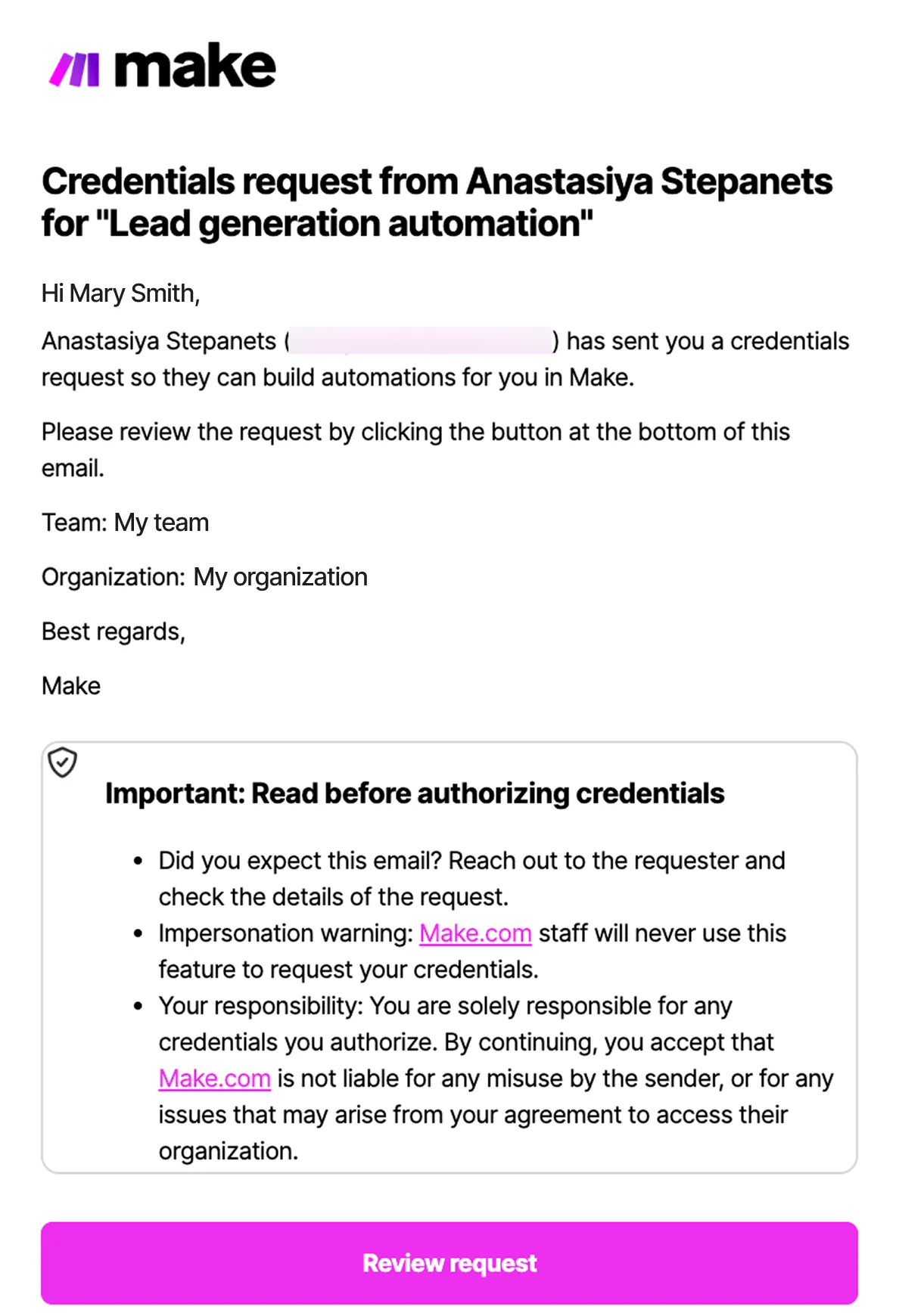
- A recipient who is a part of your Make organization will receive a link to review the request.
Authorize or decline a credential request as a recipient
Once a requester submits a request, the recipient gets an email notification.
To authorize the credential request as a recipient:
Open the email notification.
If you're a part of the requester's Make organization, click the Review request button.
If you're not a part of the requester's Make organization, you'll get an invitation to join it. Click the Accept invitation button.
Follow the prompts to log in to Make or sign up if you don't have an account.
Once you log in to Make, you will be redirected to the request details page in the requester's organization. There, you can see:
- Request name
- Requester's name
- Request date
- Request description (if provided by the requester)
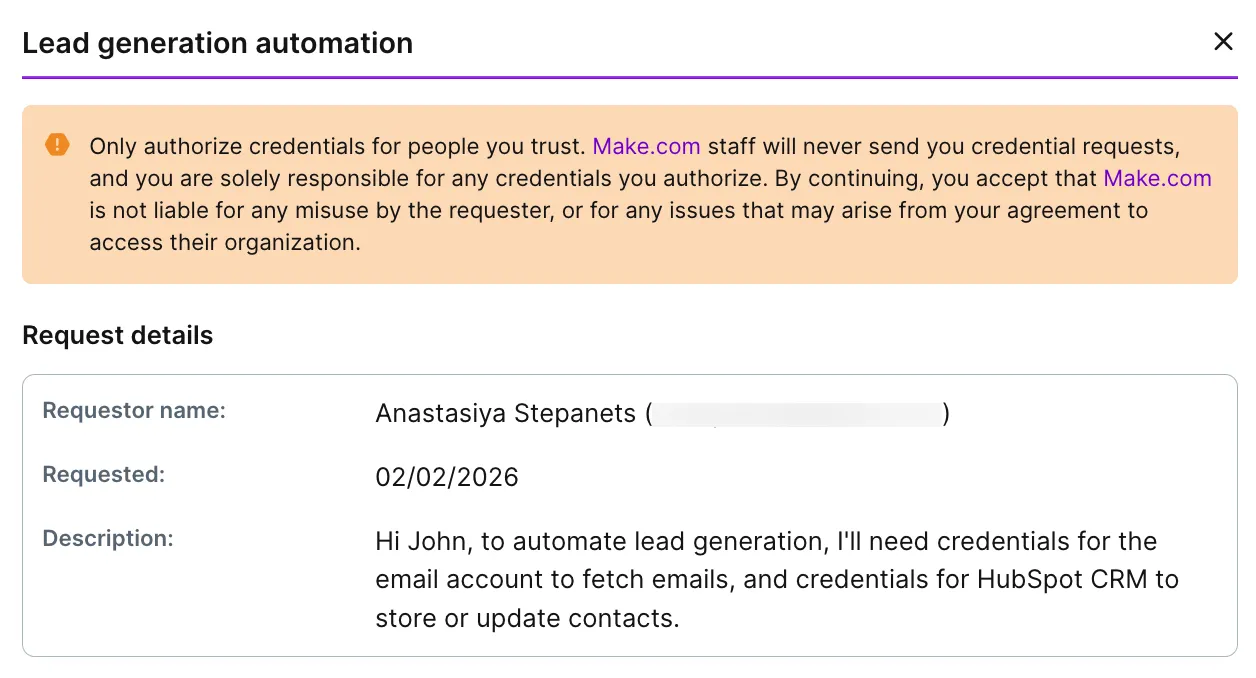
In the Requested credentials section, you can:
- See the apps for which credentials are requested.
- Hover over the modules and permissions under each app to see which ones are included in the request.
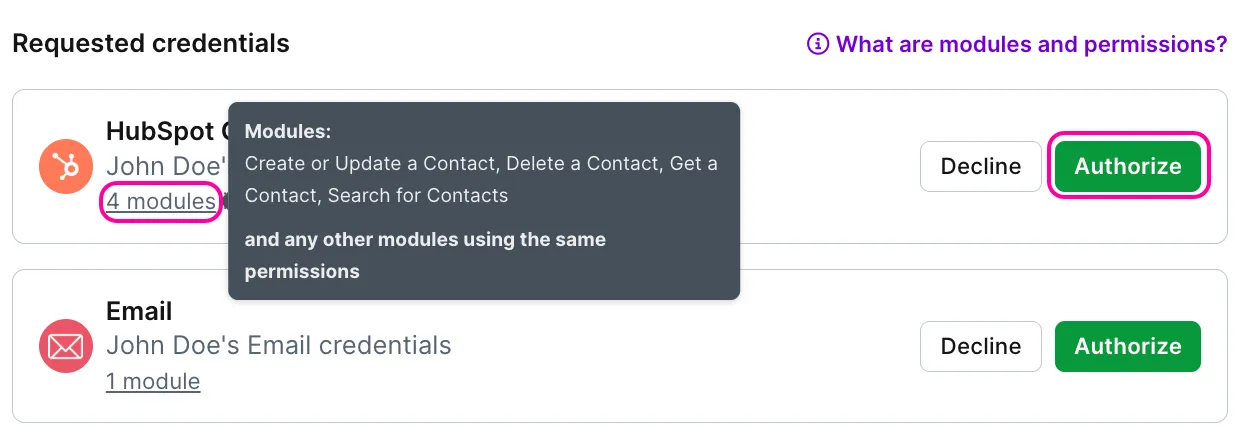
Click Authorize to proceed.
A window prompting you to create a connection will appear.
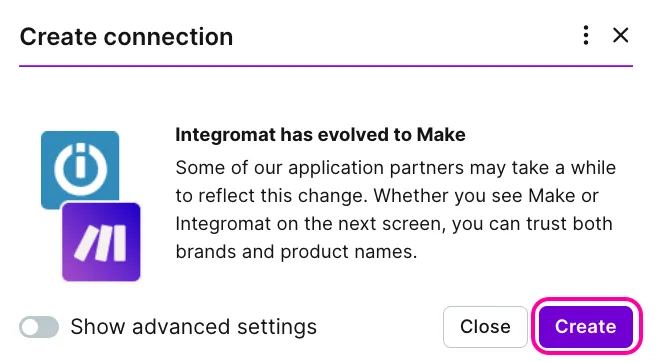
Follow the prompts to grant Make access. Depending on the connection, you may need to select the connection type, enter an API key, OAuth credentials, or other authentication details.
Once finished, a green Authorized label should appear next to the app's name.
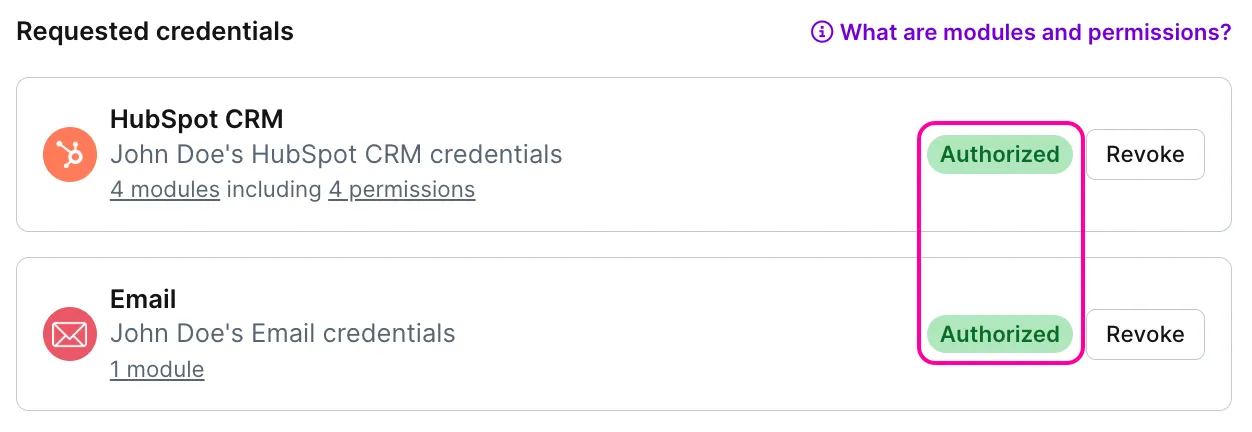
To decline the credential request, as a recipient:
Log in to Make.
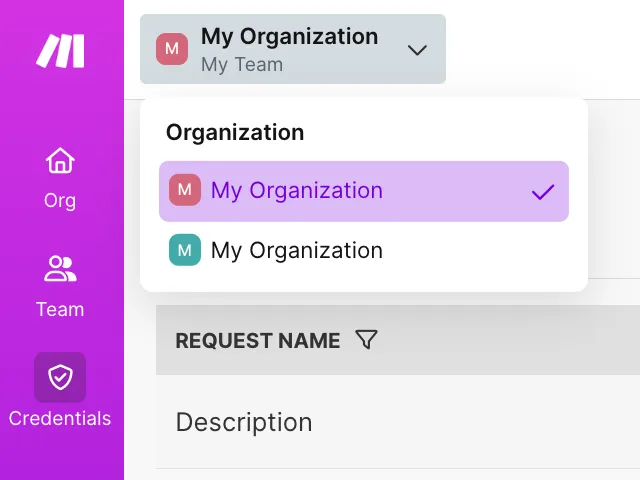
Switch to the requester's organization, if you have several.
In the left sidebar, click Credentials.
Click Details next to the relevant request.
Click Decline next to the app you don't want to provide credentials for.
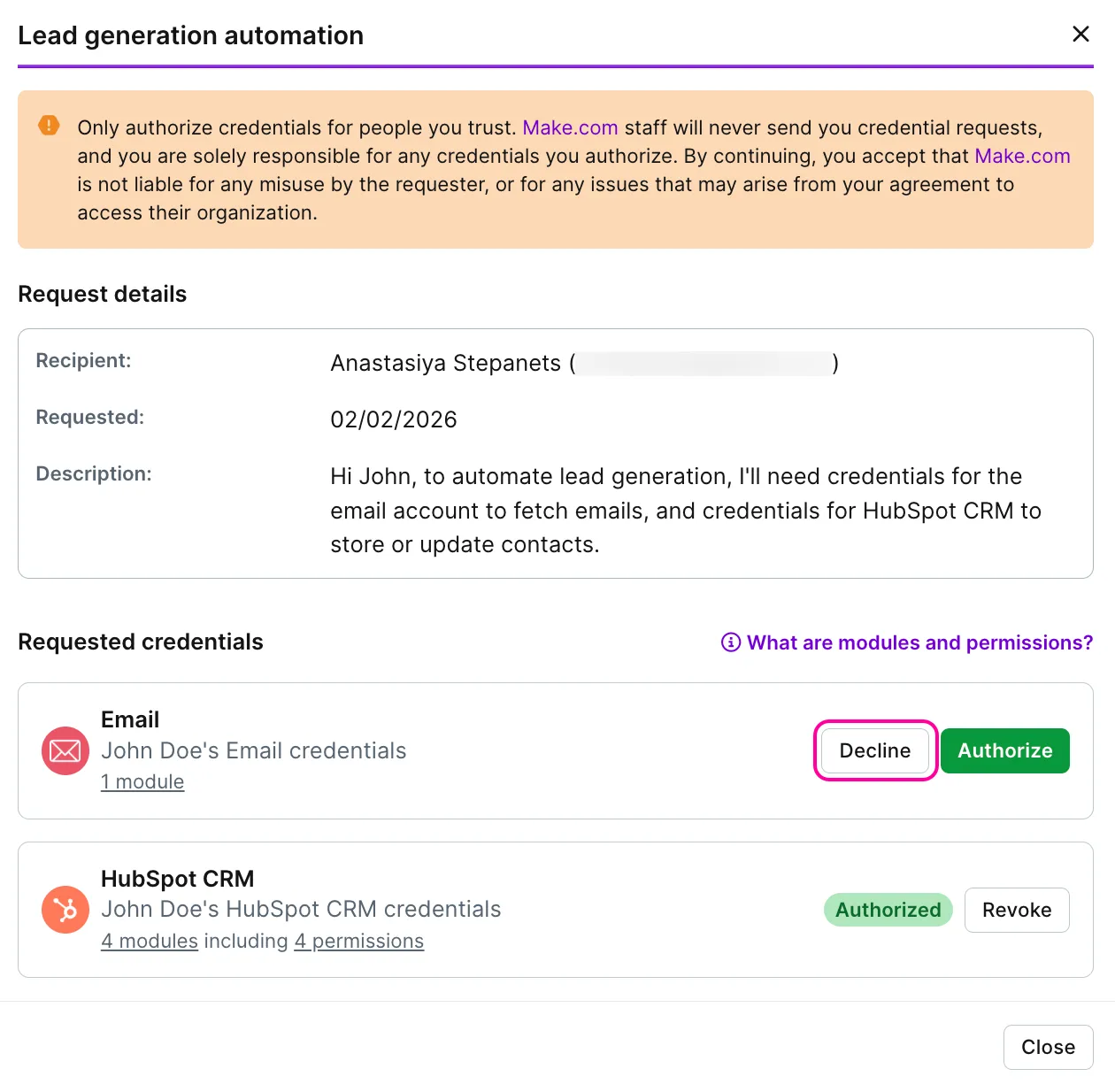
Add the reason for declining the request.
Click Decline.
The requester will see the red Declined label in the request and the reason for that.

View credentials requests
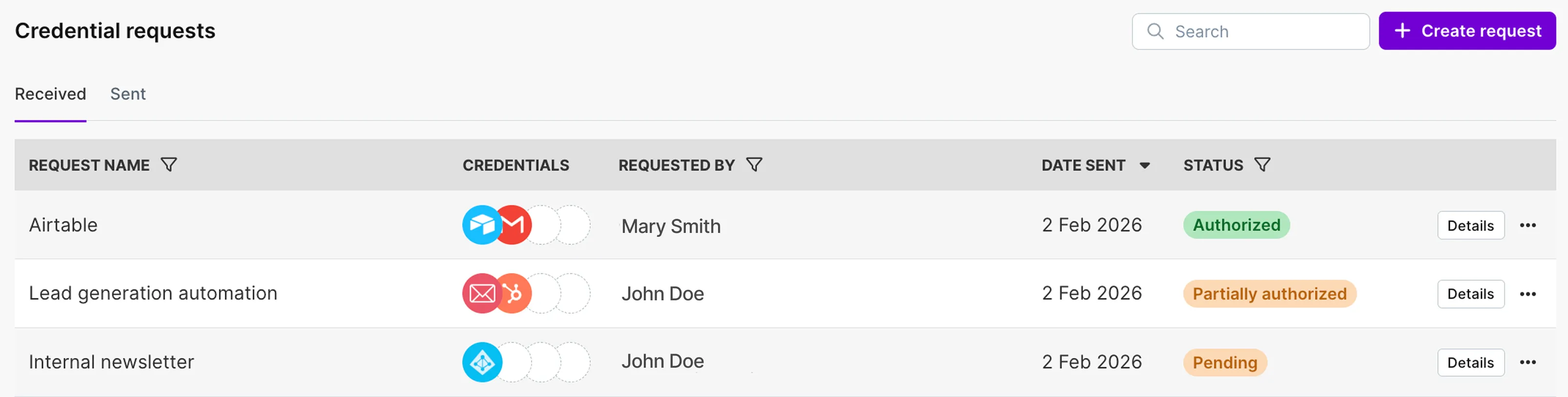
To see all the sent and received credential requests, click Credentials on the left sidebar. In the Credential requests tab, you can switch between Sent and Received requests depending on whether you are a requester, a recipient, or both.
Sent requests
In the Sent tab, you can view all the requests sent by you and your team members, including:
- Request name
- Which apps are included in the request
- Who requested the credentials
- Who the recipient is
- When the request was sent
- Request status
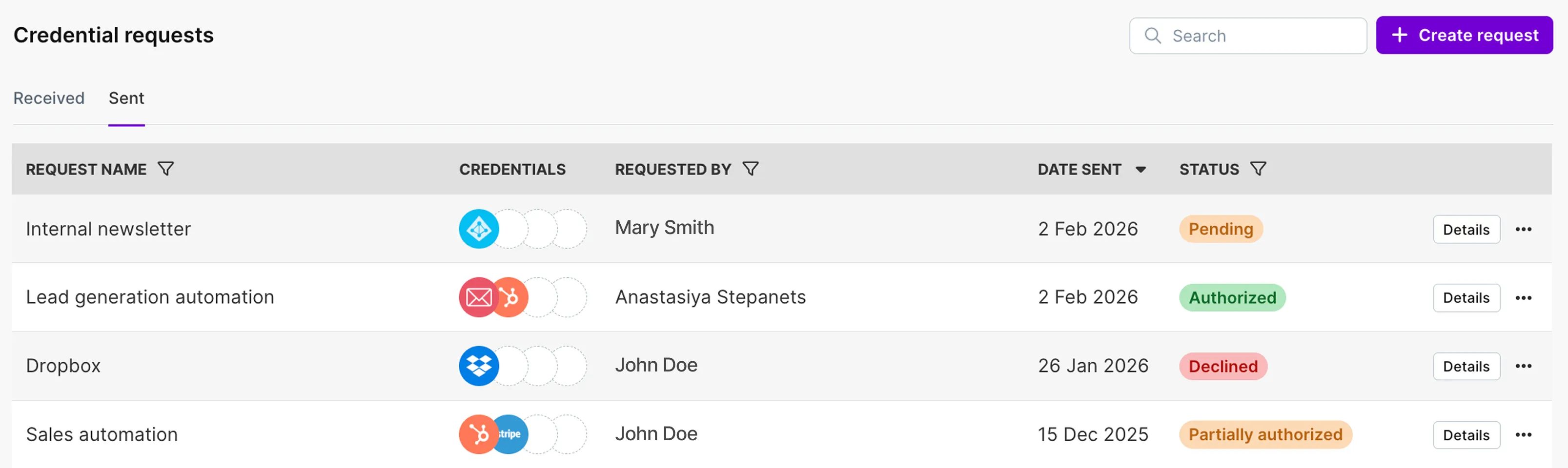
Requests can have the following statuses:
- Authorized - All apps in the request have been authorized
- Partially authorized - Some apps have been authorized, and others declined
- Incomplete - The authorization process hasn't been completed
- Invalid - The authorization process has failed
- Declined - The request has been declined
View request details as a requester
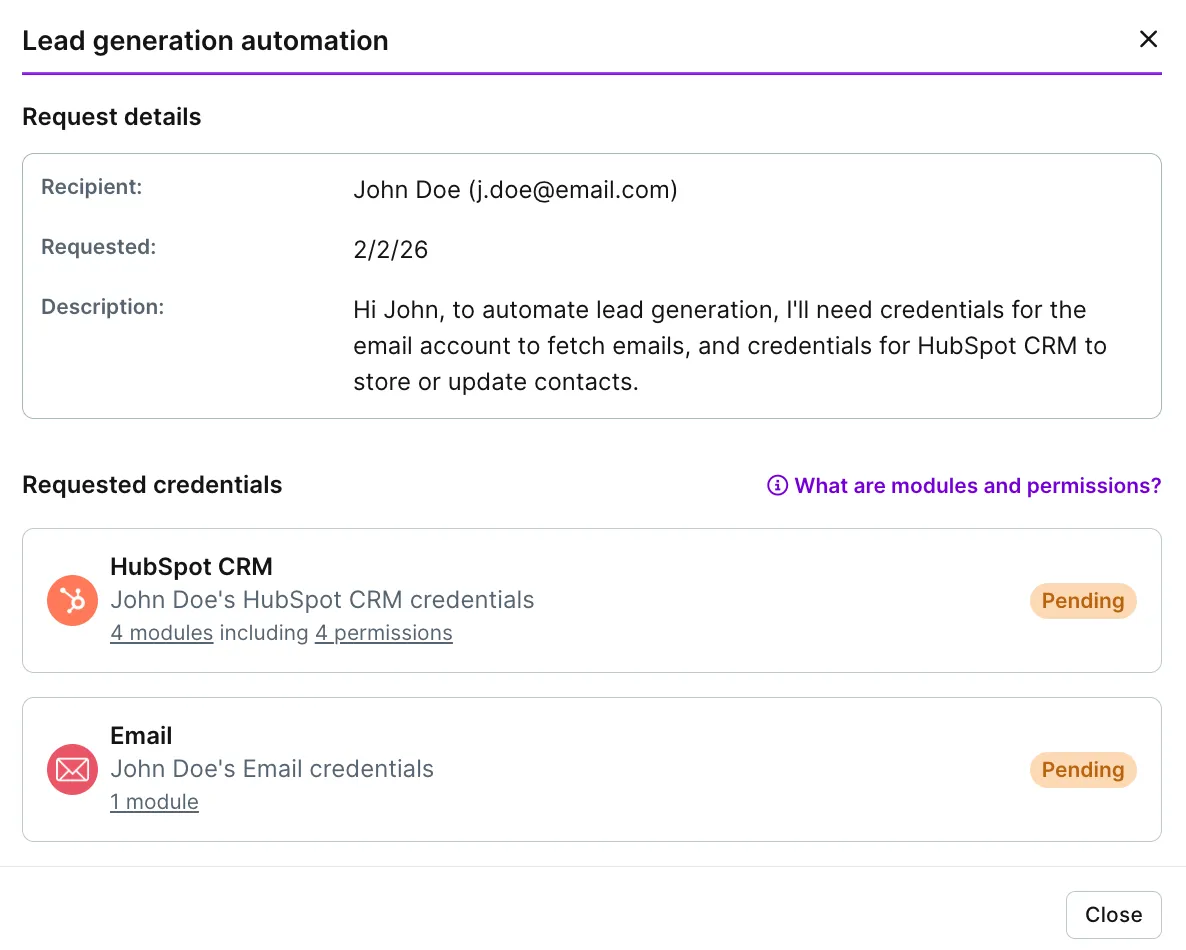
To see all available information for the request, click Details next to the credential request.
For sent requests, the details include:
- The recipient's name and email address
- The request submission date
- The request description (if provided by the requester)
In the Requested credentials section, you can also:
- See all the apps included in the request
- Hover over modules and permissions to see what access is authorized
- See whether the request for a particular app is still Pending, has been Authorized, or Declined (with the reason added by the recipient)
Received requests
In the Received tab, you can view all the requests you've received, including:
- Request name
- Which apps are included in the request
- Who requested the credentials
- When the request was sent
- Request status
View request details as a recipient
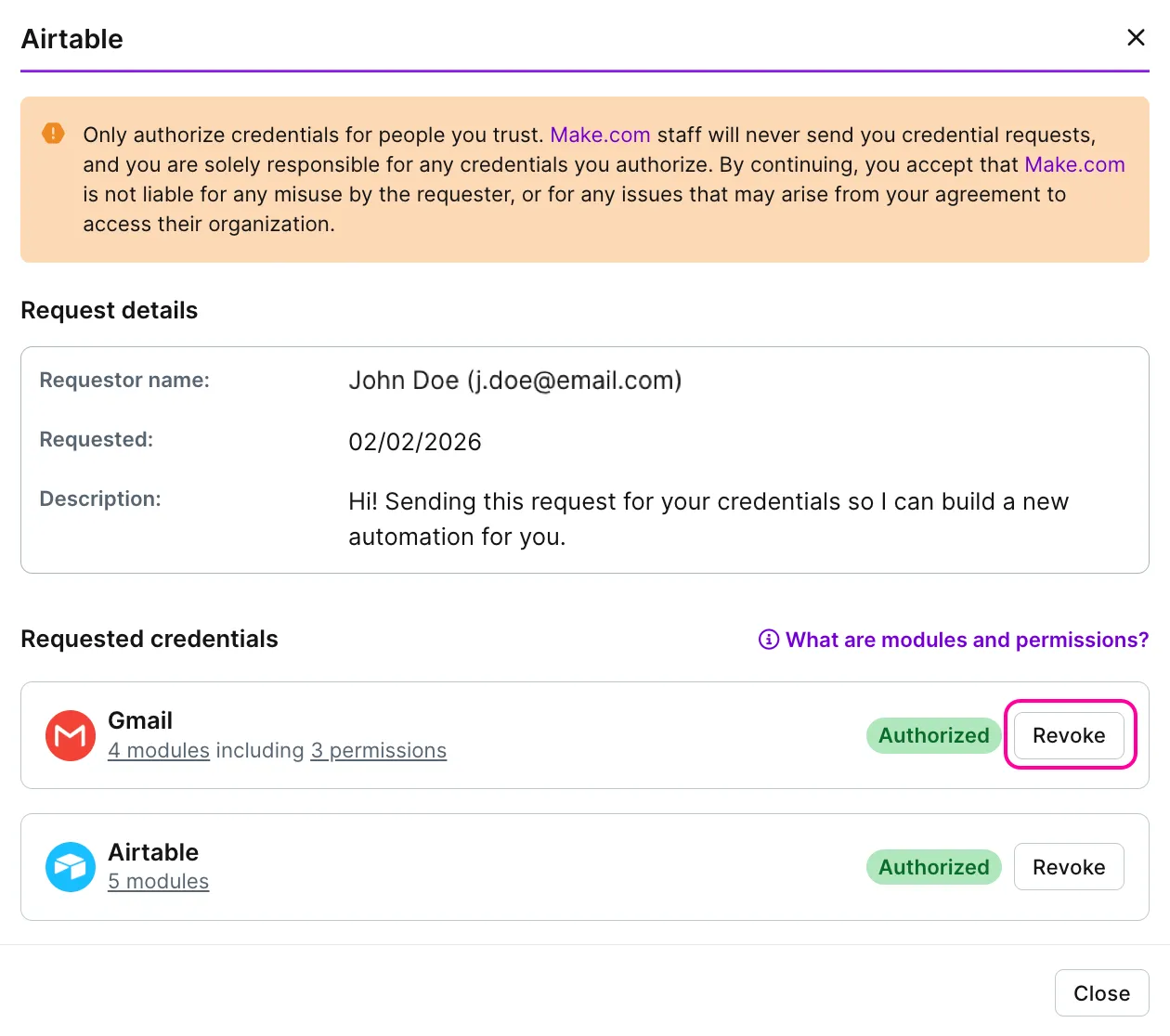
To see all available information for the request, click Details next to the credential request.
For received requests, the details include:
- The requester's name and email address
- The request submission date
- The request description (if provided by the requester)
In the Requested credentials section, you can also:
- See all the apps included in the request
- Hover over modules and permissions to see what exactly is authorized
- See whether the request has been Authorized or Declined (with the reason you added)
- Revoke, Authorize, or Decline access to the credentials.
Revoke access to credentials
A recipient can revoke access to the provided credentials at any time. To do that:
In the left sidebar, click Credentials.
Switch to Sent in the Credential requests tab, and click Details next to the relevant request.
In the Requested credentials section, click Revoke for the app you want to remove the access from.
The requester will no longer be able to use your credentials for that app.
To restore access, click Authorize and follow the prompts to establish the connection again (e.g., grant access, enter API key).
To permanently remove access, click Decline or delete the request (see below).

The requester will no longer be able to use the credentials provided by the recipient for a particular app in the request. However, if there are multiple apps in the request, all the other authorized credentials will still be available.
Reauthorize credential request
Apps that use the OAuth 2.0 protocol only grant access for a limited time and may require periodic reauthorization to maintain the connection.
Request reauthorization
As a requester, you can ask a recipient to reauthorize an OAuth connection in an authorized credentials request. To do that:
In the left sidebar, click Credentials.
Switch to Sent in the Credential requests tab, and click Details next to the relevant request.
In the Requested credentials section, click Request reauthorization for the corresponding app.
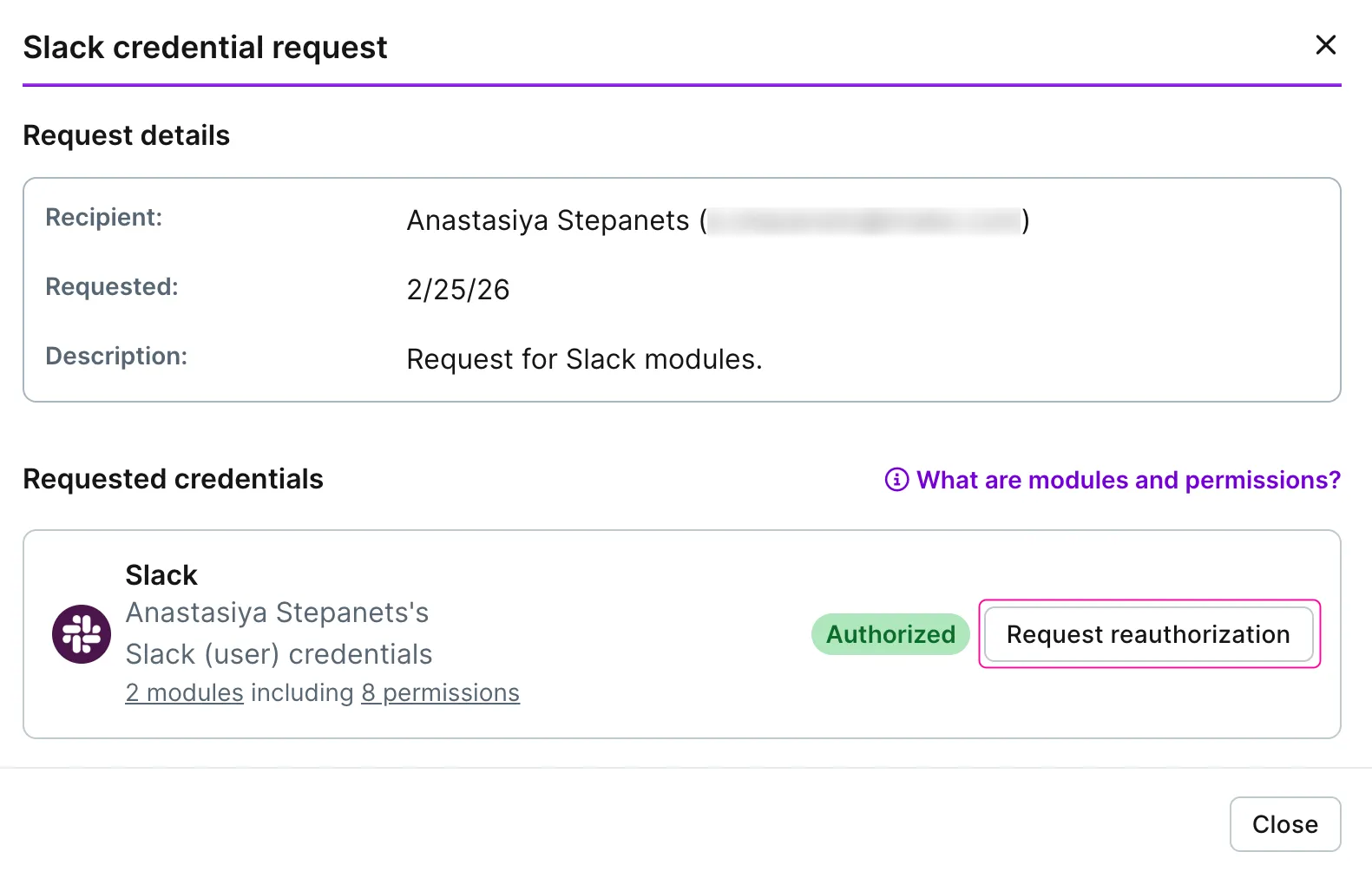
If the connection is valid and doesn't require reauthorization, a notification will appear at the bottom of the screen. The request won't be sent.

If the connection requires reauthorization, an orange Reauthorizing label will appear next to the app. The request will be sent, and the recipient will receive an email notification with a link for reauthorization.

Reauthorize the request
As a recipient, you can reauthorize a credential request:
- Using the link from the email notification
- Directly from the requester's Make organization
To reauthorize a credential request using the link from the email notification:
Open the email notification.
Click Review request.
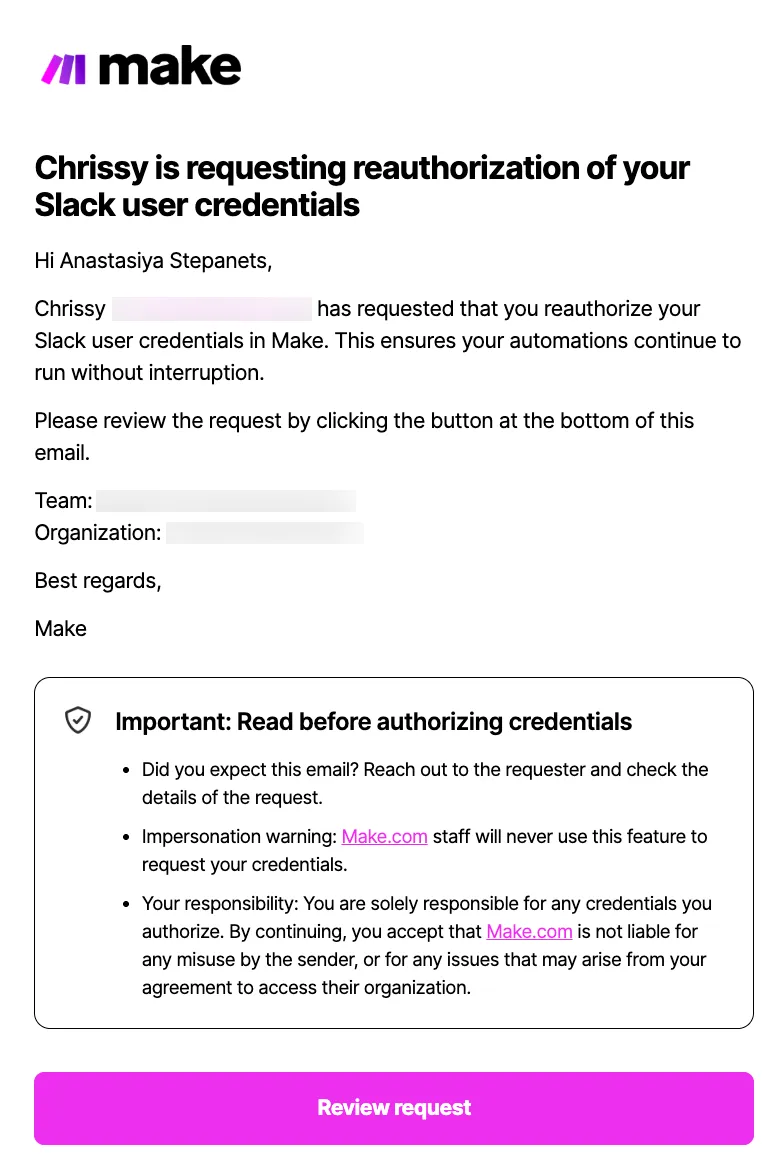
Log in to the requester's Make organization, and go to the credential request details page.
In the Requested credentials section, click Reauthorize for the corresponding app.
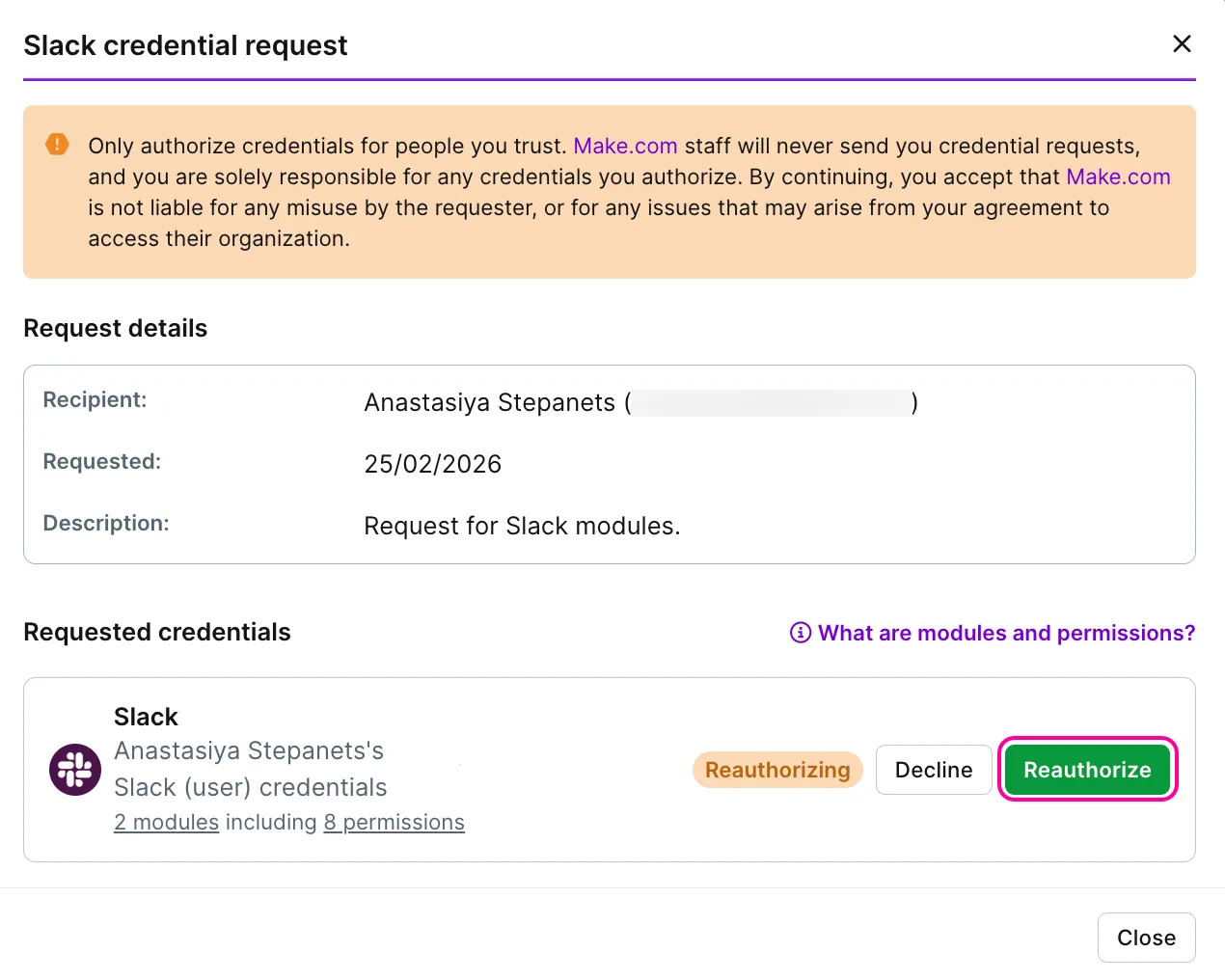
Follow the prompts to allow Make access.
To reauthorize a credential request directly from the requester's Make organization:
Log in to the requester's Make organization
In the left sidebar, click Credentials > Credential requests.
In the Received tab, click Details next to the relevant request.
In the Requested credentials section, click Reauthorize for the corresponding app.
Follow the prompts to allow Make access.
Once reauthorized, the status of the credential request will switch back to Authorized for both the requester and the recipient.

A recipient and a requester will get an email notification about that.
Delete credential request
Both a recipient and a requester can delete the entire credential request. To do that:
In the left sidebar, click Credentials.
If you're a requester:
- Switch to Sent in the Credential requests tab.
- Click the three dots > Delete next to the request.
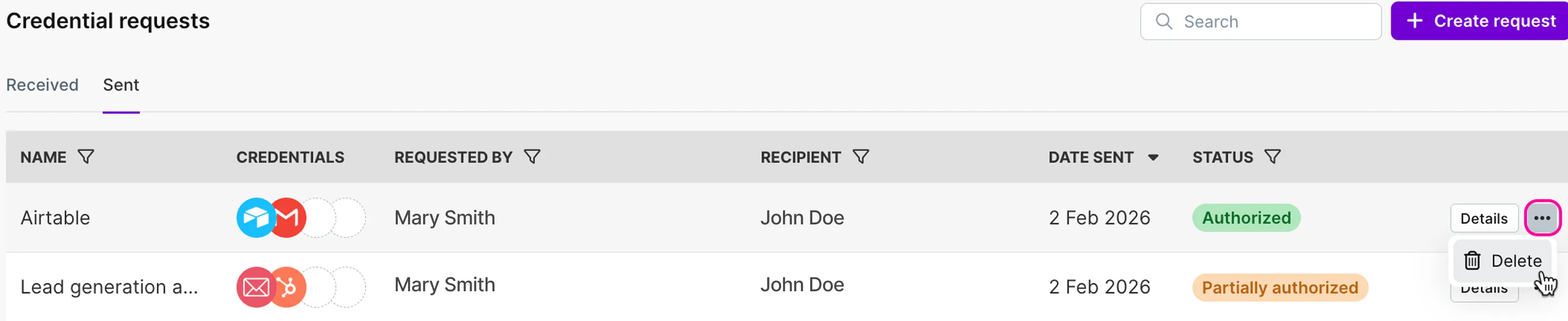
- Review the list of connections where the credentials are used and click Delete to confirm.
If you're a recipient:
- Switch to Received in the Credential requests tab.
- Click the three dots > Delete next to the request.
- Review the list of connections where the credentials are used and click Delete to confirm.
In both cases, the request will be deleted. The requester will no longer be able to use the credentials provided by the recipient for all the apps included in that request.