How to track credits
Track your credit usage to understand which activities consume the most credits and adjust as needed.
Several places in Make offer a different view of your credit usage. The following outlines where you can track credit usage and the information available.
View | Credit usage | Best for |
|---|---|---|
Dashboard |
| Overview and trends |
Subscription |
| Billing |
Credit usage | Credits used per run | Analyzing run-level usage in all scenarios and AI agents |
Scenarios | Credits used per scenario | Identifying high-usage scenarios |
Scenario diagram | Credits used in a scenario | Analyzing a scenario's usage in detail |
Scenario Builder | Credits used per module | Analyzing module-level usage and debugging |
Scenario history | Credits per individual run | Analyzing run-level usage in a scenario |
In the next sections, learn more about where you can track credit usage in Make.
Dashboard
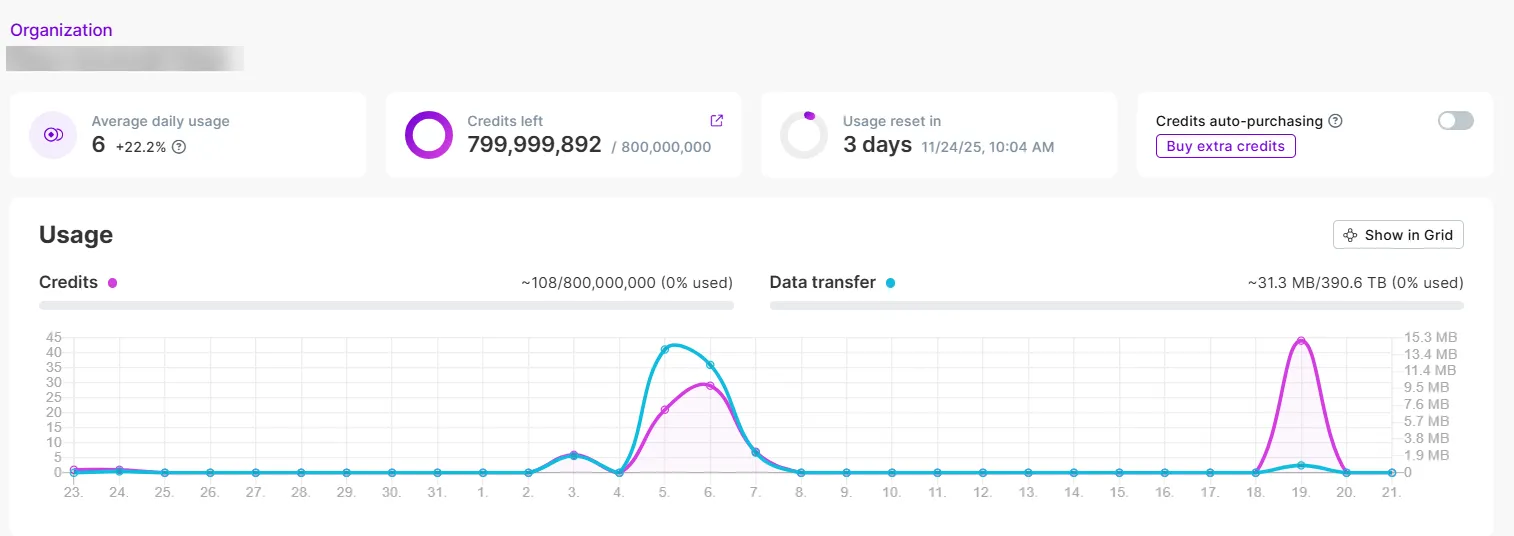
Dashboard tracks total and daily credit usage for the current billing period. To find it, go to Org in the left sidebar.
At the top, you can view average daily usage, remaining credits, and the date when your credits reset.
In Usage, you can view your credit usage trend in the current billing period. Hover over Credits to view the credits and extra credits in your plan.
Subscription
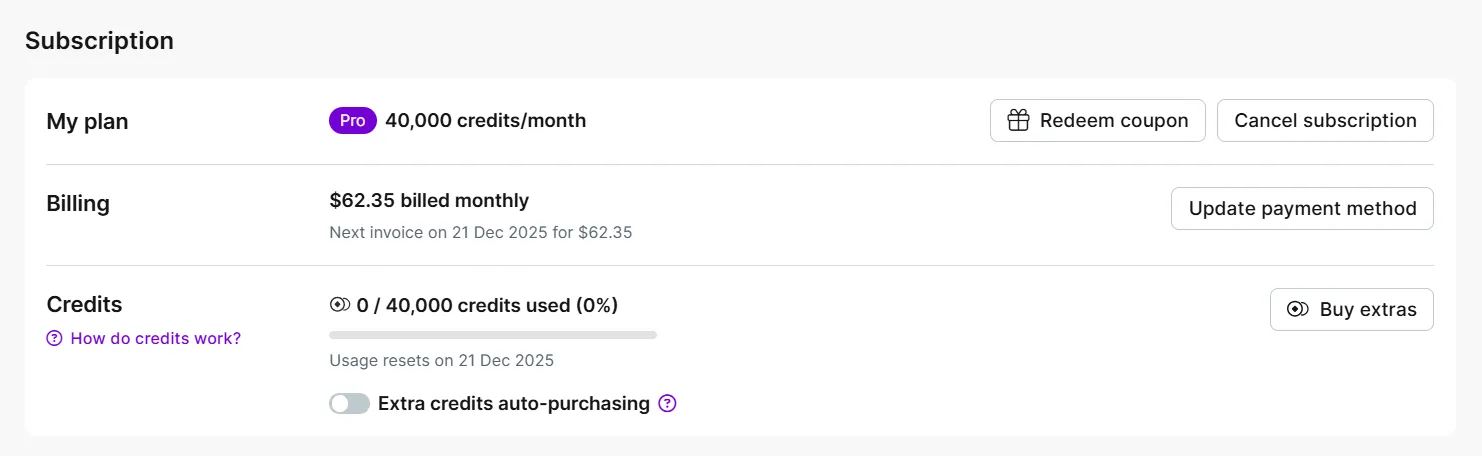
Subscription tracks total credits purchased and used in the current billing period. To find it, go to Org in the left sidebar, then click Subscription under My Plan.
In Credits, you can view the credits used from the total. You can also buy extra credits or enable extra credits auto-purchasing.
Credit usage
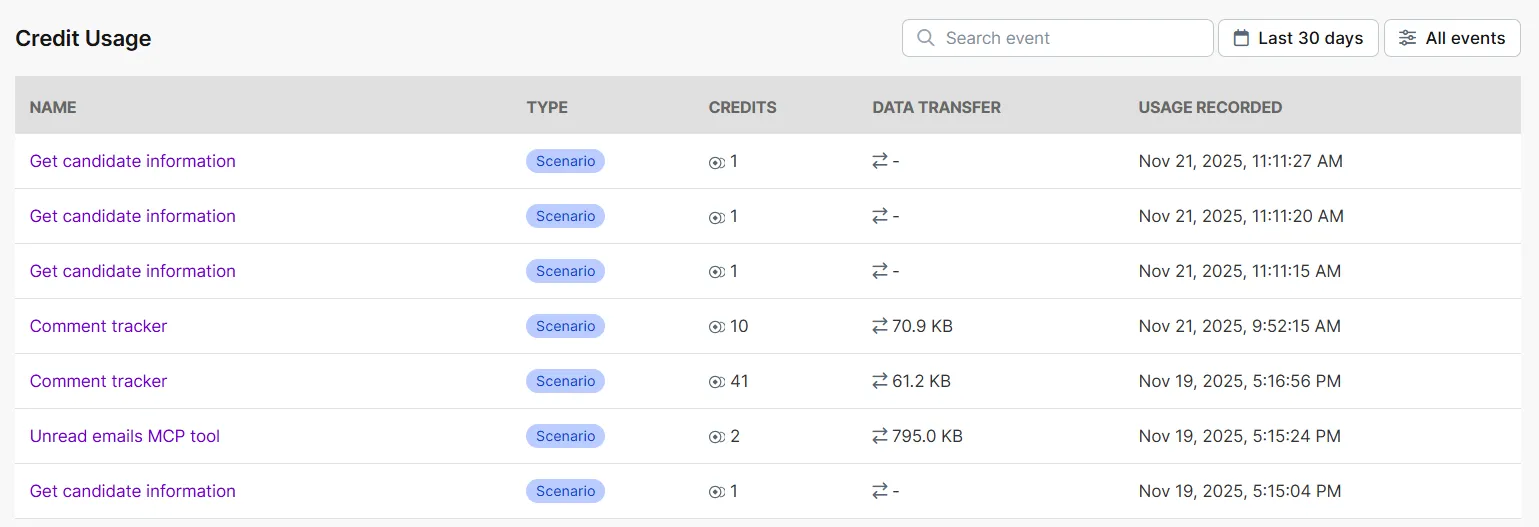
Credit usage tracks your credit usage per run across all scenarios and AI agents. To find it, go to Org in the left sidebar, then click Credit Usage under My Plan.
This table includes the following information:
- Name: Name of the scenario or AI agent that used credits
- Type: Type of feature that used credits, whether a scenario or an AI agent
- Credits: Number of credits used in the run
- Data transfer: Amount of data transferred in the run
- Usage recorded: The date and time of the credit usage
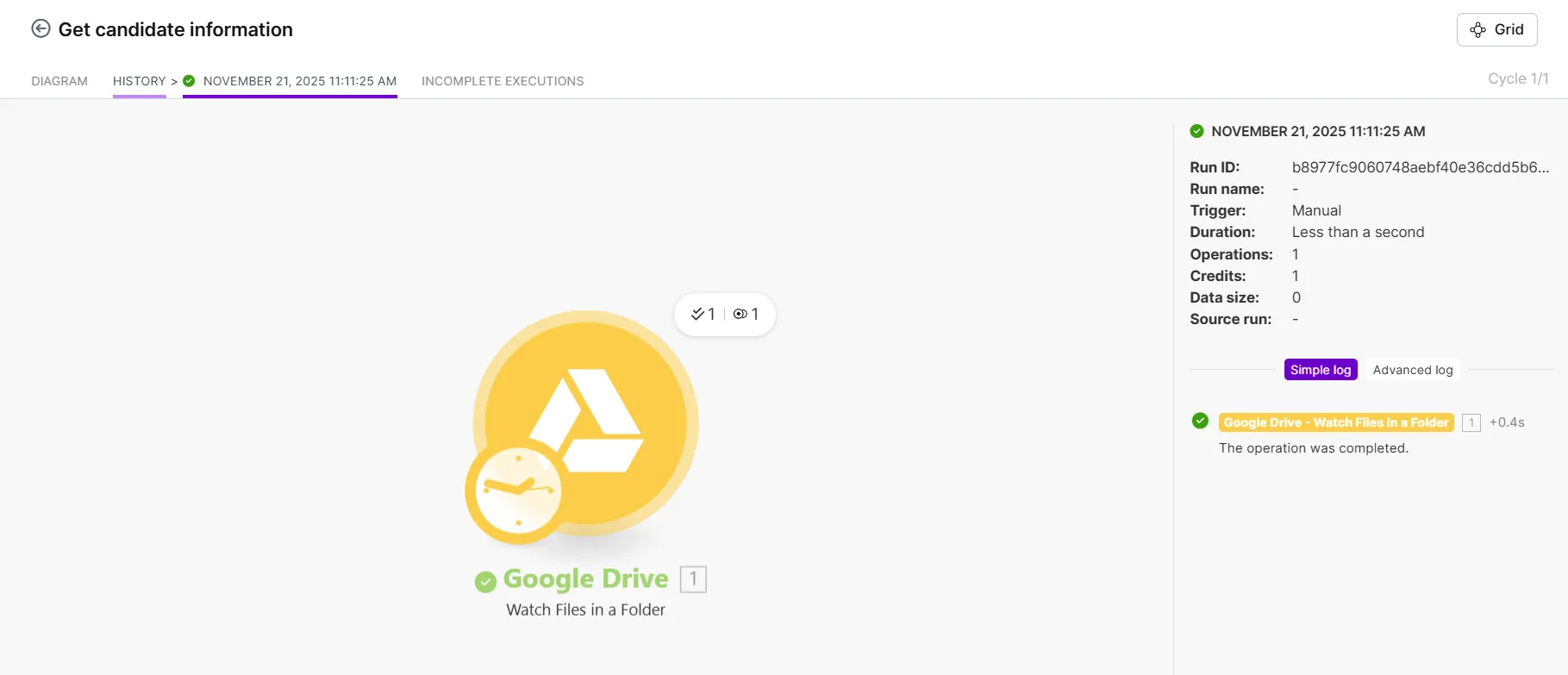
In the Name column, click an item to go to the scenario history of a specific run and view its details. Name items are only clickable when the Type is scenario, as AI agent history doesn't exist.
Your pricing plan determines the number of days that credit usage entries are stored. See Execution log storage (days) on Make's pricing page.
Credit usage notification
When your organization approaches its credit usage limit, the organization owner and admins receive an email detailing this information.
- At 75% usage, the organization owner and admins will receive an email if your consumption is high in comparison to the amount of time that has elapsed in the month. For example:
- If you use 75% of your credits and only 40% of the month has elapsed, you will get a notification email.
- If you use 75% of your credits and 75% or more of the month has elapsed, you won't get a notification email.
- At 90% usage, the organization owner and admins will always receive an email.
- At 100% usage, the organization owner and admins will always receive an email.
Scenarios
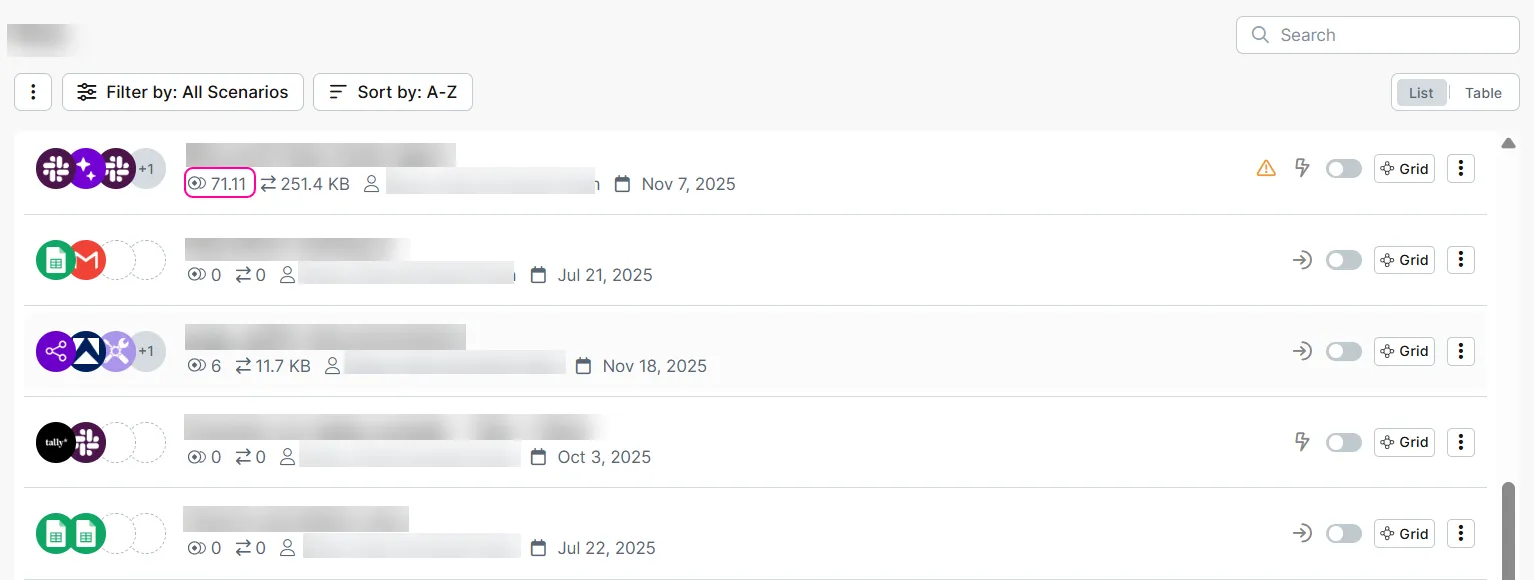
The scenarios list tracks credit usage by scenario. To find it, go to Scenarios in the left sidebar.
The credit icon next to each scenario indicates the number of credits used in a scenario since the last reset (up to the past 30 days).
Scenario diagram
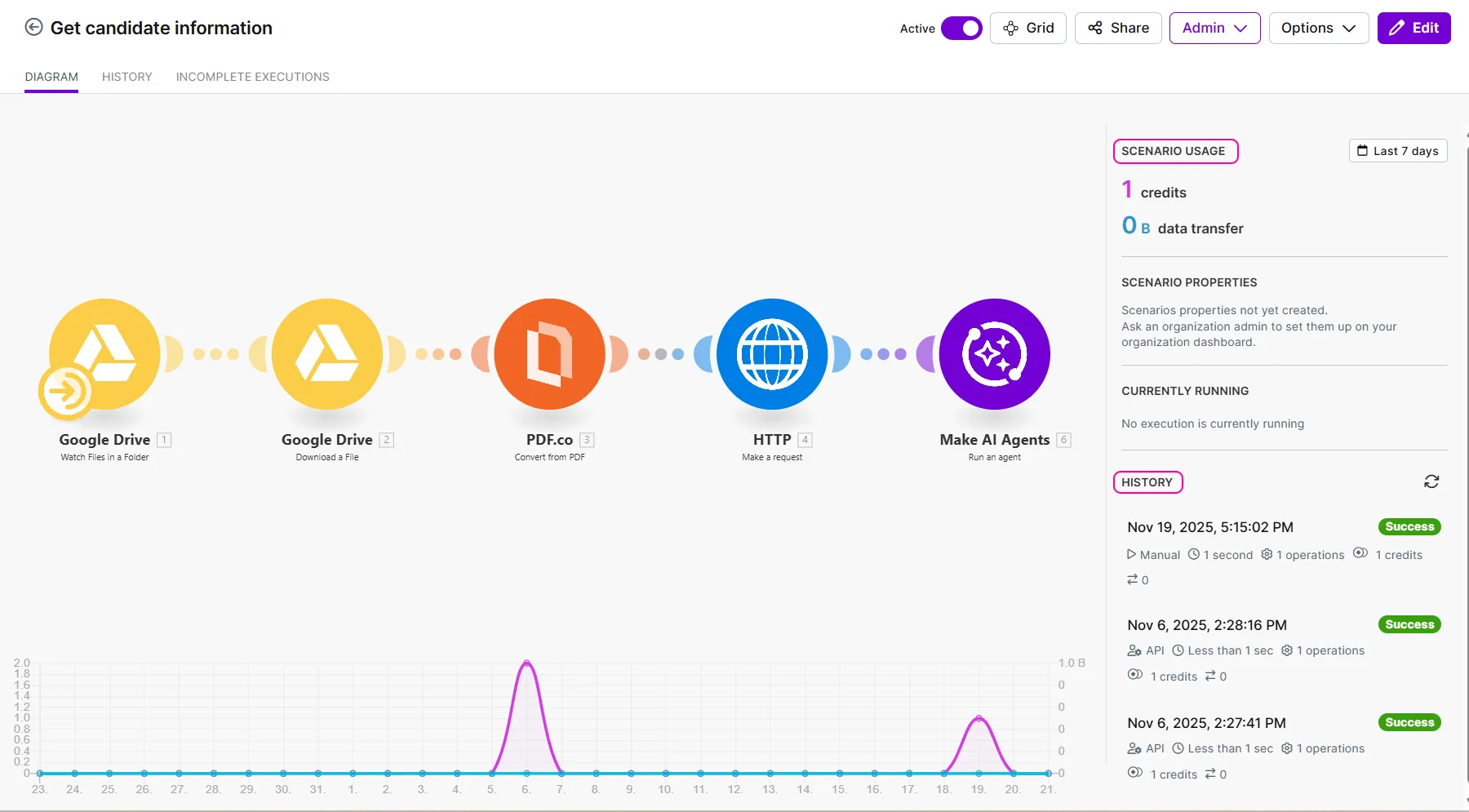
The scenario diagram tracks total credit usage in a scenario. To find it:
- Go to Scenarios in the left sidebar.
- Open a scenario in the scenario list.
In Scenario usage, you can view the total credits used in a scenario. History lists individual scenario runs and their credit usage. Click any run to view it in more detail.
Scenario Builder
The Scenario Builder tracks credit usage per module run. To find it:
- Go to Scenarios in the left sidebar.
- Open a scenario in the scenario list.
- Click the canvas.
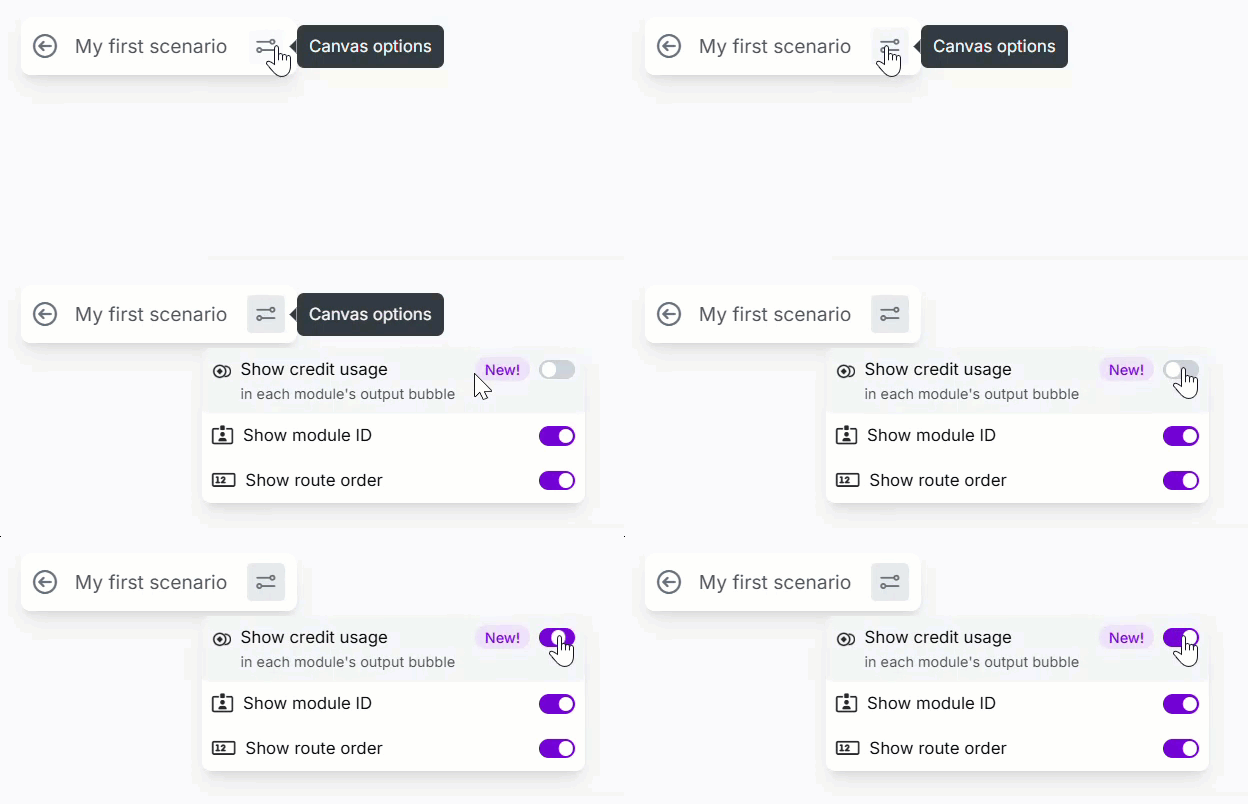
When you click Run once or Run this module only, you can view credit usage for the run in the output bubble of a module.

Next to the scenario name, click Canvas options and toggle the credit usage view on and off.
Scenario history
Scenario history tracks credits used per module run. To find it:
- Go to Scenarios in the left sidebar.
- Open a scenario in the scenario list.
- Click the History tab at the top.
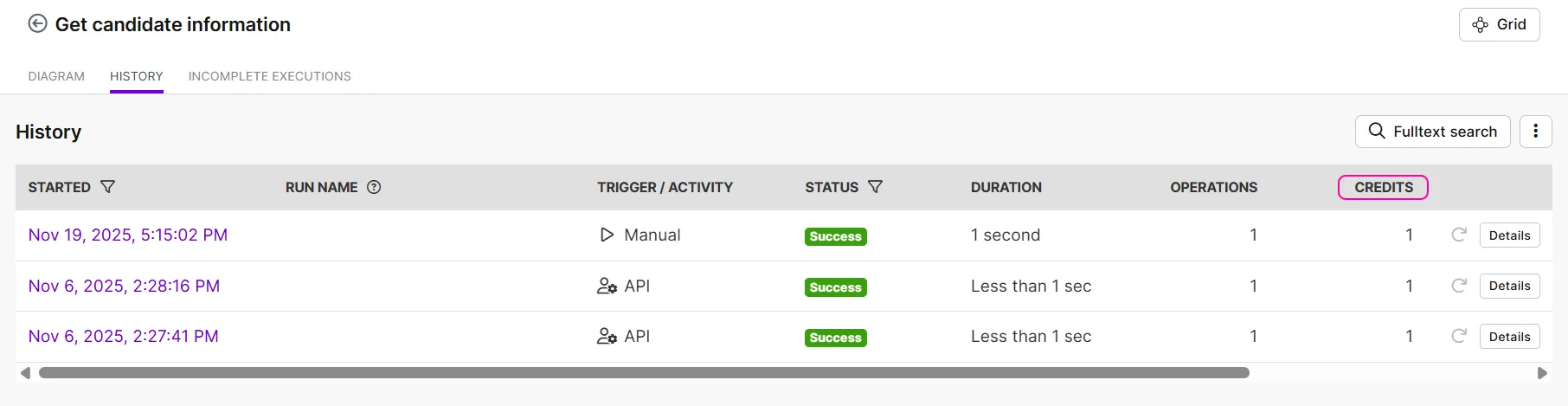
Click Details to view a specific run in more detail.