Private spaces
Private spaces are available on all plans. Admin visibility is available on Enterprise plans only.
Private spaces give every member of your organization (except guests) their own workspace for scenarios and connections they don't want teammates to access. Admins can define credit limits for each space. Enterprise plan admins can also view members' private spaces in read-only mode.
This page shows you how to enable and disable Private spaces, set credit limits for members, and view others' spaces with Admin visibility.
Enable Private spaces
Enabling Private spaces activates a private space for every member of the organization. With it enabled, new members automatically get a private space with the default credit limit.
Only Admin roles can enable Private spaces.
To enable Private spaces:
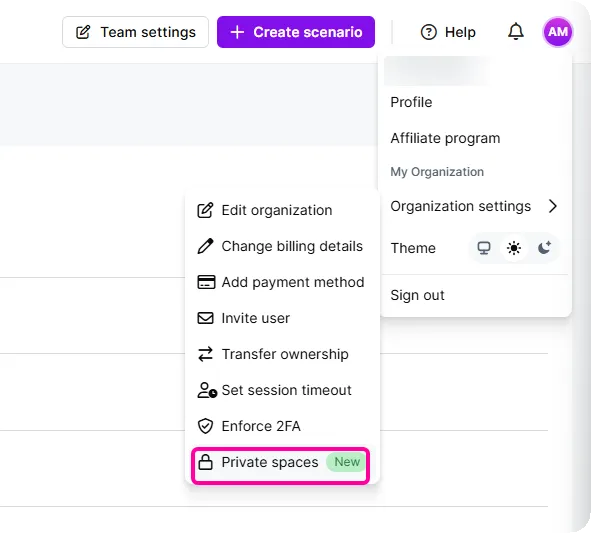
In Make, click the profile icon and go to Organization settings, and select Private spaces.
Toggle Enable for everyone.
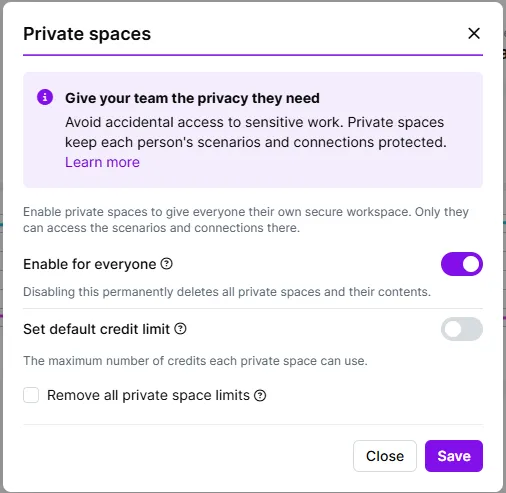
Toggle Set default credit limit and define the monthly or yearly credit limit that applies to all new private spaces.
Alternatively, leave the Set default credit limit toggled off to set the credit limit to unlimited. This means members draw from the organization's overall credits without limitations.
Click Save.
You've now enabled Private spaces.
Later, to change the default credit limit for all existing and new private spaces, go to the same Private spaces dialog, edit the limit, and select Replace all private space limits.
Alternatively, to set the credit limit as unlimited for all existing and new spaces, toggle off Set default credit limit and select Remove all private space limits.
Set credit limits for individual members
Once Private spaces is enabled, Admin roles can set credit limits for individual members.
Choose between these options:
- Credit limit: A specific number of credits per month or year.
- Unlimited: Members draw from the organization's overall credits without limitation.
When a member reaches their credit limit, all scenarios in their private space pause. They can still build scenarios, but can't run them. Scenarios run again when the limit resets or an admin increases it.
Set a specific credit limit
To set a credit limit for a member's private space:
In Make, go to Org on the left sidebar.
In the submenu, click Org Users.
Next to the user whose limit you want to change, hover over the Private space column and click the pencil icon.
Toggle Set credit limit.
Enter the amount, and click Save.
You've now set a credit limit for a member's private space.
Set an unlimited credit limit
To set an unlimited credit limit for a member's private space:
In Make, go to Org on the left sidebar.
In the submenu, click Org Users.
Next to the user whose limit you want to change, hover over the Private space column and click the pencil icon.
Toggle off Set credit limit, and click Save.
You've now set an unlimited credit limit for a private space.
Admin visibility (Enterprise plans)
Admin visibility allows admins to open any member's private space in a read-only view. This feature is available to Admin roles on Enterprise plans.
Admins have limited visibility of a member's private space:
What admins can see
- Scenario names
- Modules used
- Credit usage
What admins can't see
- Module settings
- Scenario run history
- Run details
- Data stores
- Connections
Enable Admin visibility
Only organization owners can enable Admin visibility.
To enable Admin visibility:
In the top right corner, click on your profile.
Go to Organization settings > Private spaces.
Toggle on Organization admins can view.
Click Save.
You've now enabled Admin visibility. Admins can now view the private spaces of other members.
View private spaces with Admin visibility
To view another member's private space using Admin visibility:
In Make, go to Org on the left sidebar.
In the submenu, click Org Users.
Next to the user whose private space you want to view, hover over the Private space column and click the eye icon.
You're now in the member's private space. Go back to your own space at any time from the Organization and team dropdown at the top.
Disable or pause private spaces
You can disable Private spaces for all members of your organization or pause spaces for specific members.
Pause a member's private space
Pausing a private space temporarily stops its scenarios from running. Members with paused private spaces can still build scenarios, but can't run them. Scenarios can run again once an admin increases the space's credit limit.
To pause a member's private space:
In Make, go to Org on the left sidebar.
In the submenu, click Org Users.
Next to the user whose private space you want to disable, hover over the Private space column and click the pencil icon.
In Set credit limit, enter 0.
Click Confirm.
You've now paused a member's private space.
To permanently delete all private spaces and their contents, see Disable all private spaces.
Disable all private spaces
Disabling Private spaces permanently deletes all private spaces in the organization, including their scenarios, connections, and data stores, and immediately stops any running scenarios.
To disable private spaces for the entire organization:
In the top right corner, click on your profile.
Go to Organization settings > Private spaces.
Toggle off Enable for everyone.
Select the checkbox to confirm.
Click Save.
You've now disabled Private spaces for the organization.