Step 8. Map data
Mapping is how you send data between modules. It means taking information (output) from one module and telling Make how you want to use it in the next module (input).
In this scenario, you're taking prospect information from Google Sheets (output) and using it in specific spots in your Slack message (input).
To configure your Slack message with data from Google Sheets:
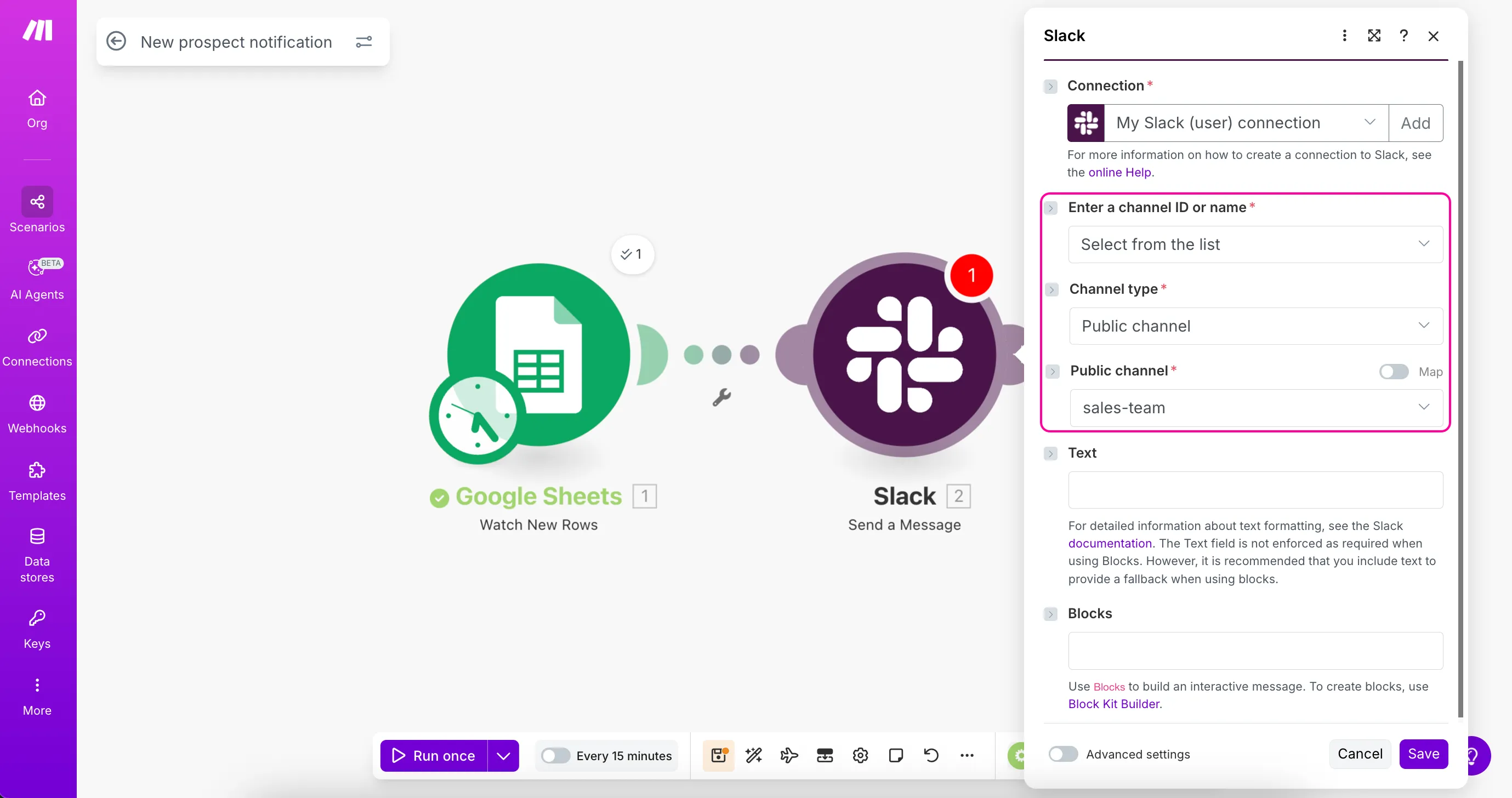
In the Enter a channel ID or name field, choose Select from the list.
In the Channel type field, select Public channel.
In the Public channel field, select sales-team.
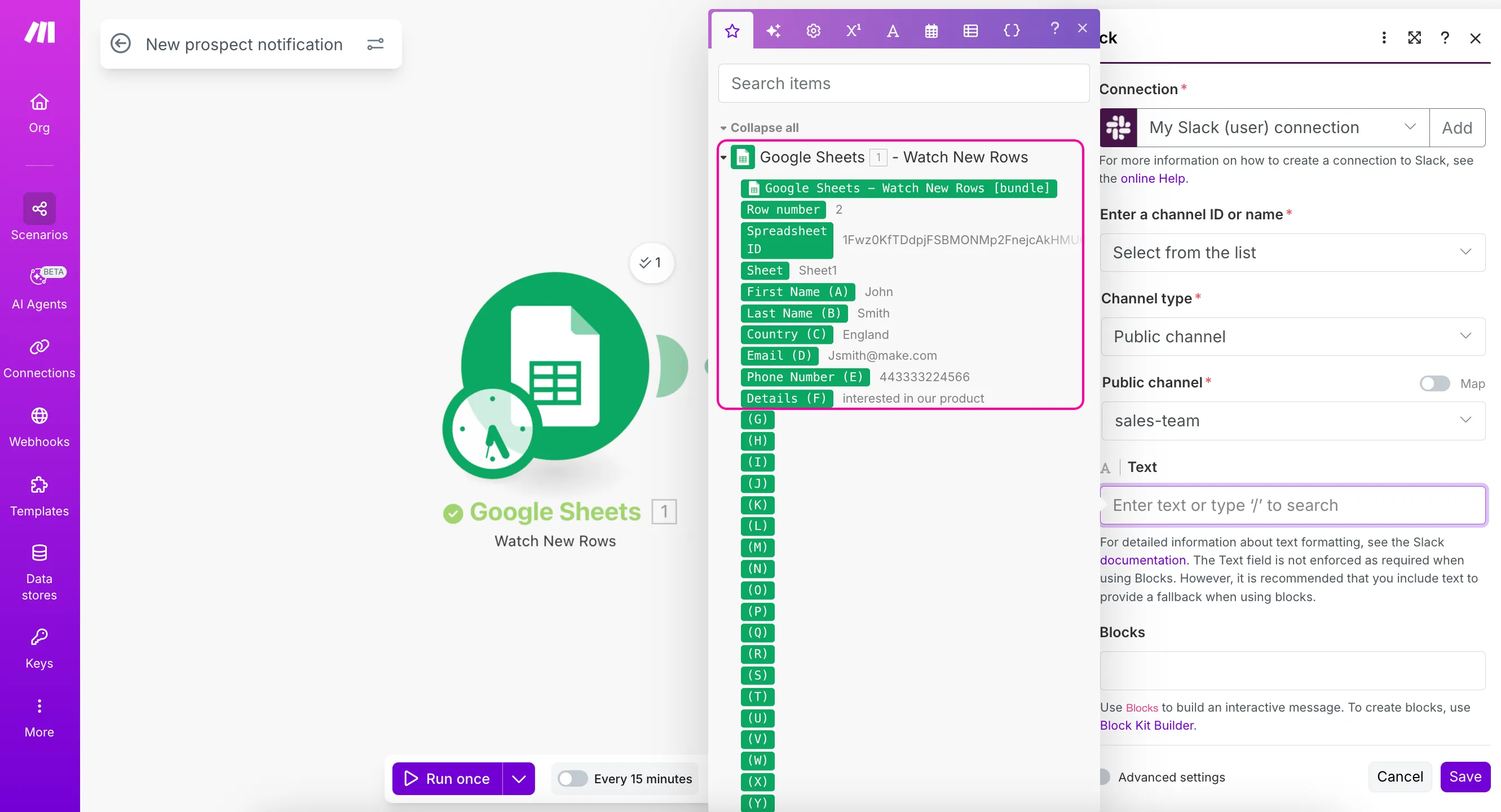
Click the Text field. A mapping panel will appear showing data from your Google Sheets > Watch New Rows module.
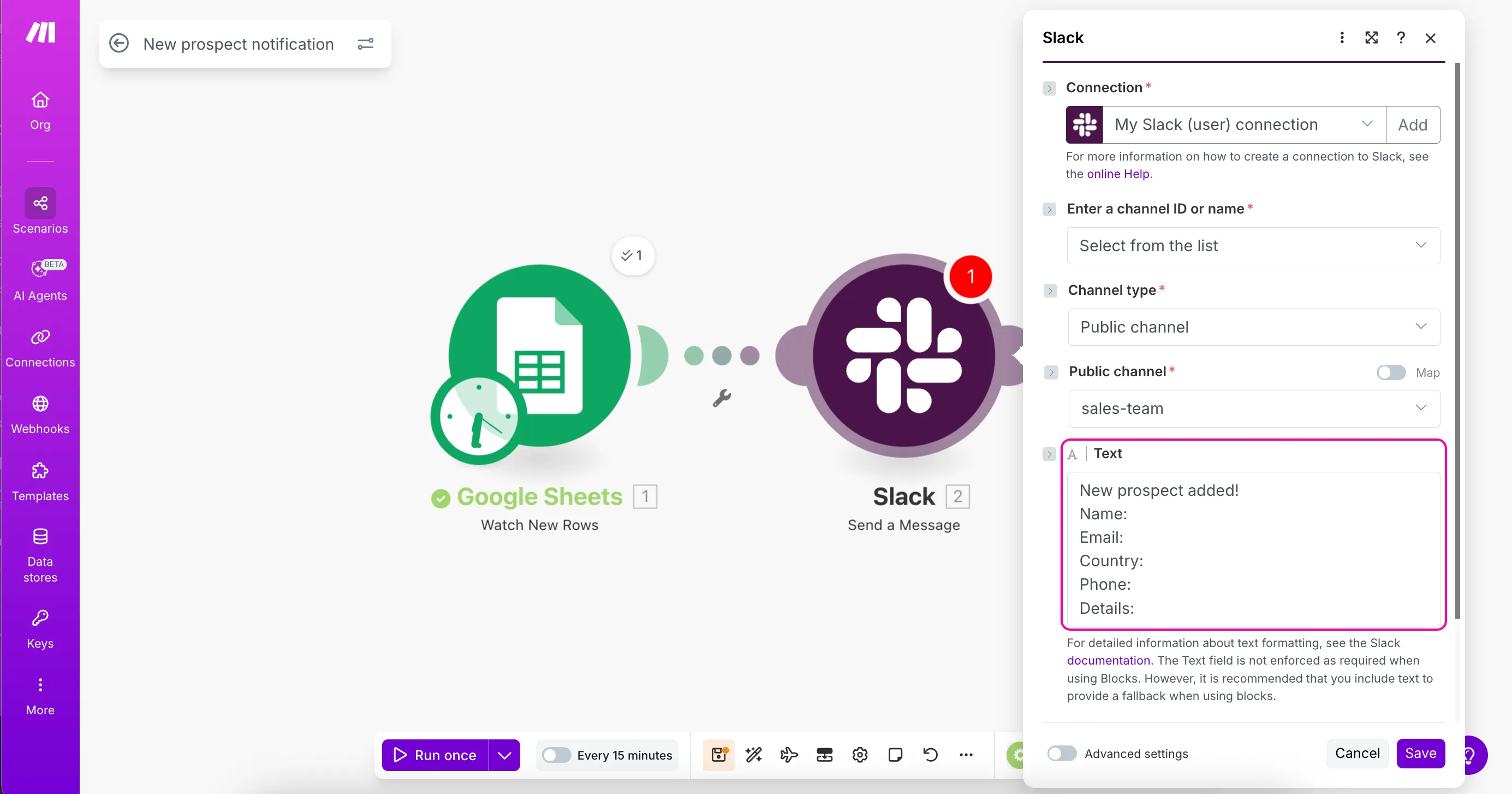
Create your notification message. You can copy and paste the following template into the Text field or create your own message.
New prospect added! Name: Email: Country: Phone: Details:
Drag and drop the values from the Google Sheets module to the Text field, or simply click on the values to place them into your message.
If you map several values into the same field (like First Name and Last Name in this example), separate them with spaces to get two distinct values in the output.
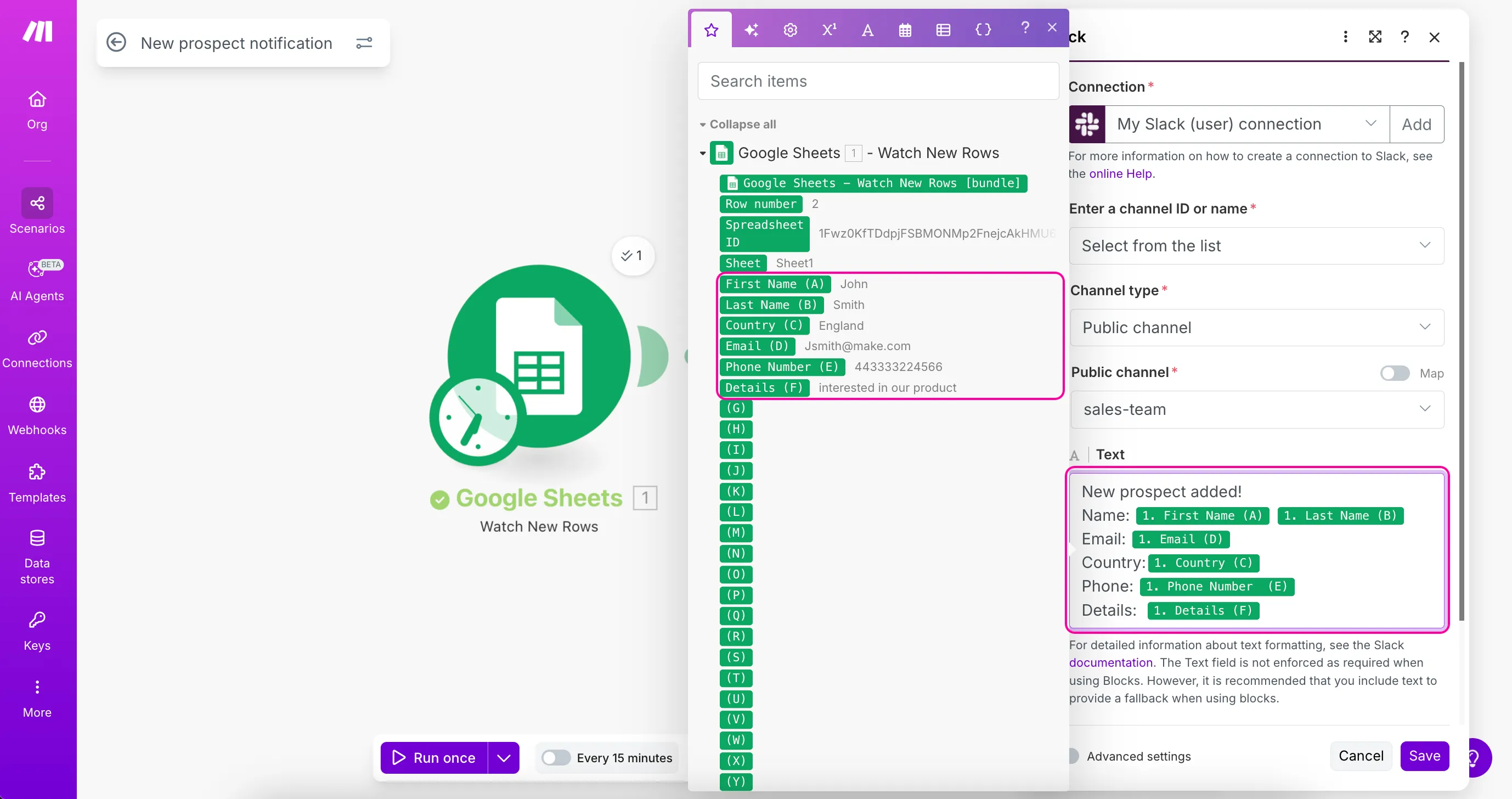
This is mapping data: taking prospect information from Google Sheets and placing it into specific spots in your Slack message.
Click Save to save your module settings.
Click the Save icon on the Scenario Builder toolbar to save your entire scenario.
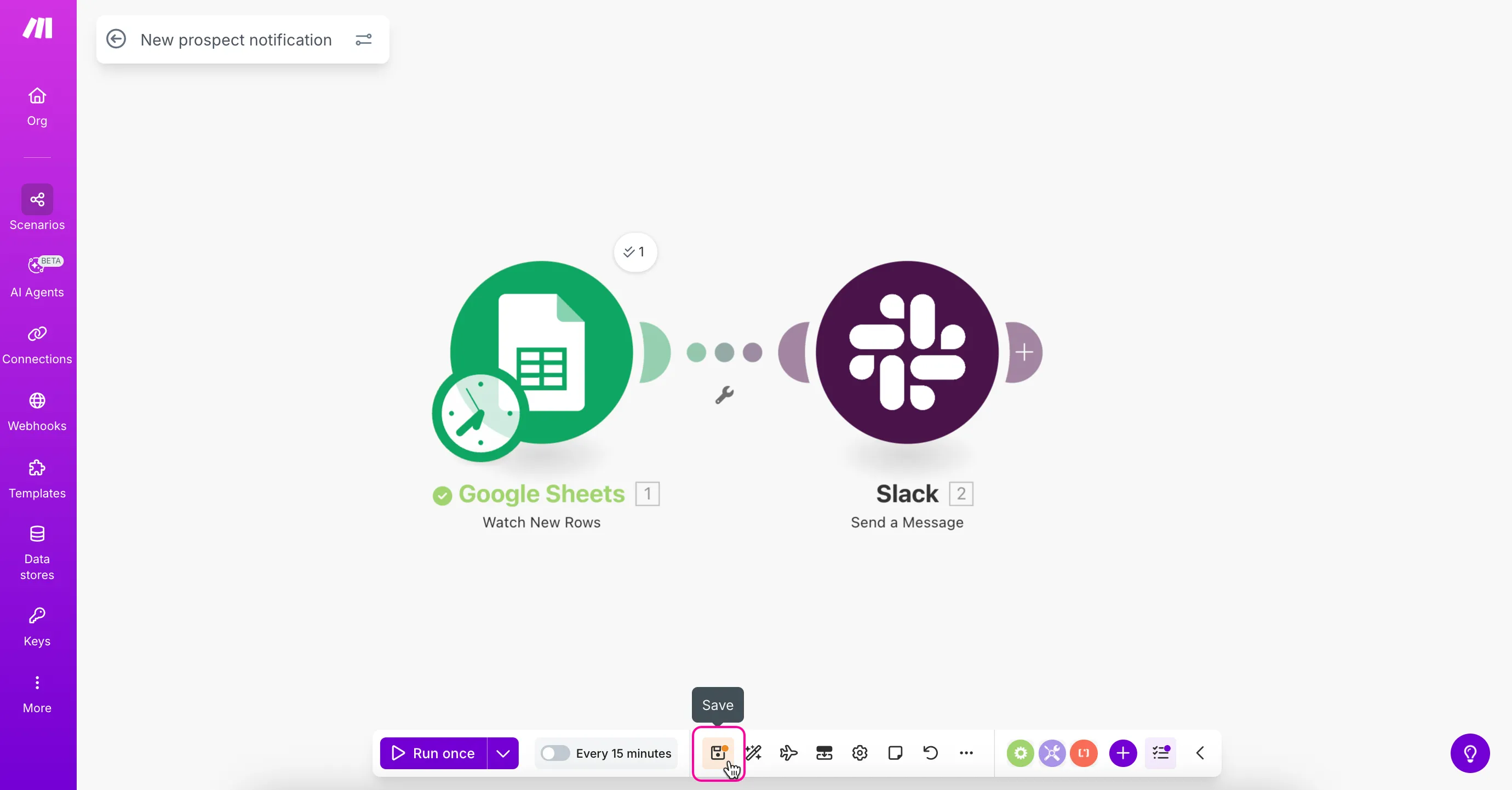
Your scenario now has two connected modules:
- Google Sheets > Watch New Rows to detect new prospects
- Slack > Send a Message to send notifications to your team
In the next step, you'll test your scenario to make sure both modules work together properly.