Step 7. Add another module
Now that your Google Sheets trigger is working correctly, you need to add a second module to send notifications and connect it to your Slack workspace.
To add another module to your scenario:
Click the + icon on the right side of the Google Sheets module.
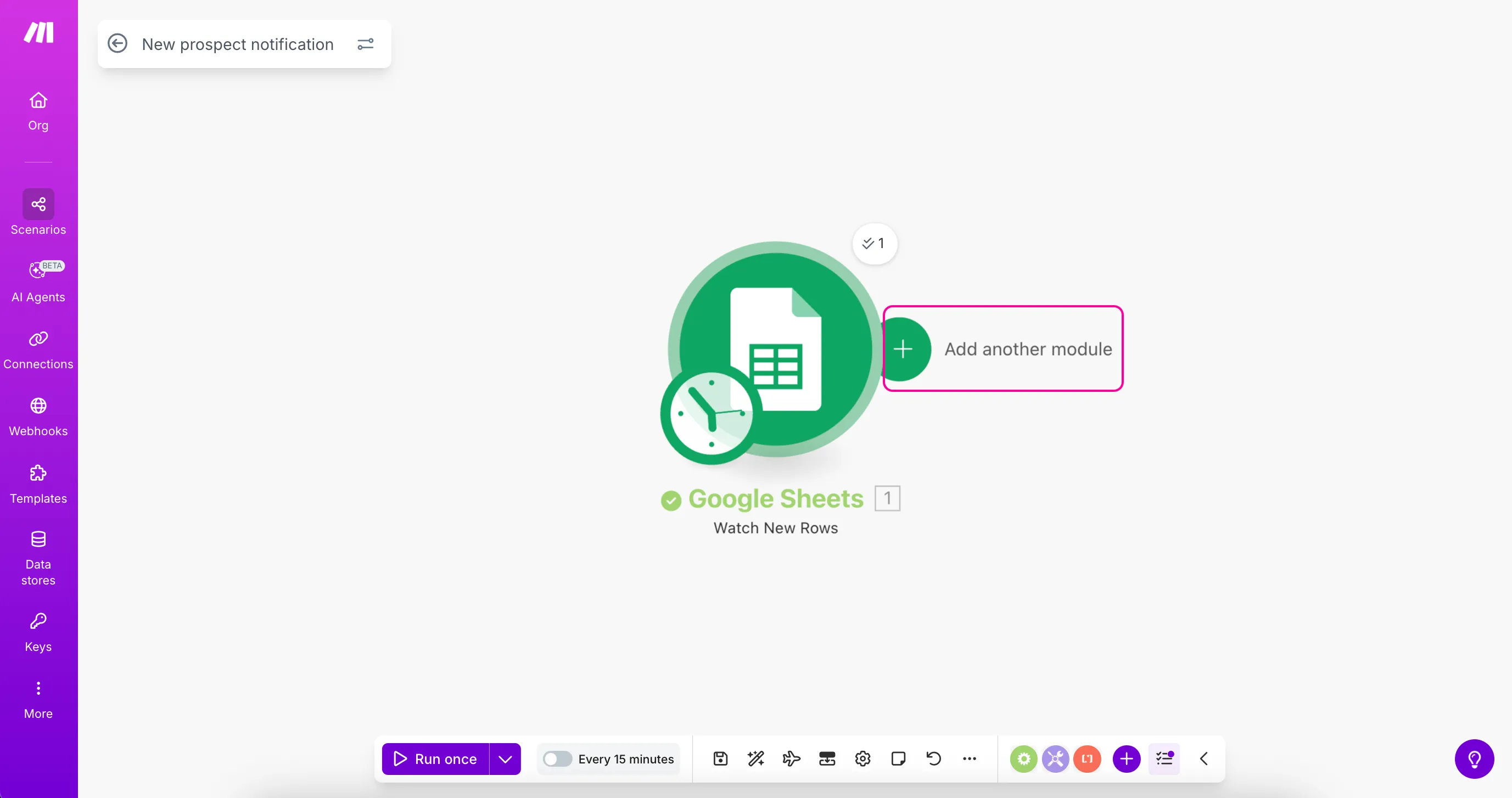
Alternatively, to add a new module, you can double-click anywhere in your canvas or right-click anywhere and select Add a module from the menu.
Search for Slack in the search bar or browse the available apps.
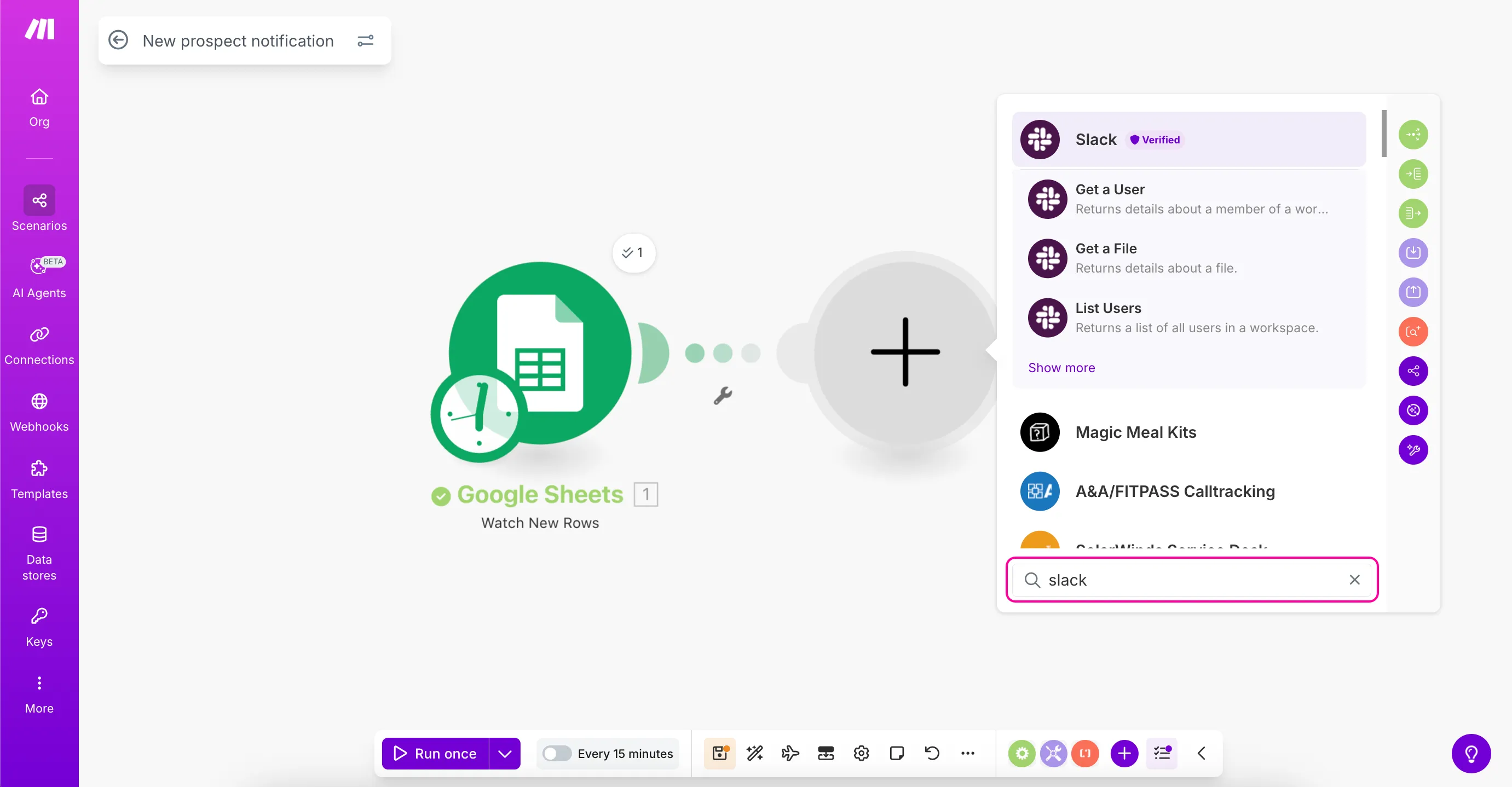
Select Slack and then select Send a Message from the available modules.
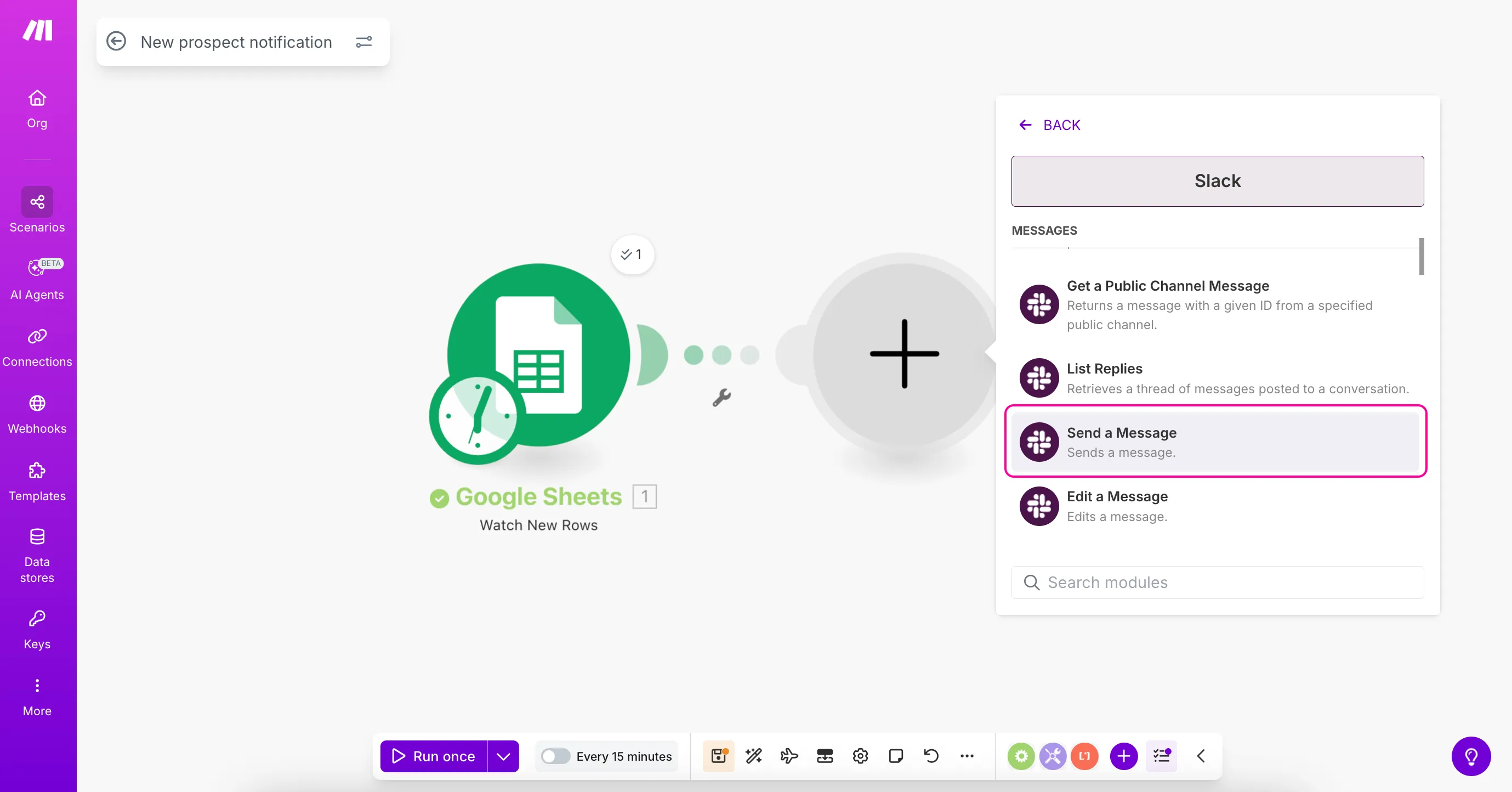
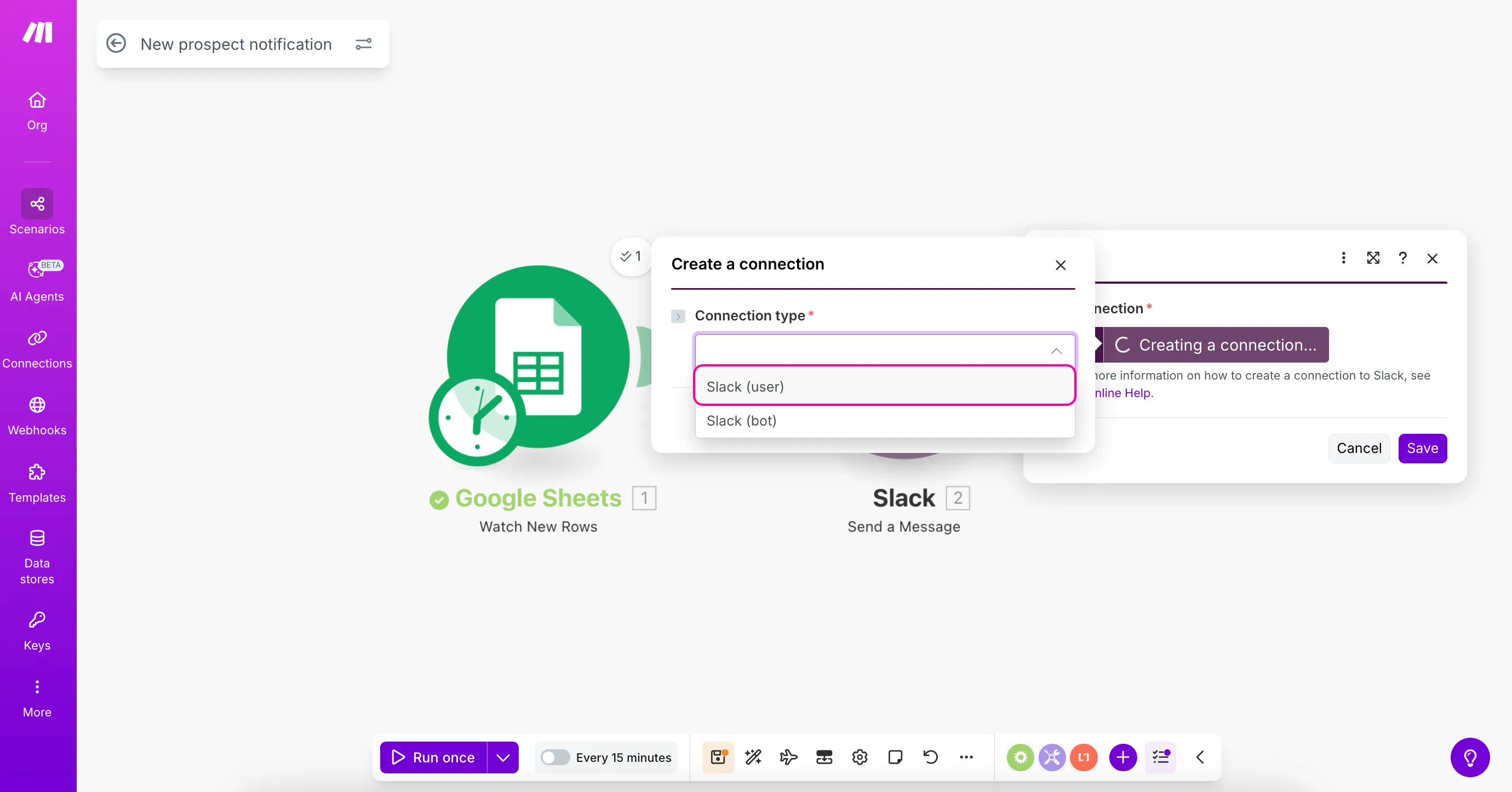
After you add the module to your scenario, the connection settings will appear. Click Create a connection.
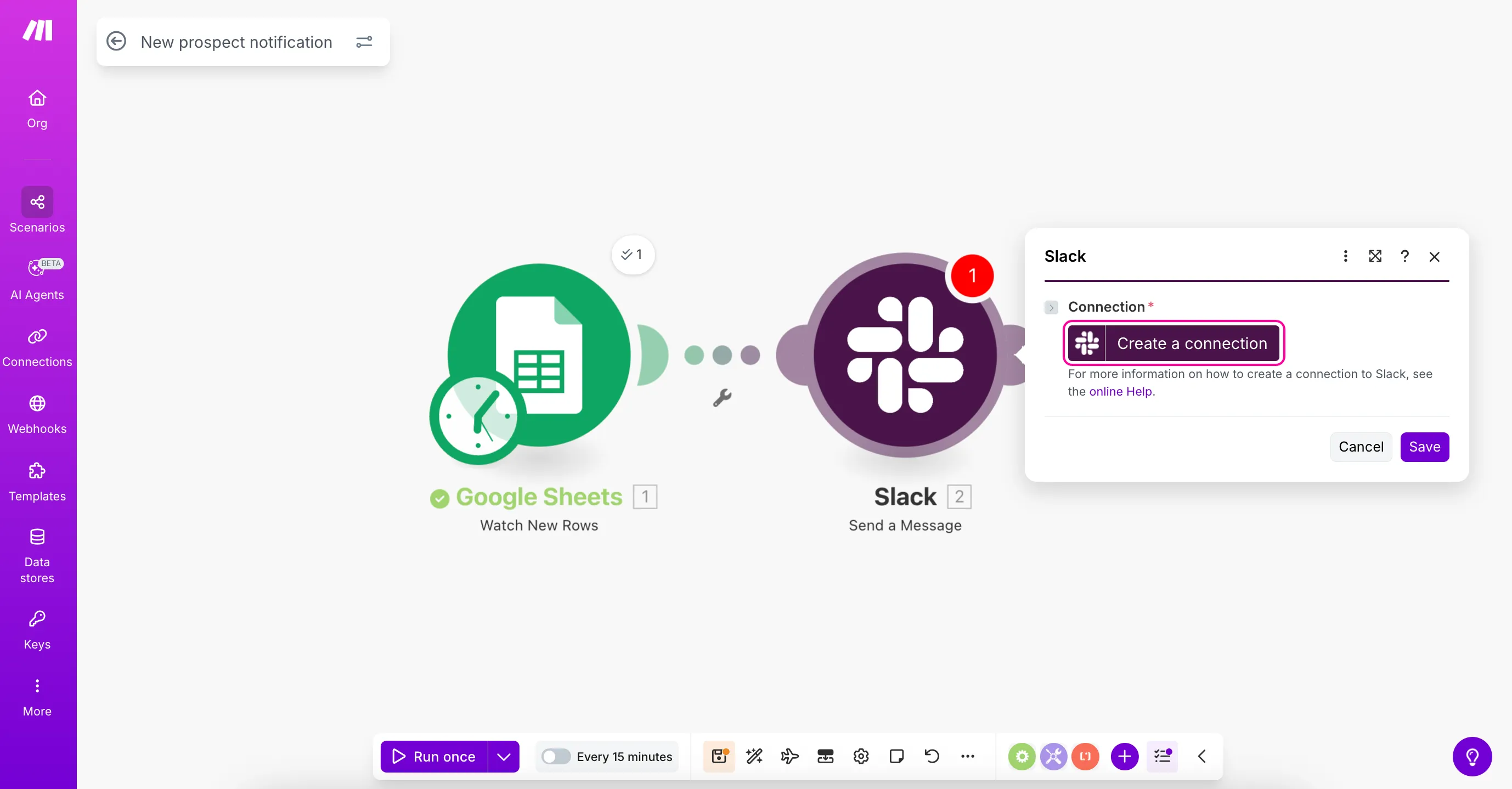
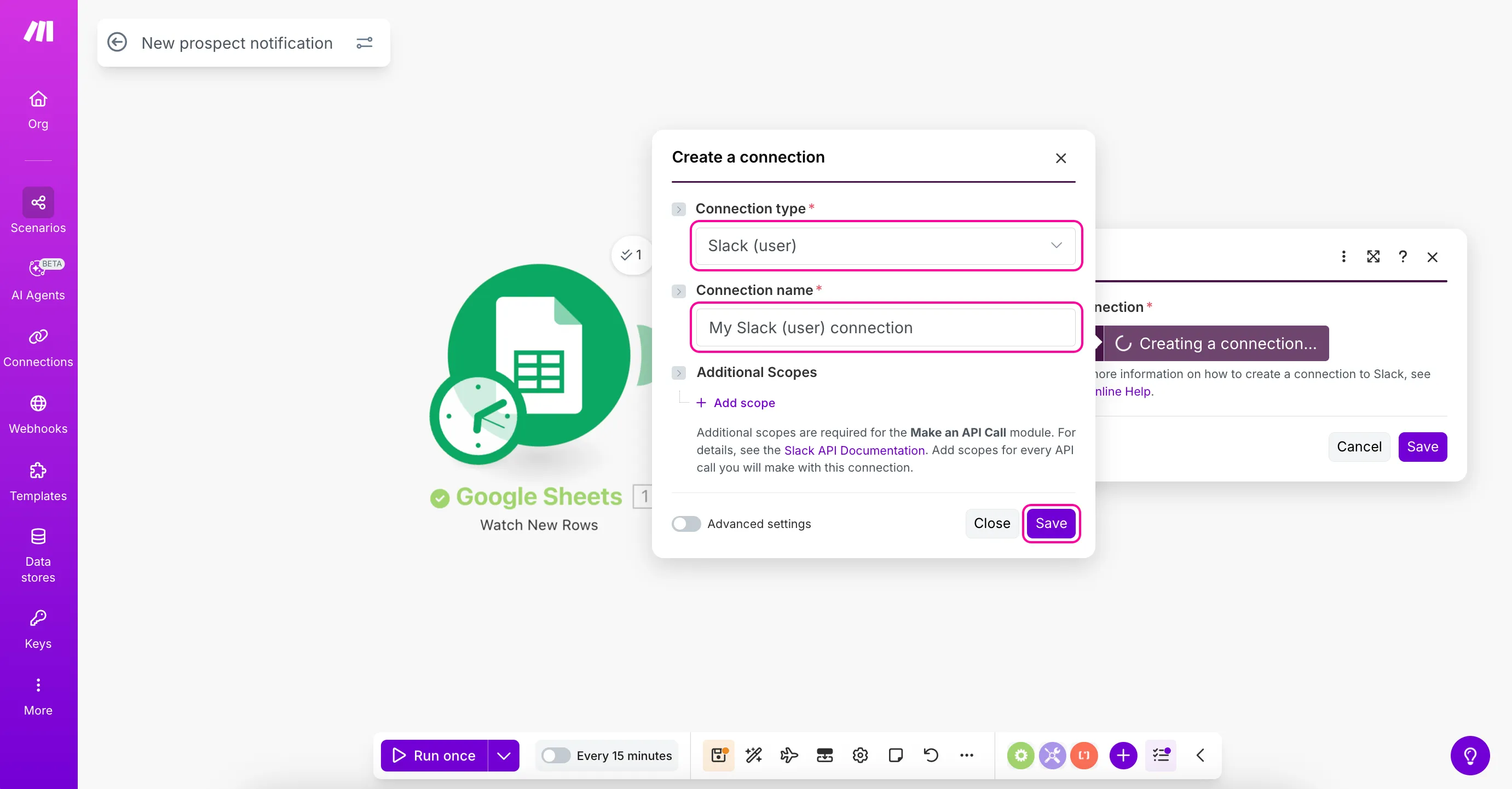
For Connection type, select Slack (user).
Name your connection, or leave the default name, and click Save.
A Slack sign-in window will open. Click Allow to authorize Make to access your Slack account.

If you have multiple Slack workspaces, make sure to select the one where you created the "sales-team" channel.
With your Slack module added to the scenario, you're now ready to configure it to send notifications using data from your Google Sheets trigger. In the next step, you'll map data between these modules.