Make AI Agents (New)
Create your first AI agent
4 min
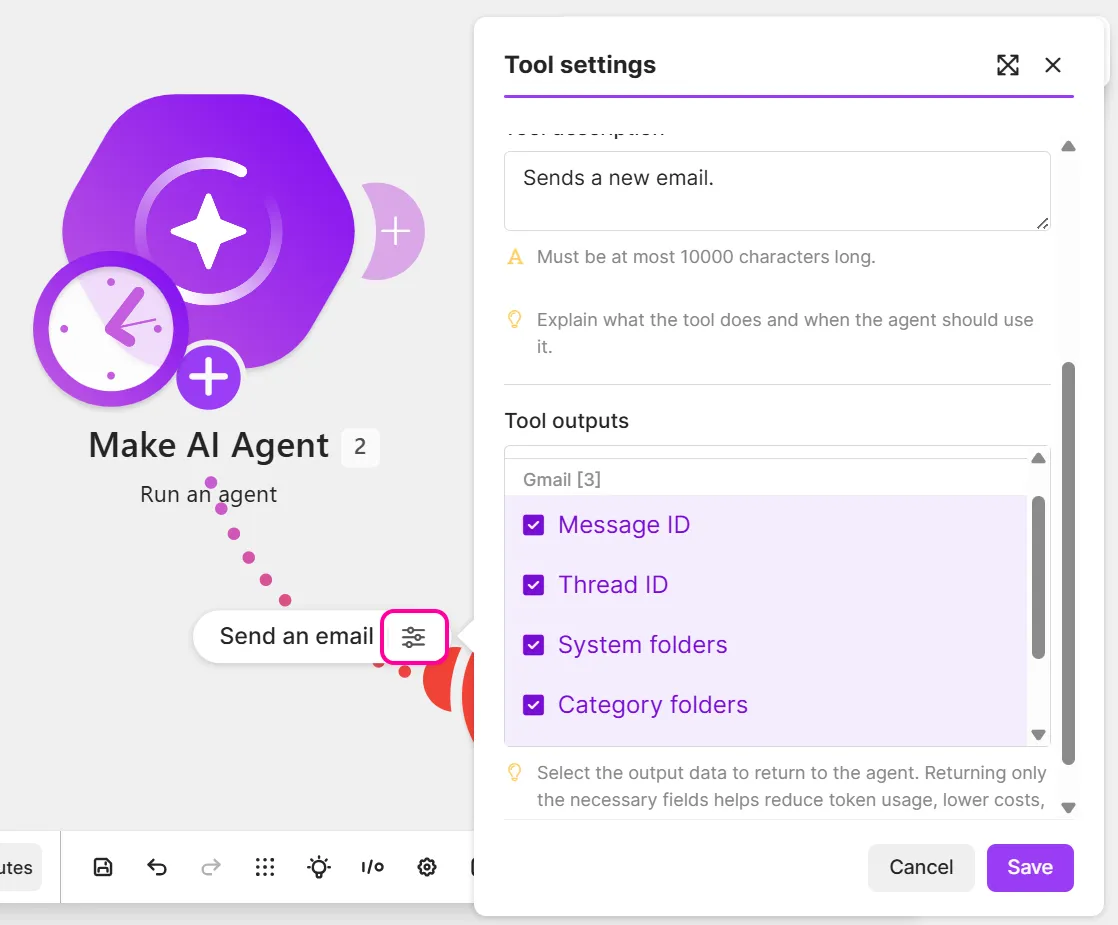
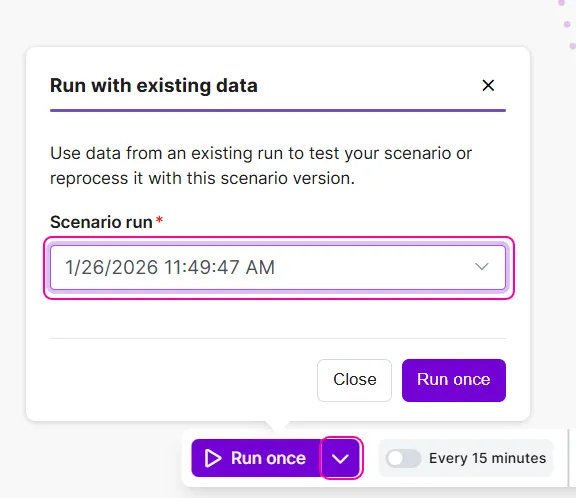
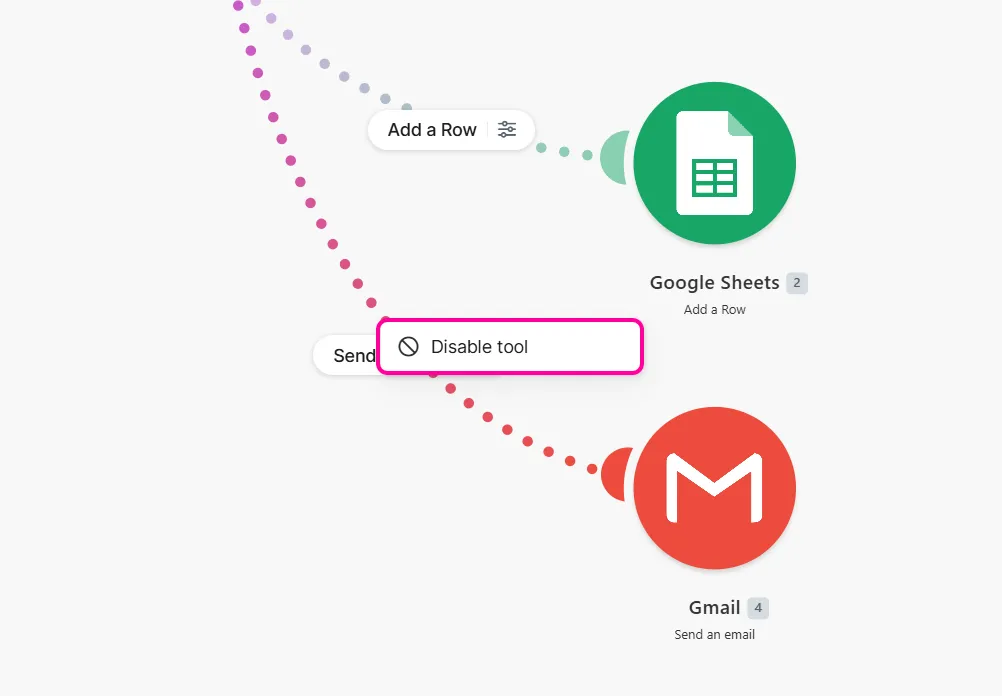
in this guide, learn how to create your first agent in {{product name}} this process involves several steps plan an agent so you have a framework to build from build the scenario where the agent lives configure the agent so it understands its job and how to do it add the agent's tools so it has the capabilities to perform its tasks add the agent's knowledge so it has additional context to tailor its responses test the agent so it performs as expected before going live once you complete these steps, you'll have a working agent ready to use in your scenarios step 1 plan your ai agent plan your agent so you know what it does, the tools and knowledge it needs, and what triggers it, for example what the agent does content marketing specialist who creates blogs for social media based on trending industry topics tools google drive, airtable, linkedin, and facebook modules knowledge the company style guide and product glossary trigger google sheets document with trending topics step 2 build your ai agent scenario in {{product name}} , your agent belongs to a {{scenario singular lowercase}} to start building, sign in to {{product name}} and click create scenario at the top add a trigger your ai agent {{scenario singular lowercase}} typically starts with a trigger a https //help make com/types of modules#triggers is the module that starts the {{scenario singular lowercase}} and determines how the agent receives new requests or information to add a trigger module in the {{scenario singular}} builder, click the giant plus in the app search, enter the name of the third party service you need, such as gmail or google sheets , and click its app select the module that corresponds to the action you need, for example, watch changes or search rows click the module, configure it based on your requirements, and save click the clock icon on the module in schedule settings , configure how often the {{scenario singular lowercase}} runs the option to start the {{scenario singular lowercase}} immediately when new data arrives is only available in https //help make com/types of modules#instant triggers , which are marked with an instant tag for information on all scheduling options, see https //help make com/schedule a scenario click save on the {{scenario singular}} toolbar you've now added a trigger to the ai agent {{scenario singular lowercase}} add more modules (optional) optionally, add more modules before the agent certain use cases require additional modules, such as providing your agent information that frequently changes download file, web search, and chat message modules are examples of modules you can add to add more modules click the plus icon next to the trigger in the app search, enter the name of the third party service you need, and click its app select the module that corresponds to the action you need click the module and configure it based on your requirements click save click save on the {{scenario singular}} toolbar repeat steps 1 5 for any other modules you want to add once you have the other modules ready, you can add the agent optionally, return to this step at the end to add a module after the agent add your ai agent to add the make ai agents (new) > run an agent (new) module to your {{scenario singular lowercase}} click the plus icon on the right side of the last module in your {{scenario singular lowercase}} search for make ai agents (new) and click the app click the run an agent (new) module you've now added the make ai agents (new) > run an agent (new) module to your {{scenario singular lowercase}} next, configure its settings step 3 configure your ai agent in the module settings of the make ai agents (new) > run an agent (new) module, configure the agent's ai provider and model, instructions, and other specifics choose an ai provider and model ai providers, such as make's ai provider, openai, and claude, connect your agent to large language models (llms) to choose your ai provider and model in connection in the make ai agents (new) > run an agent (new) module, click add to create a new ai provider connection, or select an existing one from the dropdown select an ai provider connection from the connection type dropdown if you're on a free plan , select make's ai provider if you're on a paid plan , select make's ai provider or a custom ai provider connection, such as openai or anthropic claude name the connection and configure the remaining fields if the connection requires an api or access key, obtain the key from your ai provider account click save from the model dropdown, select a model the ai provider offers the models listed models vary in processing speed, reasoning abilities, token costs, and effectiveness in specific tasks research the models available to decide which best fits your goals your agent now has an ai provider and model for its decision making add instructions instructions tell the agent what its job is and how to do it the agent follows these rules across all tasks and requests in instructions , clearly and systematically outline the agent's role, behavior, goals, and the steps to achieve them add inputs and files specify the inputs that the agent processes in each {{scenario singular lowercase}} run, including files, if needed to add inputs and files in the make ai agents (new) > run an agent (new) module, in input , add any specific, one time requests or mapped data from previous modules optionally, in input files, add the file that the agent receives from a previous module to process with its inputs in file name , name the file to identify it later in data , click the text field and map the file from the module that downloads files file requirements to input files to the agent, you must select make's ai provider, openai, anthropic claude, or gemini, and a model that supports files supported file formats include jpg, png, gif, pdf for input files that you give the agent pdf, docx, txt, csv for output files that you tell the agent to generate in instructions or input refer to your ai provider's documentation to check file support specifics for your chosen model text input files to input text files, in input , add a separate html tag for each file within it, map the output value from your download file module that corresponds to the text data ( data ) for example \<csv file> tostring ( data )\</csv file> this action may consume significant space in the agent's memory instead, you can upload the file as a knowledge file so the agent only retrieves relevant chunks based on your requests binary input files to input binary files, add an ai module before the agent, such as make ai content extractor , to transform the data into a readable format you've now added inputs and files to your agent add additional specifics (optional) in the remaining fields, configure any additional settings, such as conversation id maximum conversation history step timeout response format to add these specifics in the make ai agents > run an agent module, in conversation id , specify a custom id so your agent remembers your interactions in a single thread and can reply to them alternatively, map a thread id or timestamp from a previous module, such as the thread id of an email or slack message if you leave the conversation id blank, the agent has no memory of your previous interactions and generates a new id with each run toggle advanced settings for more setting options if you added a conversation id, specify in maximum conversation history the maximum number of replies the agent remembers in the conversation in step timeout , enter the maximum number of seconds an agent runs in each step before it fails if you leave this field blank, the default time is 300 seconds (5 minutes) in response format , specify the response format that the agent returns select text in the dropdown to return text as output select data structure in the dropdown to return responses in a custom structure that you define click save you've now configured your agent adjust its settings at any time step 4 add tools tools extend agent capabilities by connecting to {{product name}} apps to help agents perform tasks in {{product name}} , tools include modules, {{scenario plural lowercase}} , and mcp server tools you can add as many as needed modules a module is a built in or third party app that performs a specific action add modules as agent tools for one step tasks, such as monitoring new customer contacts, sending emails, downloading files, or updating spreadsheets to add a module as a tool in the {{scenario singular}} builder, hover over the plus icon of the make ai agents (new) > run an agent (new) module, and click add tool in the app search, enter the name of the third party service you need, such as gmail, and click its app select the module that corresponds to the action you need click the module, configure it according to your requirements, and save you've now added a module as a tool for your agent scenarios {{scenario plural}} are automated workflows that consist of multiple modules add {{scenario plural lowercase}} as agent tools for more complex tasks that involve several steps or third party services you have two ways to add a {{scenario singular lowercase}} choose an existing {{scenario singular lowercase}} or create a new one to choose an existing {{scenario singular lowercase}} in the {{scenario singular}} builder, hover over the plus icon of the make ai agents (new) > run an agent (new) module, and click add tool in the app search, search for and click scenarios select the call a scenario module to open a dialog select an existing scenario from the scenario dropdown if you want the {{scenario singular lowercase}} to return data to the agent, the {{scenario singular lowercase}} must end with a docid\ f8fhrvoqwck48nx fjryf module in description , describe what the {{scenario singular lowercase}} does and when the agent uses it in wait for the scenario to finish , select yes if you want to wait for the called {{scenario singular lowercase}} to finish its run or return output before continuing this scenario's run click save you've now added an existing {{scenario singular lowercase}} as a tool for your agent to create a new {{scenario singular lowercase}} in the {{scenario singular}} builder, hover over the plus icon of the make ai agents (new) > run an agent (new) module, and click add tool in the app search, search for and click scenarios select the call a scenario module to open a dialog from the scenario dropdown, click create scenario name your {{scenario singular lowercase}} , for example, "watches new rows and sends emails " describe what the {{scenario singular lowercase}} does so the agent knows when to use it, for example, "watches new rows in google sheets and sends a welcome email to new customers " define docid 7odicud0ke9 tr4xwuiqn inputs are data parameters that the agent fills when it calls the new scenario, and outputs are data that the new scenario returns to the agent examples of inputs and output items input items customer email address, first name, last name, email body, and row id from a spreadsheet output items email timestamp and success status add as many as needed click create scenario in the newly created {{scenario singular lowercase}} , add the modules you need between the scenarios modules configure the added modules, including mapping the previously defined {{scenario singular lowercase}} inputs to the relevant fields in the scenarios > return output module, map the {{scenario singular lowercase}} outputs toggle on demand on the {{scenario singular}} toolbar to activate the {{scenario singular lowercase}} and allow the agent to call it when needed click save on the {{scenario singular}} toolbar you've now added a new {{scenario singular lowercase}} as a tool for your agent mcp server tools mcp server tools are tools that the agent accesses by connecting to third party mcp servers add them when the actions that you want the agent to perform are unavailable through the standard {{product name}} apps to add an mcp server tool in the {{scenario singular}} builder, hover over the plus icon of the make ai agents (new) > run an agent (new) module, and click add tool in the app search, search for and click mcp client click the call a tool module name your tool briefly describe what the tool does so the agent knows when to call it in connection , click add to add a connection to an mcp server, or select an existing connection from the dropdown if you click add , configure the fields in the create a connection dialog name your connection from the mcp server dropdown, select a third party mcp server enter the connection url of the selected mcp server, indicated in the https //apps make com/mcp client#verified remote mcp servers documentation if an api key is required, obtain it from your account with the third party service click save from the tool name dropdown, select the tool you want the agent to use click save you've now added an mcp server tool to your agent step 5 add knowledge docid\ tcbtvwtxwjamwcfffigy6 is reference information that the agent uses to tailor its responses to your goals knowledge files are typically static, such as company guidelines or glossaries the agent stores files in a rag vector database, retrieving relevant parts based on your request you have two ways to add knowledge files to your agent directly with the make ai agents (new) app for static files and a quick setup with the knowledge app for files that update frequently before adding a file to your agent, give it a name that clearly decribes what it contains with the make ai agents (new) app to add knowledge files directly with the make ai agents (new) app in the {{scenario singular}} builder, hover over the plus icon of the the make ai agents (new) > run an agent (new) module, and click knowledge in knowledge files , click upload files click choose file to select a file to upload supported file types include json, txt, csv, and pdf file upload consumes tokens for converting file content to vectors and generating file descriptions tokens vary based on file size click save click the pencil icon next to your added file optionally, in description , edit the ai generated description of your file, or leave it as is click save toggle advanced settings for more file settings optionally, specify a search query that the agent uses to find information in your file, or allow the agent to decide the query (recommended) optionally, specify the number of results (relevant chunks of the file) the agent returns, or allow the agent to decide the number (recommended) click save you've now added a knowledge file to the agent with the knowledge app you can add knowledge files with the knowledge app in your main {{scenario singular lowercase}} , or in a separate one dedicated to uploading and managing knowledge to avoid uploading files each time the main {{scenario singular lowercase}} runs, create a separate {{scenario singular lowercase}} in a new tab, click create scenario at the top in the {{scenario singular}} builder, click the giant plus in the app search, search for and click the name of the third party service that downloads a file, such as google drive or gmail select the download file module, such as the google drive > download a file module configure the download file module settings and click save click save on the {{scenario singular}} toolbar click run once to get mappable data for later modules click the plus icon next to the download file module in the app search, search for and click the knowledge app select the upload knowledge module in file name , map the output value from the download file module that corresponds to the file name, for example, name in file content , map the output value from the download file module that corresponds to the file content, for example, data click save click run once to upload the knowledge file you've now added knowledge to your agent in a separate {{scenario singular lowercase}} alternatively, to add knowledge with the knowledge app in your main {{scenario singular lowercase}} , add the download file and knowledge > upload knowledge modules after the make ai agents (new) > run an agent (new) module step 6 test your ai agent once you've created your agent, test how well it performs its tasks you have a few ways to test agents in {{product name}} chat with the agent run the scenario view previous runs in the {{scenario singular}} history chat with the agent chat is an interface where you send sample requests to your agent to test its performance to chat with the agent hover over the plus icon of the run an agent app and click chat , or right click the run an agent app and select chat with agent enter a request, for example, "what is my recipe for this week?" the agent calls the relevant tools and returns a response if the called tools have a red error symbol, expand a tool and view its output adjust your agent's settings, tools, or knowledge based on the results return to the chat and resend the sample request repeat steps 3 5 until the agent performs as expected you've now used chat to test your agent run the scenario test your agent directly in the {{scenario singular}} builder using trigger data from previous {{scenario singular lowercase}} runs to run the {{scenario singular lowercase}} with existing data in the {{scenario singular}} builder, click the downward arrow next to run once from the scenario run dropdown, select a previous scenario run to use for test data click run once repeat steps 1 3 until the agent performs as expected you've now run your {{scenario singular lowercase}} using existing data view scenario run details view previous scenario runs in detail to understand how to resolve the errors that your agent or its tools return to view {{scenario singular}} run details in the {{scenario singular}} builder, click the back arrow next to the scenario name click history next to the {{scenario singular lowercase}} run with an error status, click details in the run details, click the output bubble to view outputs, expand an operation in the output tab some key fields to focus on include response and metadata > execution steps to view the agent's thought process, go to the reasoning tab adjust your agent's settings, tools, or knowledge based on what you discover you've now viewed {{scenario singular lowercase}} run details to understand how to resolve errors in your agent once you've tested your agent, it's now ready to use in your {{scenario plural lowercase}} manage your ai agent (optional) optionally, once you've created and tested your agent, you can duplicate or delete it duplicate an agent to use it again in a {{scenario singular lowercase}} you can do this by cloning or copying it clone to duplicate only the make ai agents (new) > run an agent (new) module copy to duplicate the make ai agents (new) > run an agent (new) module and its tools clone your ai agent to clone an agent in the {{scenario singular}} builder, right click the make ai agents (new) > run an agent (new) module click clone link the cloned run an agent (new) module to the {{scenario singular lowercase}} click the module and adjust any of its settings click save on the {{scenario singular}} toolbar you've now cloned your agent copy your ai agent and its tools to copy an ai agent and its tools in the {{scenario singular}} builder, press the shift key while clicking the canvas drag over the make ai agents (new) > run an agent (new) module and its tools press ctrl + c if you have windows, or command + c if you have a mac click the canvas press ctrl + v if you have windows, or command + v if you have a mac link the copied run an agent (new) module and tools to the {{scenario singular lowercase}} click the run an agent (new) module and its tools, and adjust any of their settings click save on the {{scenario singular}} toolbar you've now copied your agent delete your ai agent you have two ways to delete your agent by deleting the make ai agents (new) > run an agent (new) module, or by deleting the {{scenario singular lowercase}} to delete the run an agent module in the {{scenario singular}} builder, right click the make ai agents (new) > run an agent (new) module click delete module you've now deleted the make ai agents (new) > run an agent (new) module to add a new one, right click and select add a module to delete a {{scenario singular lowercase}} click scenarios on the left sidebar in the {{scenario singular lowercase}} list, find the ai agent {{scenario singular lowercase}} you want to delete click the three dot menu next to the {{scenario singular lowercase}} click delete you've now deleted the {{scenario singular lowercase}}