Canvas interaction model
The scenario builder canvas aligns with modern industry standards. You can use a mouse, trackpad, or touchscreen to interact with Make.
Canvas navigation automatically adjusts based on your detected input device. However, if the system doesn't quite match your preference, you can adjust it in Canvas options.
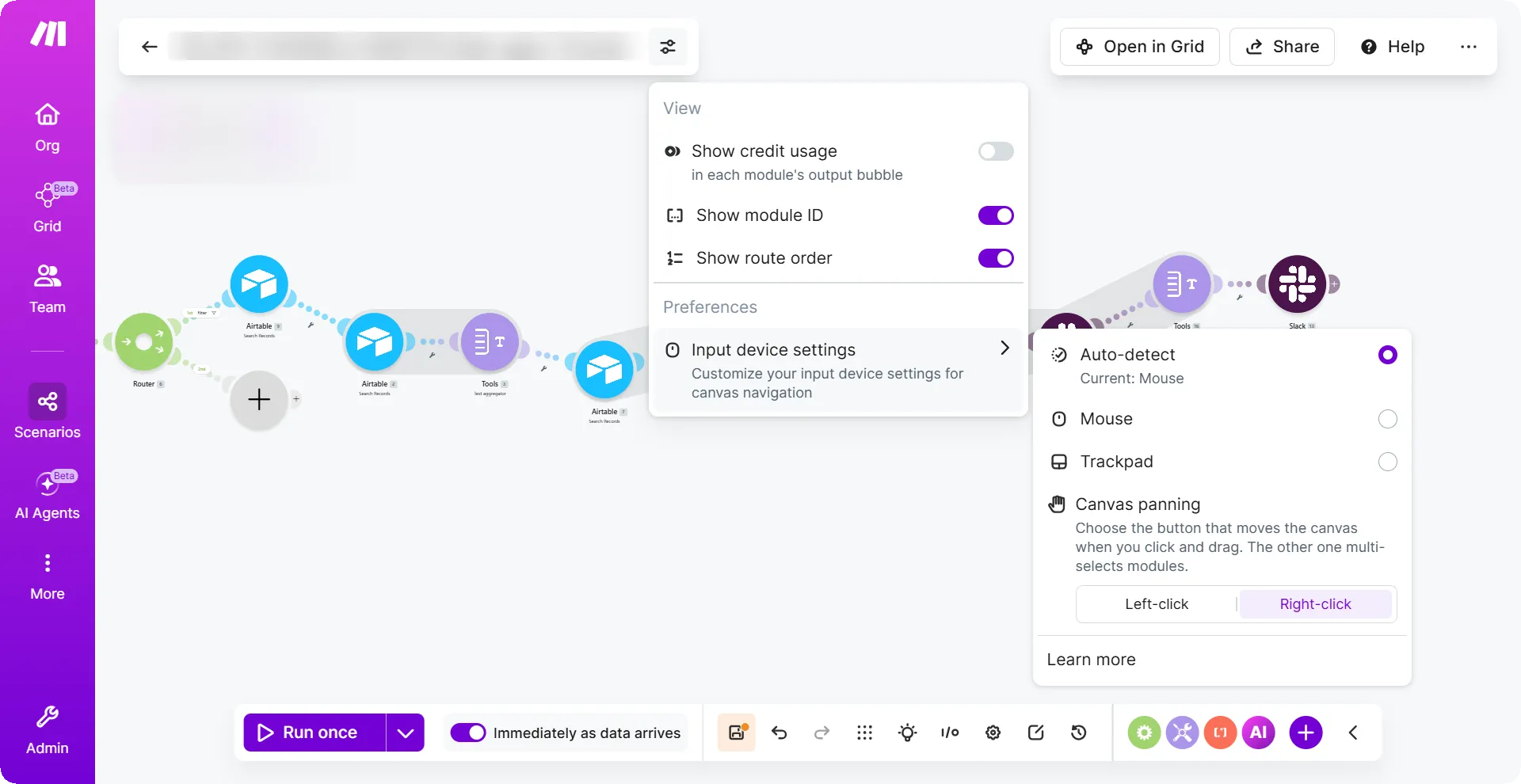
Auto-detect: Switches based on the device you use.
Mouse: Select this if you use an Apple Magic Mouse or a standard mouse.
If you select Mouse mode but use a trackpad, a two-finger slide will zoom instead of pan.
Trackpad: Ideal if you primarily use a trackpad, or if you use a hybrid setup.
For example, a trackpad combined with a graphic tablet or a traditional wheel mouse where you prefer Ctrl/Cmd + Wheel to zoom.
Canvas panning: Choose which mouse button or trackpad interaction pans the canvas, the other one will multi-select modules.
- Right-click: This is the default selection, you can pan around the canvas by clicking and dragging the right mouse button or secondary-click on trackpad. To multi-select modules, click and drag the left mouse button or tap and drag on canvas.
- Left-click: You can pan around the canvas by clicking and dragging left mouse button or tap and drag on canvas. To multi-select modules, click and drag the right mouse button or secondary-click on trackpad.
Change from Right-click to Left-click navigation
You can change to your preferred way of navigating through the canvas.
For example, pan using the left mouse button (LMB) instead of the default right mouse button (RMB).
To change the panning:
- Click Canvas options next to the scenario name.
- In Canvas panning, click Left-click.
You have now changed the panning setting. For more information about the left-click navigation, see Left-click interaction model.
Changes to input device settings are saved when you sign out and sign in. They will reset to default if you clear your browser's site data, open Make in an incognito window, use a new browser, or switch to a different device.
Right-click interaction model (default)
Right-click is the default selection. Pan around the canvas by clicking and dragging the right mouse button. To multi-select modules, click and drag the left mouse button
Navigation | With a mouse | With a trackpad | With a touchscreen |
|---|---|---|---|
Pan | Click the right mouse button (RMB) and drag OR press the space button+ left mouse button (LMB) and drag OR click the middle mouse button (MMB) and drag | To pan, use two-finger swipe on the trackpad OR right-button / secondary-click drag | Touch and drag the canvas to pan |
Zoom | Scroll the mouse wheel | Pinch the trackpad to zoom | Pinch the screen to zoom |
Select | Click the left mouse button (LMB) | Tap on the element | - |
Context menu | Click the right mouse button (RMB) | Secondary click | - |
Multi-select (one-by-one) | Press Ctrl/CMD + LMB click OR Shift + LMB click | Single finger drag | - |
Multi-select (marquee) | LMB drag OR Shift/Ctrl + LMB drag | Single-finger drag on empty (+ Shift + one finger) | - |
Move | LMB drag on the element | Single finger drag on a module | - |
Left-click interaction model (toggled)
Select Left-click to pan the canvas by clicking and dragging the left mouse button. To multi-select modules, click and drag the right mouse button.
Navigation | With a mouse | With a trackpad | With a touchscreen |
|---|---|---|---|
Pan | Click the left mouse button (LMB) and drag OR click the middle mouse button (MMB) and drag | To pan, press one-finger and drag on the trackpad OR two-fingers swipe to move up and down | Touch and drag the canvas to pan |
Zoom | Scroll the mouse wheel | Pinch the trackpad to zoom | Pinch the screen to zoom |
Select | Click the left mouse button (LMB) | Tap on the element | - |
Context menu | Click the right mouse button (RMB) | Secondary click | - |
Multi-select (one-by-one) | Press Ctrl/CMD + LMB click OR Shift + LMB click | Shift + single-finger tap on a buttonless pad OR right-button drag on a 2-button pad | - |
Multi-select (marquee) | RMB drag OR press Ctrl/CMD + LMB drag OR press Shift + LMB drag | Ctrl/CMD + LMB drag OR Shift + single-finger drag or on a buttonless pad OR right-button and drag on a 2-button pad | - |
Move | LMB drag on the element | Single finger drag on a module | - |