Teach Make for Digital Education Partners API
Use the Teach Make for Digital Education Partners API to check whether students qualify for the program and to send them coupons.
Prerequisites
To send coupon requests, you must have:
- A Make secret key (the key sent to your email when you registered your organization).
Authentication
To access API endpoints for the program, use the following header with your Make secret. Make sends you the secret in an email when you register.
Key | Value |
|---|---|
x-make-secret | Your Make secret |
Check student eligibility
You can check student eligibility for the program before sending coupon requests:
- Eligible: The student receives an email with a call to action to confirm their address.
- Not eligible: The student is not contacted (error code 409 - duplicate). You inform the student that they've already used a Make coupon.
Endpoint
This endpoint checks whether a student is eligible for the program:
GET https://l.make.com/edtech-check-student
Headers
Name | Type | Required | Description |
|---|---|---|---|
x-edtech-name | String | Yes | Your organization name |
x-user-email | String | Yes | The student's email address (+ is an invalid symbol) |
Request example
{
  "x-edtech-name": "your organization name",
  "x-user-email": "[email protected]"
}
Response example
{
  "transaction": "check-student",
  "status": "not_eligible - PENDING_MOBILE - 2026-03-15T12:44:56.000Z",
  "issued_on": "2026-03-15",
  "email": "[email protected]",
  "timestamp": "2026-06-02T13:55:07.478Z"
}
Send a coupon request in test mode
By default, your organization is set to test mode. In test mode, Make sends a non-functional coupon to the email address and phone number of the person who registered the organization, not to students.
Send a request in test mode first, then switch to production.
Endpoint
This endpoint enrolls a student in the program and triggers the coupon flow:
POST https://l.make.com/edtech-add-student
Body
Name | Type | Required | Description |
|---|---|---|---|
x-ops-mode | String | Yes | TEST or PROD |
x-edtech-name | String | Yes | Organization name exactly as written in the registration email |
x-user-id | String | Yes | Student's internal user ID |
x-schooling-id | String | Yes | Student's internal course ID |
x-user-first-name | String | Yes | Student's first name |
x-user-last-name | String | Yes | Student's last name |
x-user-email | String | Yes | Student's email address (+ is an invalid symbol) |
x-user-mobile-phone | String | Yes | Student's phone number in international format |
x-custom-field-1 | String | No | Additional information |
x-custom-field-2 | String | No | Additional information |
x-custom-field-3 | String | No | Additional information |
x-custom-field-4 | String | No | Additional information |
Request example
{
  "x-ops-mode": "TEST",
  "x-edtech-name": "your organization name",
  "x-user-id": "your user id",
  "x-schooling-id": "your course id",
  "x-user-first-name": "student first name",
  "x-user-last-name": "student last name",
  "x-user-email": "[email protected]",
  "x-user-mobile-phone": "student phone number in international format",
  "x-custom-field-1": "optional-value",
  "x-custom-field-2": "optional-value",
  "x-custom-field-3": "optional-value",
  "x-custom-field-4": "optional-value"
}
Add any custom fields that you need, or delete them.
Response example
{
  "transaction": "add-student",
  "sub-transaction": "NEW",
  "status": "accepted",
  "email": "[email protected]",
  "comment": "OK - Process initiated successfully",
  "timestamp": "2026-06-17T11:15:57.622Z"
}
Send a request in production mode
Once your test request is successful, switch to production mode to send actual coupons to students:
Click the go-to-production link that you received in your registration confirmation email.
On the page that opens, click the button and submit the form.
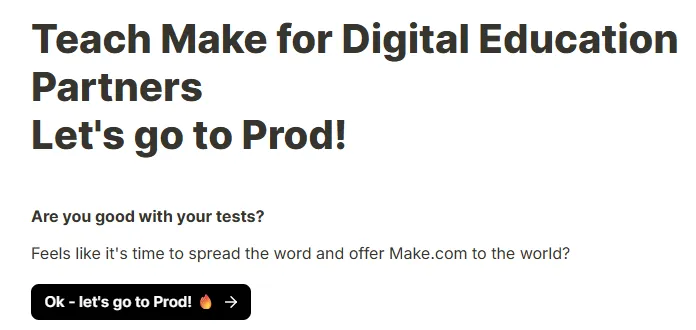
Make sends you a confirmation email when your organization is set to production.
Send the same request as in test mode, but set x-ops-mode to PROD and use actual student data.
You've now sent a request in production mode.
Troubleshooting
This section covers rate limits, HTTP status codes, and solutions to common issues.
Rate limits
Make limits the number of API calls to five per minute. If calls exceed this number, the API returns a 429 error code. Wait, resend the request until you receive a 200 response.
HTTP status codes
When you make an API request, the API returns an HTTP status code to indicate whether your request was processed.
Code | Meaning | Action required |
|---|---|---|
200 | Processed successfully | No action required. |
401 | Missing secret | Resend with the correct secret. |
401 | Missing required field(s) | Resend with all required fields. |
401 | Account inactive | Check account status. |
401 | Account not found | Verify account details. |
401 | Incorrect secret | Resend with the correct secret. |
401 | Banned or hard-banned | Contact support. |
408 | Email is malformed or contains an alias character (+) | Resend with a valid email address. |
409 | Duplicate request | Check for duplicate submissions. |
429 | Too many requests | Wait, then resend. |
500 | Service unavailable | Wait, then resend. |
Banned account
A high volume of failing requests triggers an automatic 24-hour ban. When this happens, stop sending requests and resolve the issue; each additional failing request extends the ban by another 24 hours.
If you exceed the failure threshold, your account is hard-banned. Contact support to unlock it.
Unrecognized account
401 errors citing an organization not found usually mean your company name is entered incorrectly.
Enter the company name exactly as it appeared during registration. To confirm the correct name, check any email you received after registration. Your company name appears at the top of each message.
Incorrect student email address
Students can only redeem a coupon after confirming a valid email address.
An invalid email format blocks redemption and returns a 408 error. If the student provides a correctly formatted email address that doesn't exist, the coupon won't be delivered to them and you won't be notified.
Incorrect student phone number or text message delivery failure
If a student's phone number is incorrect, or a text message can't be delivered, the program admin receives a text message notification at the number provided during registration.
If that number is also incorrect or unreachable, the notification goes to the admin email address provided during registration. Check your inbox regularly to avoid delays.
Contact support
For additional help, contact [email protected].