Tutorial: How to replace a dependency
Objective
The objective of this tutorial is to help you use Make Grid to visually analyze scenario dependencies and plan updates. In this tutorial, you will use Make Grid to plan to migrate away from an existing Google Sheets spreadsheet and use another data element, for example, an Airtable base. With the help of Make Grid, you can plan changes effectively and ensure a smooth, error-free transition without disrupting existing workflows.
Requirements
Before using Make Grid, ensure that you have an existing scenario with dependencies.
Step 1: Open your scenario
Log in to Make.com.
In the left sidebar, navigate to Scenarios.
From All scenarios, click the scenario that you want to update.
In this example, you plan to replace the Google Sheets spreadsheet with an Airtable base.
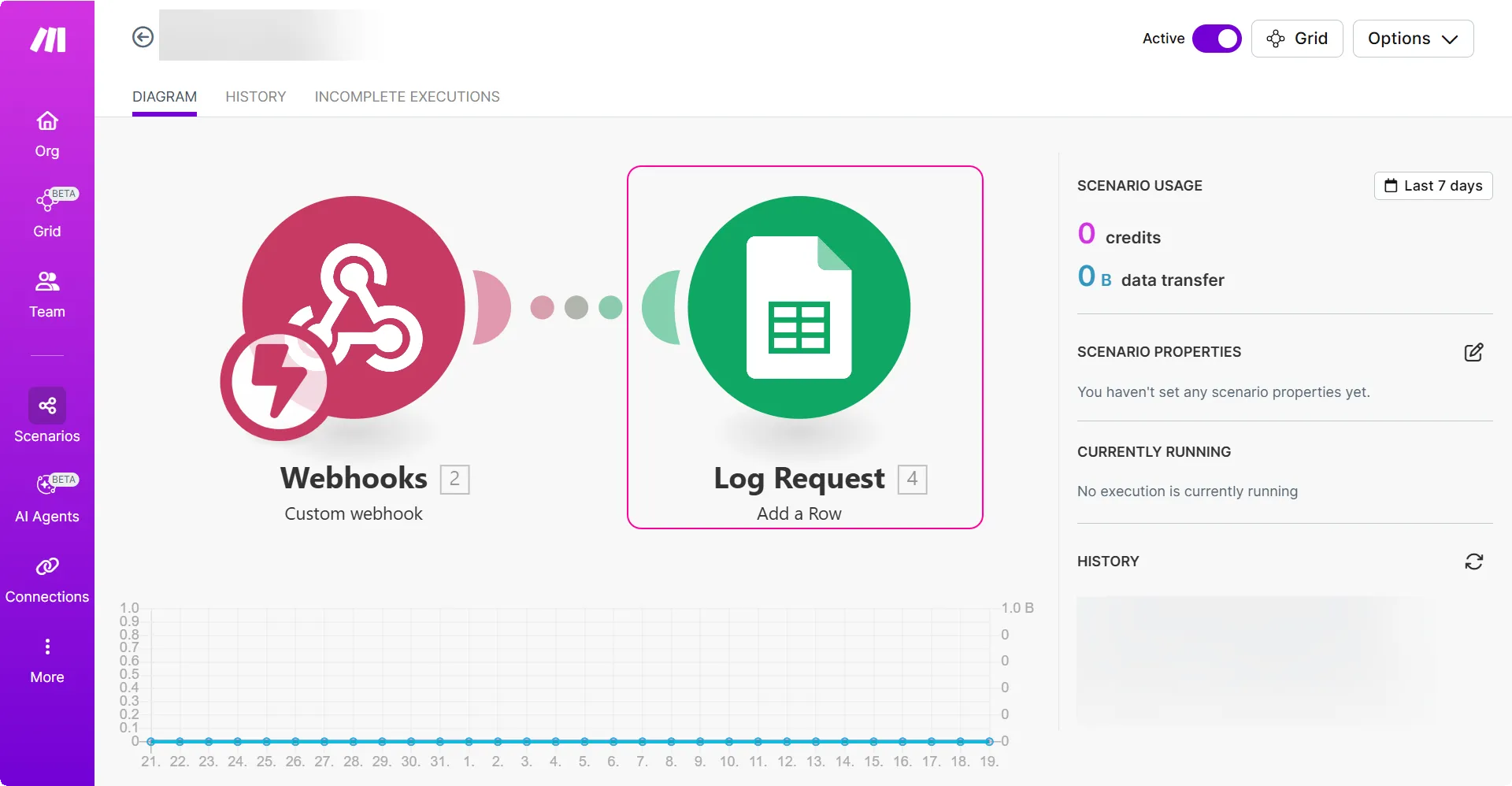
Step 2: Open Make Grid to analyze the scenario and its dependencies
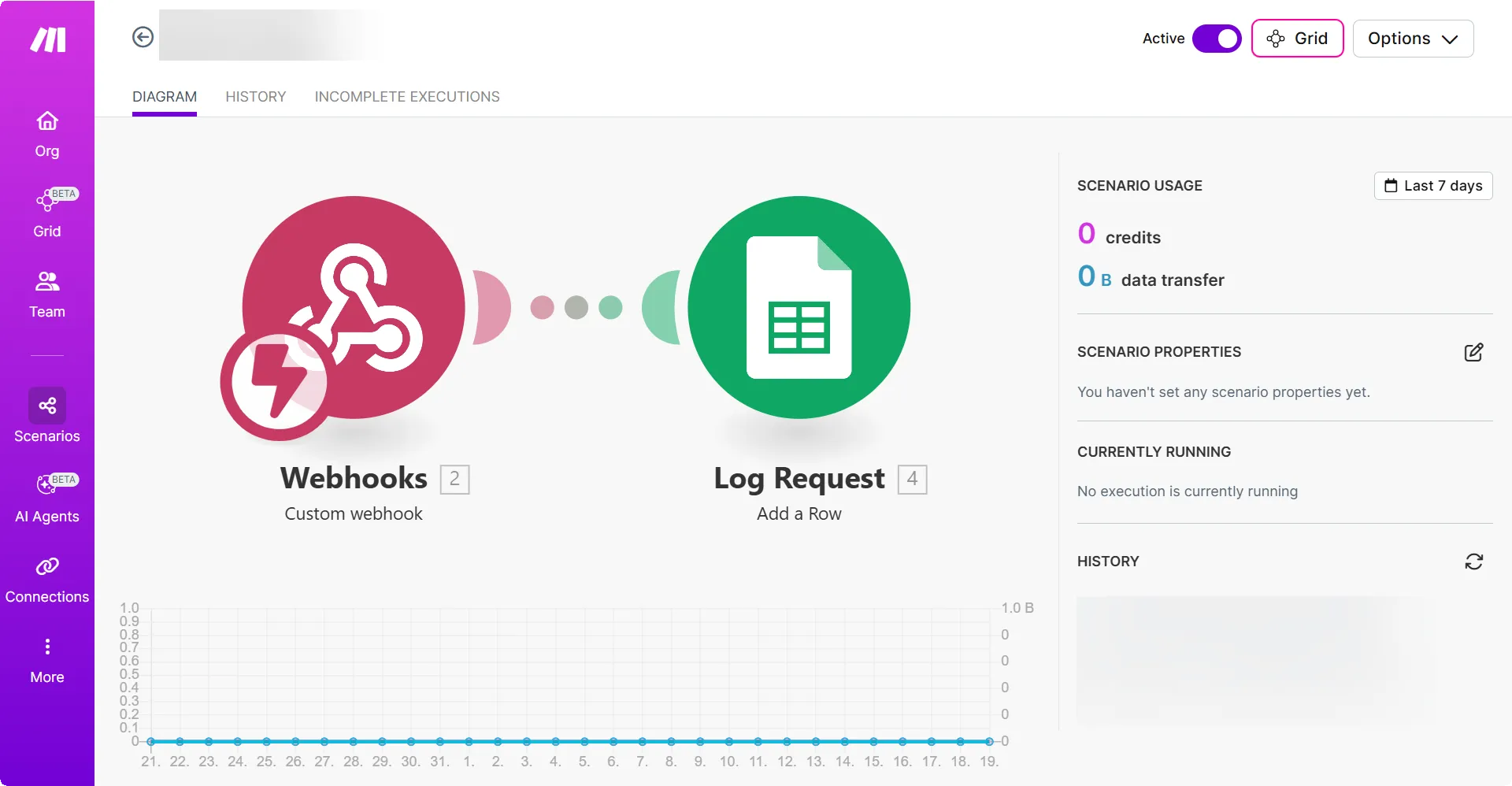
In the scenario diagram, click the Grid button.
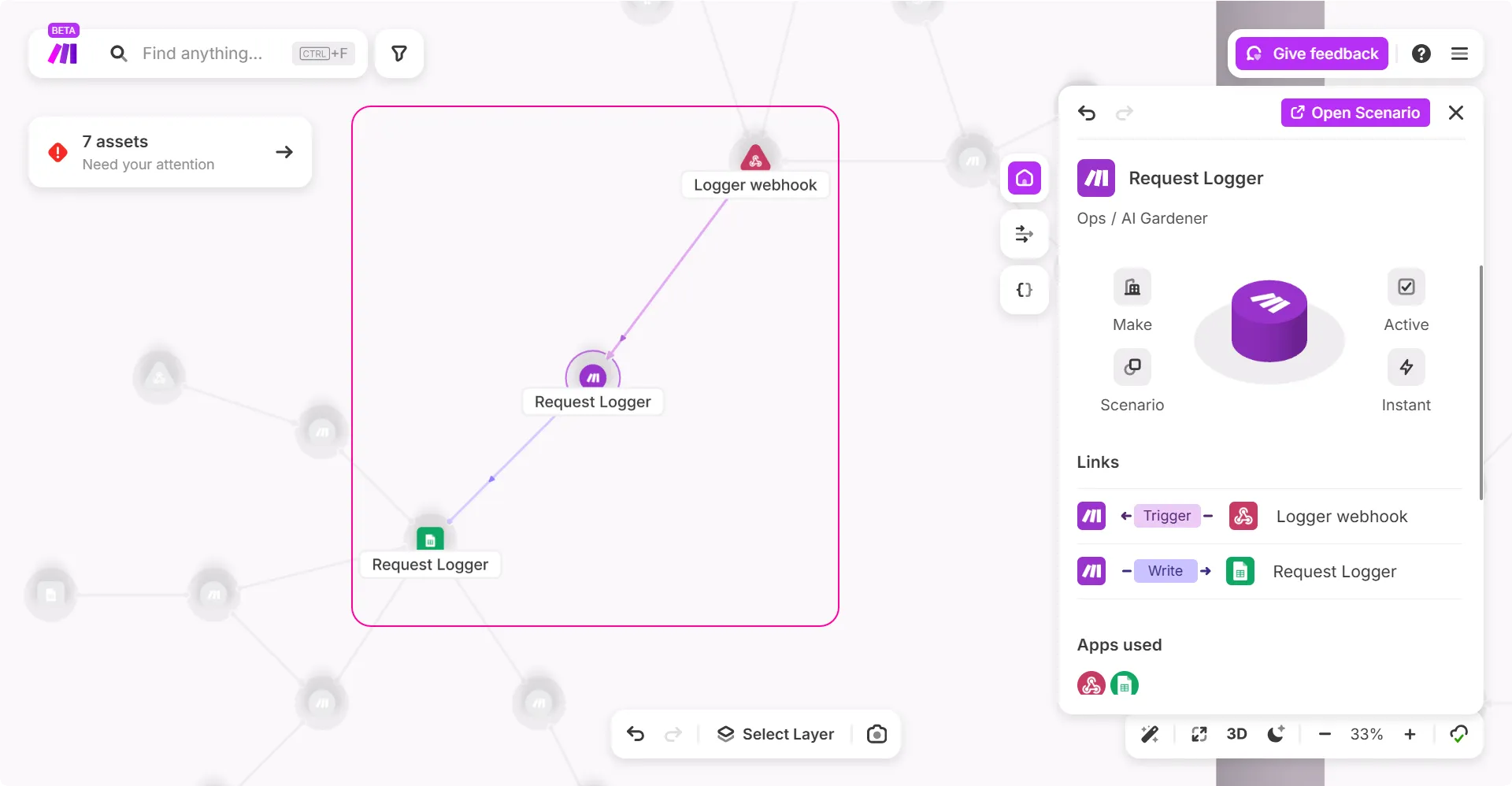
Once Make Grid opens, you can view the scenario and its dependencies.
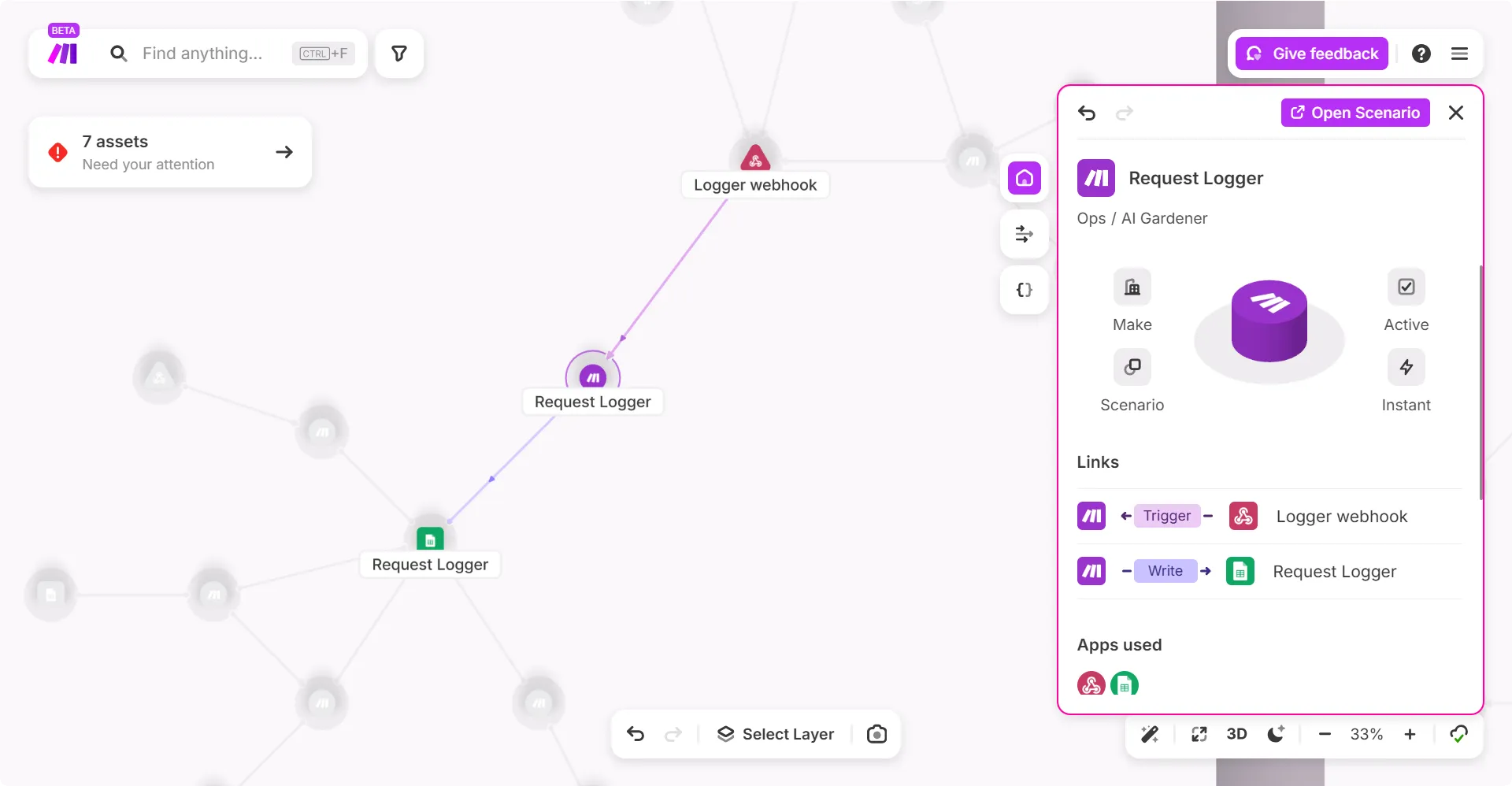
In the right side panel, you can view the details of the scenario.
Click on a specific dependency you want to make changes to, such as the Google Sheets spreadsheet in this example. Make Grid highlights the scenario dependencies.
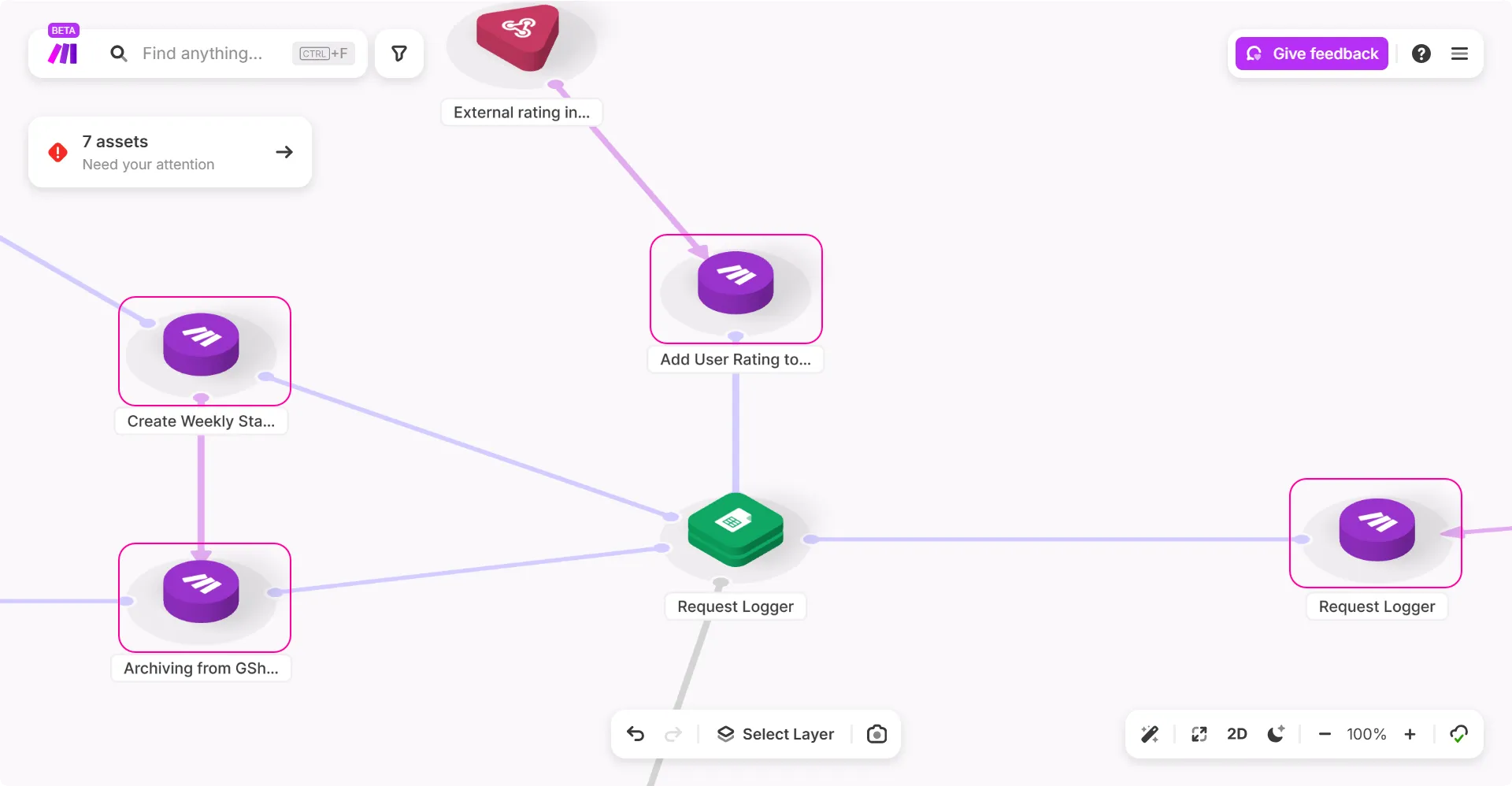
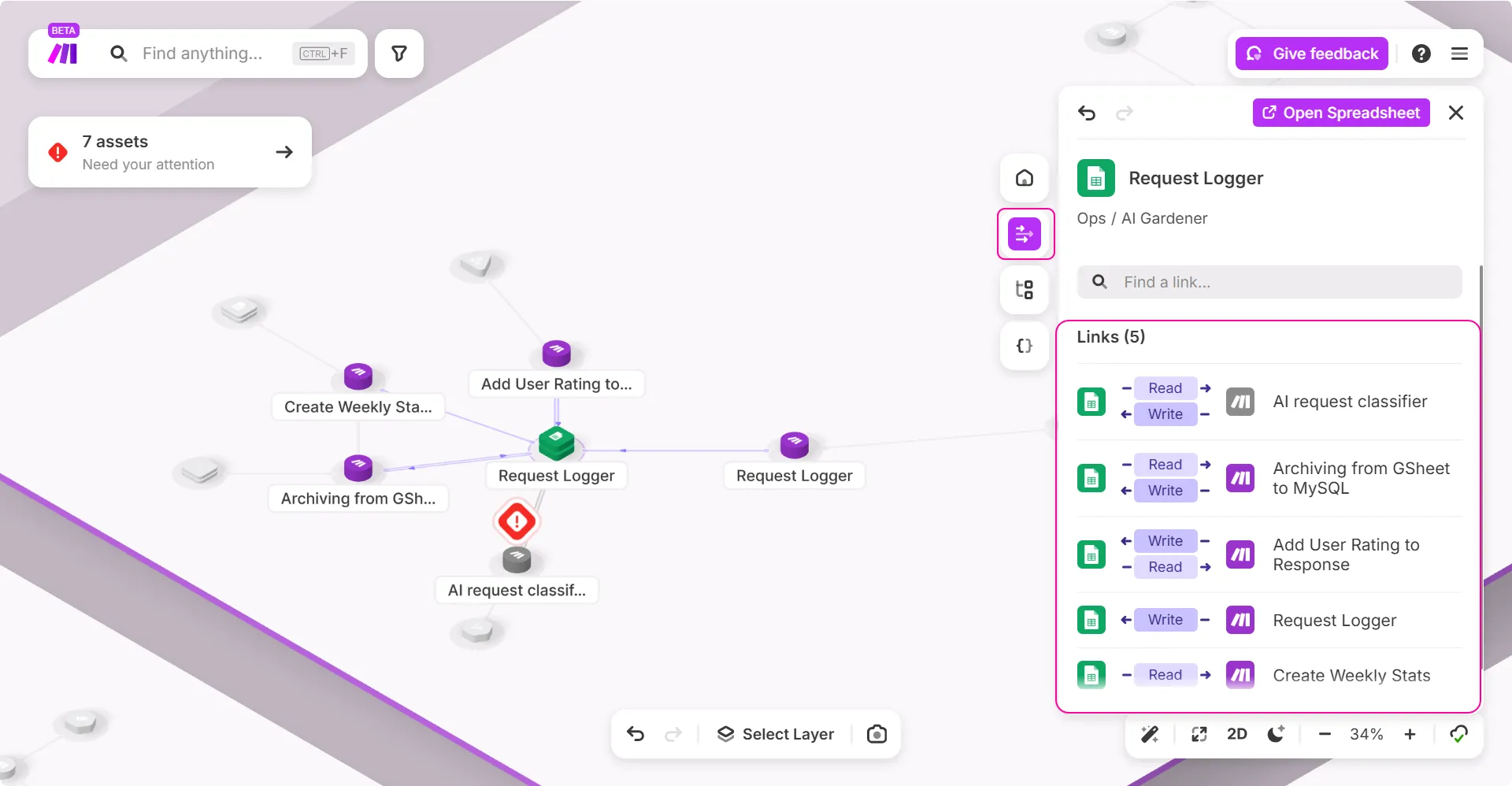
Click Links to view the scenarios that depend on the selected dependency. In this example, you can view which scenarios read or write to the Google Sheets spreadsheet.
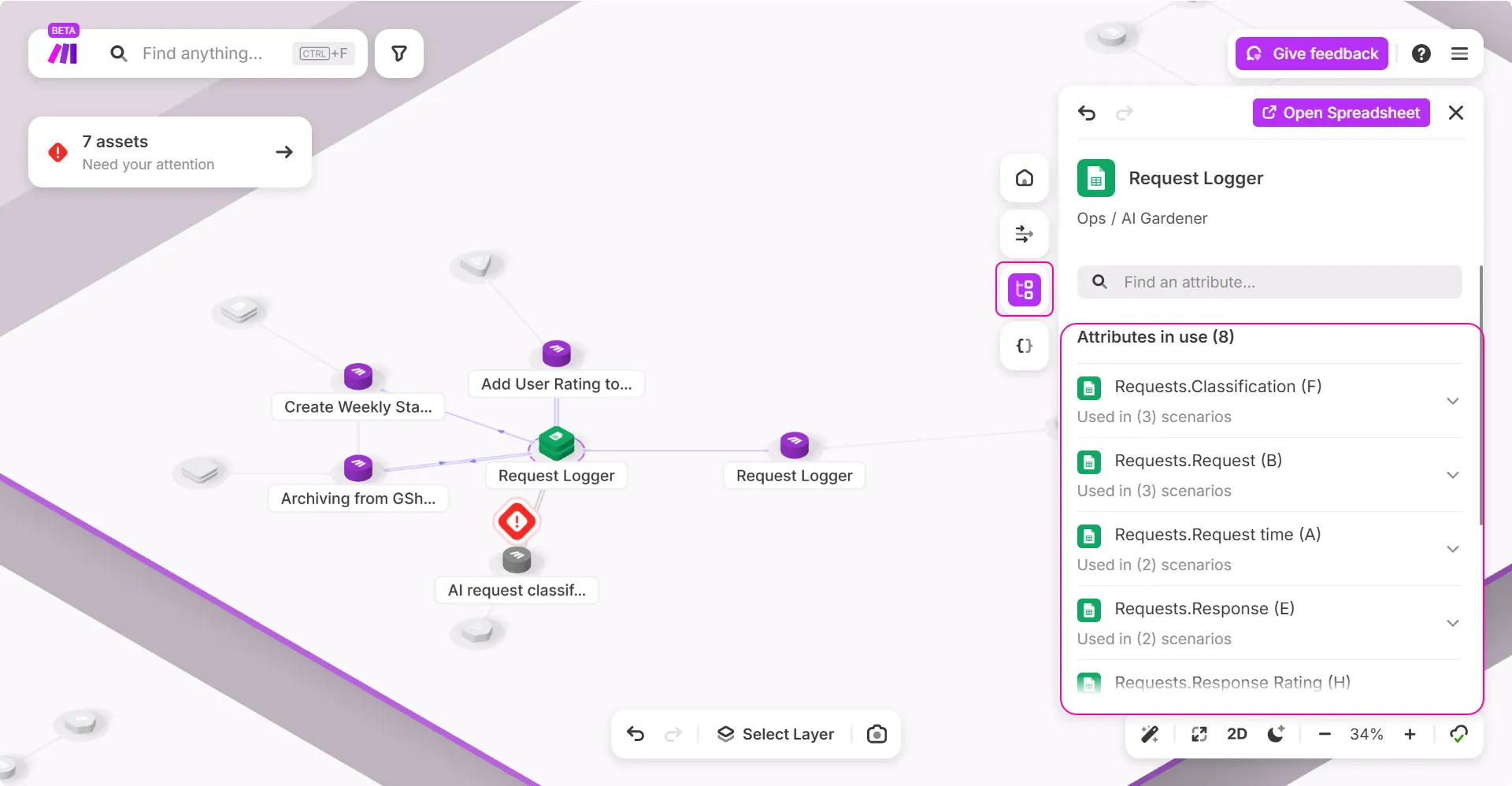
Click Attributes to view where specific attributes of the selected dependency are used. In example, you can view which Google Sheets columns are referenced in which scenarios.
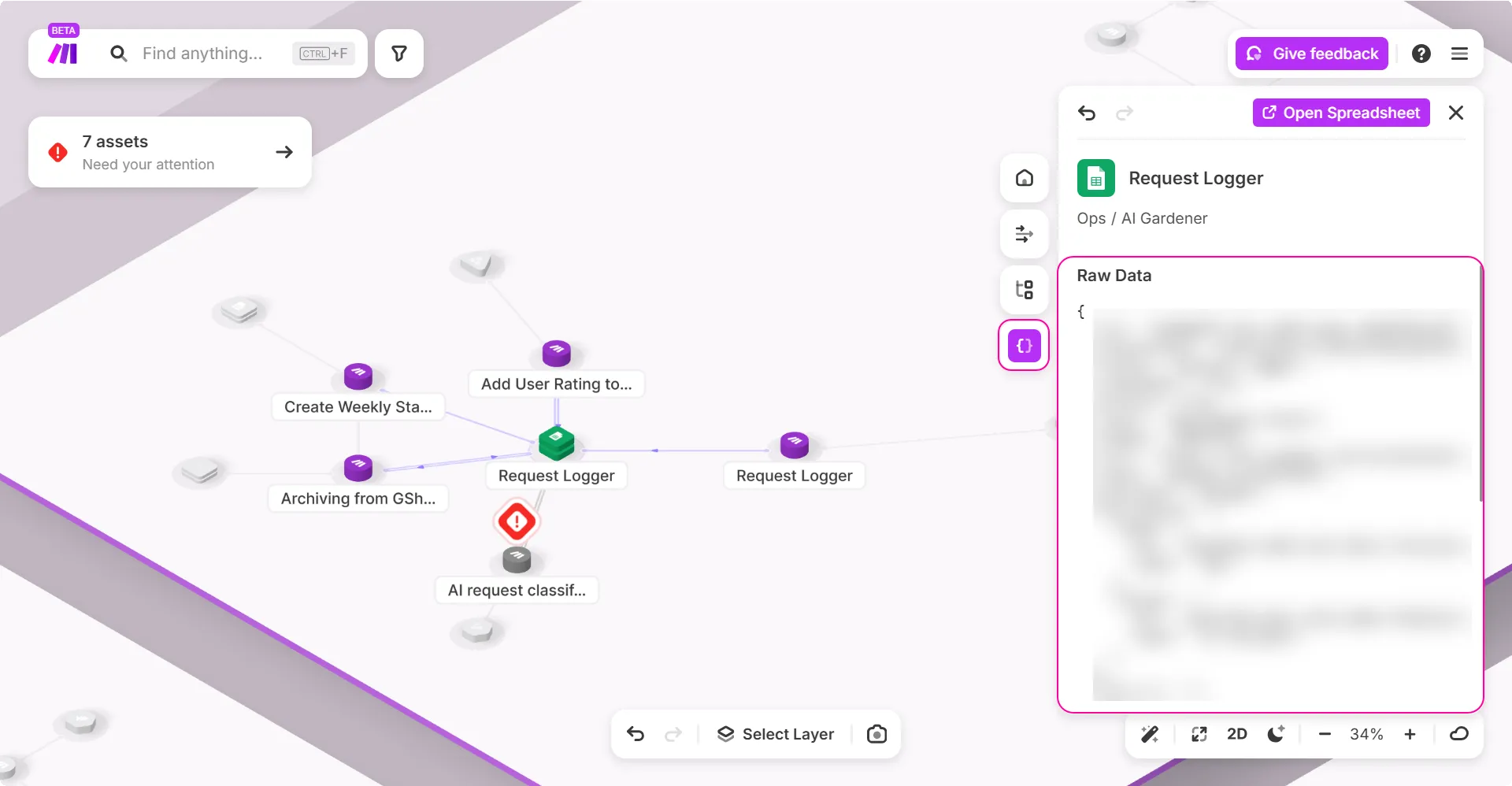
Click Raw Data to see the JSON data for the dependency, which is useful for advanced debugging and understanding the data structure.
Make Grid offers a comprehensive visual representation of how a dependency is interconnected within a scenario and with other scenarios. This holistic overview allows you to trace data flows, understand dependencies, and plan changes effectively, minimizing the risk of breaking existing logic or workflow.
Step 3: Plan the replacement
Identify the new replacement, an Airtable - Upsert a Record module, for example.
Before making any changes, use the information from the Attributes and Links view to create a clear plan to map the old data attributes to the new dependency. This ensures data integrity.
Add the new Airtable base to your scenario.
Reconfigure existing dependencies to read and write to the new replacement.
By thoroughly analyzing your scenario and workflow with Make Grid, you should be able to complete the transition smoothly.