Create your first Make AI Agent
In this tutorial, you'll create and configure a Make AI Agent in the Scenario Builder. You'll set up the agent's instructions, add tools, and optionally upload files for the agent to reference.
Create a new scenario.
- In Make, click Create scenario.
- Enter a name for your scenario.
Add a Make AI Agent module.
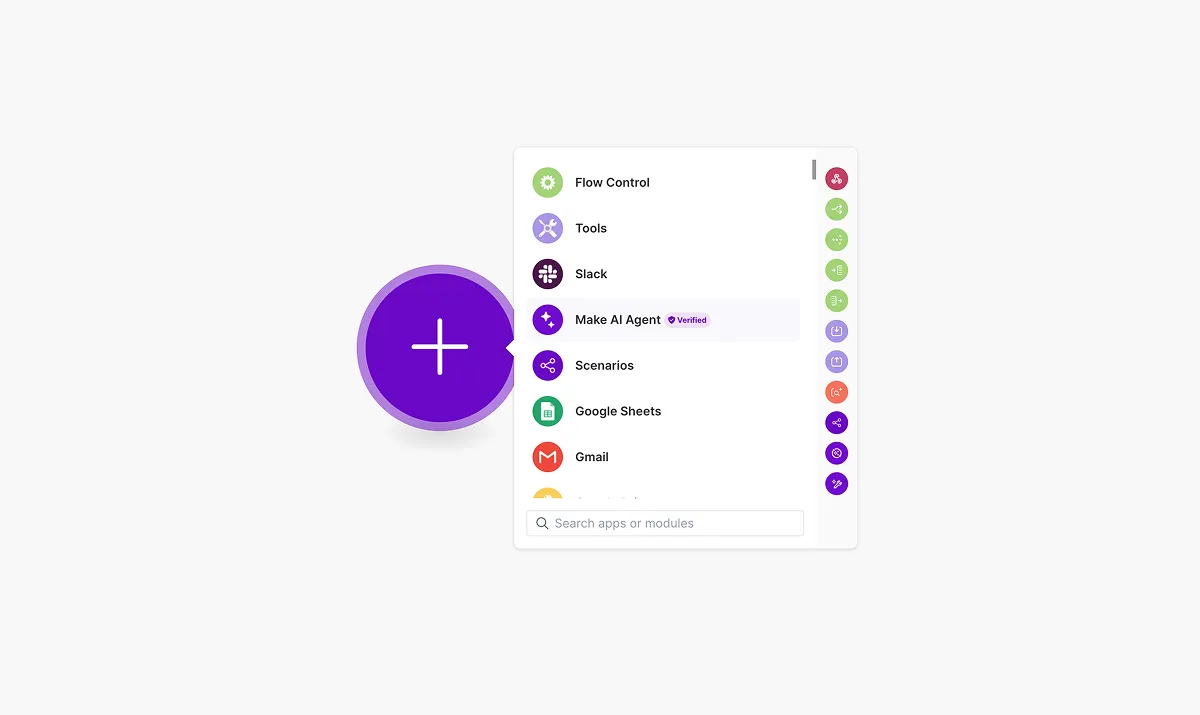
- Search for Make AI Agent and select it.
- Click the module to add it to the canvas.
Configure basic settings.
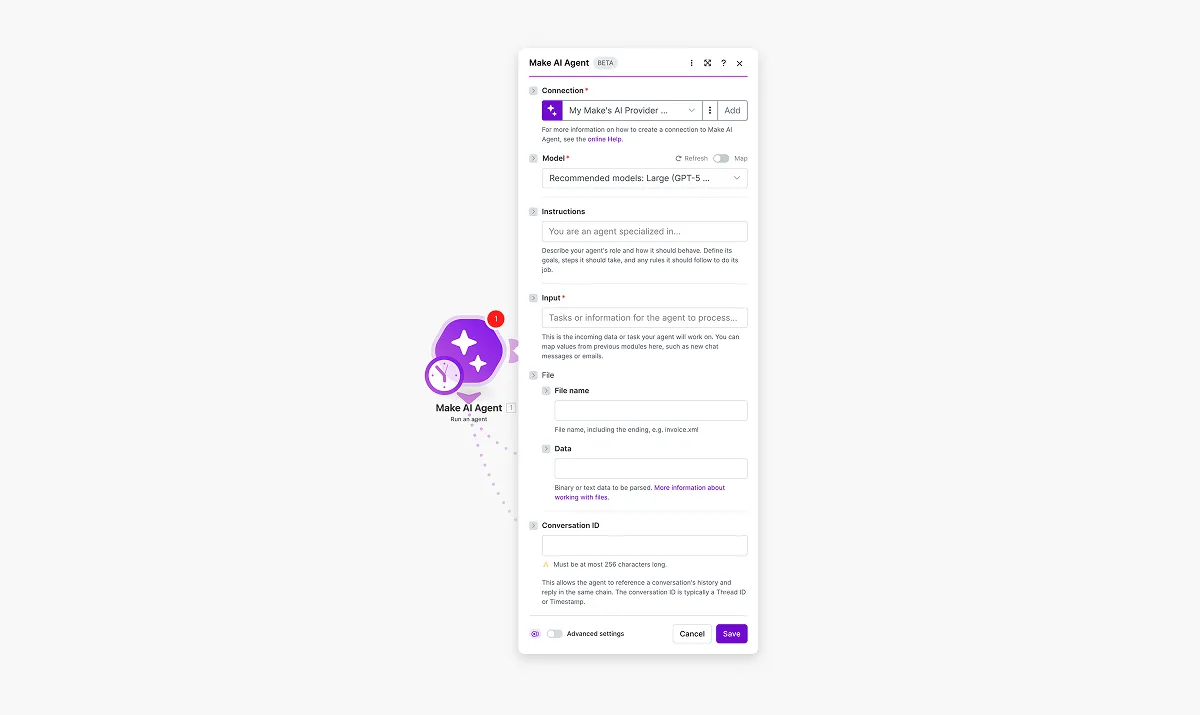
- Connection: Select Make's AI Provider to use Make's default AI provider, or select a custom AI provider.
- Model: Select a language model. Large/GPT-5-Mini is a good choice to start with.
- Instructions: Describe what the agent should do, which tools it can use, and what input and output to expect.
Set up input and conversation ID.
Use these fields to pass data to your agent:
- Input: Map data from previous modules in your scenario. This is the information your agent will process.
- To process a file, map it in the File field instead.
- Conversation ID: Enter a unique identifier like a thread ID or timestamp. The agent uses this to maintain context across multiple runs in the same conversation.
Add tools to the agent.
Tools are actions your agent can take, such as looking up information, updating records, or sending messages. To add a tool:
- Click Add tool.
- Select a Make module to use as a tool.
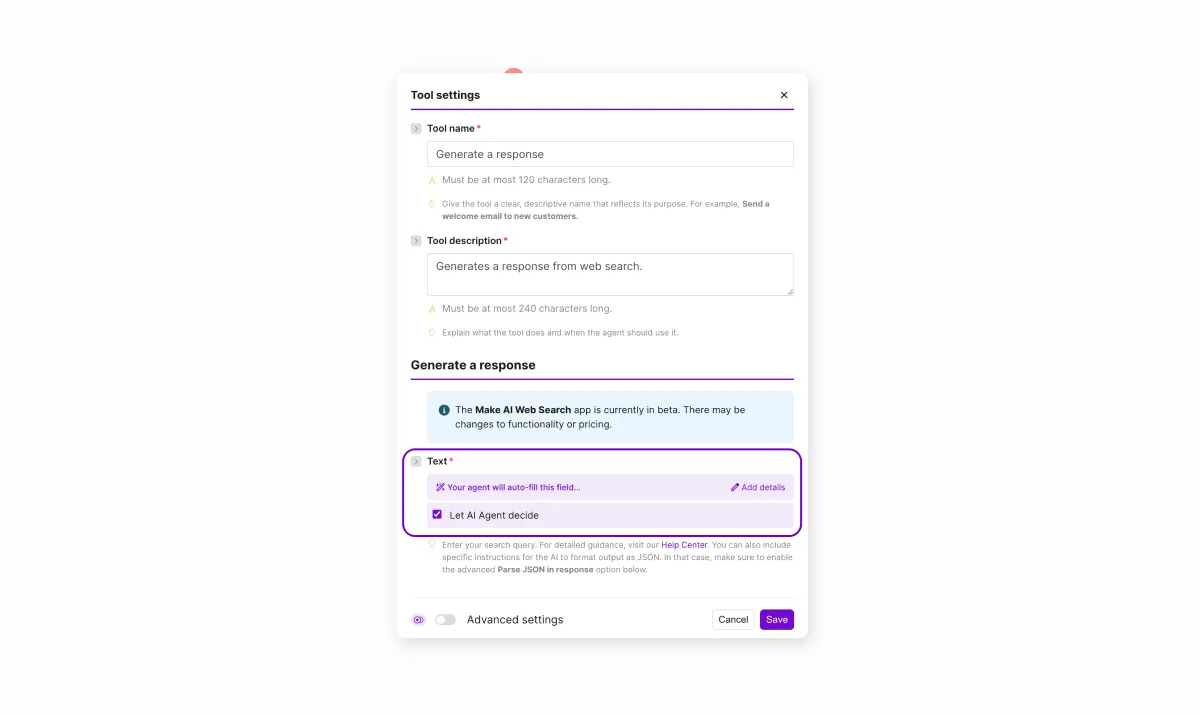
- Give the tool a clear name and description so the agent understands what it does.
- (Optional) Select Let AI Agent decide to have the agent automatically determine what value to fill in this field. If you don't select this, you need to enter the value manually.
Add knowledge to the agent.
A knowledge base provides files that your agent can reference during execution:
- Click Add knowledge.
- Click Upload file and select a file from your computer.
- Note: The agent searches these files when it needs specific information. It does not load the complete content of each file into memory. If you need your agent to process the full content of a file, map the file in the File field instead.
Test the agent.
Your agent is now configured. Test it in one of two ways:
Run the scenario: Click Run once to test the full scenario from start to finish.
Chat with the agent: Right-click the Make AI Agents module and select Chat with agent. Enter a test prompt and interact with your agent to refine its behavior before running the full scenario.
Review agent reasoning.
After the agent runs, select the Reasoning tab to see a step-by-step log of the agent's actions, which tools it used, and the decisions it made.
You have now created and configured a Make AI Agent in your scenario. You can run it immediately or adjust the configuration and test again.