Two-factor authentication enforcement
This feature is available to Enterprise customers.
Organization Admins and Owners can enforce Two-factor authentication (2FA) within their organization, requiring all users to enable it.
Key benefits
- One-step enforcement: Make 2FA mandatory for all users in one action
- Reduced security risks: Prevent unauthorized access and potential account takeovers
- Locked in protection: Ensure users can't accidentally or intentionally turn off 2FA, so your security stays locked in place
Limitations
2FA enforcement applies only to users who sign in using Make’s native authentication method (email and password).
If a user signs in through an external provider (e.g., Google) or an Identity Provider (SSO/SAML), this Make-level enforcement does not apply. In these cases, 2FA must be configured and enforced within the external provider or Identity Provider.
Enable 2FA enforcement in the Organization
As soon as you enforce 2FA in your Organization, users who haven't set up 2FA before and sign in using Make's native authentication method (email and password) will be signed out immediately.
We recommend planning 2FA enforcement ahead of time to avoid disruption:
- Schedule for off-hours, evenings, or weekends when your team isn't actively working.
- Inform your team 24-48 hours in advance; explain what's happening, and that the setup takes about 5 minutes.
- Let users save their work: make sure there's time before you enable it.
To enable 2FA enforcement in your Organization:
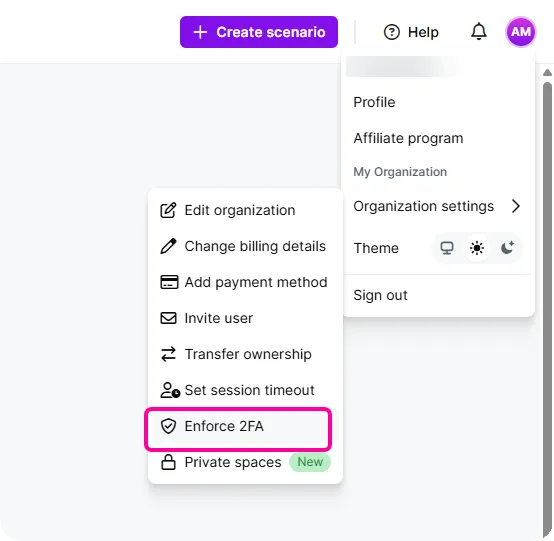
In the left sidebar, click Org.
Click the profile icon and go to Organization settings.
Click Enforce 2FA.
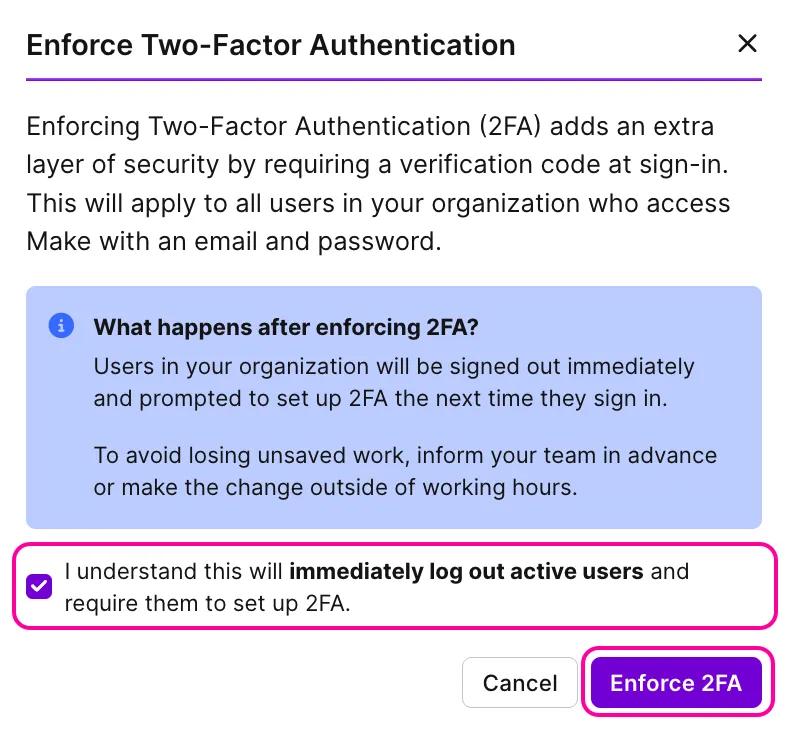
In the next window, review the warning that all users in your organization will be signed out immediately and required to use 2FA to sign in.
Check the confirmation box and click Enable 2FA.
You will see a message confirming that 2FA changes have been saved.
Set up 2FA
Once 2FA enforcement is enabled, users who haven't configured 2FA before and sign in using Make's native authentication method (email and password) will be signed out immediately. Upon signing in, they will see a warning that their account now requires 2FA.
To set up 2FA, users have to:
Sign in using their Make email and password.
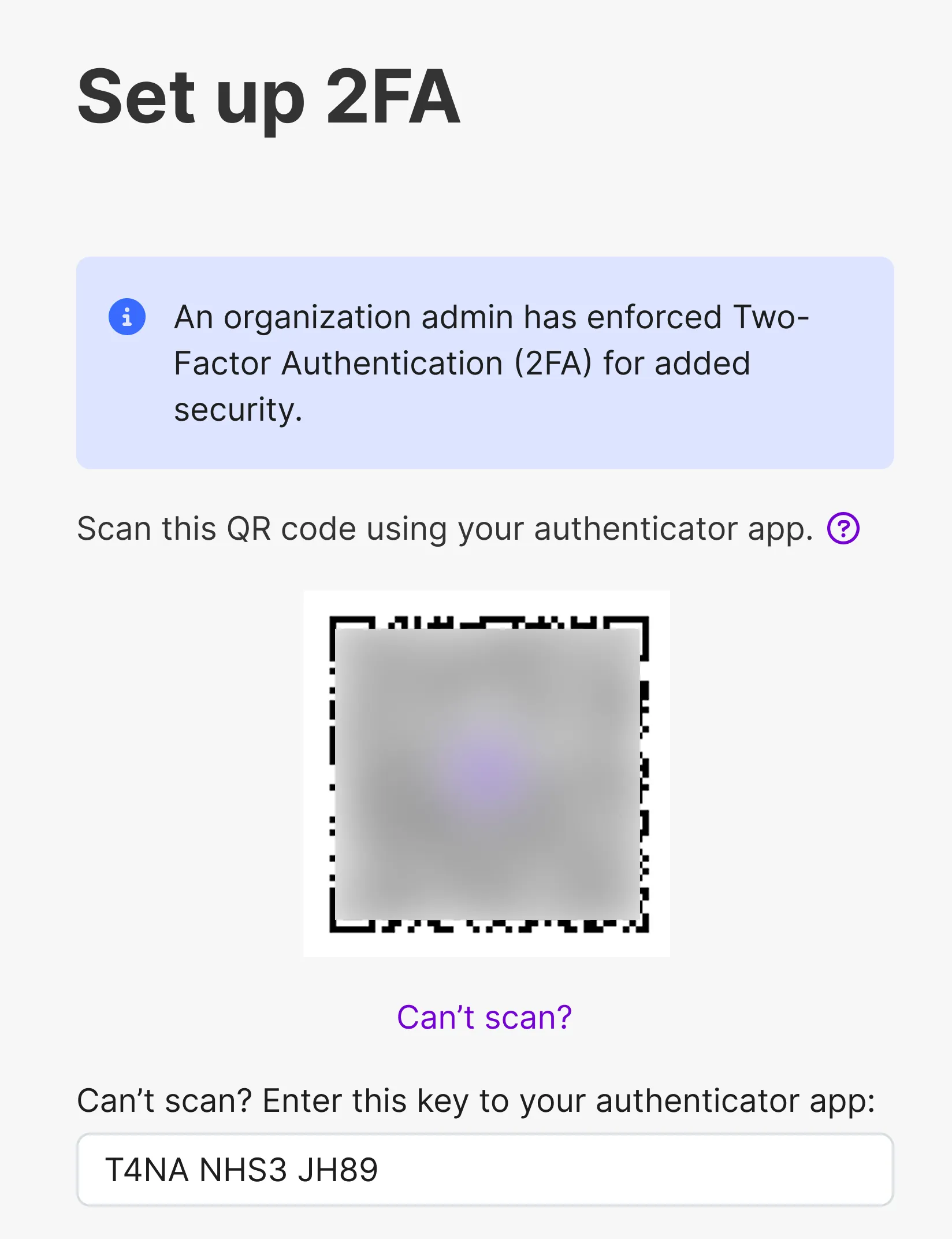
Scan the QR code using an authenticator app (e.g., Google Authenticator, Authy, Microsoft Authenticator, or 1Password).
If scanning is not possible, click Can't scan? and manually enter the provided key to the authenticator app.
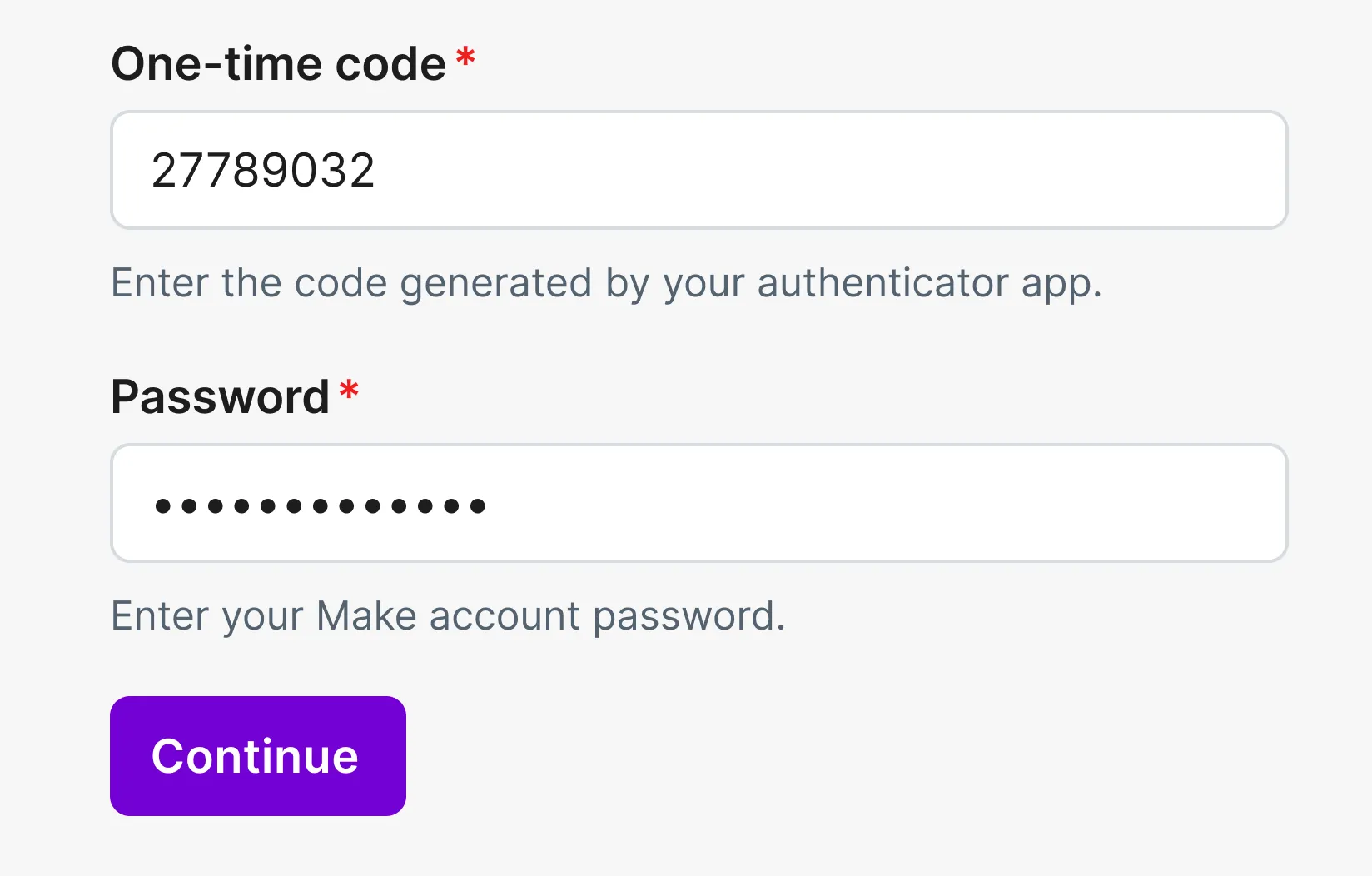
Enter the One-time code generated by the authenticator app along with Make Password, and click Continue.
Save your recovery codes.
Save the provided one-time recovery passwords in a safe place. They can be used to regain access to the account with 2FA if a mobile device is lost or stolen, or the authenticator app is removed from the phone.
Click Copy to clipoboard to copy the one-time passwords, or click Download to save them in a TXT file.
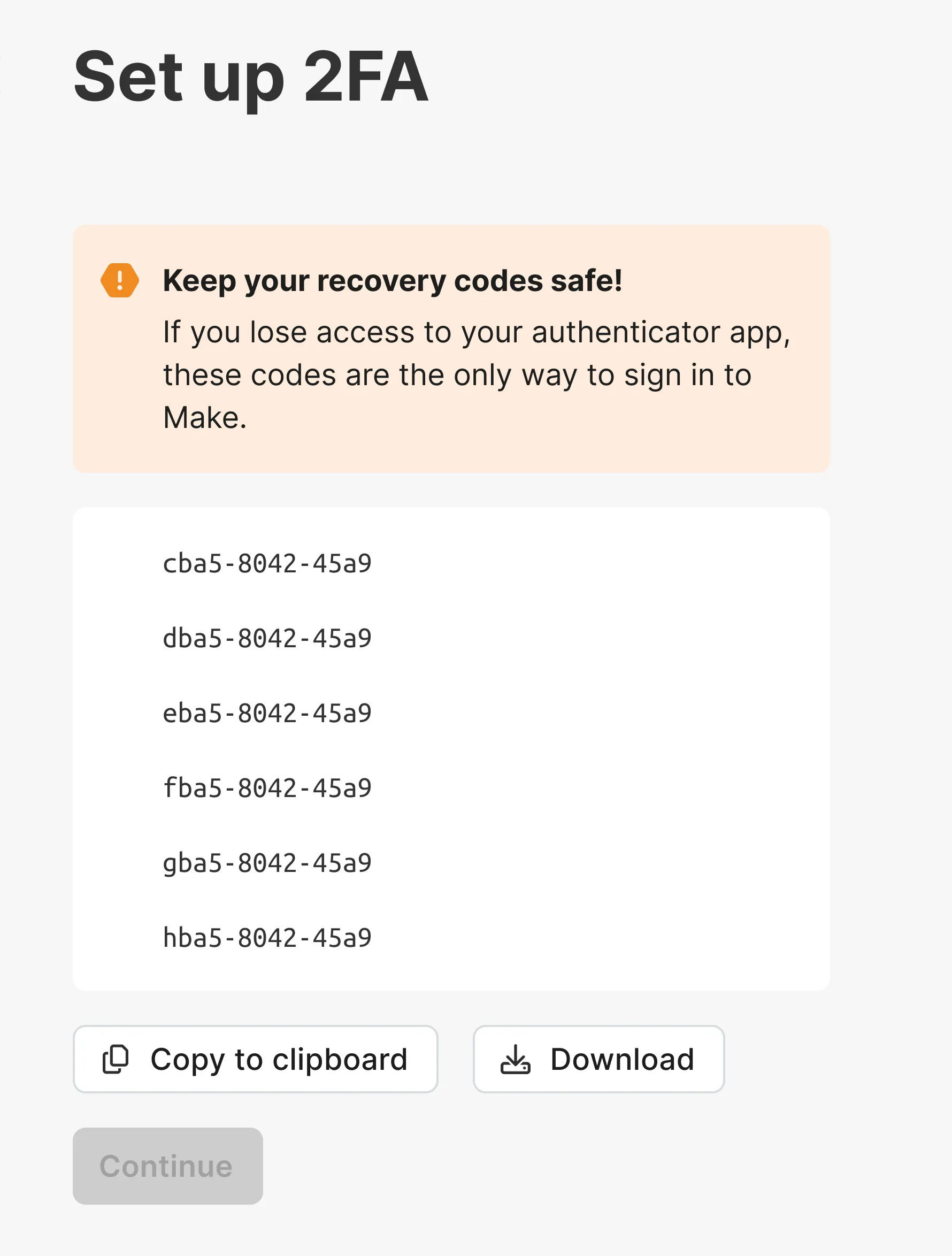
After saving, click Continue.
Users who belong to only one organization will be redirected to their Make Org page. Users who belong to multiple organizations will need to select the organization before being redirected to their Make Org page.
Check 2FA status
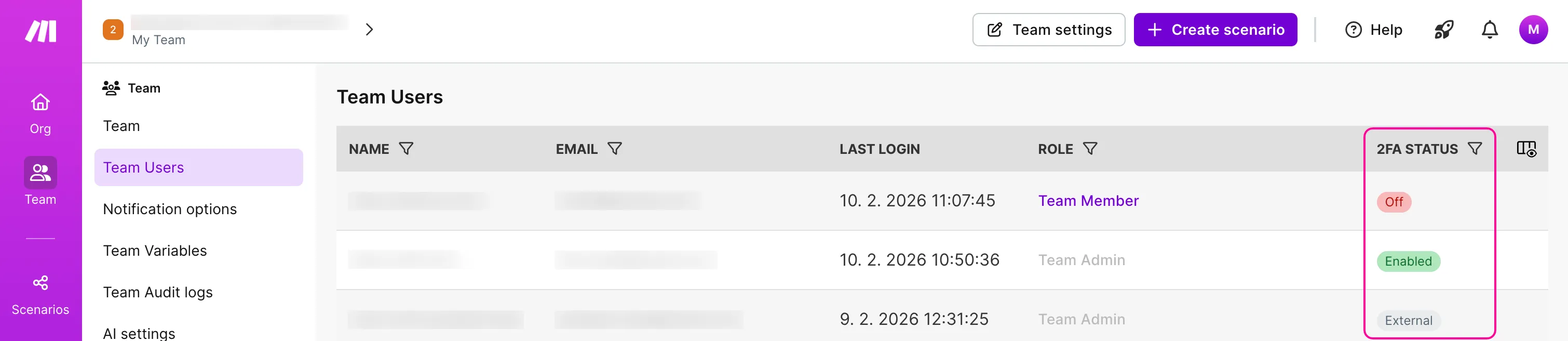
After enabling 2FA enforcement, organization Admins and Owners can see at both the organization and team levels who completed setup and who didn't.
Check 2FA status at the organization level
To check the user's 2FA status at the organization level:
In the left sidebar, click Org.
Switch to the Org Users tab.
Click the icon in the upper-right corner of the table and check the box for 2FA status.
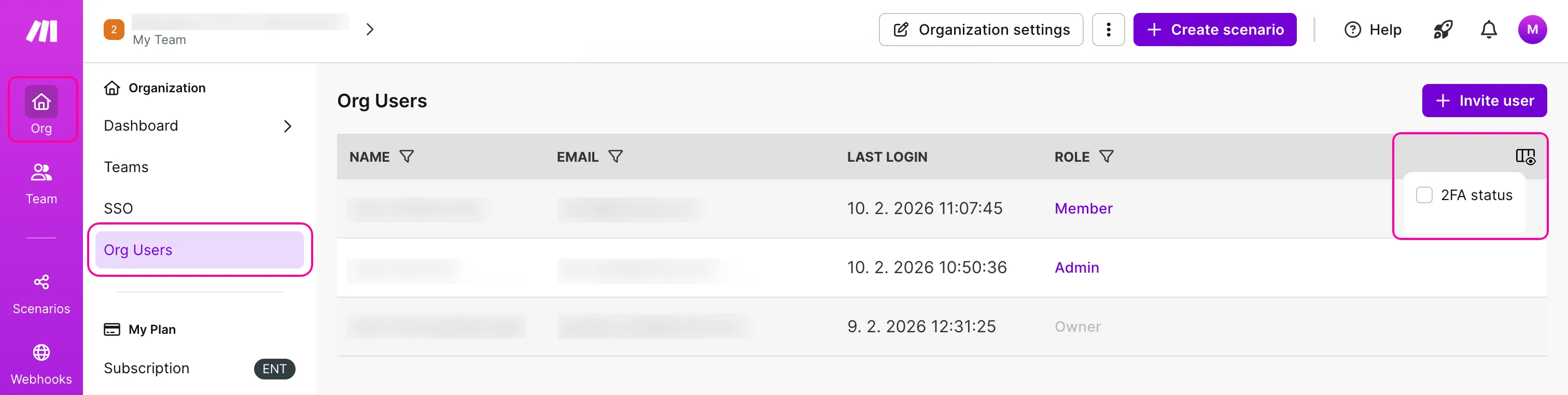
You will see a new 2FA Status column with each organization member's 2FA status.
Check 2FA status at the team level
To check the user's 2FA status at the team level:
In the left sidebar, click Team.
Switch to the Team Users tab.
Click the icon in the upper-right corner of the table and check the box for 2FA status.
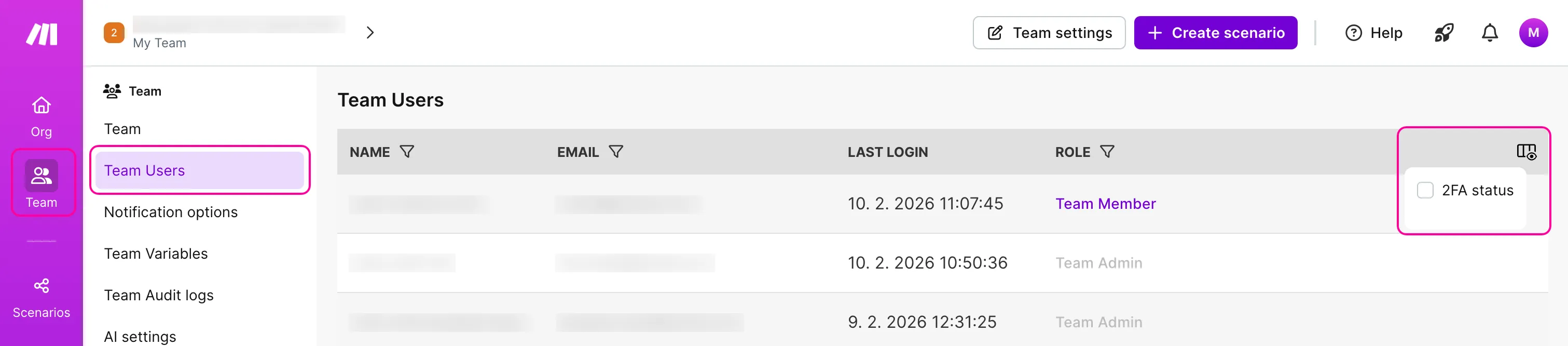
You will see a new 2FA Status column with each team member's 2FA status.
Disable 2FA enforcement in the Organization
When 2FA enforcement is on, users can't turn off 2FA themselves. Only Organization Admins or Owners can disable it.
To disable 2FA enforcement in your Organization:
In the left sidebar, click Org.
Click the profile icon and go to Organization settings.
Click Turn off 2FA enforcement.
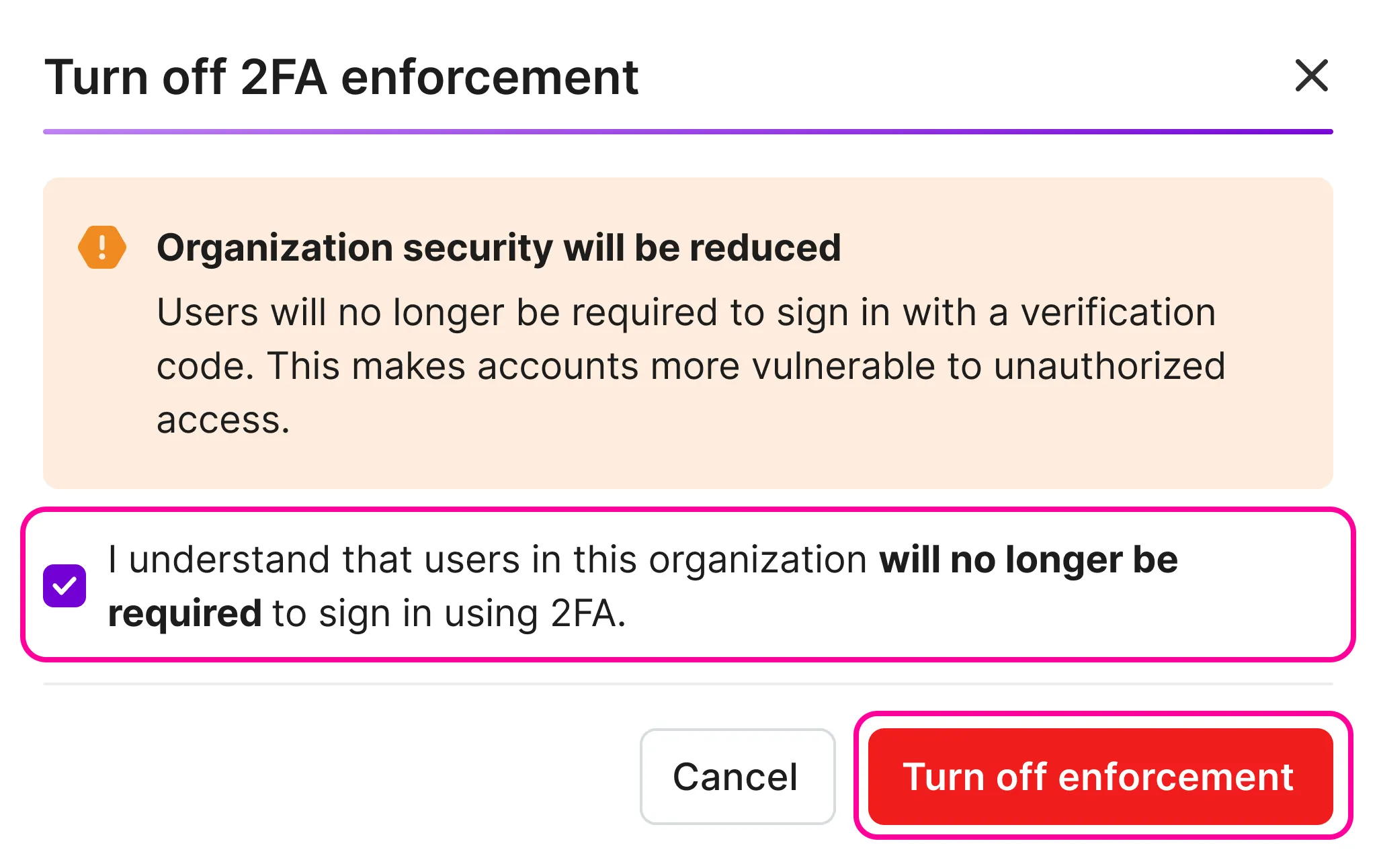
In the next window, review the warning that once 2FA enforcement is turned off, users will no longer be required to sign in with a verification code.
Check the confirmation box and click Turn off enforcement.
You will see a message confirming that 2FA changes have been saved.