Affiliate program
The Make Affiliate program lets you earn commission when someone uses your unique link to register for a paid Make account. Affiliate links can be shared directly, on a website, as part of a campaign, and through scenario sharingscenario sharing.
Anyone with a Make account can become an affiliate.
- Affiliates earn 35% commission on all referrals from an affiliate link for 12 months. The 12-month time period begins when someone registers using an affiliate link, not from the date of first payment.
- Payments are made when you earn a minimum of $100 and have three unique paying users.
- Commission is earned only from subscription payments, not from the purchase of extra operations.
- Users can't be added to an affiliate account retroactively.
- Payments are exclusively processed through Wise.
Payment example
A new Make user registers using your affiliate link on November 1, 2025. The new user starts paying Make on December 1, 2025 and they continue to pay for the next three years. You will earn 35% of every payment between the period of December 1, 2025 and November 1, 2026.
Register for the Make Affiliate program
To register for the Make Affiliate program:
Click your profile icon in the upper-right corner.
Select Affiliate program.

In the Create your unique affiliate code field, enter a code of your choice between 5 and 20 characters. For example, johndoe.
Your code must contain lowercase letters. It can contain numbers.
The code you choose in this step is final, and it will not be possible to change it. It will be part of the affiliate link we generate for you.

In the Insert your Wise email field, enter your Wise email.
Select your Wise account type: Personal or Business. We highly recommend selecting Personal, as Business accounts tend to encounter more processing errors during payouts.
Select your Preferred payout currency.
Complete the short survey, agree to the terms of service, and click Get your affiliate link.
You can find the affiliate link on your affiliate dashboard.

Make provides a variety of assets to help you promote your affiliate link, including brand guidelines, logo kits, banner ads, and more.
View affiliate dashboard
You can see your affiliate link, commission information, and user statistics on the affiliate dashboard. The dashboard also lets you define specific dates to filter statistics such as registrations and rewards.
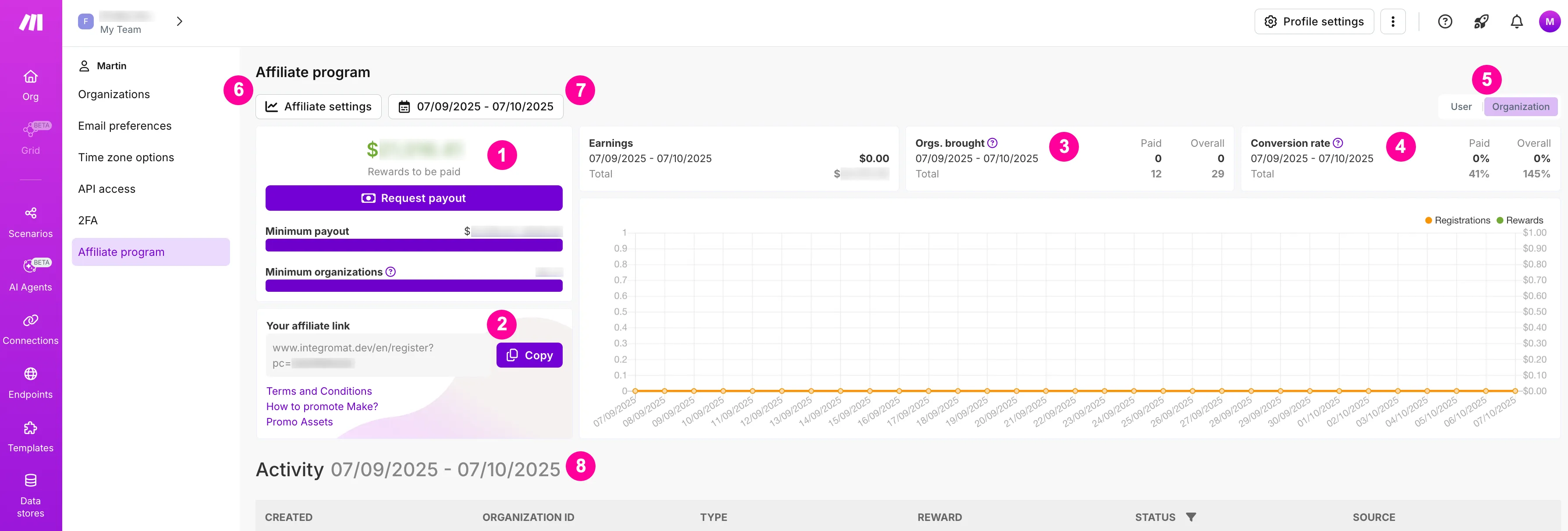
The dashboard has the following:
- Earning panel: Displays the total earnings, balance amount, minimum payout, and number of users required to qualify for receiving commission. You can click Request payout to receive your commission once you qualify.
- Your affiliate link: Share this link to earn commission.
- Orgs. brought: Displays the number of users and organizations registered using your affiliate referral link.
- Conversion rate: Displays data for both paid (registration vs. paid) and overall (clicks vs. registrations) conversion rates.
- User and Organization toggle: Switches the statistics between users and organizations.
- Affiliate settings button: Opens a dialog box to change settings.
- Date filter: Defines the date range for the statistics shown on the dashboard. The default setting is for the past 30 days. You can customize this date rangecustomize this date range as needed to analyze trends in more detail.
- Registrations and rewards chart: Color-coded line graph of registrations and rewards earned.
Change the date filter range
The affiliate dashboard displays statistics for the past 30 days by default. The date filter lets you customize the range of dates for the data displayed on your dashboard. You can define both the start and end date and view the statistics for that period of time. This flexibility lets you analyze trends in more detail from your dashboard.
Go to your affiliate dashboard.
Click on the Date filter.
Define the Date from and Date to by clicking on the field and using the calendar to select a date.
Click Apply.
You can now see statistics for the updated date range.
Use a shortened link to get source statistics
The Make Affiliate program lets you use shortened links, such as TinyURL, and still get information about the source of your users and organizations. You can add the query parameter affiliateSource and any value that you define. Create as many short URLs as you like to get statistics for registrations through a specific website, campaign, or any other source.
Copy and paste your affiliate link into TinyURL or a similar product.
https://www.make.com/en/register?pc=myAffiliate
Add &affiliateSource=yourCustomValue to your affiliate link.
https://www.make.com/en/register?pc=myAffiliate&affiliateSource=myBlog
Create your shortened URL.
Share your shortened URL to get information for new registrations via a specific site or campaign.
Information about each specific sources appears on your affiliate dashboard.
Receive payments
To request a payout to your Wise account, you must earn at least $100 in commission. This requirement resets with every payout request, so you must meet it each time.
To receive payments, complete the following steps in your Wise account. If not, your payment will be canceled due to missing verification information:
- Share all required bank account details with Wise.
- Complete the Wise account verification process.
- Optionally, selecting the Personal account type is highly recommended; business accounts often encounter processing errors during payouts.
You can track your progress toward both criteria in the top-left corner of the affiliate dashboard.
Once you have met the criteria, request a payout:
Go to the Affiliate dashboard.
Click Request payout.
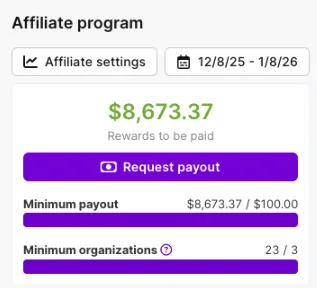
The Request payout button is replaced with the following text: Payout requested. Payment is being processed.
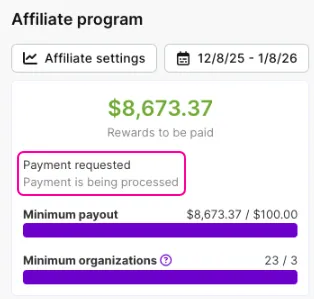
You will receive email notifications when the payout is requested, when the payout is approved, and if there is problem making a payment to your Wise account.
View your Wise account information
Make stores your Wise account information and uses this information to send your commission.
To view your Wise account information:
Go to the Affiliate dashboard.
Click Affiliate settings.
A window opens displaying your current Wise account information. Click Close to close the window without changing your saved information.
Update your Wise account information
To update your Wise account information:
Go to the Affiliate dashboard.
Click Affiliate settings.
A dialog opens displaying your current Wise account information. Update your Wise email, Wise account type, and Preferred payout currency.
Click Save.
The window closes and a notification appears in the lower right confirming the change.