Fix missing data errors
App modules output the BundleValidationError when the input bundle is missing the required data. For example, if you map data from a search module that didn't return any results.
When a module in your scenario outputs the BundleValidationError, you should check the reason for the error. You should consider redesigning your scenario if you can avoid the error to make your automation more robust. You can use the ifif or ifemptyifempty functions or use FilteringFiltering.
Otherwise, you will have to handle the error to keep your scenario active.
In the following examples, we will consider two situations:
- Ignore the missing data or use a placeholder.
- The missing data are not a problem. You just want to keep your scenario enabled.
- Get notified about errors and store the scenario run.
- The missing data are not acceptable. If you get the BundleValidationError, you want to check what happened in detail.
To learn more about how to approach error handling in Make you can check the Overview of error handling.
Ignore the missing data or use a placeholder
You might work with data that sometimes contains missing values. You don't need to fix them or investigate why they are missing. Your main goal is to avoid disabling your scenario.
We will use the following scenario for testing:

The scenario reads data, modifies it, and uses it for a search in the data store. One piece of data is empty, which causes the BundleValidationError in the search module.

To keep your scenario running even when the error happens, you can use the Skip error handler or Resume error handler.
- Right-click the module that is causing the error.
- Select Add an error handler.
- A pop-up appears. From the list of error handlers, select the Skip error handler.
The final scenario should look like this:

Ignore error handler in the above image has been renamed to Skip.
Get notified about errors and store the Make run
There might be scenarios you want to check closely when an error happens. You can do that with a custom error handling setup. If an error occurs in your scenario, you get an email with the error description and a link to the scenario. In addition, you store the error bundle as incomplete execution to resolve it manually.
We will use the following scenario for testing:
The scenario reads data, modifies them and uses them for search in the data store. One piece of data is empty, which causes the BundleValidationError in the search module.
To store unfinished scenario runs and get a custom email notification when an error occurs, follow these steps:
- Right-click the module that is causing the error.
- Select Add an error handler.
- A pop-up appears. From the list of error handlers, select the Retry error handler.
- A pop-up appears with the Retry error handler settings. Set automatic completion to No to always resolve the error manually. Confirm the settings with the OK button. To learn more about the Retry error handler settings, see the Retry error handler topic.
- Click the scenario settings icon and enable storing of incomplete executions.
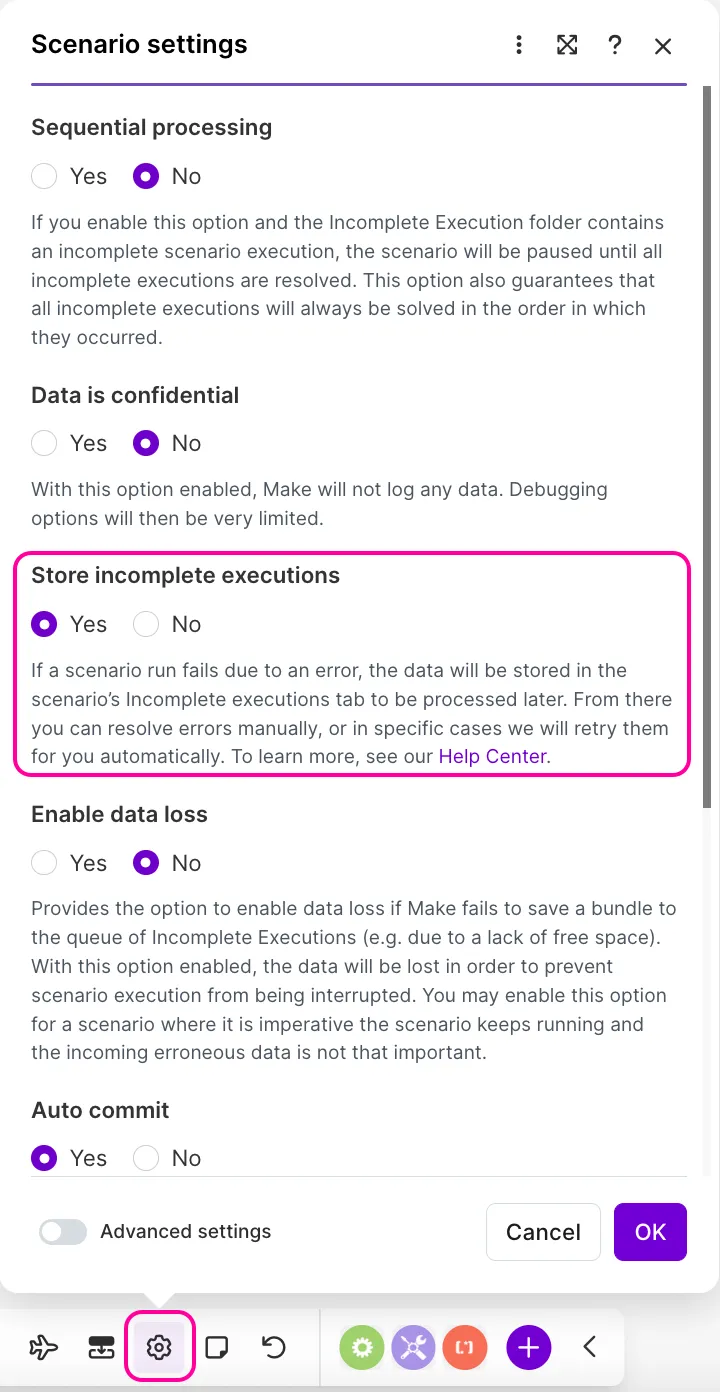
- Right-click the connection between the erroring module and the Retry error handler. Choose Add a module. Make inserts a gray module placeholder between the erroring module and the Retry error handler.
- Click the gray module placeholder and search for the Gmail app. Insert the Send an email module into the module placeholder.
- Set up the Send an email module. In the Content field, add the notification message you want to receive when an error happens. Use the Make system variablessystem variables to get the metadata. For example:

You set up error handling in your scenario to create an incomplete execution and notify you with an email when an error happens.
The example scenario with error handling looks like this:

Break error handler in the above image has been renamed to Retry.