Knowledge files for AI agents
Knowledge files are reference information that your agent uses to tailor its responses to your goals. This guide covers how knowledge files work and how to upload and manage them.
When to upload knowledge files
When you have large blocks of text that an agent must reference often, such as brand guidelines, style guides, or company policies, upload them as knowledge files. The agent stores them in its memory and retrieves only the relevant parts, reducing cost.
How knowledge files work
When you upload a knowledge file, the following happens:
- To store the file in a RAG vector database, Make splits the file into smaller text segments called chunks and converts them to vectors.
- Later, you send the agent a request related to the file.
- The agent searches the database for the chunks relevant to the request.
- To respond to you, the agent returns the most relevant chunks instead of the entire file.
Knowledge file requirements and limits
Knowledge files have the following requirements and limits:
- Supported file types: TXT, PDF, DOCX, CSV, MD, JSON
- Maximum file size: 20 MB per file
- Maximum files per agent: 20
- Maximum files per team: 100 (Free, Core, Pro), 150 (Teams), 250 (Enterprise)
- Maximum files per organization: 150 (Free, Core, Pro), 200 (Teams), 500 (Enterprise)
- Maximum file storage period: Make deletes files after 180 days of inactivity (if your agent hasn't queried them)
Upload knowledge files
You have two main ways to upload knowledge files: manually in the Make AI Agent (New) app or AI Agents tab, or automatically with the Knowledge app in a scenario:
- Manually upload files for a quick setup, and for files that rarely change, such as company guidelines or style guides.
- Upload files with the Knowledge app in a separate scenario for files that regularly change, such as knowledge bases or contact lists.
Manually upload files in the Make AI Agent (New) app
To manually upload a file in the Make AI Agent (New) app:
In the Scenario Builder, hover over the plus icon of the Make AI Agent (New) > Run an agent (New) module, and click Knowledge.
In Agent knowledge, click Upload files.
Click Choose file to select a file to upload.
Click Save.
Optionally, to edit the file description, click the pencil icon next to your file and make your changes.
Click Save.
Toggle Advanced settings for optional file settings.
In Search query, specify a search query that the agent uses to find information in your file, or allow the agent to decide the query.
In Limit, specify the number of results (relevant chunks of the file) the agent returns, or allow the agent to decide the number.
Click Save.
You've now manually uploaded a file in the Make AI Agent (New) app.
Manually upload files in the AI Agents tab
To manually upload a file in the AI Agents tab:
Go to AI Agents on the left sidebar, then to Knowledge files.
Click Upload files in the top-right corner.
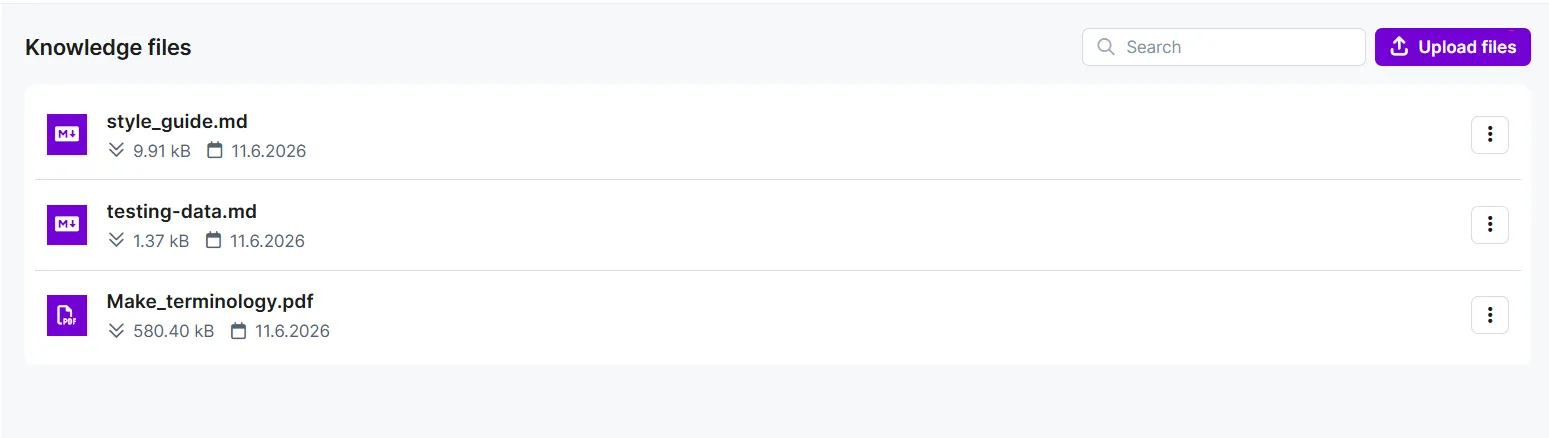
Click Choose file to select a file, or drag and drop the file.
Click Upload.
You've now manually uploaded a file in the AI Agents tab.
Automatically upload files in the Knowledge app in a separate scenario
To upload a file in the Knowledge app in a separate scenario from the AI agent scenario:
In a new scenario, add a module that watches for files and one that downloads files.
Add the Knowledge > Upload knowledge module after it.
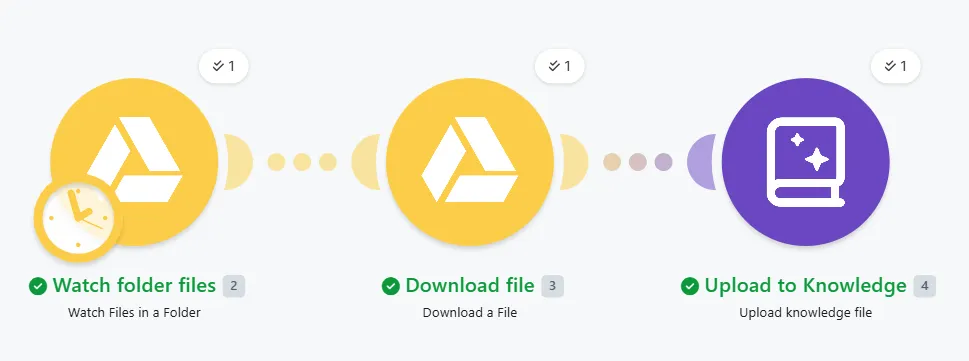
In the Upload knowledge module settings, map the file name and data from the download file module.
Click Run once.
You've now uploaded a file in the Knowledge app. To regularly update the file with its newest version, replace the Upload Knowledge module with an Update Knowledge module.
Manage knowledge files
You can download, edit, update, and delete your existing knowledge files in AI Agents > Knowledge files.
Download files
To download a file:
Go to AI Agents on the left sidebar, then to Knowledge files.
Click the three-dot menu next to the file you want to download.
Select Download.
You've now downloaded a file.
Edit files
To edit a file's name and description:
Go to AI Agents on the left sidebar, then to Knowledge files.
Click the three-dot menu next to the file you want to download.
Select Edit.
Add a new file name and description. The name must include underscores after each word, for example, "Company_terminology."
Click Save.
You've now edited a file's name and description.
Update files
To update a file (replace an existing file with another one):
Go to AI Agents on the left sidebar, then to Knowledge files.
Click the three-dot menu next to the file you want to replace.
Select Update.
Click Choose file to select a file to upload, or drag and drop a file.
Optionally, in Description, edit the AI-generated file description, or select Regenerate description for AI to generate a new one.
Click Update.
You've now updated a file.
Delete files
To delete a file:
Go to AI Agents on the left sidebar, then to Knowledge files.
Click the three-dot menu next to the file you want to delete.
Select Delete, then confirm the deletion.
You've now deleted a file.