Scenario version control
When you work on scenarios, changes don't always go as planned. You might need to undo edits, return to a working state, or troubleshoot after updates. You can use these version control features in the Scenario Builder:
- Save a version to save a version of a scenario with a description
- Version history to review and restore previously saved versions
- Scenario recovery to retrieve unsaved changes after unexpected session interruptions
These features help you build, edit, and maintain your scenarios.
When to use version control
Save a version of your scenario in these cases:
- Building or expanding a scenario
When you create or modify a scenario, you might experiment with different routing logic, modules, filters, or mappings. Save a baseline version before you experiment. You can then test changes safely and revert if something doesn't work.
- Fixing a broken automation after changes
Updates to modules, filters, or mappings can cause a scenario to stop working or produce incorrect results. This is particularly important if the scenario supports critical business processes. Restore a version from when the scenario worked correctly to fix the problem quickly, then investigate the cause later.
- Rolling back unwanted changes
Save versions regularly so you can restore a previous state if you accidentally delete a module, filter, or tool, or change module settings or mappings.
- Working in a team
When multiple team members work on the same scenario, different users can save changes. Version history shows who made updates and what changed, so you can restore a previous version if needed.
Save a version
You can save a version of a scenario with a description, and find it later in Version history.
To save a version:
Open a scenario.
In the toolbar, click the arrow next to Save and select Save a version.
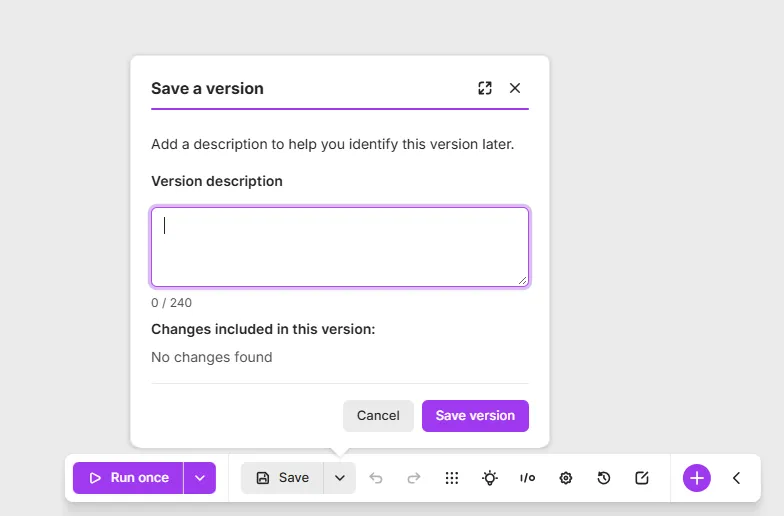
Alternatively, press Ctrl + Shift + S (Windows) or Cmd + Shift + S (Mac).
In the Version description field, enter a description. This step is optional, but recommended if you want to easily identify the version later.
Click Save version.
Make stores each saved version for 60 days, except the latest version, which it keeps until you save a newer one.
You can find saved versions in Version history in the toolbar.
Edit a version description
To change the description of a saved version:
Open a scenario.
In the Version field, select the version.

In the Version field, select the version.
Click the pencil icon next to the description.
Edit the description, then confirm.
Click Cancel to close, or click Restore version to also restore the version.
You've now updated the version description.
Restore a version
Use Version history to access and restore saved scenario versions. Each version in the list shows its description, the name of the user who saved it, and the date and time.
To restore a saved version of your scenario:
Open a scenario.
In the toolbar, click the Version history icon.
In the Version field, select the version you want to restore.
Click Restore version.
In the toolbar, click Save to save the scenario with the restored version.
You've now restored a previous version of your scenario.
Make doesn't save the restored version automatically. After you restore a version, save the scenario manually to keep it, as described in step 5.
Recover a scenario
Scenario recovery retrieves unsaved changes to a scenario from a blueprint that Make saves automatically in the background while you work in the Scenario Builder.
When to recover scenarios
Recover a scenario to retrieve changes you didn't save manually after an unexpected session interruption, such as a browser crash, an internet disconnect, a power outage, or an accidentally closed tab.
When you reopen a scenario, Make compares the latest automatically saved blueprint with the latest manually saved version. If they differ, Make prompts you to recover the most recent changes.
Scenario recovery is not an autosave feature. It only retrieves unsaved changes after a session interruption. After you recover the changes, you must save the scenario manually.
Retrieve unsaved changes from a blueprint
To retrieve unsaved changes from an automatically saved blueprint:
Open a scenario.
If the scenario is new and you never saved it, click +Create scenario.
If Make detects unsaved changes, the Recover unsaved changes? dialog appears with:
- A list of changes
- A scenario preview
- The date of the latest blueprint version
Click Recover.
A Changes recovered message appears in the bottom-right corner.
In the message, click Save scenario, or click Save in the toolbar, to keep the recovered changes.
You've now recovered and saved your unsaved changes. The recovered scenario appears in Version history.
Restore a recovered scenario from Version history
If you close the Recover unsaved changes? dialog or click Not now:
- The recovered blueprint stays in Version history temporarily.
- Make permanently deletes it when you manually save a new scenario version.
If you continue editing without saving the recovered scenario and another interruption occurs, a new blueprint overwrites the previous one.
To avoid losing your changes, recover and save the scenario as soon as you reopen it.
To restore a recovered version from Version history:
In the toolbar, click the Version history icon.
In the Version field, select the latest version marked Recovered.
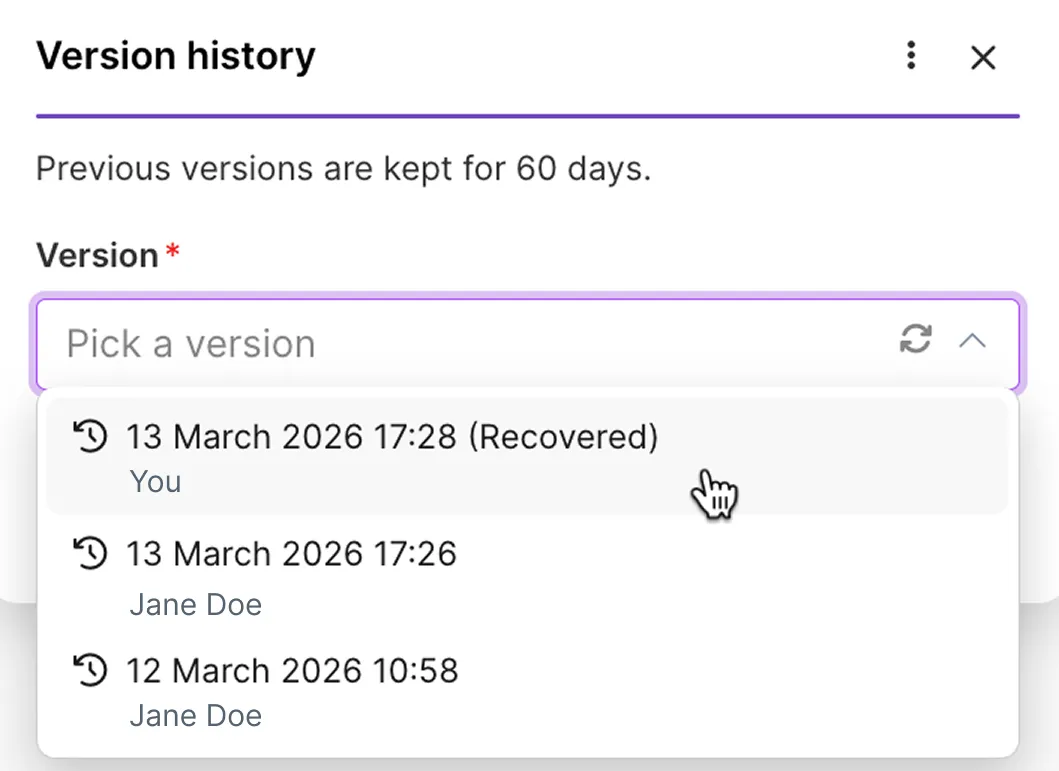
Click Restore version.
In the toolbar, click Save to save the scenario from the recovered version.
You've now restored and saved the recovered version. You can find it in Version history.
Save the scenario after you restore a recovered version. Otherwise, you lose the recovered changes.