View module run data
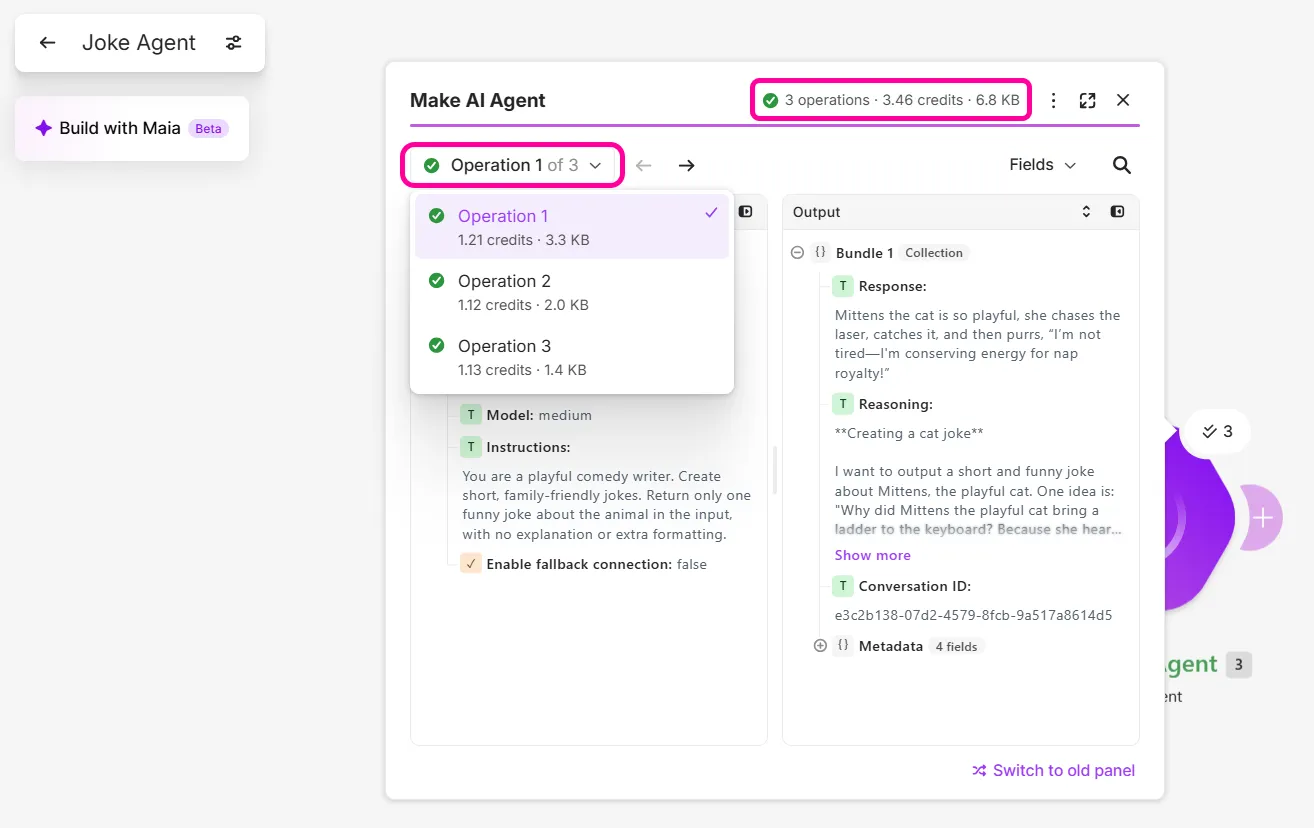
After running a scenario or module, use the module run panel to check what a module received and returned. This panel shows inputs and outputs of each operation, data transferred, credits used, and reasoning (when applicable).
To open it:
- In the Scenario Builder, run a scenario or module.
- Click the output bubble above the module you want to inspect.
The panel shows one operation at a time. During a scenario run, the data shown updates automatically as operations finish.
Interact with the module run panel
Here's how you can interact with the panel.
Change the data view
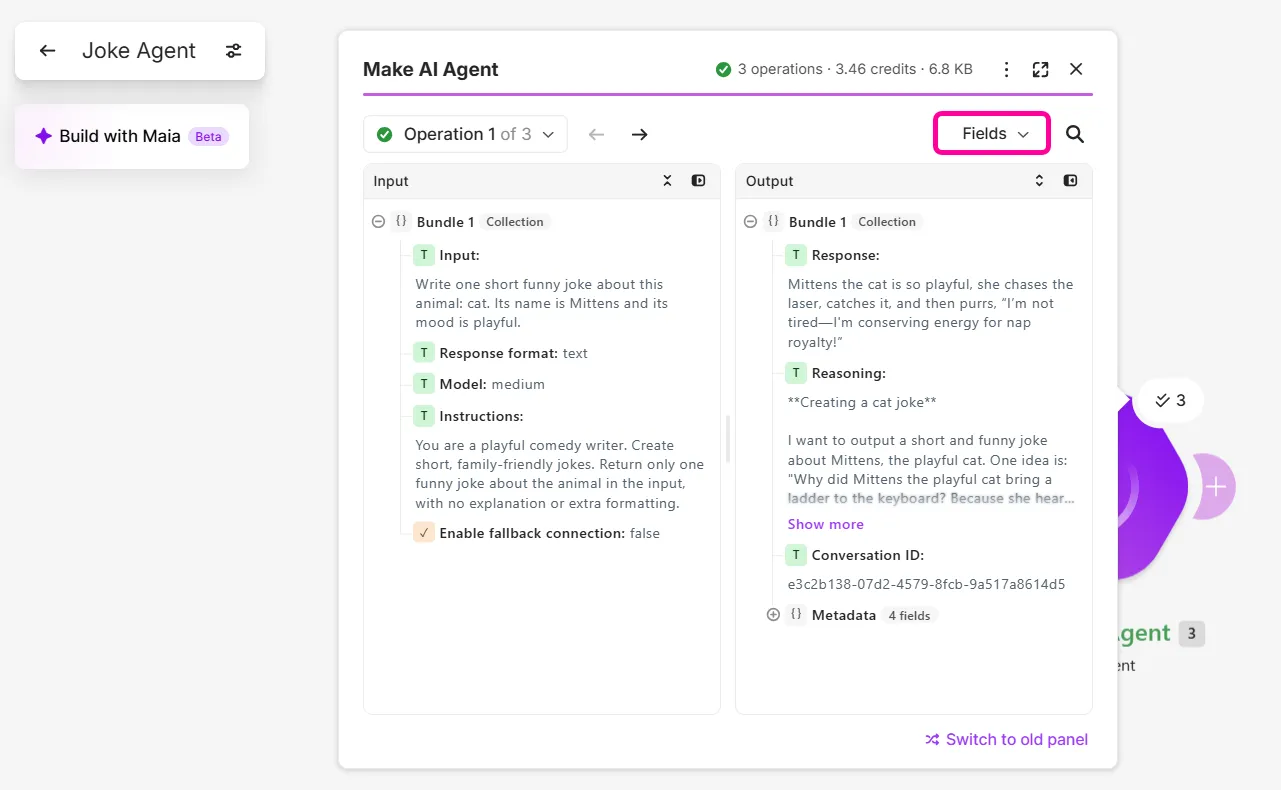
Click the dropdown at the top right of the panel to choose how the data appears:
- Fields: Shows data as labeled fields, grouped by bundle.
- JSON: Shows the raw JSON of the bundles.
- Reasoning: Shows the instructions, input, and the steps the AI model took, for each operation or all operations. This option only appears for modules using an AI model that supports reasoning.
Switch operations
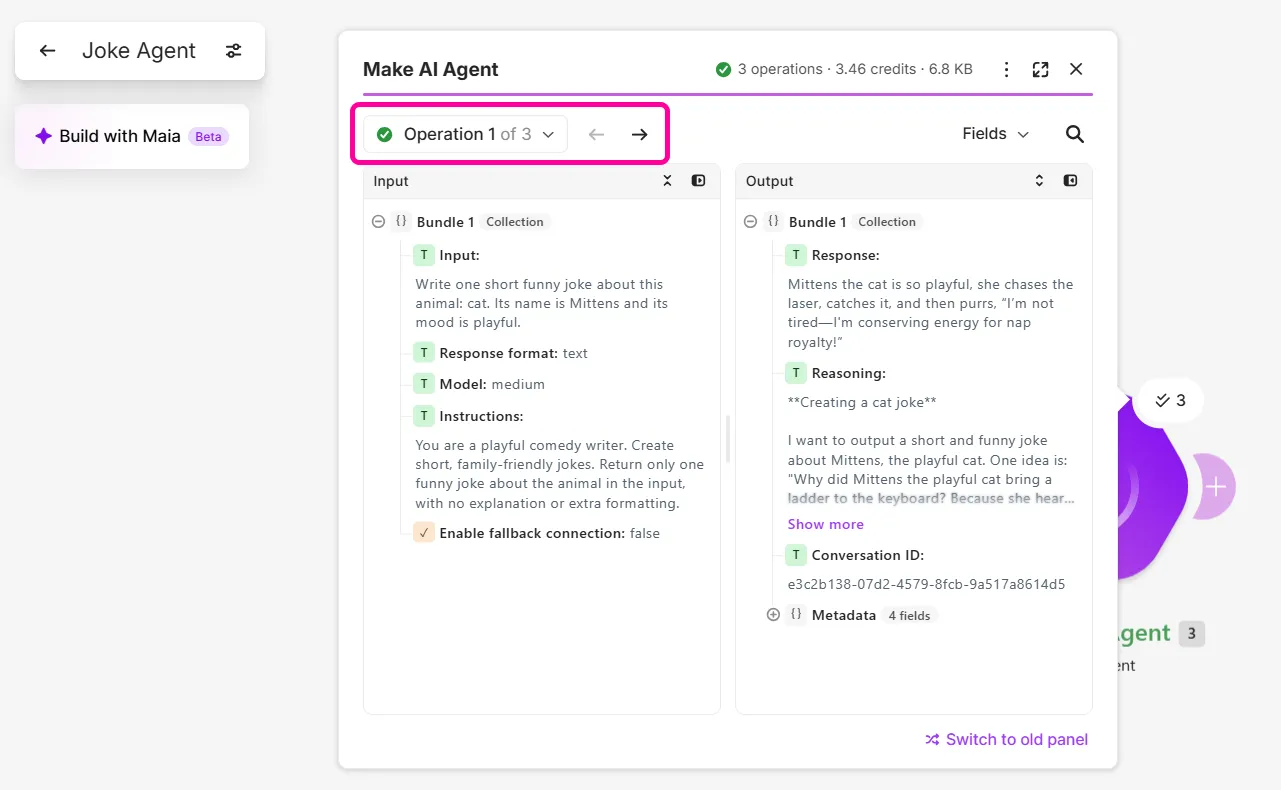
Click the operation dropdown at the top and select an operation, or use the left and right arrows.
Expand or collapse data
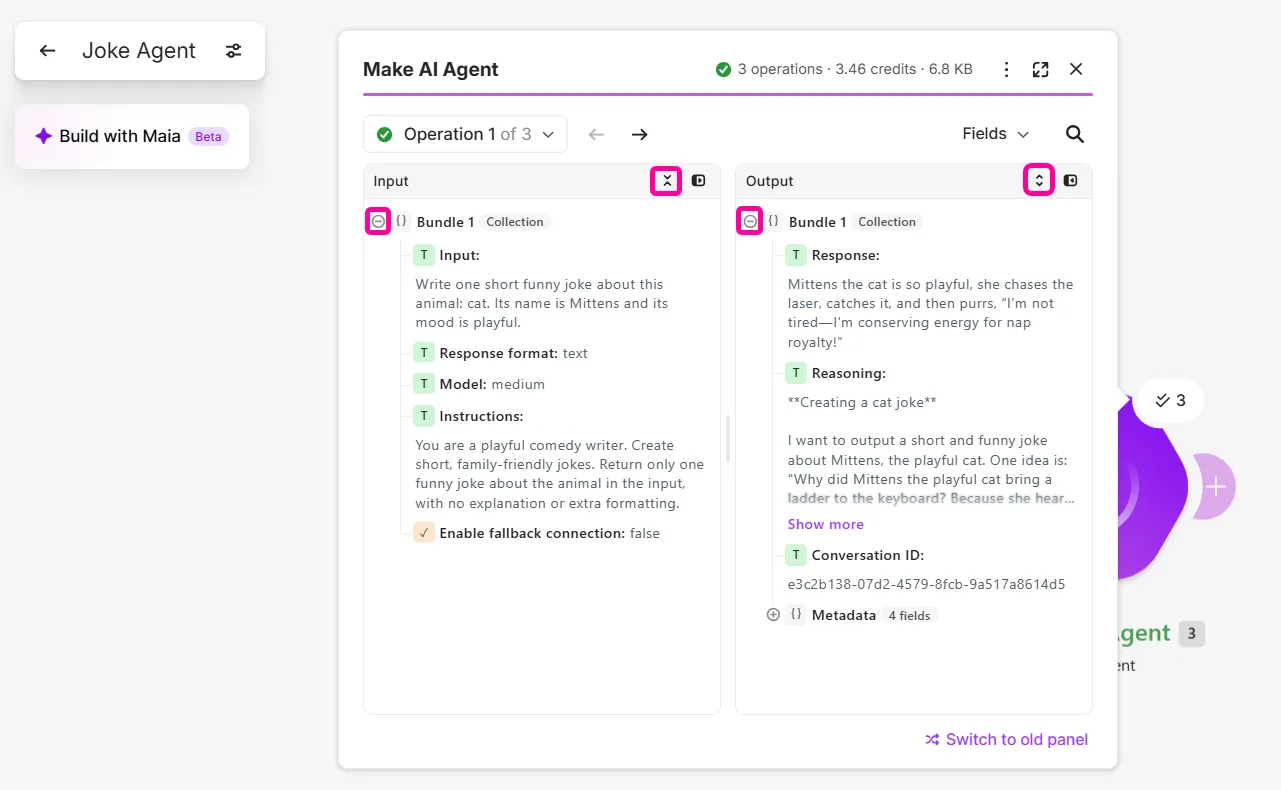
Click the expand or collapse icons on or below an Input or Output header.
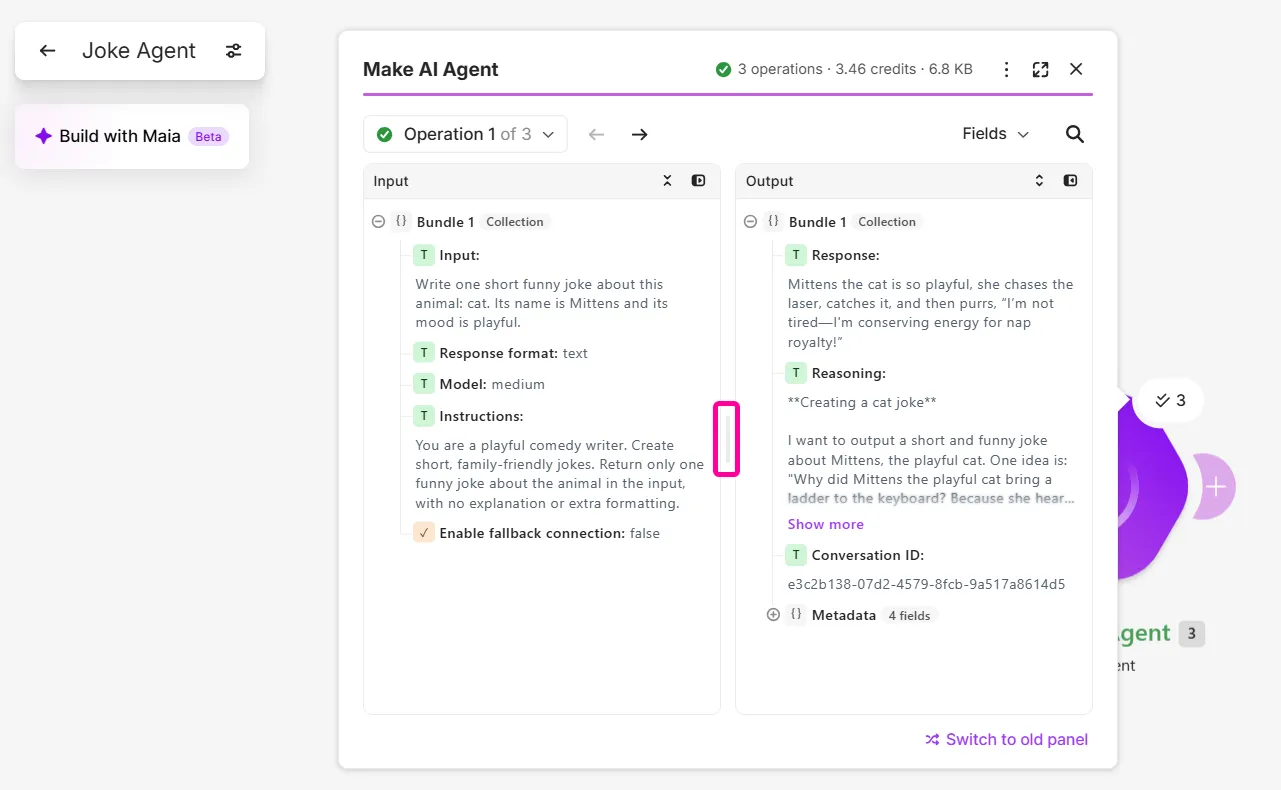
Resize Input and Output panels
Drag the divider between Input and Output panels.
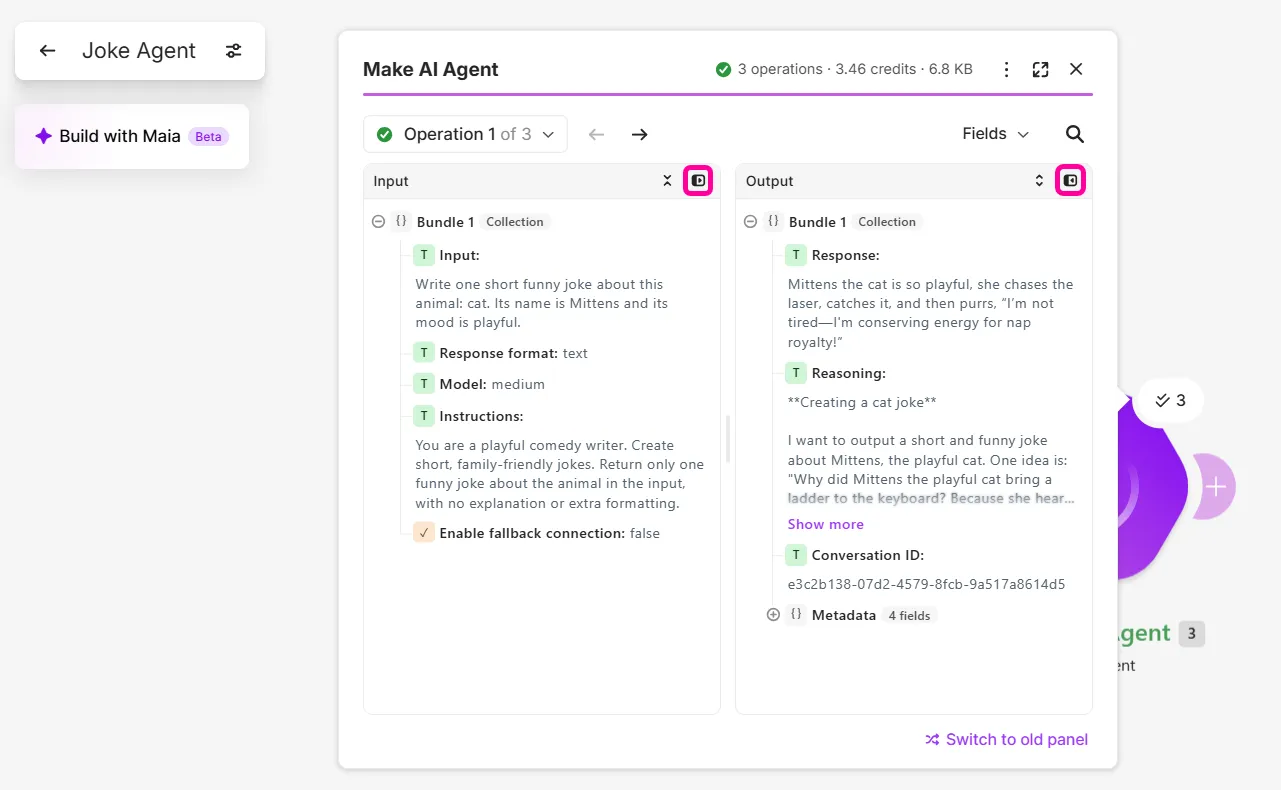
Focus on a specific Input or Output panel
Click the icon on the right side of the Input or Output header.
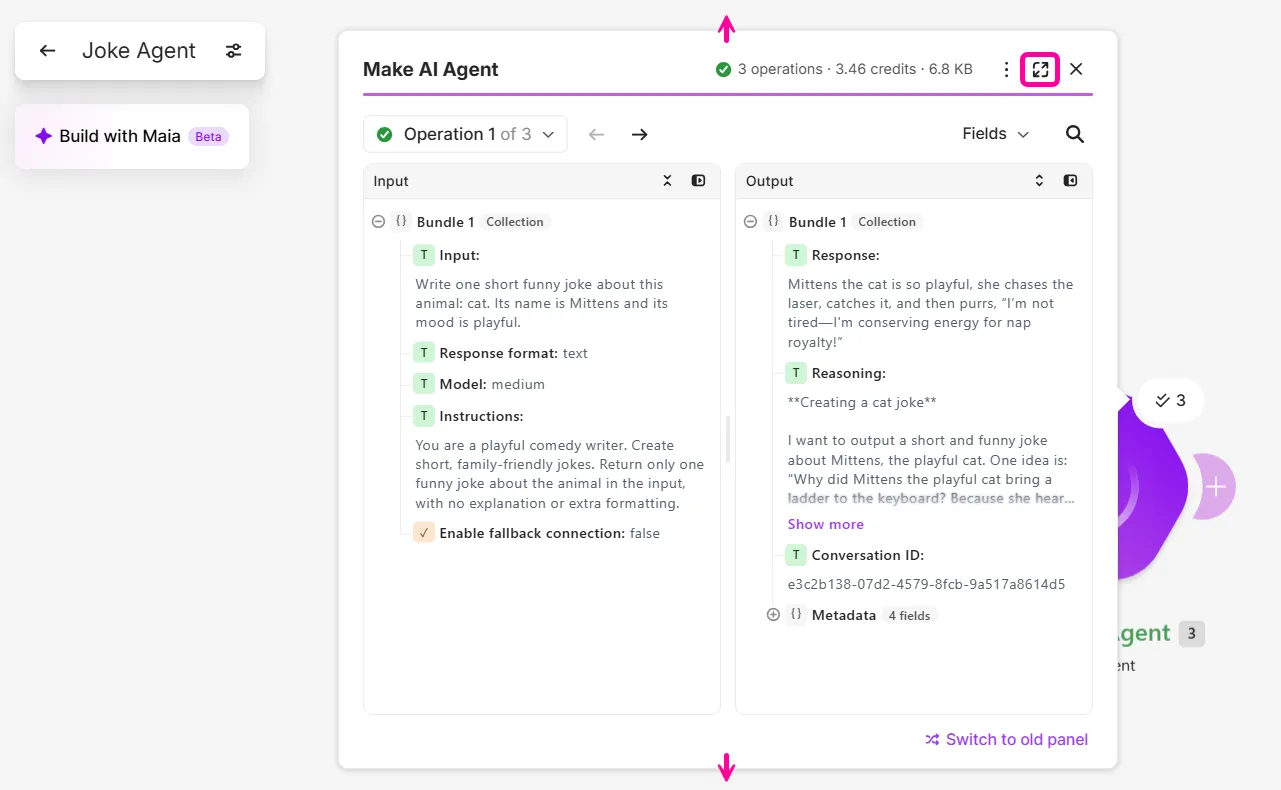
Resize the panel
Drag the sides of the panel, or click the expand icon in the panel header.
Search inputs and outputs
To search for input and output values across all operations:
Click the search icon on the top left, or enterCmd/Ctrl + F.
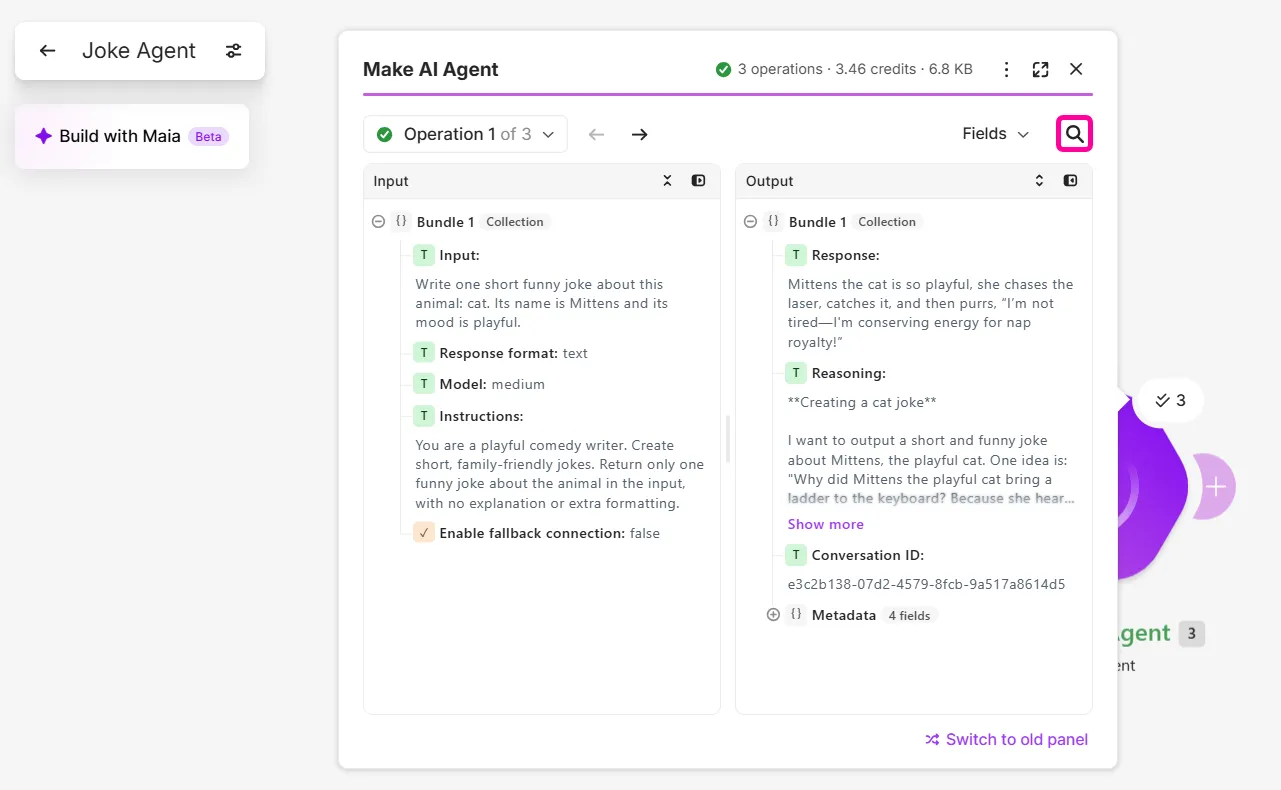
Enter your search term.
Optionally, select Input or Output to limit the results by type.
Click a result to view it.
Copy or download data
You can copy and download all data or specific fields and bundles.
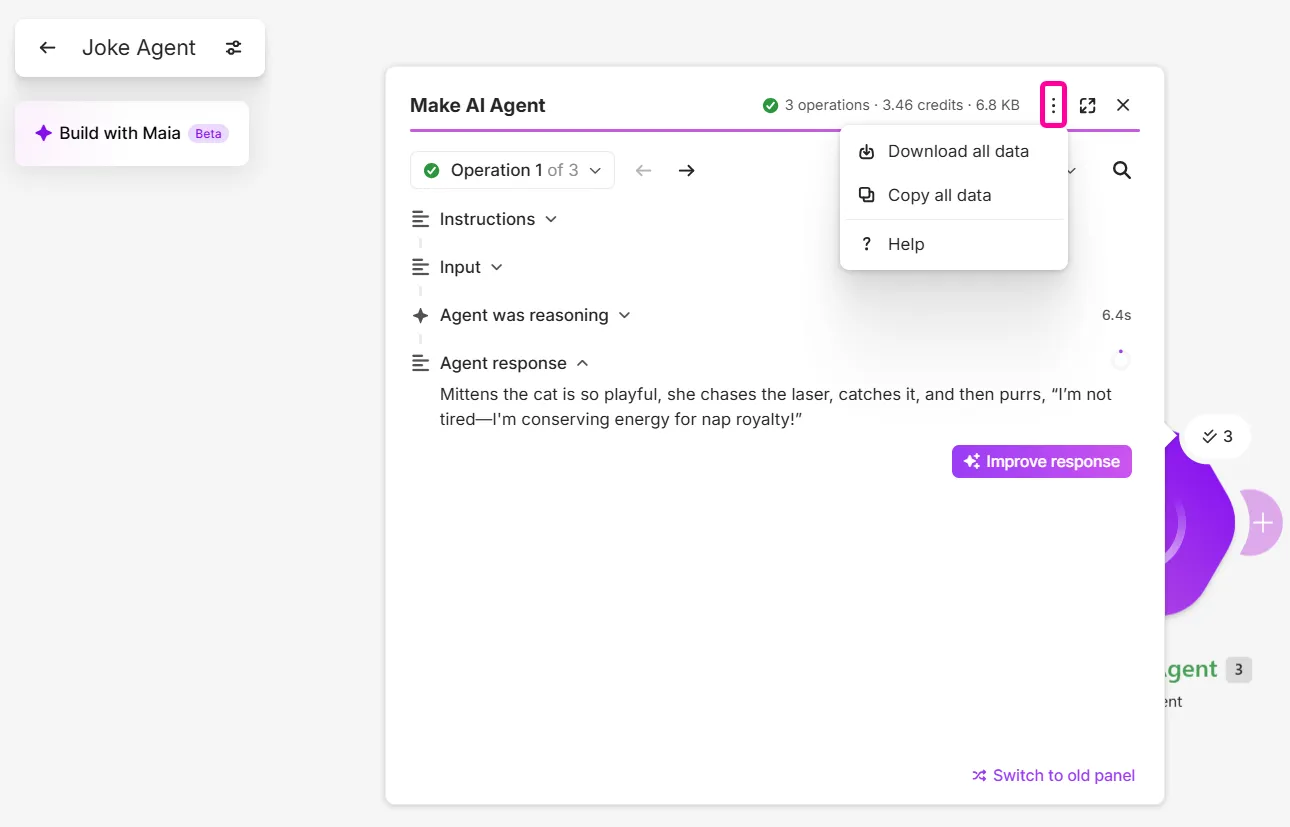
To download or copy all data, click the three-dot menu on the panel header.
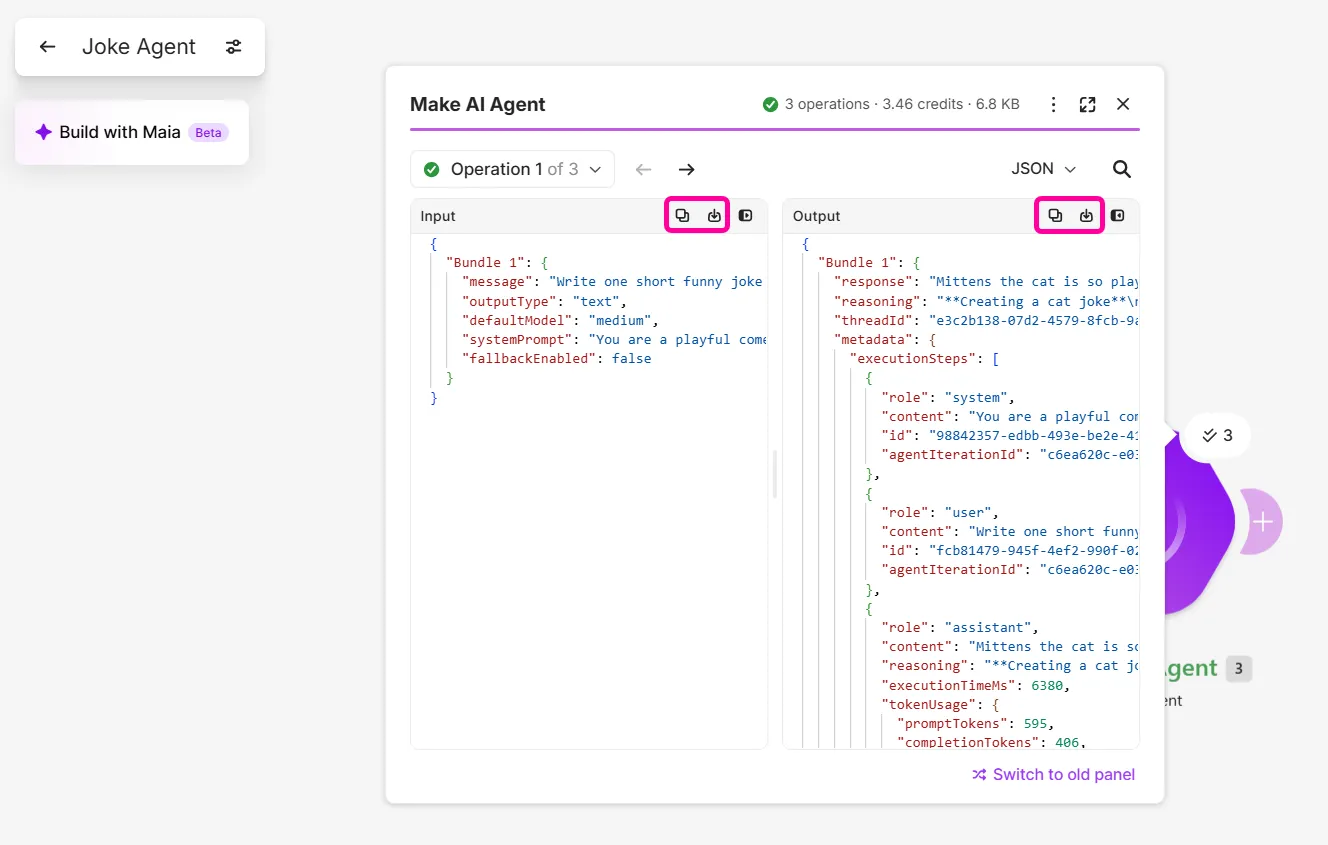
In the JSON view, on the Input and Output headers, click the copy and download icons to copy and download bundles.
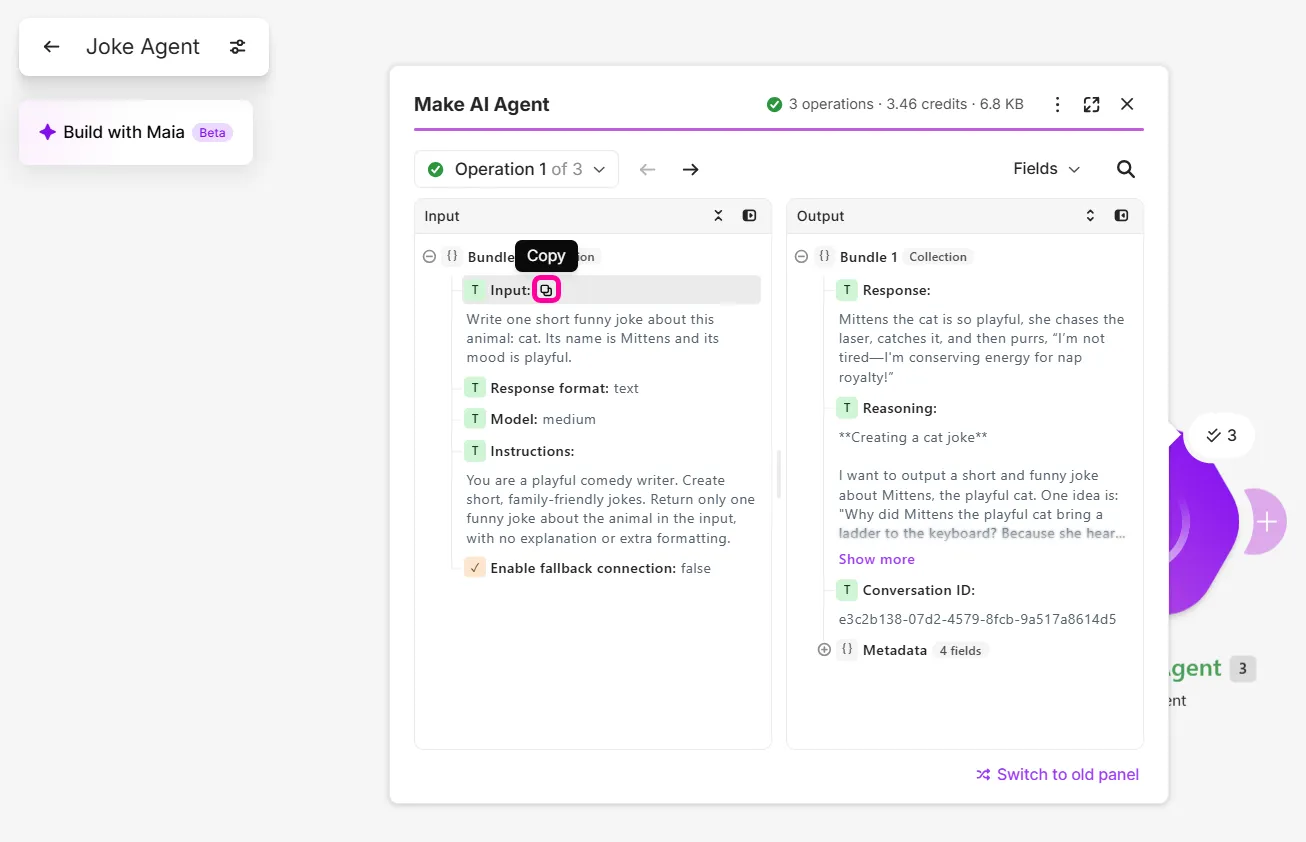
In the Fields view, hover over a field, and click the copy icon to copy field input.
Check credit usage
The panel header shows you the total number of credits used in the the module run. Hover over the operation dropdown to view credits used per operation.