If-else and Merge
Use the If-else module with the Merge module when you need to split your scenario into conditional paths, follow only one path based on your logic, and then reconnect the flow into a single route.
This differs from a Routerrouter that runs all routes and can't be reconnected.
If-else module
The If-else module splits your scenario into conditional routes. Only the first condition that evaluates as true runs. If no conditions are true, the Else route runs.
Structure your conditions from most specific to least specific to ensure that the correct route runs. You can add any number of conditions.
The If-else module requires one conditional route and one else route. These routes can't be unlinked from the If-else module and the last module can't be deleted.
After setting up your routes, you can keep them separate or use a Merge module to bring them back together and continue the flow.
To add an If-else module to your scenario, see Add an If-else moduleAdd an If-else module.
While an If-else module and a Routerrouter can both split a scenario into different paths with conditions, the scenario run process differs.
If-else module | Router |
|---|---|
Splits the scenario into multiple routes with conditions | Splits the scenario into multiple routes with conditions |
Runs the first condition that passes as true | Runs all conditions in the set order |
Routes can be merged back together with a Merge module | Routes can't be merged back together |
The If-else module uses operations but does not consume any credits.
Merge module
The Merge module reconnects the conditional routes created by an If-else module into a single flow. It passes data from the active route to any subsequent modules in your scenario.
The Merge module only works with an If-else module. You can't add it to a scenario without first setting up an If-else flow.
To add a Merge module to your scenario, see Add a Merge moduleAdd a Merge module.
The Merge module uses operations but does not consume any credits.
Add an If-else module
The If-else module splits the scenario flow into multiple routes with conditions.
To add an If-else module:
In your scenario, click the plus to add another module.
Search for the Flow Control > If-else module.
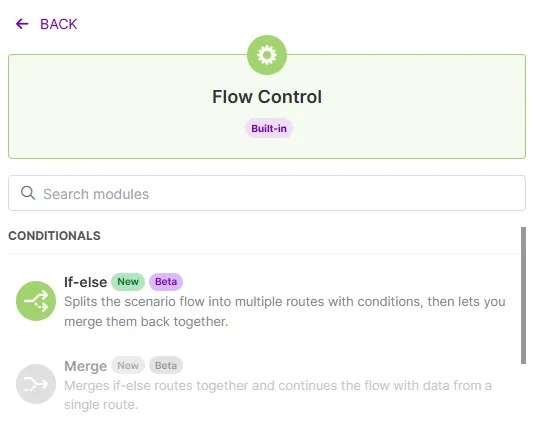
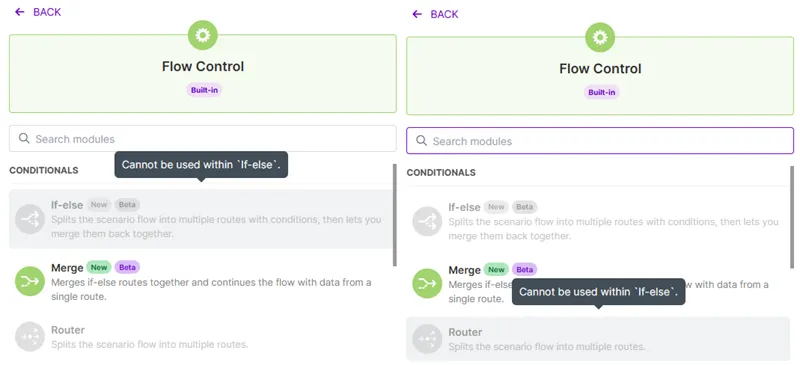
The Merge module is not available to add to your scenario until after an If-else flow has been set up.
After adding the If-else module, you will see a default setting of two paths, one condition route and an else route.
Set the condition:
- Label: Name the condition.
- Condition: Enter or map the values for the condition. Add additional rules as needed.
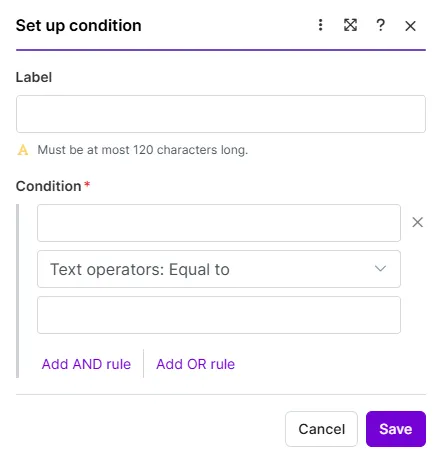
Click Save to save this condition.
To add another condition route, hover over the If-else module until you see the white + symbol and click.
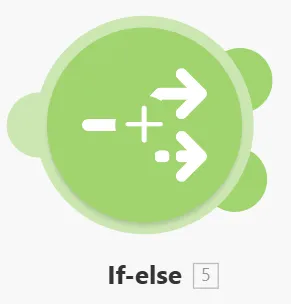
Another condition route is added every time you click.
Set the values for each condition and click Save.
Optional: Click the Else filter and enter a Label.
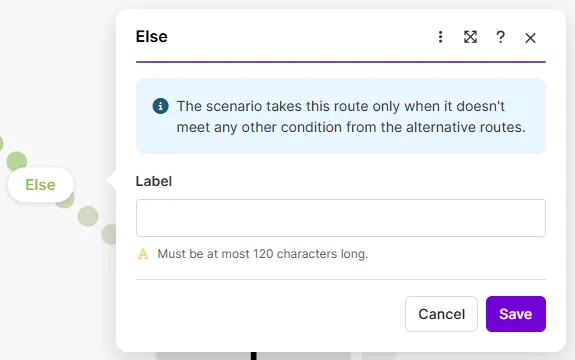
Click Save.
After you've set all of the conditions, continue to add modules to your scenario as needed to complete each route.
You can keep each route separate or add a merge module to bring the routes together and continue the flow.
Restrictions to the If-else flow
You can't add a Router module or another If-else module into the flow after an If-else module.
Add a Merge module
The Merge module merges the If-else routes together and continues the flow with data in a single route.
The Merge module can only be used after an If-else module.
To add a Merge module:
At the end of any route, click the plus to add another module.
Search for the Flow Control > Merge module.
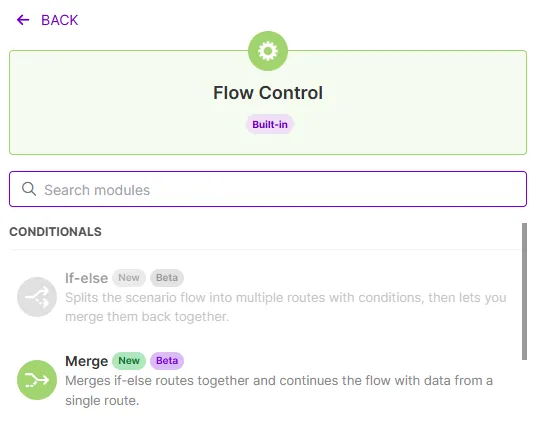
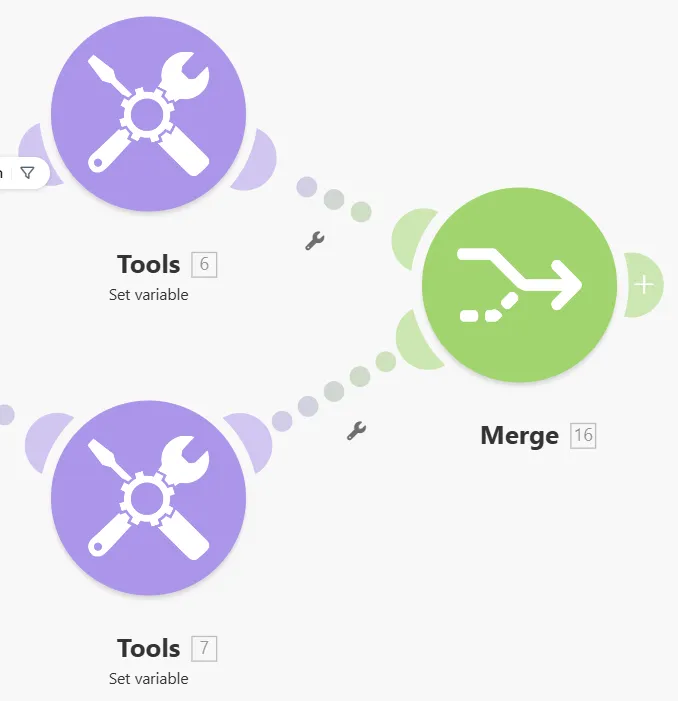
Click and hold the Merge module icon to drag and connect it to all routes in the If-else flow.
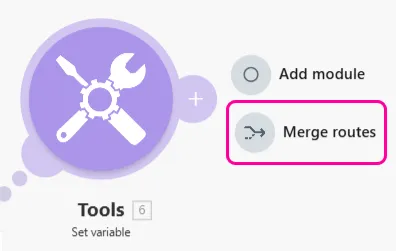
You can also merge the routes by clicking the plus sign at the end of any route and selecting Merge routes.
Enter or map the following values for your Merge module output:
- Output name
- If 1st condition is true > Output value
- Else > Output value
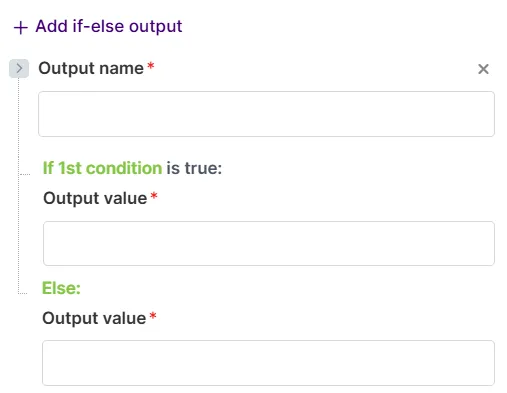
Add additional if-else outputs, if necessary.
Click Save.
The Merge module is connected to the If-else flow and the scenario flow can continue after the merge.
If a condition route does not include a module and you connect the route to the Merge module, Make displays a Do Nothing module. While this route does not include any modules, data passes through.
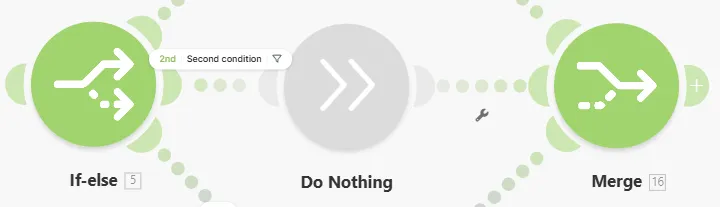
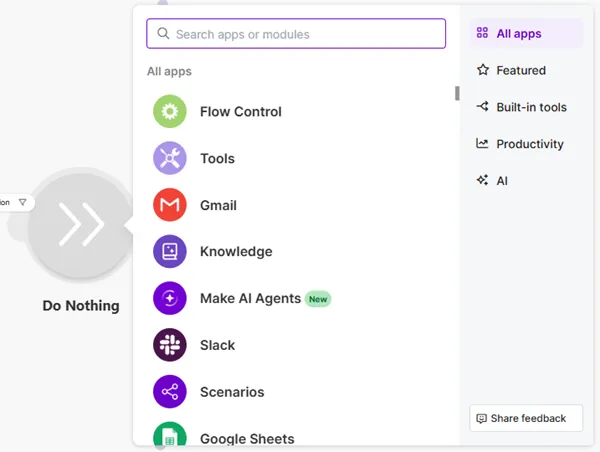
To replace the Do Nothing module with a different module, click the Do Nothing module and search for your required app.
Delete modules from the If-else and Merge flow
To delete an If-else module, right-click and select Delete.
This removes the module and all its conditions. This action can't be undone.
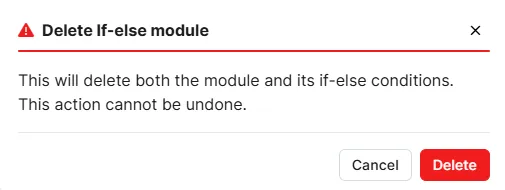
Any remaining modules after the deleted If-else module will show an error until you reconnect them to the scenario flow.
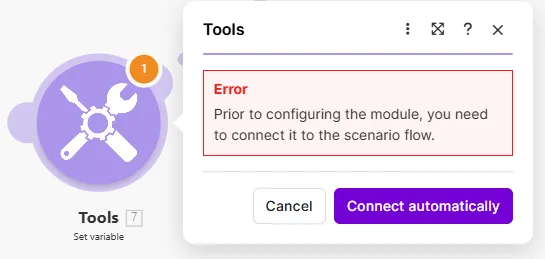
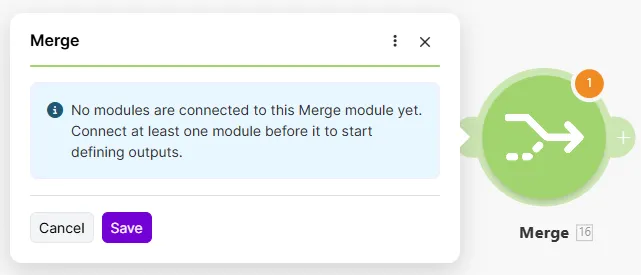
If you delete modules before the Merge module, the Merge module will show an error. Connect at least one module before configuring its outputs.
Nested If-else & Merge
The Nested If-else and Merge feature lets you build multi-level decision logic within a single scenario. Instead of spreading related conditions across separate Router chains, you can place an If-else module inside a branch of another If-else keeping your logic in one visual flow and making it easier to review and maintain. A sample scenario for Nested If-else and Merge can be found here.
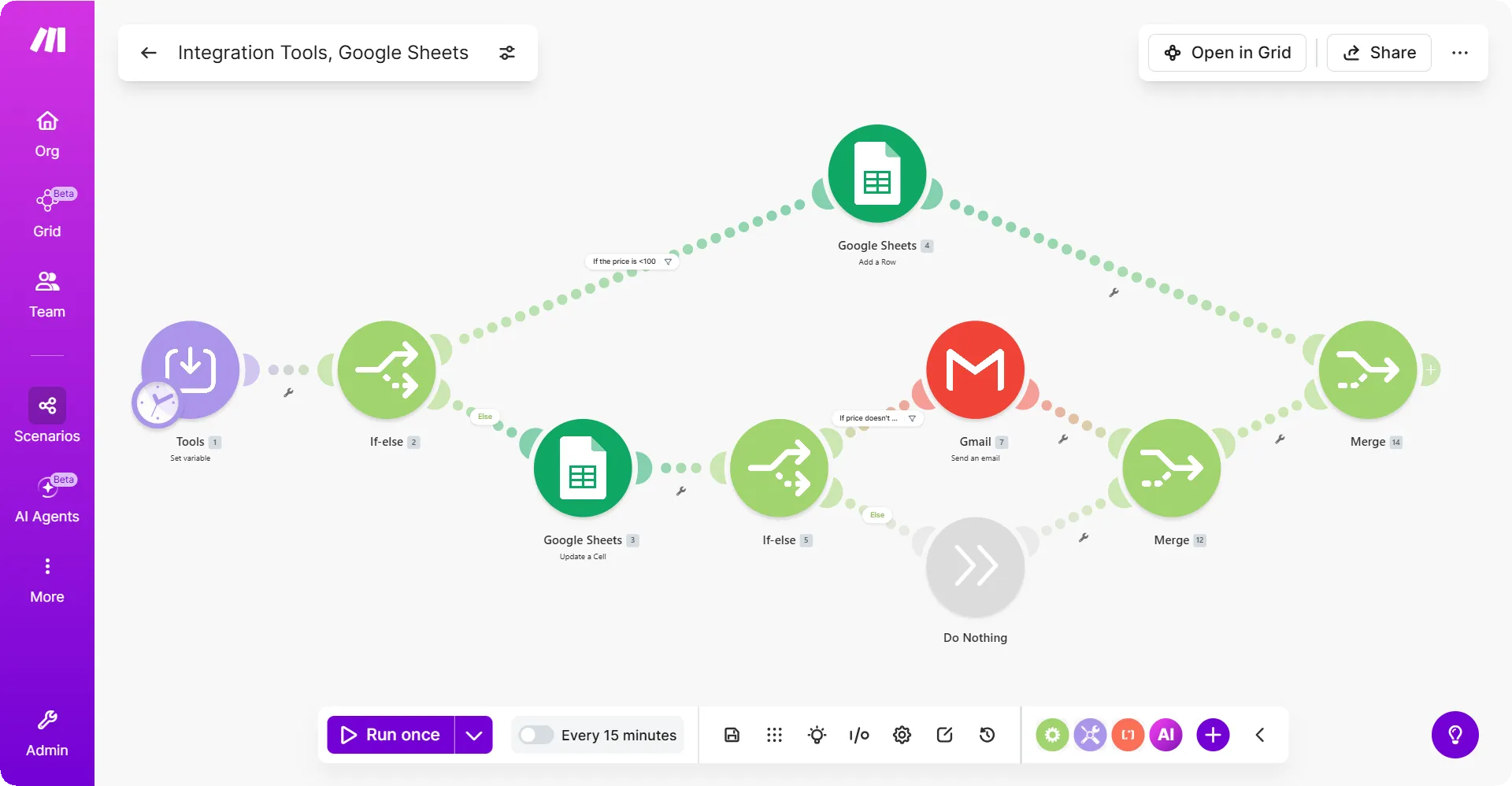
When you add an If-else module inside an existing If-else branch, Make treats the inner module as a self-contained decision level. Each nested If-Else has its own Merge module, which closes that decision level before the outer flow continues.
Adding a nested If-else and Merge branch:
- Open your scenario and add an If-else module where you want the top-level decision.
- Inside the If or else branch, add another If-else module.
- Configure the inner module's condition and connect any modules that should run in its branches.
- Add a Merge module to close the inner If-else.
- Continue building the outer branch after the inner Merge.
- Add a Merge module to close the outer If-else.
Each If-Else must have its own Merge module. Make uses the Merge to determine where each decision level ends, so mismatched or missing Merge modules can cause unexpected routing.
In this tutorial, you'll build a scenario that automatically sorts expense report submissions into two paths: immediate approval for low-value expenses, and a Slack notification for expenses that need manual review. All submissions are logged in Google Sheets with their approval status.
You will need:
- A Tally form to submit expense information. Your form should include the following fields: first name, last name, date of expense, description of expense, and amount.
- A Slack account, to receive notifications of expenses that need additional review for approval.
- A Google Sheet file with the following column titles: First Name, Last Name, Date of Expense, Description of Expense, Amount, and Approval.
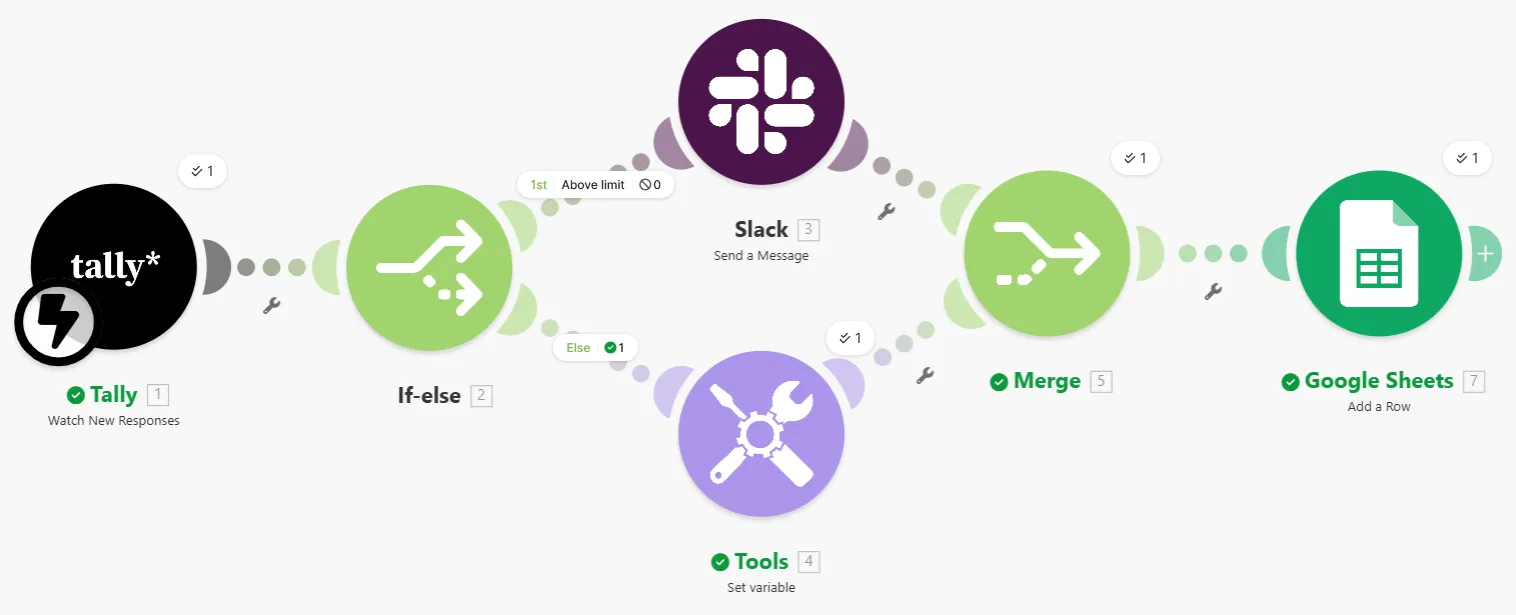
To build the scenario:
Step 1: Connect to Tally
Click the giant plus and add a Tally > Watch New Responses module.
Click Create a webhook. Enter a webhook name and connect to your Tally account.
In the Form ID field, select the expense report form you created in Tally.
Click Save to save the webhook, then Save again to save the module settings.
Your scenario is now connected to Tally and triggers when a new form is submitted.
Step 2: Set the If route conditions and configure the flow
Add an If-else module and set the first condition, an expense report value that is above the automatic approval limit. In this example, expenses of $100 or more are above the limit.
- Label: Above limit
- Condition: Map the Tally field for the amount of the expense and set the condition to great than 100.
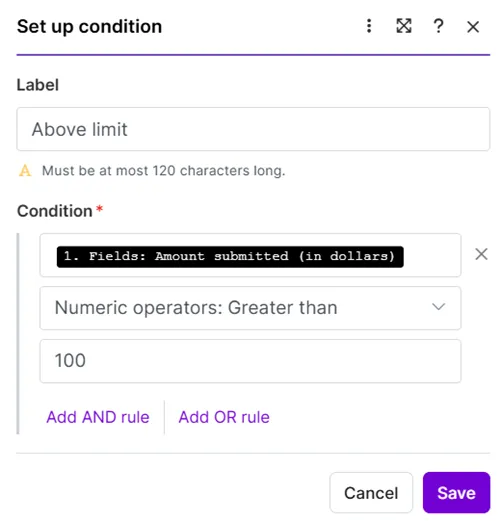
Click Save.
In this first condition route, add a Slack > Send a Message module.
Create a connection to your Slack account and select the ID of the person to receive the messages. Your configuration may differ, depending on your Slack setup.
In the Text field, enter the message to send regarding the expense report. You can map data from the Tally form in the message. In this example, the first and last name of the person who submitted the expense report is included.
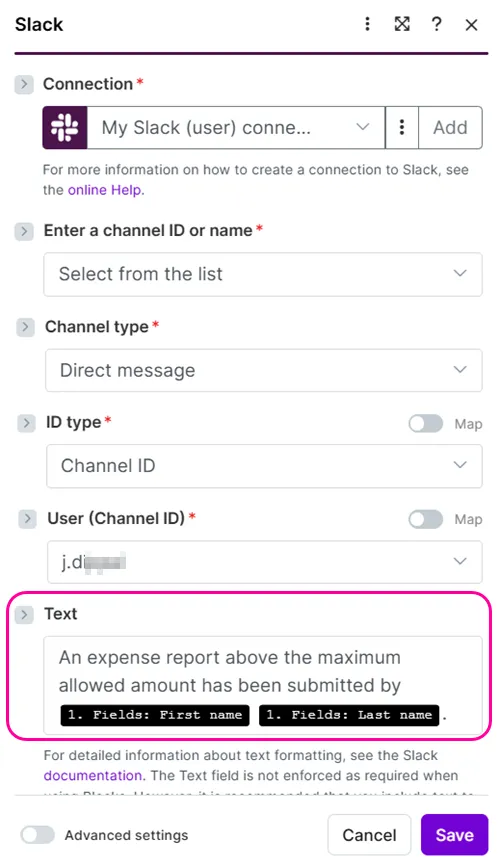
Click Save.
The If condition route identifies expense report submissions that are $100 or more and sends a Slack message notifying the recipient.

Step 3: Configure the Else route flow
Click the Else route condition and in the Label field enter a name. Click Save.
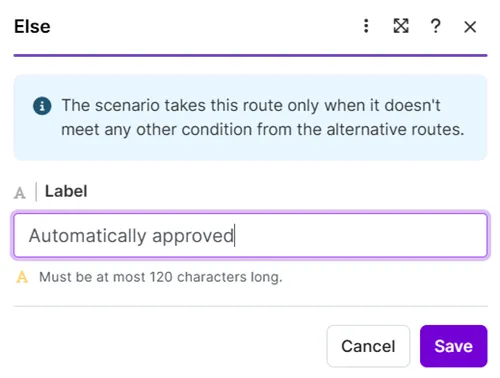
Add a Tools > Set variable module.
- Variable name: Enter a name for the variable to indicate the status of the approval.
- Variable value: Enter a value for the variable, to show that the expense report is already approved in this route.
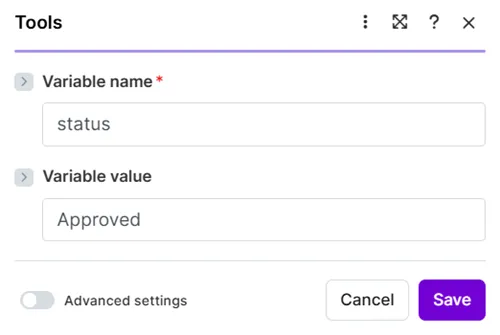
Click Save.
The Else route is configured to identify expense reports that are under the $100 limit and mark them as approved.
Step 4: Merge the conditions and continue the flow
After either of the routes, add a Flow Control > Merge module.
Click and hold the Merge module icon to drag and connect it to all routes in the If-else flow.
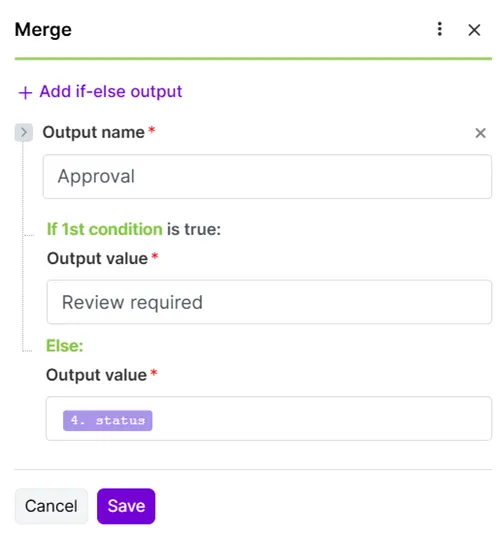
Click the Merge module and enter or map the following values for your merge output:
- Output name: Approval (to match the field in the Google Sheets file)
- If 1st condition is true > Output value: Review required
- Else > Output value: Map the value of the variable set in the Else route, status
Click Save.
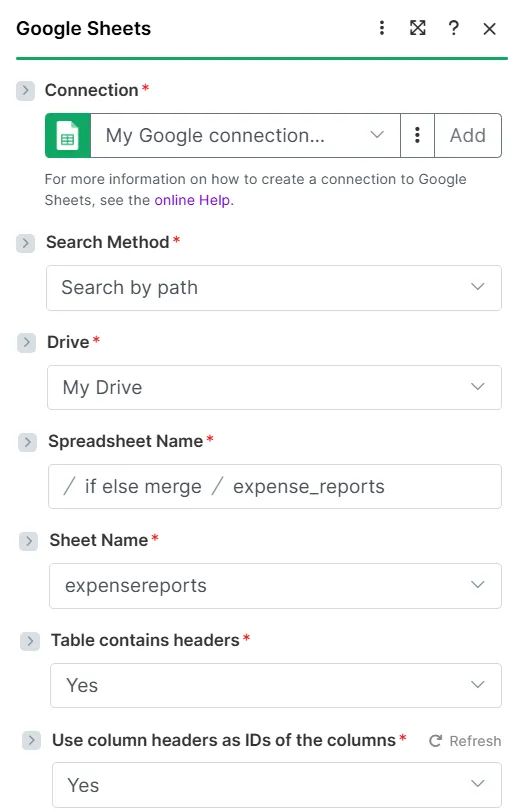
Add a Google Sheets > Add a row module. Create your connection to your Google account and select the Google Sheets file you created.
Your values will vary based on where you saved your file, your file name, and the sheet name within the file.
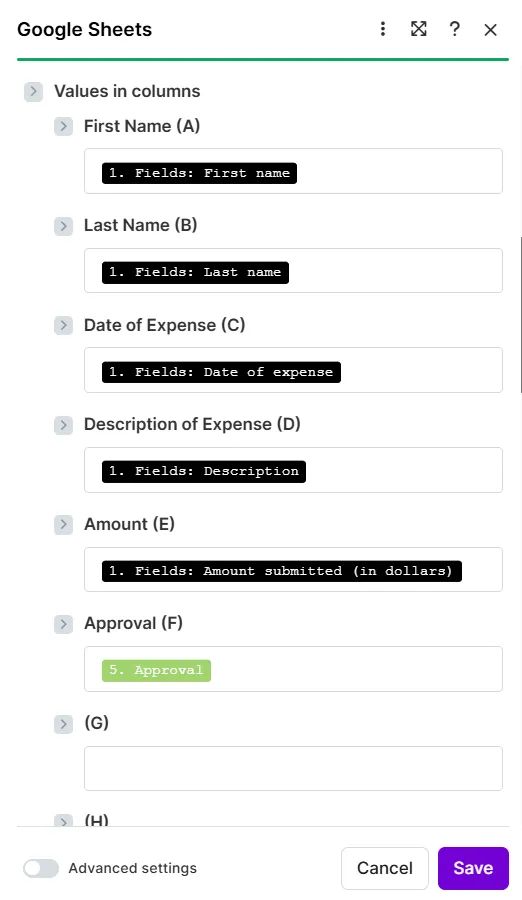
For each Google Sheets column, map the Tally form data and the Merge module output:
- First Name: First name
- Last Name: Last name
- Date of Expense: Date of expense
- Description of Expense: Description
- Amount: Amount submitted (in dollars)
- Approval: Approval
Click Save.
Click Save and save your scenario.
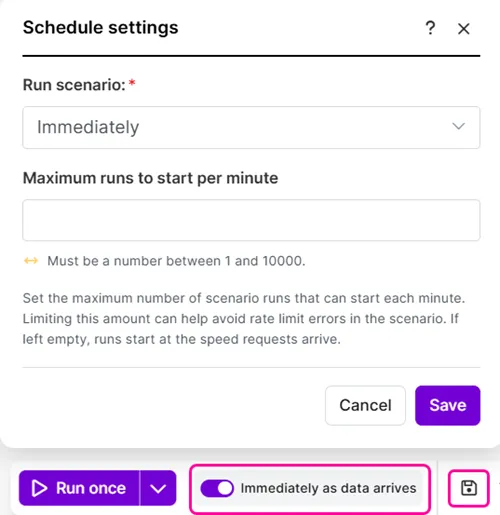
When ready, schedule your scenarioenario to run. Since your scenario starts with a webhook module, the default setting is to run immediately when data arrives.
When an expense report is submitted, the information is saved in the Google Sheets file and marked with the correct approval value.
