Input files for AI agents
Input files are one-time files that the agent processes each time a scenario runs. This guide covers input file requirements and how to upload input files.
It is recommended to upload large text files and files the agent references often as knowledge files instead.
Input and output file requirements and limits
Input and output files for agents have the following requirements and limits:
- Input file supported formats: JPG, PNG, GIF, PDF
- Output file supported formats: PDF, DOCX, TXT, CSV
- Input data type: Binary data only. The agent can't read files from URLs or base64 strings.
- AI provider: Make's AI Provider, OpenAI, Anthropic Claude, or Gemini, and a model that supports files.
Refer to your provider's documentation to check file support specifics for your chosen model.
Upload input files
Upload files of supported types to your agent in Input files in the Make AI Agent (New) > Run an agent module.
Input file is from a download file module
To upload supported files from a dedicated download file module, such as Telegram Bot > Download a File or Google Drive > Download a File:
In the Scenario Builder, before the Make AI Agent (New) > Run an agent module, add modules that watch an app and download files from it.

Click the Make AI Agent (New) > Run an agent module to open its settings.
In Input files, select the download file module.
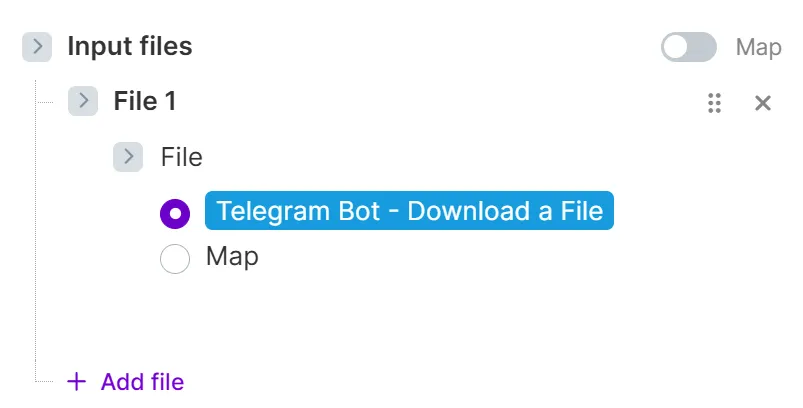
You've now uploaded an input file to your agent.
Input file is a value from an output bundle
If an earlier module outputs a value as part of a bundle that you want to use as an input file, map the value directly:
In the Scenario Builder, before the Make AI Agent (New) > Run an agent module, add modules that return the output value you want to map.
Click the Make AI Agent (New) > Run an agent module to open its settings.
In Input files, toggle Map and map the output from the previous module to use as an input file.
You've now mapped a value in Inputs files so the agent can use it.
Convert unsupported formats
The agent accepts input files as binary data only. If your file is in another format, convert it before mapping it in the Make AI Agent (New) > Run an agent module.
Convert files from URLs
To pass a DOCX or other unsupported file from a URL to your agent, convert it to text using an AI app such as Make AI Content Extractor.
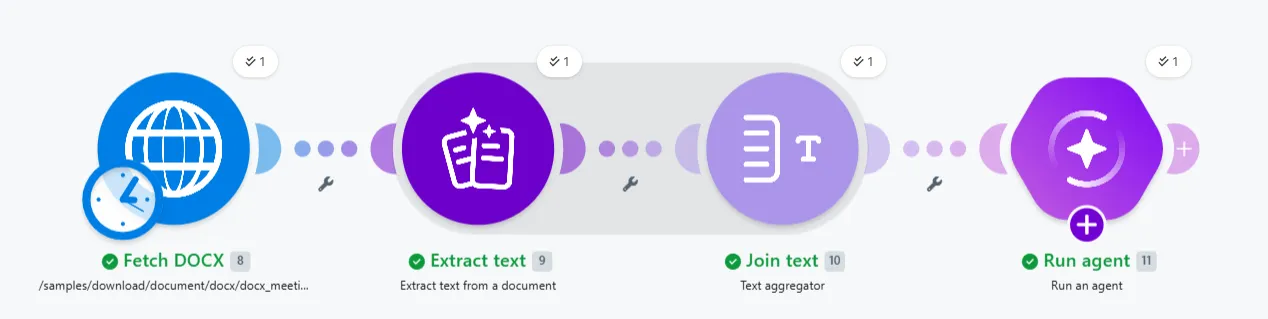
To convert a DOCX URL to text with Make AI Content Extractor:
In the Scenario Builder, add a download file module, such as an HTTP > Download a File module.
Add the Make AI Content Extractor > Extract text from a document module and open its settings.
In Document source, select File.
In File, select or map the file from the HTTP module.
Add a Text aggregator module and open its settings.
In Text, map the Text value from the output of the Extract text from a document module.
Add the Make AI Agent (New) > Run an agent module.
In Input, map the text value from the Text aggregator module.
You've now converted a DOCX file to text so the agent can use it as input.
Convert files from base64 strings
To pass a file from a base64 string into an AI agent, convert it to binary using the toBinary() function.
To convert a base64 string to binary:
If the string starts with a prefix such as data:image/png;base64, remove the prefix.
In the Make AI Agent (New) > Run an agent module, in the Input files field, convert the string with the following function:
toBinary(yourBase64String; "base64")You've now converted a base64 string to binary, so the agent can use it.