Locked connections
By default, every member of a team can view, use, edit, and delete the team's connections and keys. When you lock a connection or key you own, only you can edit, reauthorize, or use it in scenarios. Your teammates can’t edit or reauthorize it, but anyone whose role includes the permission to delete connections and keys can still delete it. Your teammates can still open and run scenarios that already use it, so you can share scenarios without sharing your credentials.
Locking is useful when a connection points to sensitive credentials, such as a personal Gmail account or a production API key.
Locked connections work within a shared team. If you need full isolation, use Private spacesPrivate spaces instead.
This page covers how to lock and unlock a connection or key, what your teammates can and can't do with it, and what admins can see.
Lock a connection or key
Only the owner of a connection or key can lock it. You can lock a connection when you create it in the scenario, or later from the Connections list.
You can lock a connection or a key using either of these two methods:
- From inside the scenario builderInside the Scenario Builder
- From the connections listFrom the connections list
Lock a connection from the scenario builder
To lock a connection while building a scenario:
In the scenario builder, add a module and click Add next to Connection.
From the Team access drop down, select Locked.
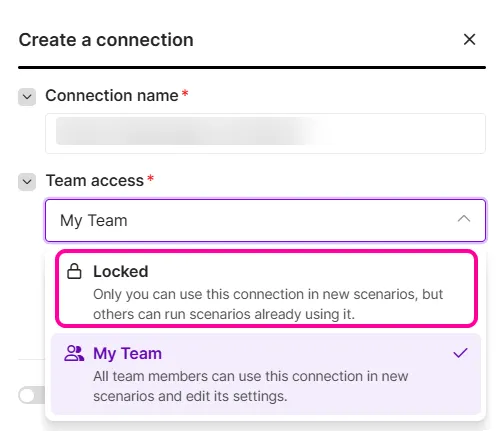
Enter the connection details and authorize the connection.
Click Save.
You've now created a locked connection.
Lock a connection from the connections list
To lock a connection or key that already exists:
In the left sidebar, click Credentials > Connections.
Next to the connection or key you own, click the three dots and select Lock.

In the Lock this connection dialog box, click Lock connection.
You've now locked the connection. Locked connections show a Locked label, and the owner's name appears below the connection name.
Unlock a connection or key
You can unlock a connection or key at any time. To unlock it:
In the left sidebar, click Credentials > Connections.
Next to the connection or key you own, click the three dots and select Unlock for everyone.

You've now unlocked the connection. It's available to the whole team again.
What teammates can do with a locked connection
When a scenario already uses your locked connection, your teammates can:
- Open the scenario.
- Run the scenario.
- View outputs and bundles.
- Map data from the module's output.
- Move the module on the canvas.
- Delete a module that uses the connection, if they can edit the scenario
In modules that use the locked connection, the connection still appears in the Connection dropdown, so teammates can tell which connection the module uses.
What teammates can't do with a locked connection
Your teammates can't:
- View or select your locked connection when they add a new module, in an existing scenario or a new one. The connection appears in the dropdown only in modules that already use it.
- Edit the settings of modules that already use it. These modules are frozen, but you can still delete them.
- Edit or reauthorize the connection. Only the owner and users whose role includes the permission to delete connections and keys can delete it.
Unblock a frozen module
If you're a teammate and a module is frozen because it uses someone else's locked connection, you have two options:
- Replace the connection: Select your own connection in the frozen module's Connection dropdown. This can't be undone. Once you save the scenario, the locked connection can't be put back in the module.
- Ask the owner: The owner's name appears below the connection name. The owner can unlock the connection or make the change for you.
Locked connections and admins
Organization admins and team admins can view that a locked connection exists and who owns it. They can’t view its details, use it, or edit it. Admins can delete it only if their role includes the permission to delete connections and keys. To change a locked connection, ask the owner.