Teams
To control access to Make and other Make data, you can assign users to teams. Members of a team have access only to scenarios and data that belong to their team.
The following items belong to a team:
- Scenarios
- Templates
- Connections
- Webhooks
- Keys
- Devices
- Data stores
- Data structures
- Custom functions
- Credential requests
All of these items always belong to only one team. You can't change which team a particular item belongs to.
A user can be a member of any number of teams within the same organization.
Every organization must have at least one team.
Teams and organizations
Organizations are the most basic organizational unit, or container, to which all elements within Make are assigned. An organization can contain any number of teams.
You register users into an organization. Then, you assign users to teams. A user can be a member of any number of organizations and any number of teams. A user can have a different role in each team.
If you're on a plan lower than the Teams pricing plan, you can only have one team in your organization and you can't manage roles within that one team.
You can assign users to the following roles within the team:
Create a team
You can create teams inside organizations. You must be an owner or an admin of an organization to manage its teams.
In the left sidebar, click Org.
Switch to the Teams tab.
Click +Add team.
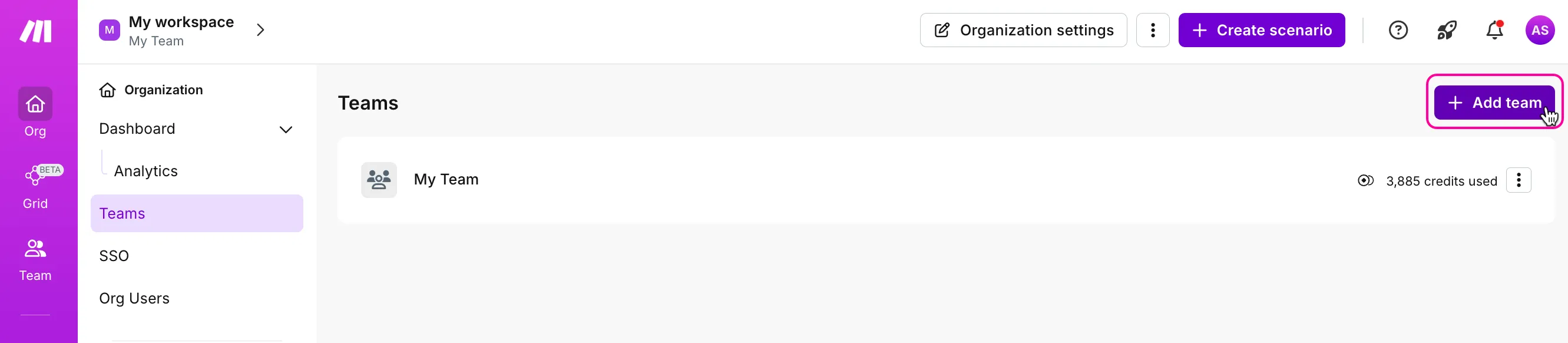
In the Add team dialog box, enter the new team's name, and click Add.
Enterprise customers can let the new team use any credits available in the organization, or set a maximum number of credits it can use. If this team reaches the established limit, their scenarios will be paused.
To set the limits, click the +Set team limit button and enter the required amount.
The new team appears in the list of teams. Click the team name or the Edit button to manage team members.
Team roles
Role | Summary |
|---|---|
Team Admin | Full access to team resources and settings, including member management, audit logs, custom functions, and team deletion. |
Team Member | Full access to team-owned resources, including creating, editing, and deleting custom functions. Cannot manage members, team settings, team audit logs, or delete the team. |
Team Operator | Read-only access to general team resources. Can activate, deactivate, and schedule scenarios. |
Team Monitoring | Read-only access to selected team information, scenarios and execution logs, templates, usage, and other monitoring resources. Cannot edit resources or operate scenarios. |
Team Restricted Member | Deprecated legacy role with broad editing access to many team resources, but no team/member administration and not every newer Team Member capability. Do not use for new assignments. |
Team Guest | Request-specific access to view, authorize, decline, revoke, or delete credential requests addressed to the user. No general access to team resources. |
Team Observer is a system-managed role that Make assigns automatically. You can't assign it manually. It gives limited read-only visibility into private spaces and doesn't grant access to scenario logs.
Owners and admins of a team's parent organization always have Team Admin permissions.
Manage teams
You can view the team's consumption of credits and data transfer, manage team members and their roles, and set up notifications.
Monitor credits and scenario executions
You can monitor credits and data transfer consumed by each team.
In the left sidebar, click Org.
Switch to the Teams tab.
Select a team.
Since scenarios always belong to teams, their execution history is also tracked for each team separately.
Manage team members
When adding users to teams, you assign team roles to the users. Roles determine what permissions users have and what users can do with the team's data.
In the left sidebar, click Org.
Switch to the Users tab.
For Enterprise users, it's an Org Users tab.
To add a user to the team, click the +Invite user button.
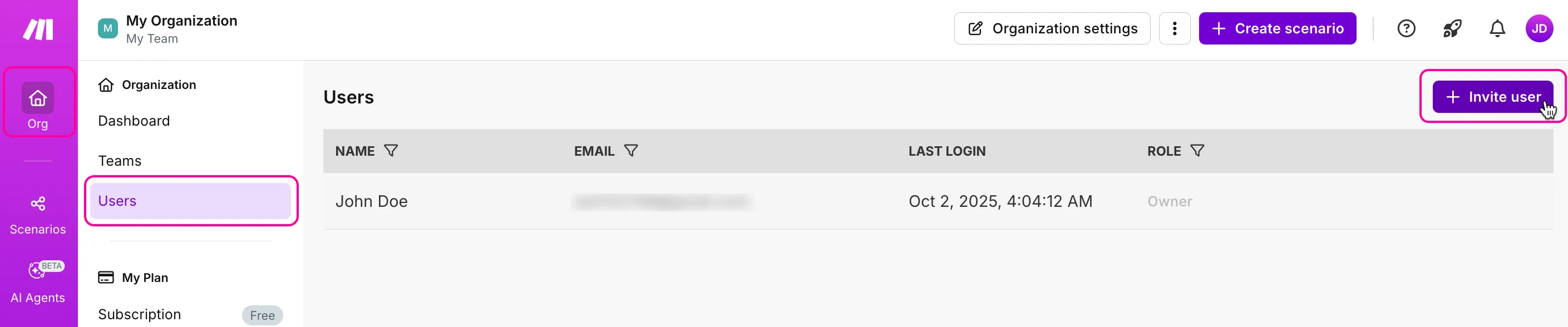
In the Invite user dialog box:
- Enter the invitee's email
- Enter the invitee's name
- Select a role from the drop-down
- Select a team
- Add a note, if necessary

Click Save.
A person will receive an email with an invitation with a button to accept the invitation.
To change a user's role, click the current role in the Role column next to their name and select a new role from the menu.
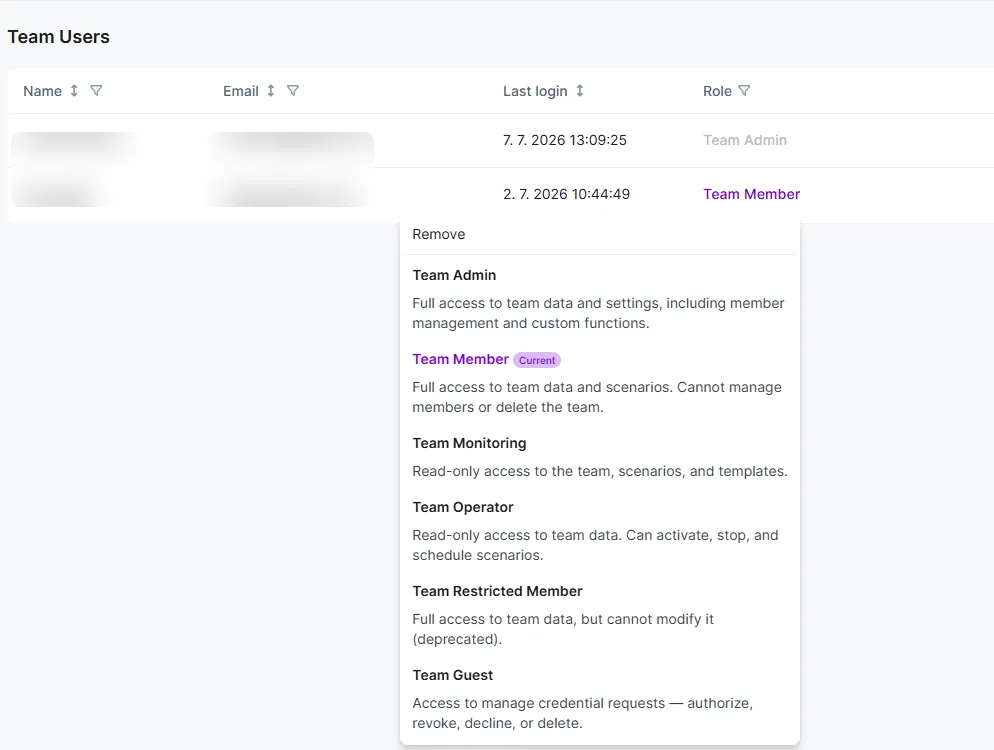
To remove a user from a team, select None from the Role menu. Make removes the user from its team role, which effectively removes the user from the team.
Manage team notification options
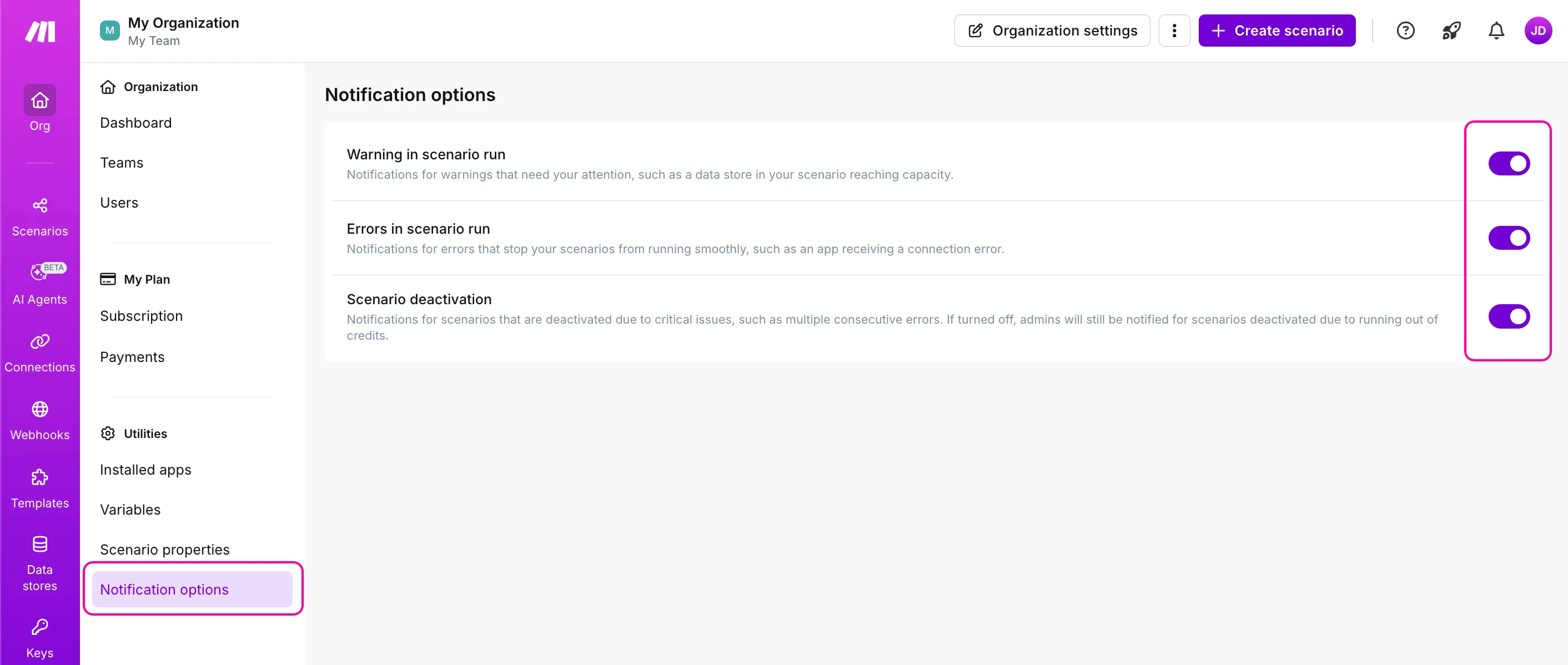
Using Notification options, you can control how Make notifies team members about warnings and errors in Make.
In the left sidebar, click Org.
Switch to the Notification options tab.
Enable or disable the toggles to switch the notifications On or Off as needed.